Sharing and publishing
Keep pages private, share them with your organization or a guest with a role, or publish a read-only link with an expiry, a password and people's names kept private.
Every page starts private: only you can see it. From the Share button you can share it with your organization, invite people one by one with a role that says what they can do, or publish a read-only link anyone can open. A published page shows the people it mentions as plain names, or as initials if you prefer, and never shows anything from your CRM.
Private and organization pages
A new page is Private ("Only people invited"). If you belong to an organization, you can choose "Everyone in" your organization instead: members can find and read it, and it moves to the Organization section of the sidebar. Organization pages need an organization, which comes with the Team plan. See Organizations.
Sub-pages follow their parent: sharing a page shares the pages inside it too.
Invite people
Open Share, type one or more email addresses separated by commas (up to 20), pick a role, and choose Invite.
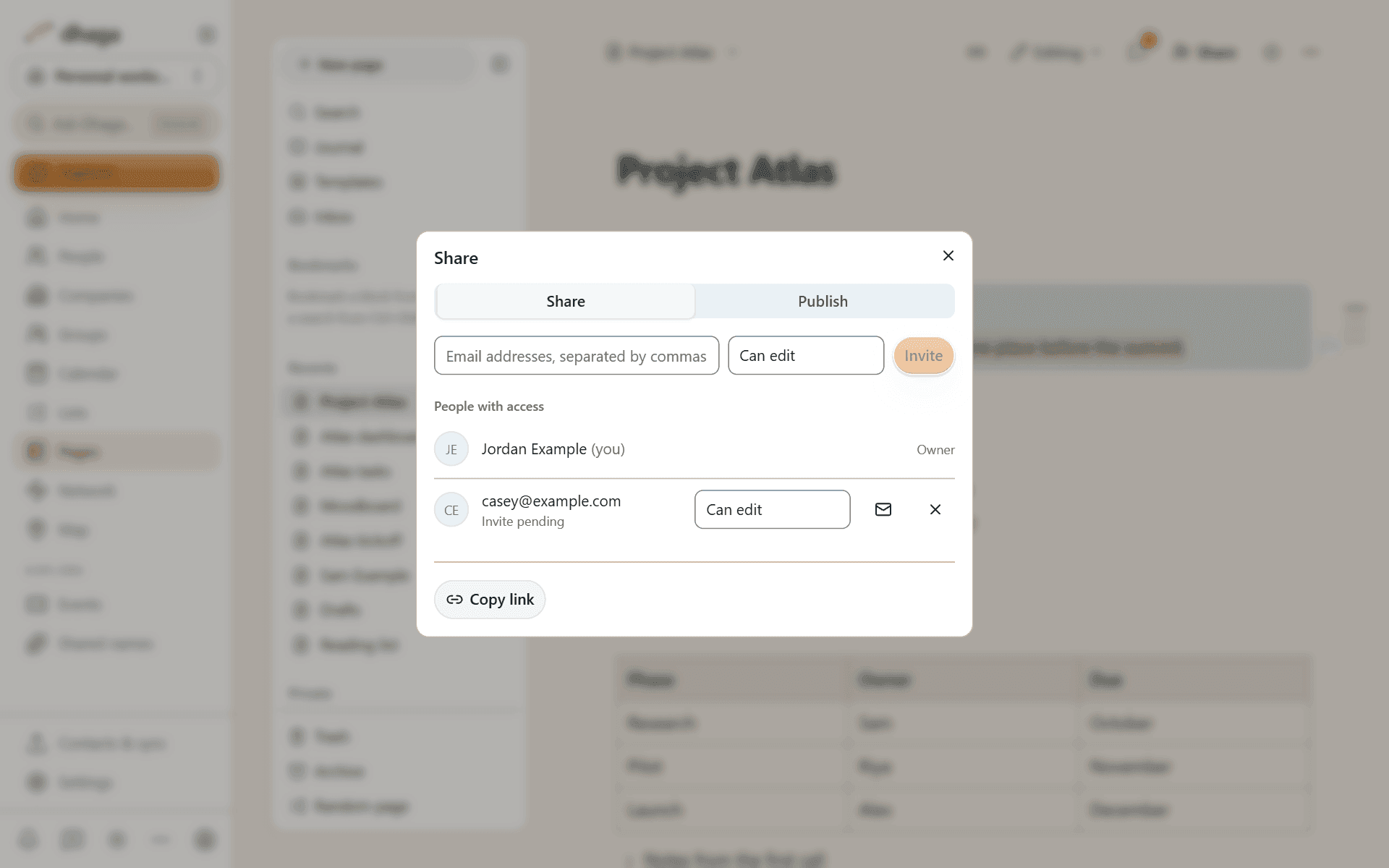
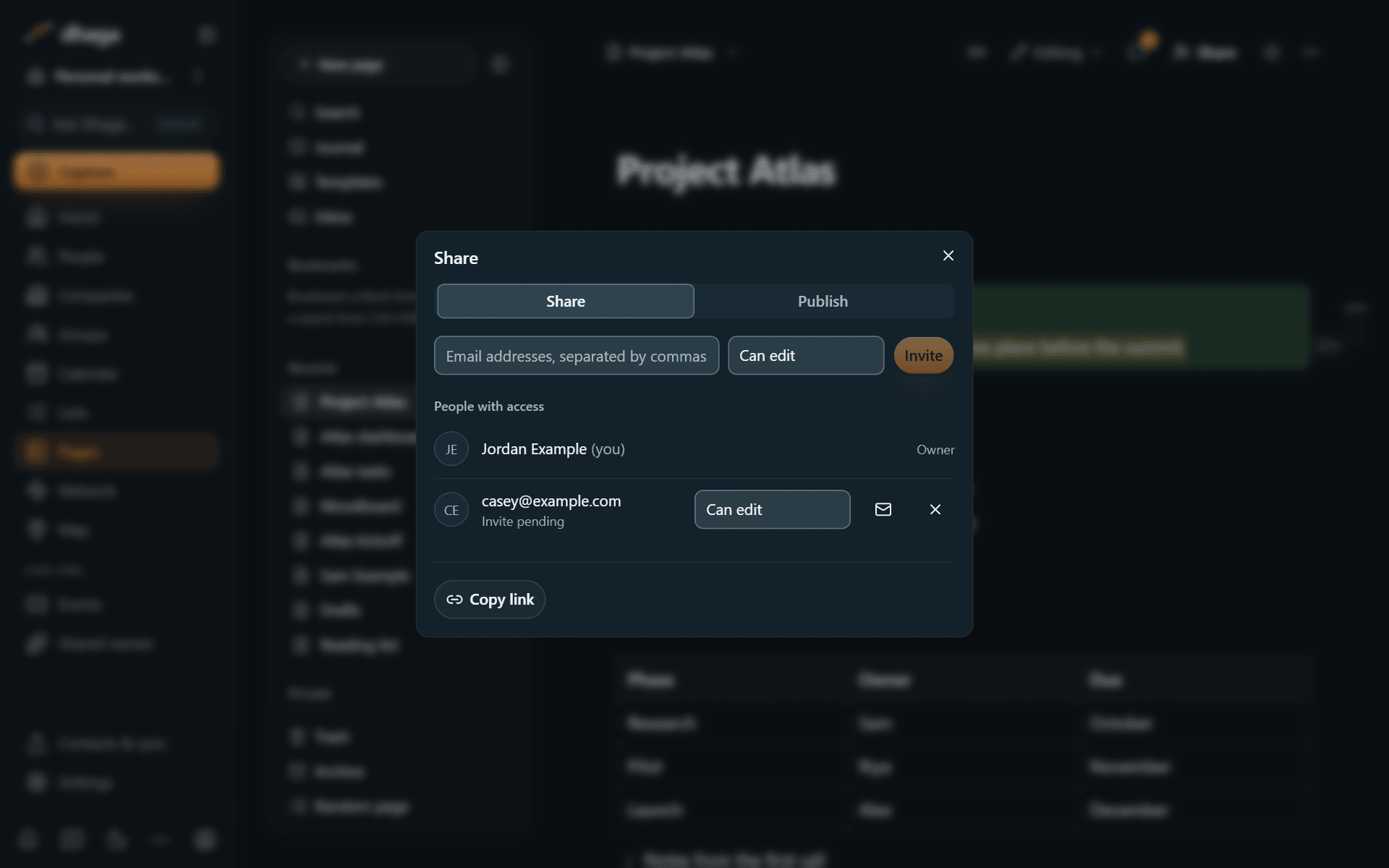
- Someone in your organization gets access straight away, and so does someone who already has access to the page.
- Anyone else becomes a guest once they accept. They get an email with a link, and if they already use Dhaga the invitation also waits in their Pages inbox. Until they accept, the invitation gives no access and your Share dialog shows Invite pending, whether or not they have a Dhaga account. Guests see only the pages shared with them, never the rest of your workspace or your contacts.
After you choose Invite, Dhaga tells you how many addresses it invited. It doesn't say which of them already use Dhaga. You can invite up to 100 addresses an hour. You can resend or cancel a pending invitation from the Share dialog.
Pages shared with you appear under Shared with me in the sidebar.
Accepting an invitation
The email and the inbox say only that a page was shared with you, and with which role. They don't show the page's title, who shared it or a message, because anyone can type your address into a Share dialog. You see the page, and who shared it, once you accept.
- From the email: choose Accept the invitation, then sign in or create an account with the address the email went to. The link works for 14 days and accepts only that invitation.
- From the inbox: open Inbox and find Pending invites. Choose Accept or Decline. Declining hides the invitation from you, and the person who sent it isn't told. If you change your mind, the link in the email still works.
If you no longer want a page someone shared with you, choose Leave page in its Share dialog.
Roles
| Role | Can |
|---|---|
| Full access | Everything, including sharing the page and changing who has access |
| Can edit | Edit the page and its sub-pages |
| Can edit content | Databases only: add and edit rows, without changing the database's properties or views |
| Can comment | Read, comment, and suggest edits that someone with edit access accepts or rejects |
| Can view | Read only |
| Can create | Databases only: add rows, and see the rows they created plus any row shared with them |
Access passes down to sub-pages. If someone has access to a page in more than one way, for example through the organization and through an invitation, the broadest role applies. Database rows can also carry their own permissions, so a row can be visible to some people and not others.
Row access
Open a database's "..." menu and choose Row access (you need full access to the database). Each rule reads as one sentence, for example "People in Owner can edit their rows" or "The row's creator can view their rows". You can pick View, Comment, Edit content or Edit, add up to ten rules, change or remove them, and use Re-apply to all rows to bring every row in line.
- A rule shares each row with the people named in it, as ordinary access you can see in that row's Share menu. Removing a rule, or taking a person out of the property, removes the access the rule gave. Access you gave someone by hand is never changed by a rule.
- A rule can only share a row with people you could pick in the Person property: members of the database's organization and people the database is shared with.
- Rules apply as soon as a row is added or duplicated, whoever adds it, including someone with "Can create" access.
- Because the Person property decides who gets access, only people with full access to the database can change it on a row (in Notion any editor can; Dhaga keeps it stricter so an editor can't hand out access), and you can't delete or retype that property while a rule uses it. An import never sets a Person property that a rule uses.
- "Can create" is a separate role you give in the database's Share menu. It adds rows and shows the person their own, plus any row a rule shares with them.
Asking for access
Someone who opens a link to a page they can't see can request access; someone who can read but not edit can request edit access. The page's owner and everyone with full access to it get the request in their inbox, with the requester's name and any note they added, and can approve or ignore it. Someone whose invite is still pending doesn't get it.
The person asking always sees Request sent, whether or not the page exists. Asking shows them nothing about the page, including its title and who owns it, until someone approves. You can send a few requests every ten minutes.
One editor at a time
Pages has no live multiplayer: you won't see other people's cursors or watch them type. Two people can have a page open, but changes are saved one at a time. If someone saved the page after you opened it, Pages tells you before your save would overwrite theirs and lets you choose, and your text is never discarded. Comments and suggestions don't conflict with editing at all. See Conflicts.
Verified pages and locking
- Verify an organization page to show it has been checked, by whom, and until when (1 week, 30 days, 90 days, 6 months, 1 year or indefinitely). After the date passes, the page shows Verification expired.
- Lock page in the page menu stops accidental edits for everyone until someone with edit access unlocks it.
Publish a public link
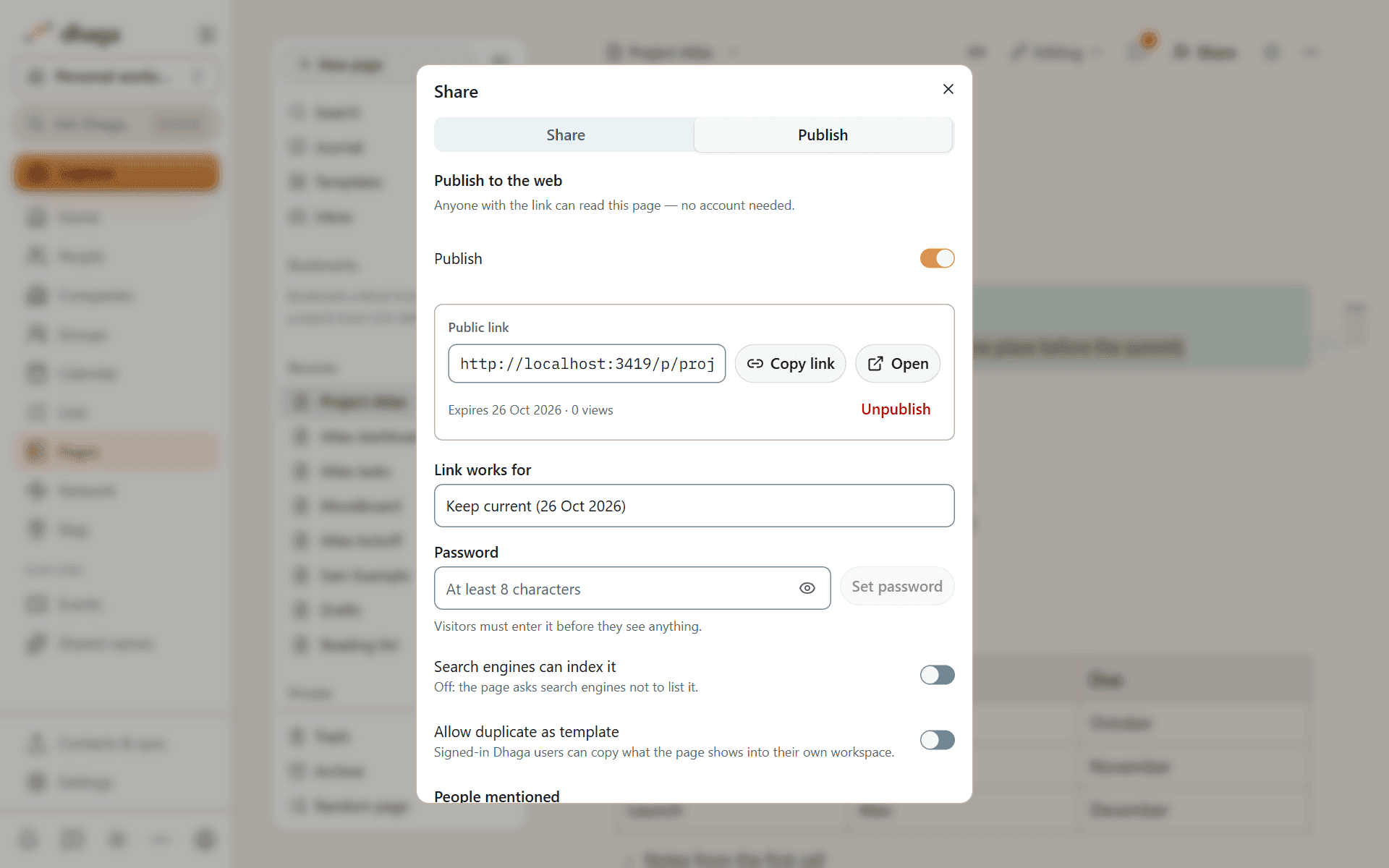
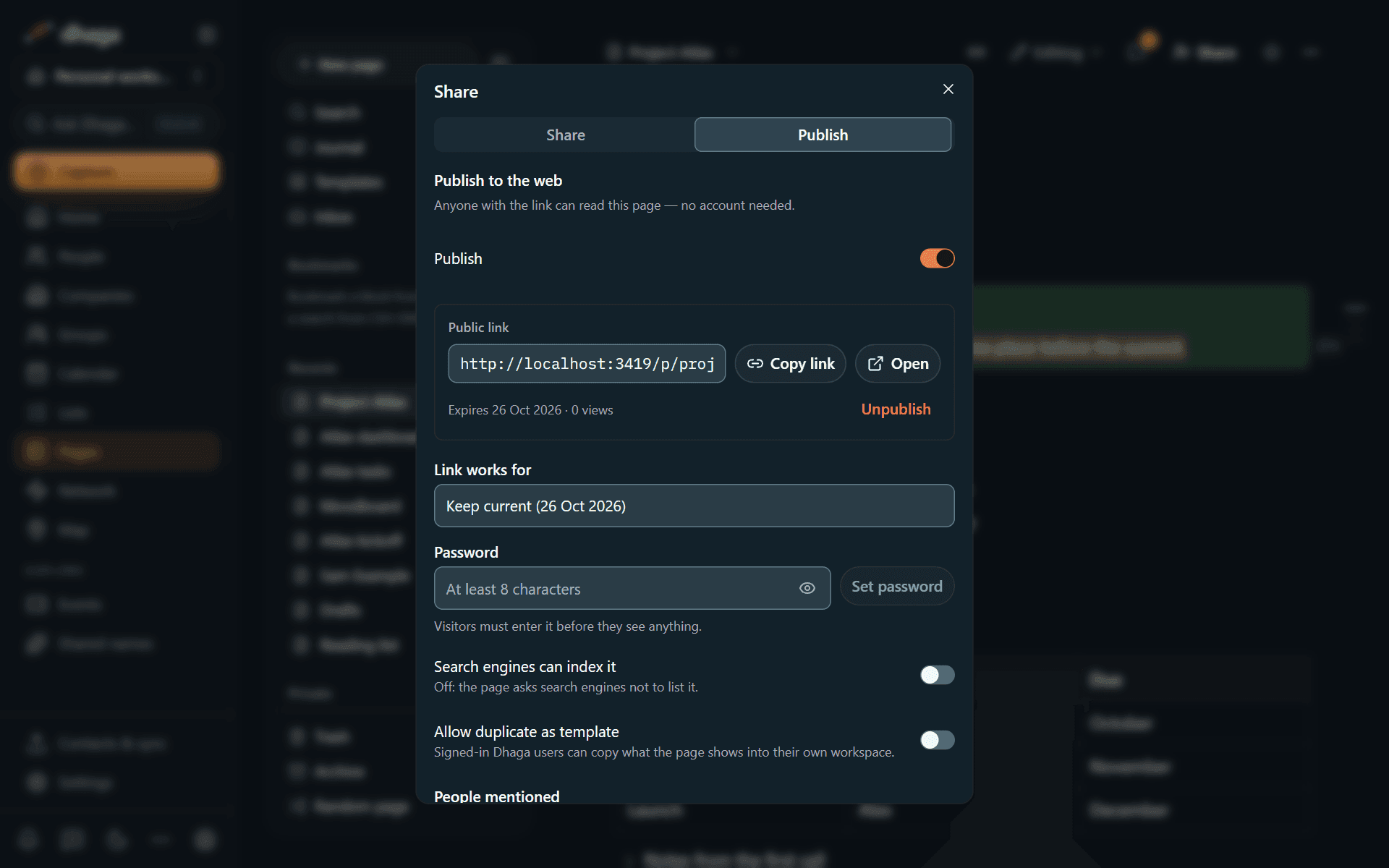
Open Share → Publish to create a read-only link that anyone can open without an account. The address is readable, such as www.dhaga.app/p/project-atlas- followed by a random code, so it can't be guessed from the title alone.
Choose:
- Expiry: 24 hours, 7 days, 30 days or 90 days. On Free a public link always expires. On Pro and above you can also make it never expire.
- Password (Pro and above, at least 8 characters): visitors type it before they see the page. Five tries from one network lock that network out of the link for 15 minutes. After 50 tries in an hour from anywhere, the link stops taking passwords until the hour is up.
- Search engines can index it: off by default, so the page is marked not to be indexed. Turn it on only if you want the page found through search.
- Allow duplicate as template: visitors who sign in to Dhaga can copy what the page shows into their own Pages.
The link shows how many times it was opened. It doesn't record who opened it.
How people are shown
A published page never links to your contacts or shows anything about them. A mention of a person, company, event or group appears as plain text: the name, with no link, no details and no hover card.
Before you publish, the Publish tab lists everyone the page mentions. Switch to initials if you'd rather not show full names: "Sam Example" becomes "S. E.".
What else visitors see
- Embeds load only when the visitor clicks them, the same as for you.
- Databases that live inside the page are shown as a read-only table of up to 200 rows and 12 columns, without relations, rollups or formulas; a view of a database that lives elsewhere, a filtered view, a live query and a drawing show a placeholder.
- Pages about a person or company can't be published, because they hold your notes about them.
- Synced blocks from a page you haven't published show a placeholder.
- Hidden comments (
%%…%%), your comments, the graph and backlinks are never shown. - Notes and CRM data never appear.
- Link previews in chat apps and bookmark cards show the page's title, the same as the browser tab, and nothing from the page's text. A password-protected or expired link shows Dhaga's own preview, not the page's title.
Published pages are single pages. There is no site navigation, custom domain or analytics script.
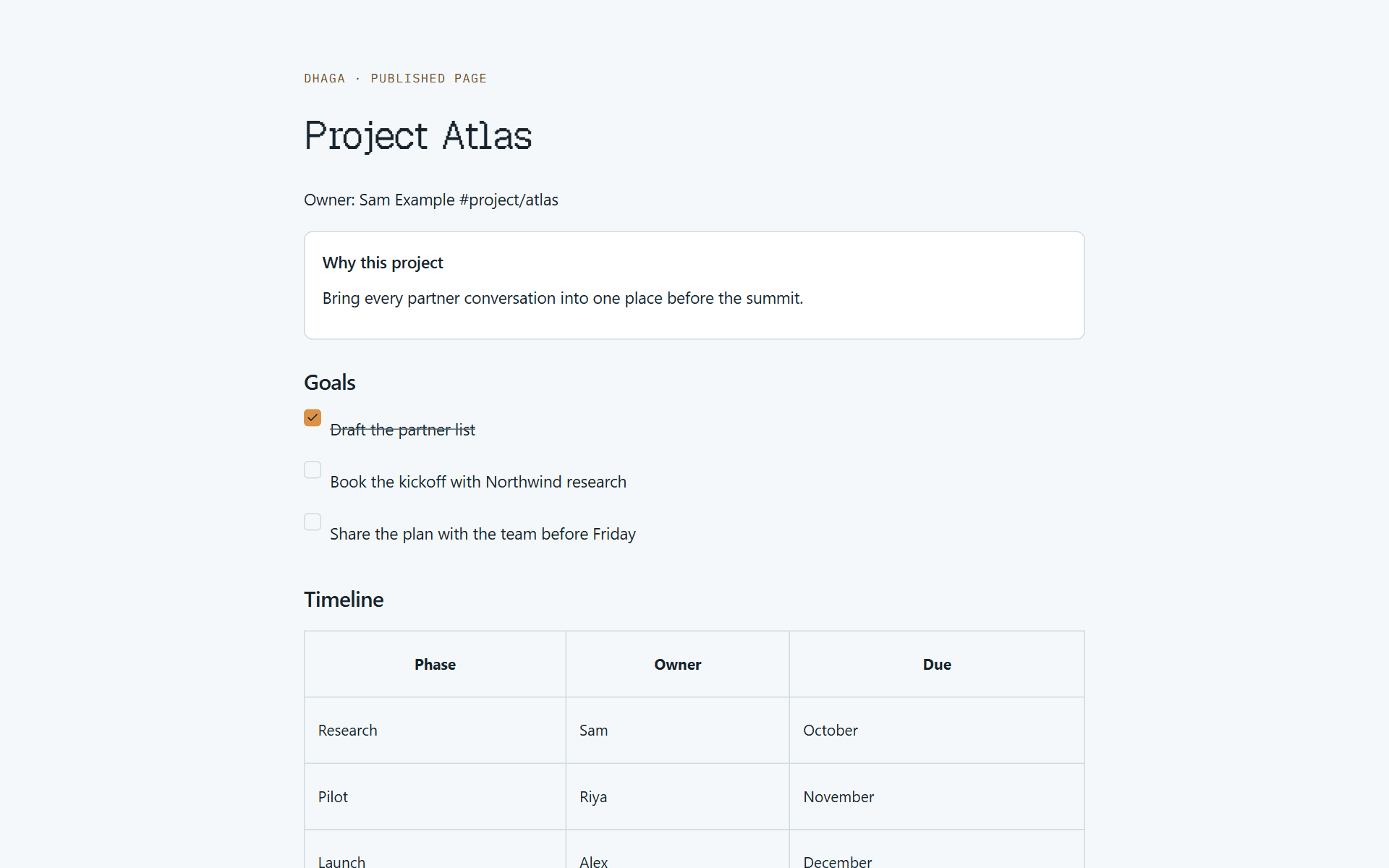
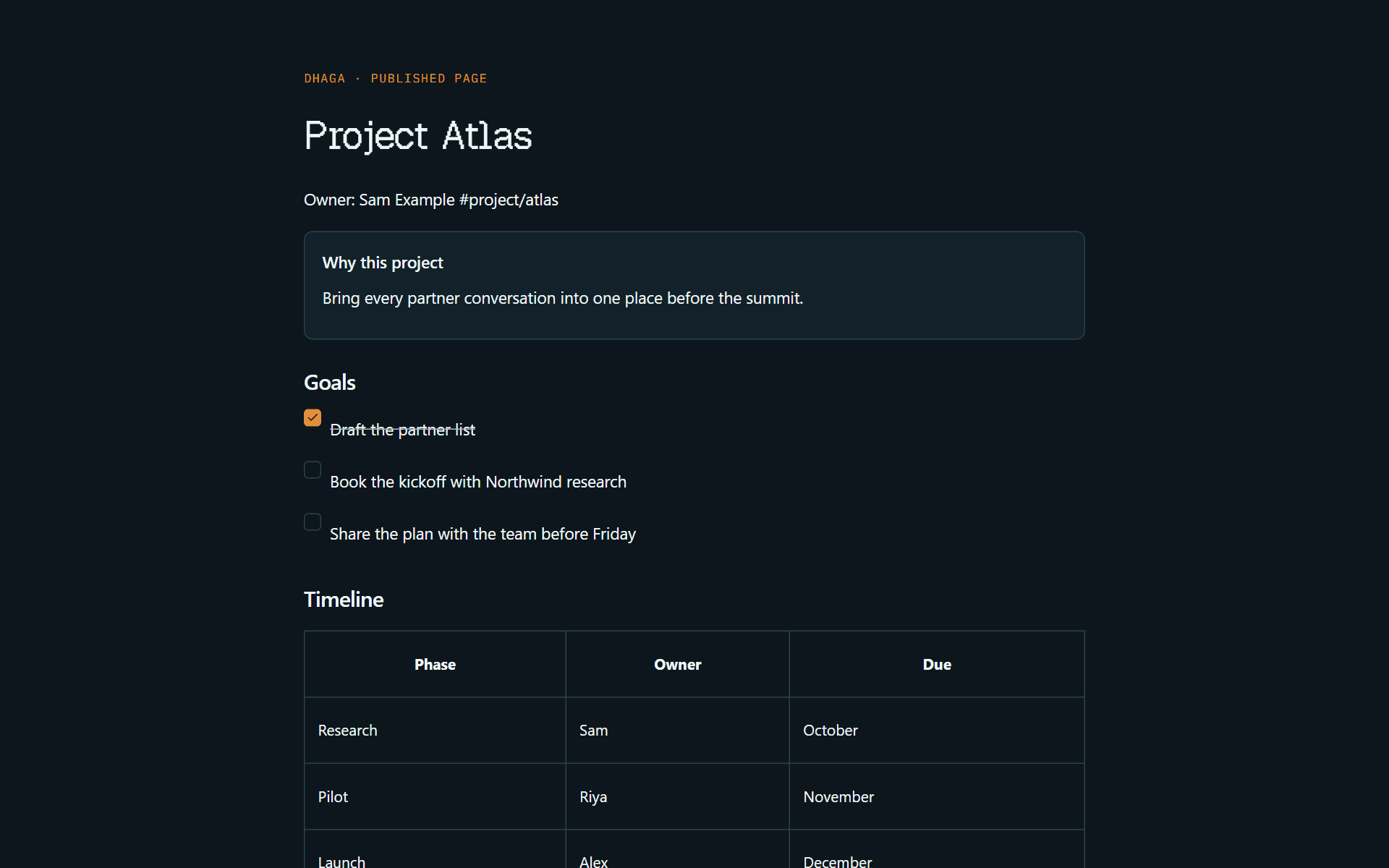
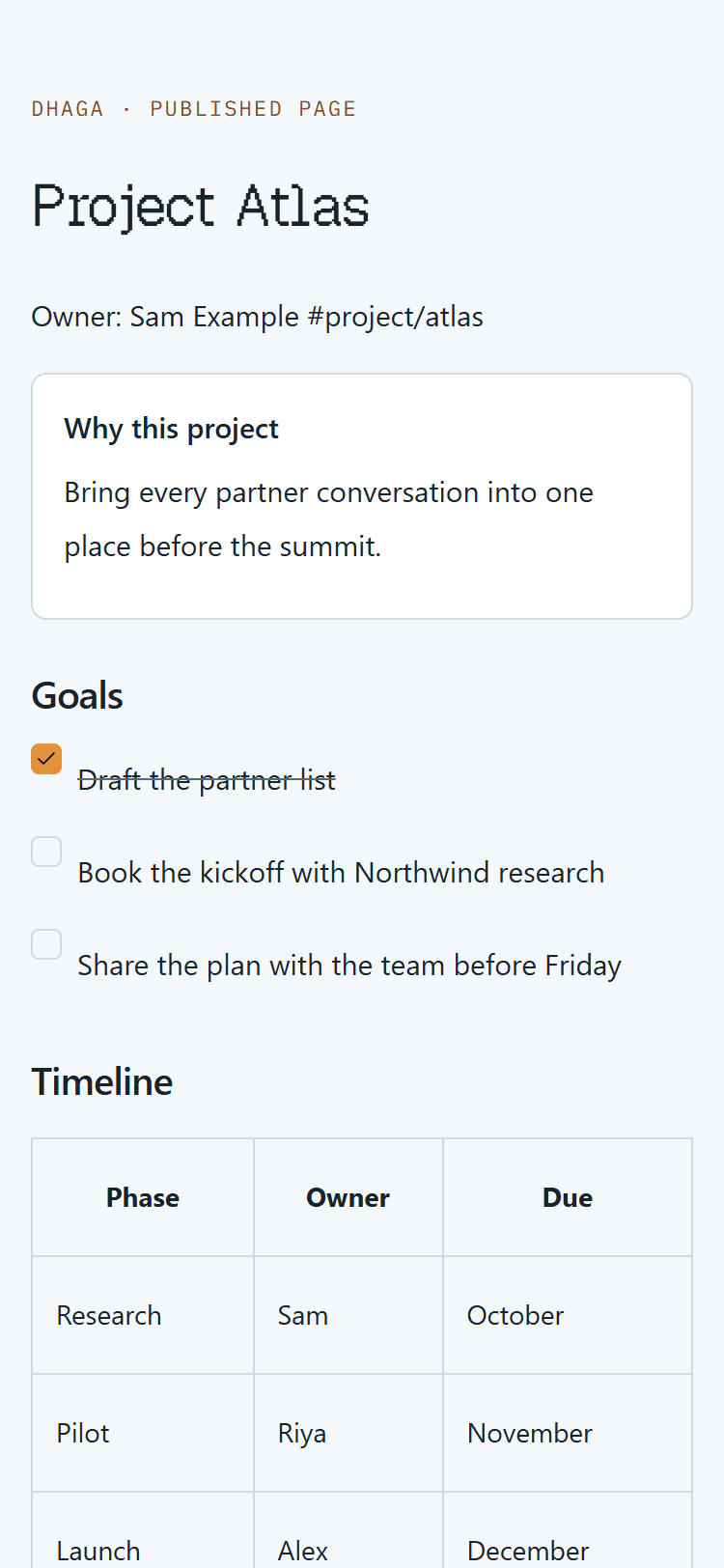
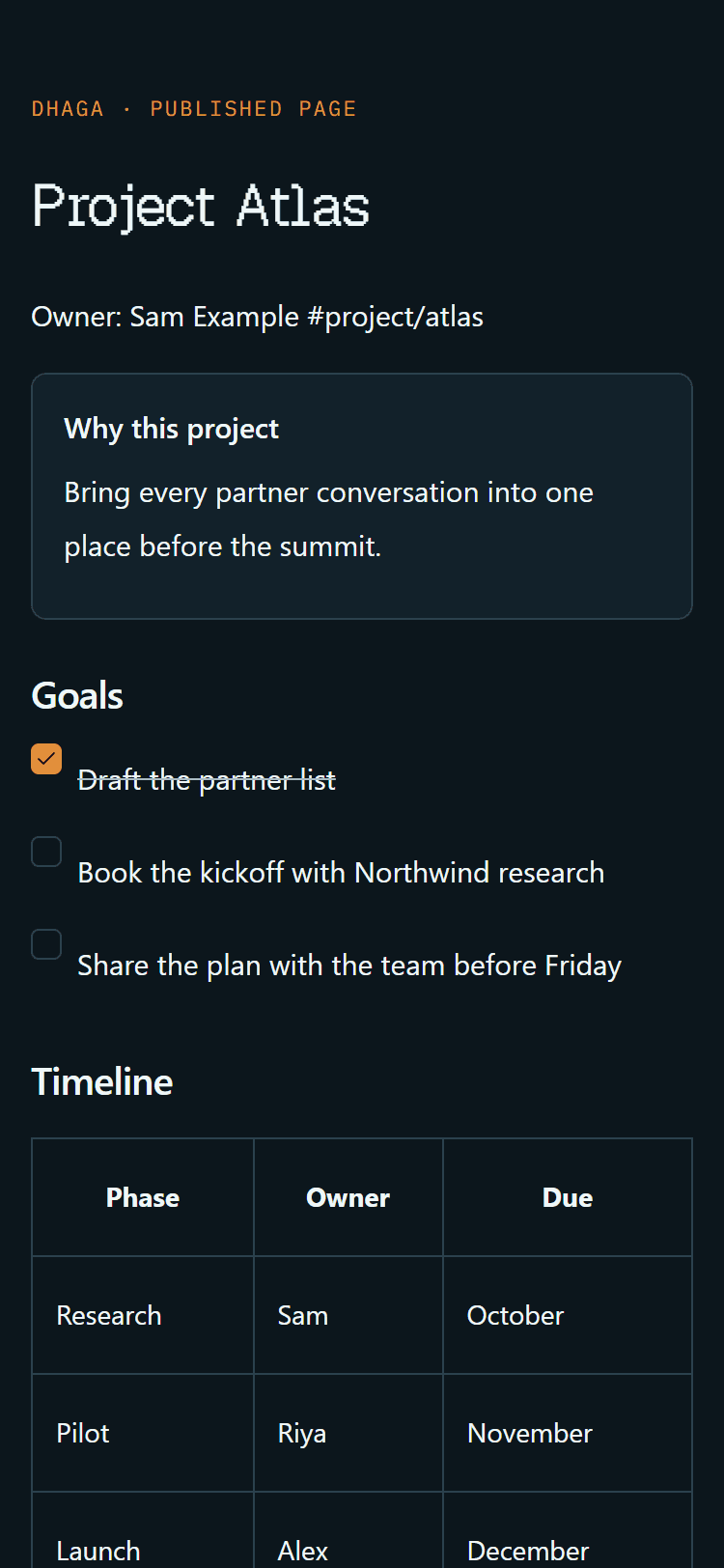
On a phone the published page reads like any article:
Stop publishing
Turn off the link in Share → Publish and it stops working at once. An organization's owner can also switch off public links for all of the organization's pages: publishing an organization page is then refused, and existing public links to organization pages stop opening. Switching it back on brings the unexpired links back.
Keyboard shortcuts
Every Pages keyboard shortcut for macOS, Windows and Linux: app-wide keys, formatting, blocks, tables, find, presenting, Markdown, and how to change them.
Comments, suggestions and history
Discuss a page with comments, propose edits in suggestion mode, follow activity in your inbox, restore an earlier version, and handle a page that changed elsewhere.