Links, mentions and backlinks
Link pages with [[, mention people and companies with @, show one page inside another, and see every page that points back, including a person's own Page tab.
Links are what turn a pile of pages into something you can navigate. In Pages you link with [[, mention with @, and show part of one page inside another with 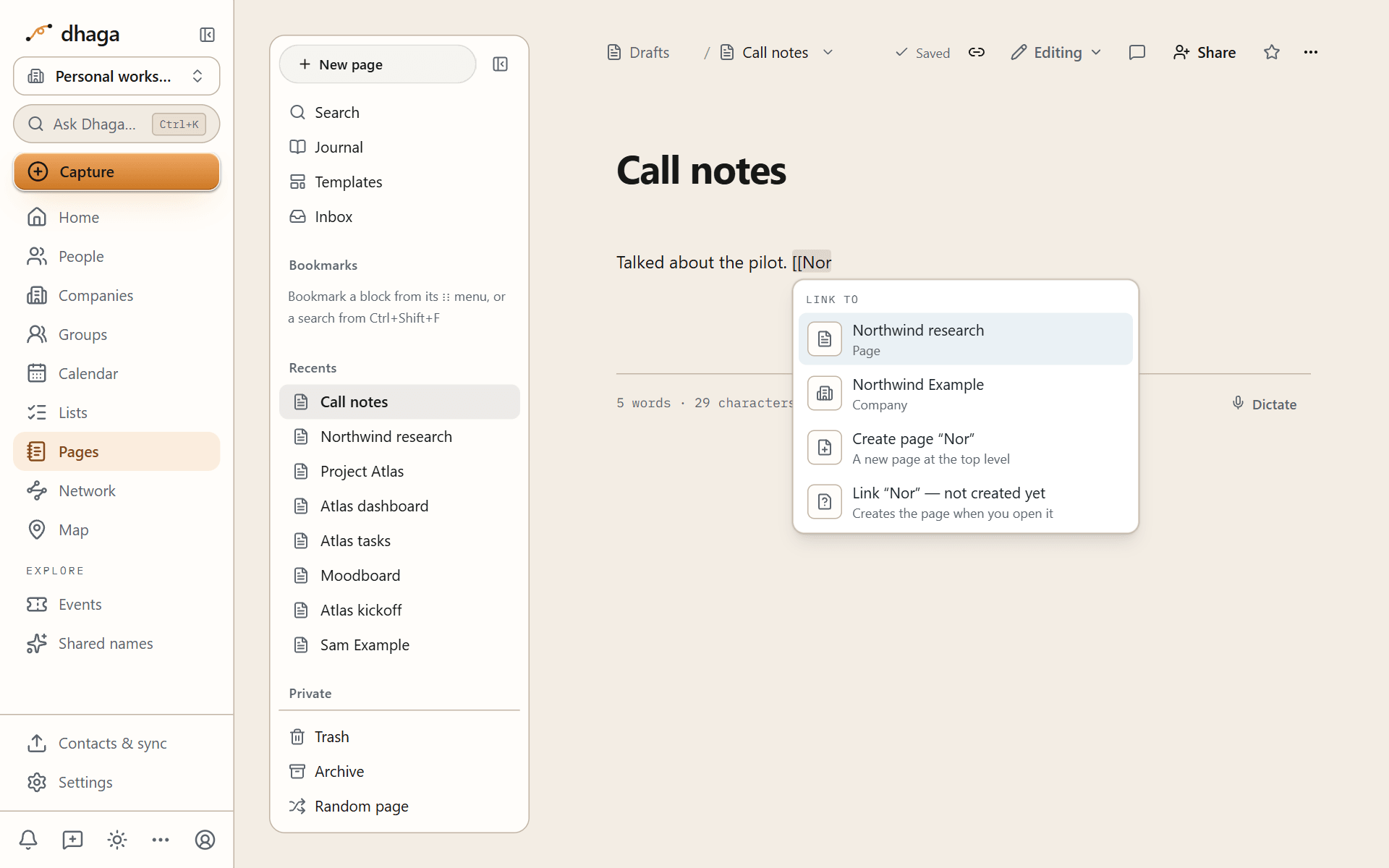
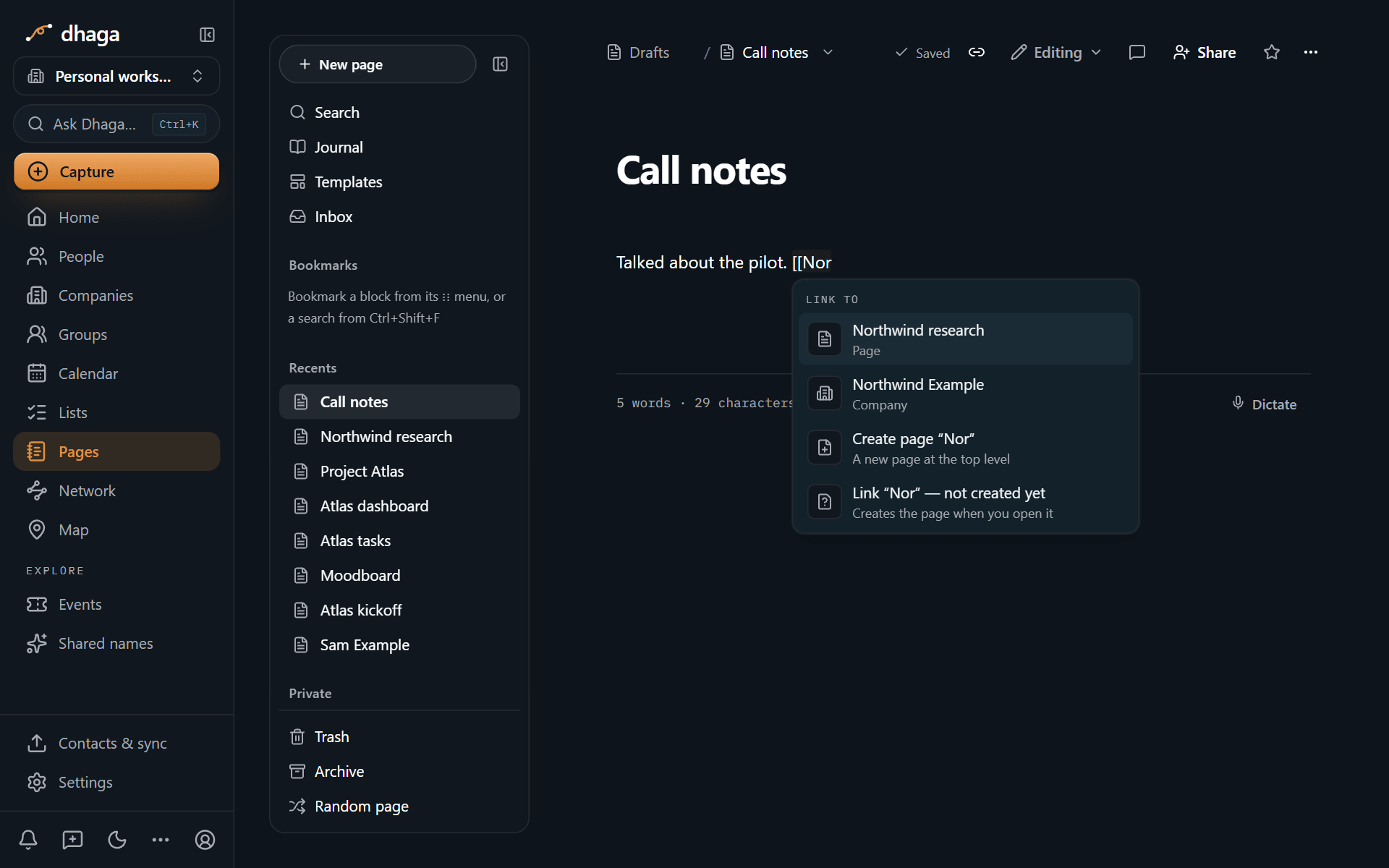
Wikilinks follow Obsidian's syntax, so you can type them in full or paste them from Obsidian:
| Type | Links to |
|---|---|
[[Project Atlas]] | The page |
[[Project Atlas|the plan]] | The page, shown as "the plan" |
[[Project Atlas#Goals]] | The Goals heading on that page |
[[Project Atlas#^k3j9x2ab]] | One block on that page (copy a block's id with Copy link to block) |
[[#Goals]] | A heading on the page you are on |
A link to a page that does not exist yet is shown as unresolved. Click it and Pages creates the page with that title, so you can write the link first and the page later.
Renaming is safe. A link points at the page itself, not at its title, so renaming a page, a heading or a contact never breaks a link to it.
Mention people, pages and dates with @
Type @ and a name to mention:
- A contact, company, event or group from your network.
- A custom entity, a list or a note.
- A page.
- A member of your organization. They get a notification that you mentioned them.
- A date: type it in plain words, such as
@tomorrow,@next fridayor@12 march, and pick the date. Pages reads the date itself; no AI is involved. - A reminder:
@remindturns into a follow-up in your Plan. See AI in Pages.
A mention of a person or company stores only a reference to the record, never a copy of their name, email or phone number. The name is looked up each time the page is shown. If you later forget that contact, every mention of them, in every page and every old version, shows as Removed person. On a published page, a mention of a person shows only as plain text: their name, or their initials if you choose that when you publish, with no link or details. See Privacy in Pages.
Give a page other names with aliases
Open Links and backlinks (the link icon in the page header) and add names under Aliases, or add an aliases: list in frontmatter when you import Markdown. A page can have up to 20 aliases. The link menu, the quick switcher and unlinked mentions all match those names too, so [[Atlas]] can find "Project Atlas".
Show part of another page with synced blocks
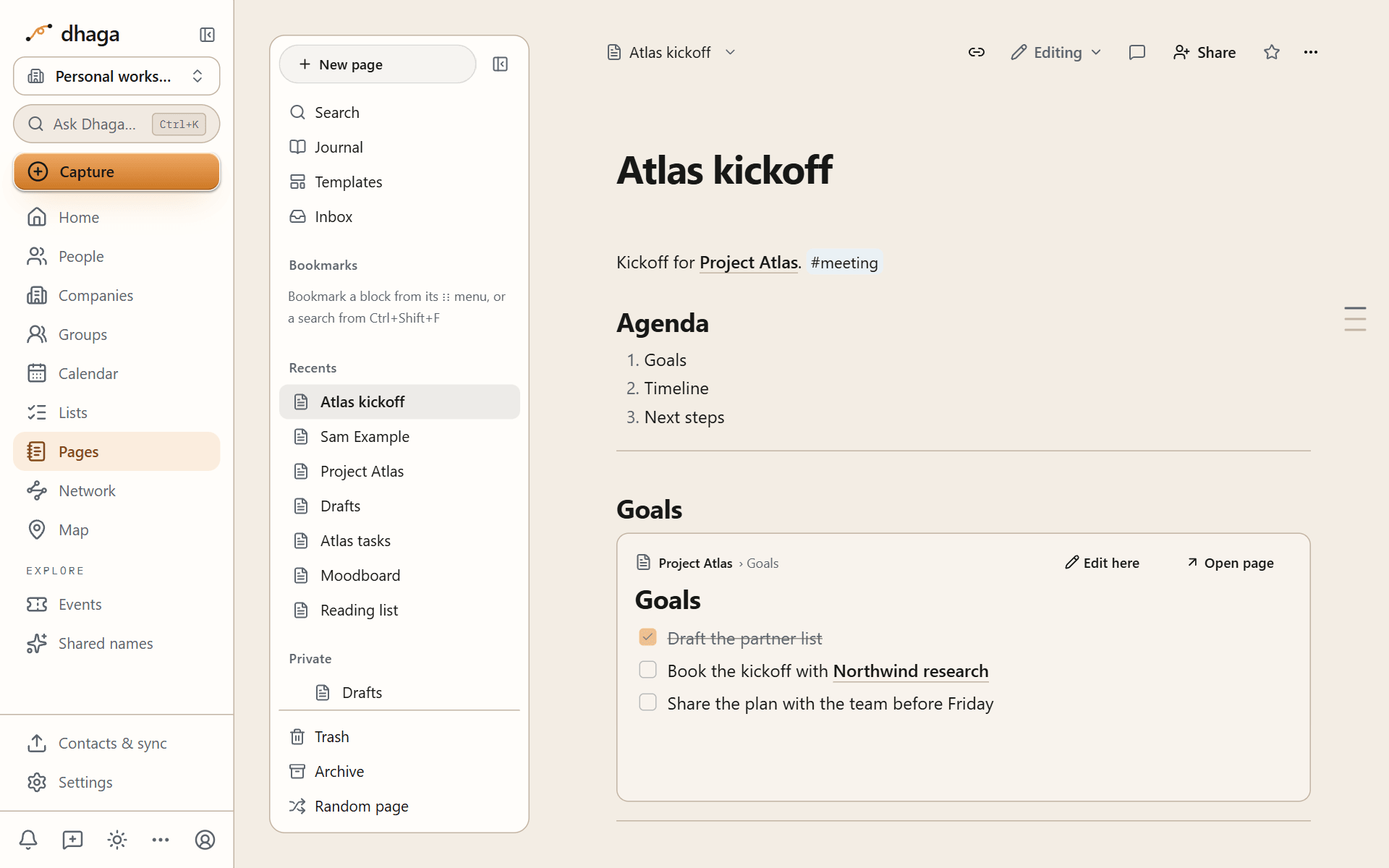
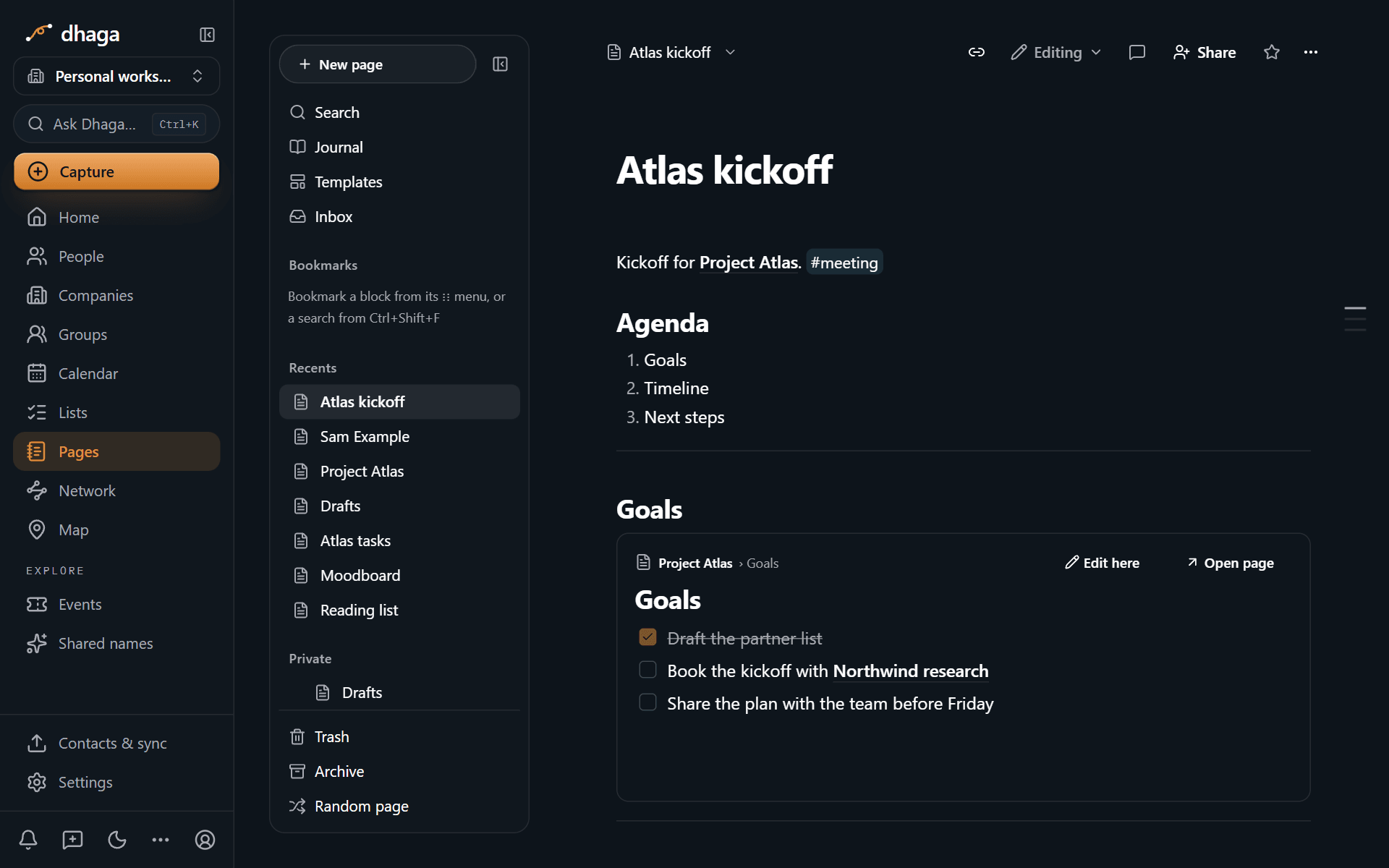
Type ![[ to show another page, or part of one, inside the page you are on:
![[Project Atlas]]: the whole page.![[Project Atlas#Goals]]: one heading and everything under it.![[Project Atlas#^k3j9x2ab]]: one block.
This is Notion's synced block and Obsidian's embed in one feature. You can edit the content where it is shown, and the edit is saved to the original page. If someone else changed the original in the meantime, you get the same conflict choice as on the page itself, so nothing is overwritten silently.
See what links here
Choose Links and backlinks (the link icon in the page header) to open the Links panel. It also holds the page's aliases, local graph and tags. Its backlinks come as two lists:
- Linked mentions: every page that links to or mentions this one.
- Unlinked mentions: pages whose text contains this page's title or one of its aliases without linking to it. Choose Find unlinked mentions to look, then press Link next to one to turn that text into a link.
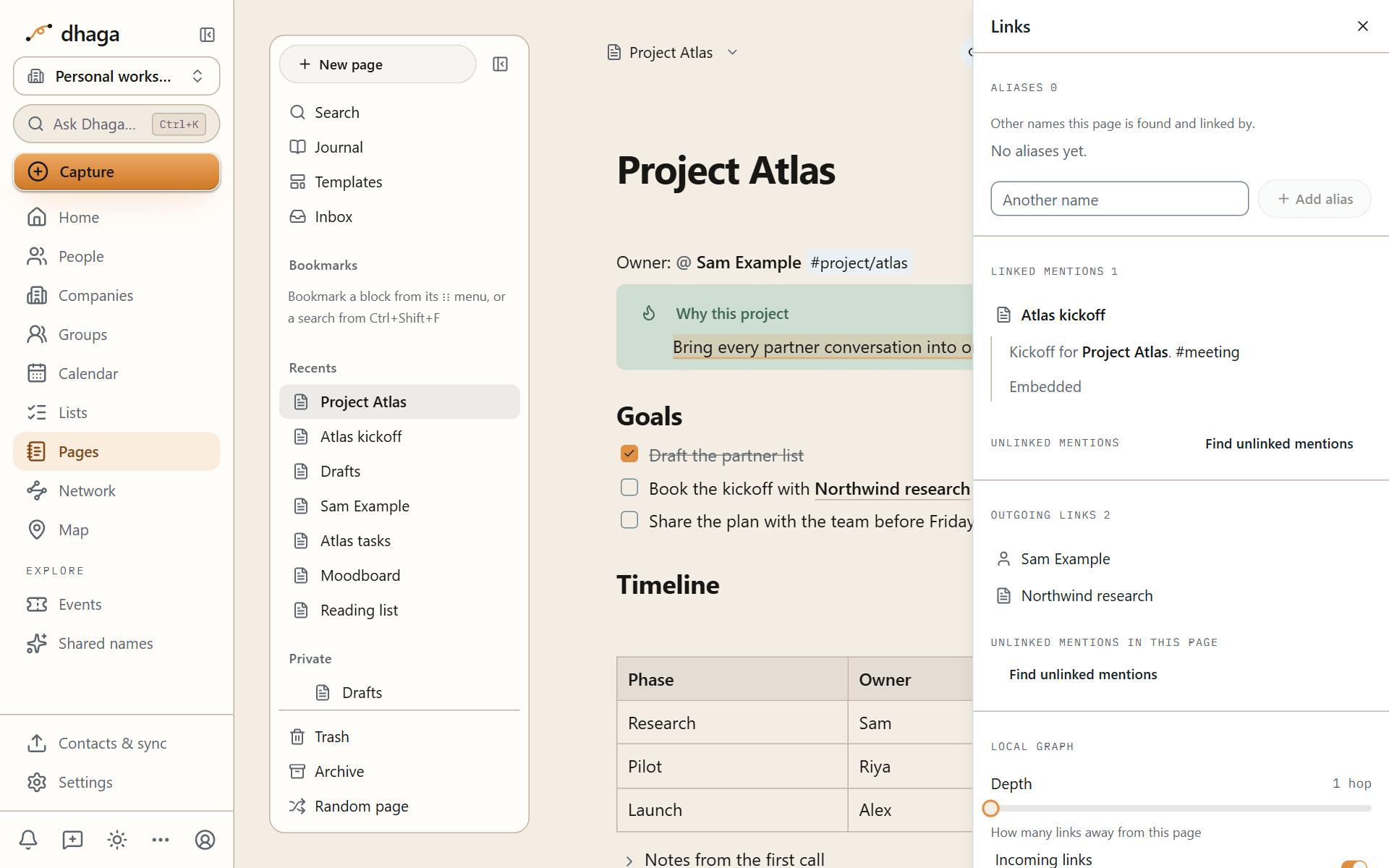
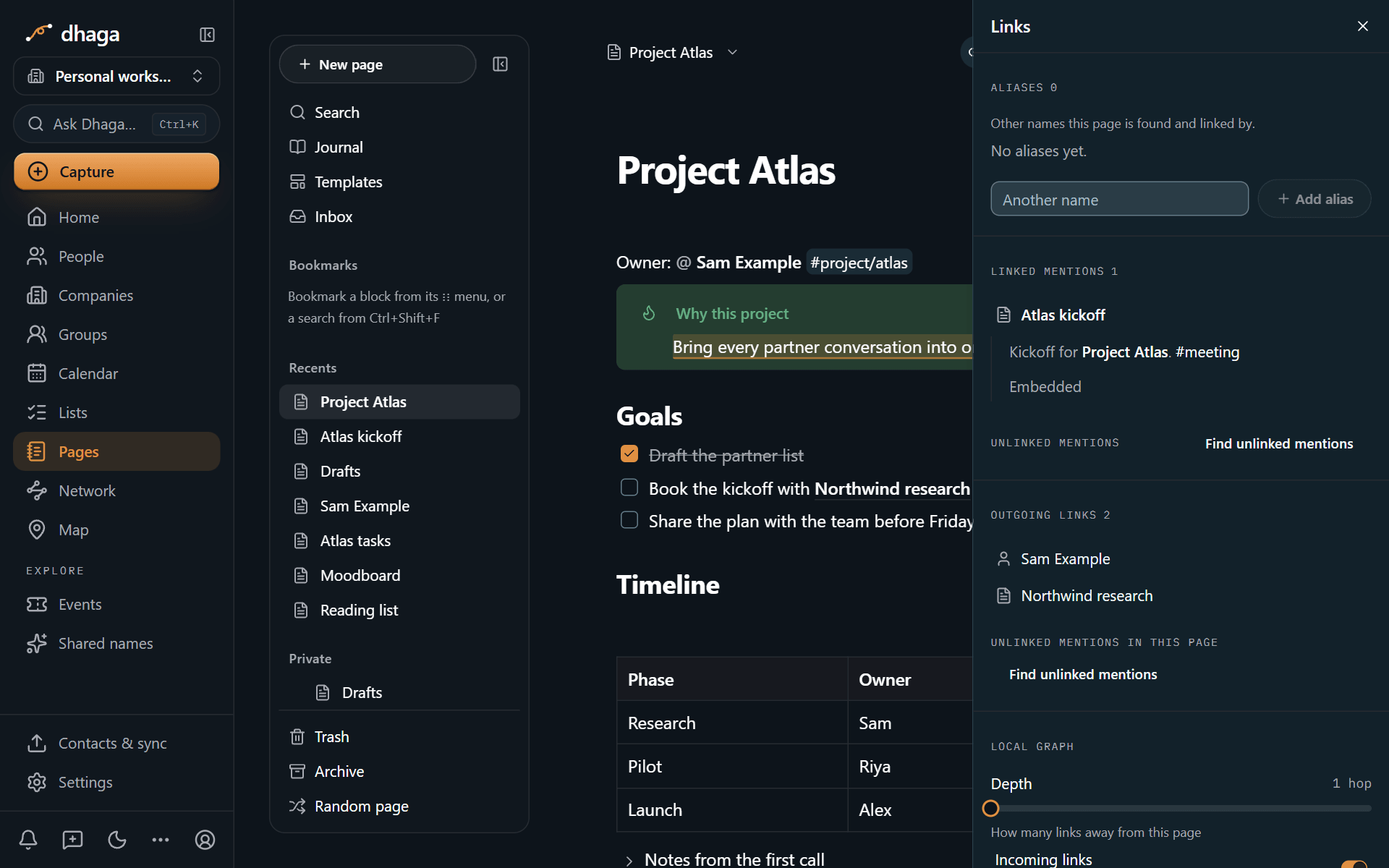
The same panel lists Outgoing links, including links to pages that do not exist yet, and Unlinked mentions in this page: text on this page that matches another page's title.
Prefer to see backlinks without opening a panel? Choose Show backlinks in page from the page menu and they appear at the foot of the page.
A page placed on a canvas lists that canvas among its backlinks too.
Every person, company, event and group has a page
Open a contact, company, event or group in Dhaga and you will find a Page tab next to their details. It is a full page for that record: write meeting notes, plans and anything else that does not fit a short note. The page is created the first time you open the tab.
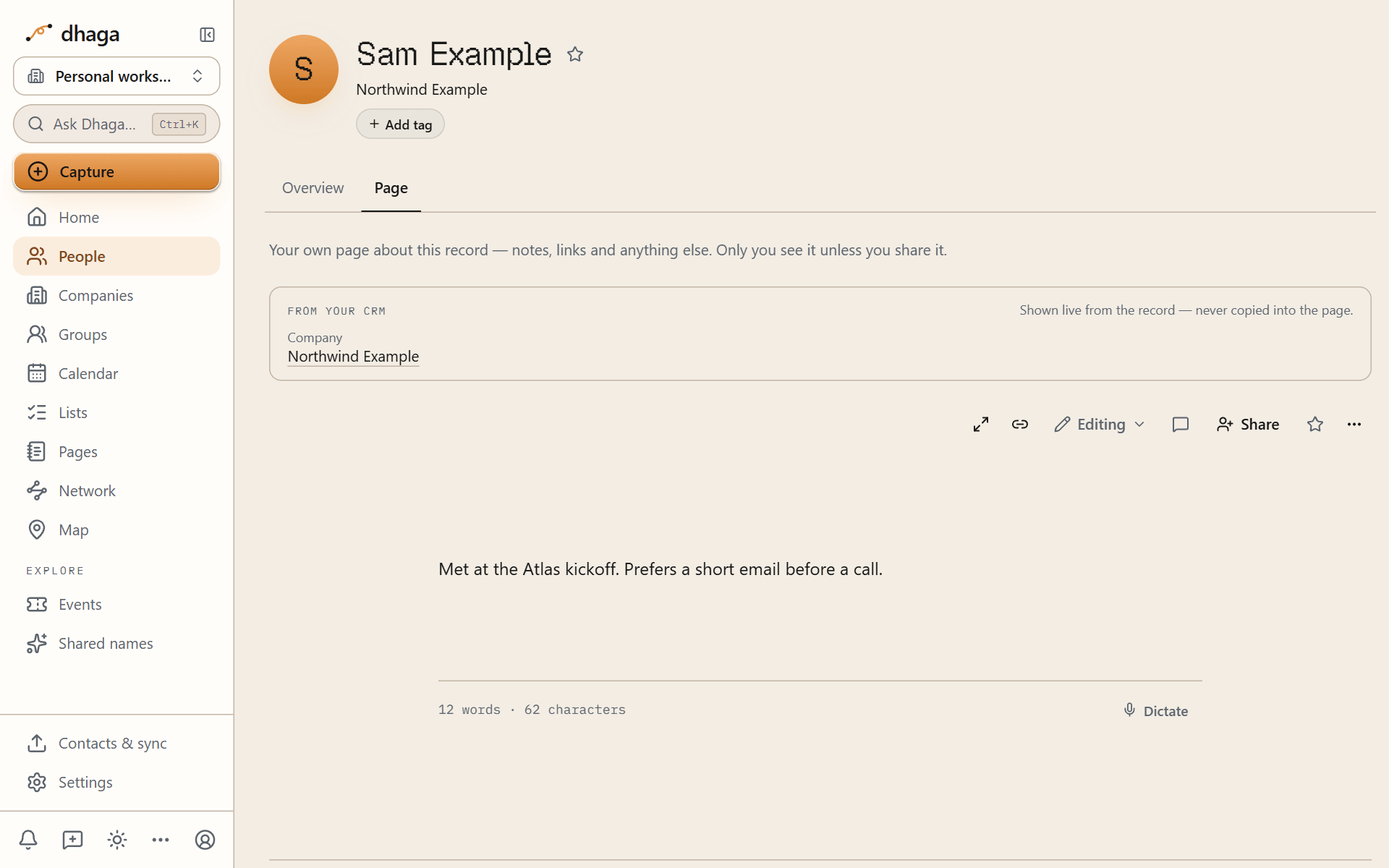
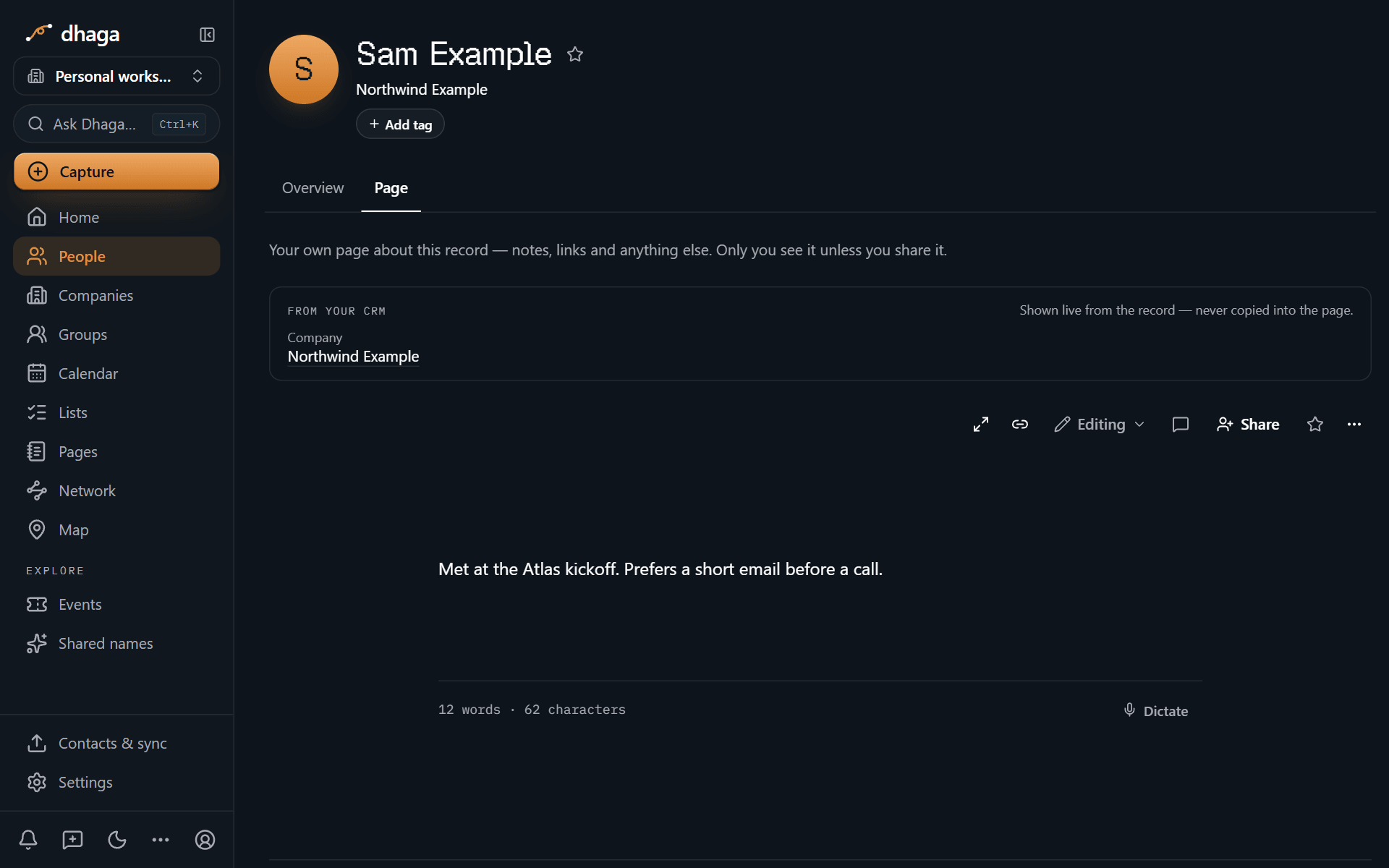
The top of the tab shows the record's details (company, role, email and so on) as they are in your CRM right now. They are read live and never copied into the page, so they are always current and editing them stays on the record itself.
Below the page, Mentioned in lists every page that mentions this person, company, event or group, plus pages that contain their name without mentioning them, each with a Link button. Matching a name is done by exact text, not by AI.
Related
- Graph: see your pages and your network as one picture.
- Tags and properties: group pages by topic.
- Search: find pages by what links to what.
The editor
Write with blocks: the slash menu, Markdown shortcuts, the block menu and drag handle, colours, callouts, tables, find and replace, and the four views.
Graph
Add your pages to Dhaga's graph as their own layer, filter and colour it like Obsidian's graph view, and open a local graph beside any page.