Keyboard shortcuts
Every Pages keyboard shortcut for macOS, Windows and Linux: app-wide keys, formatting, blocks, tables, find, presenting, Markdown, and how to change them.
Pages follows Notion's keys where the browser allows them and Obsidian's where Notion has none, so most of your habits carry over. This page lists every shortcut for macOS and for Windows and Linux. Press ? anywhere in Pages, outside a text field, to see them on screen.
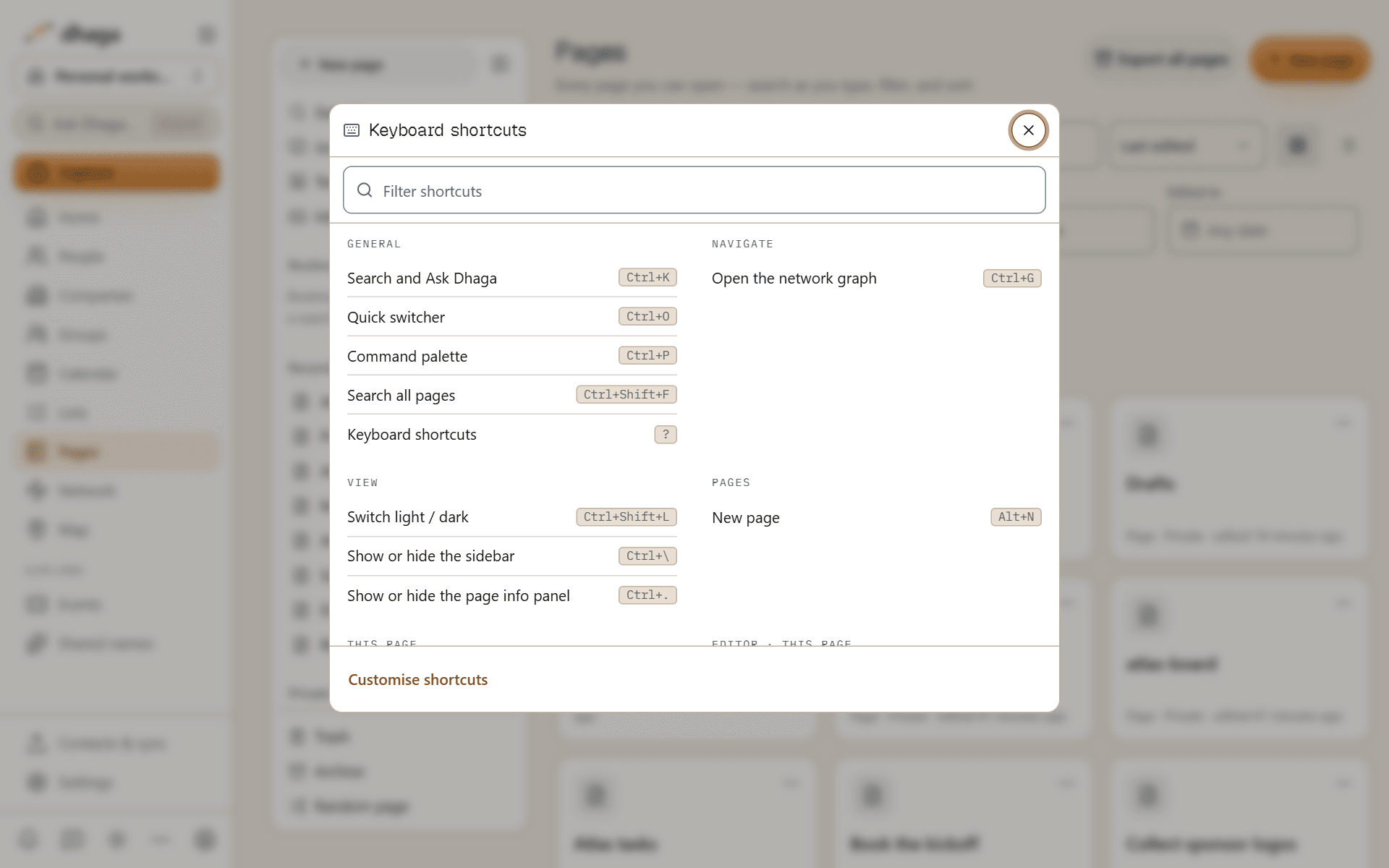
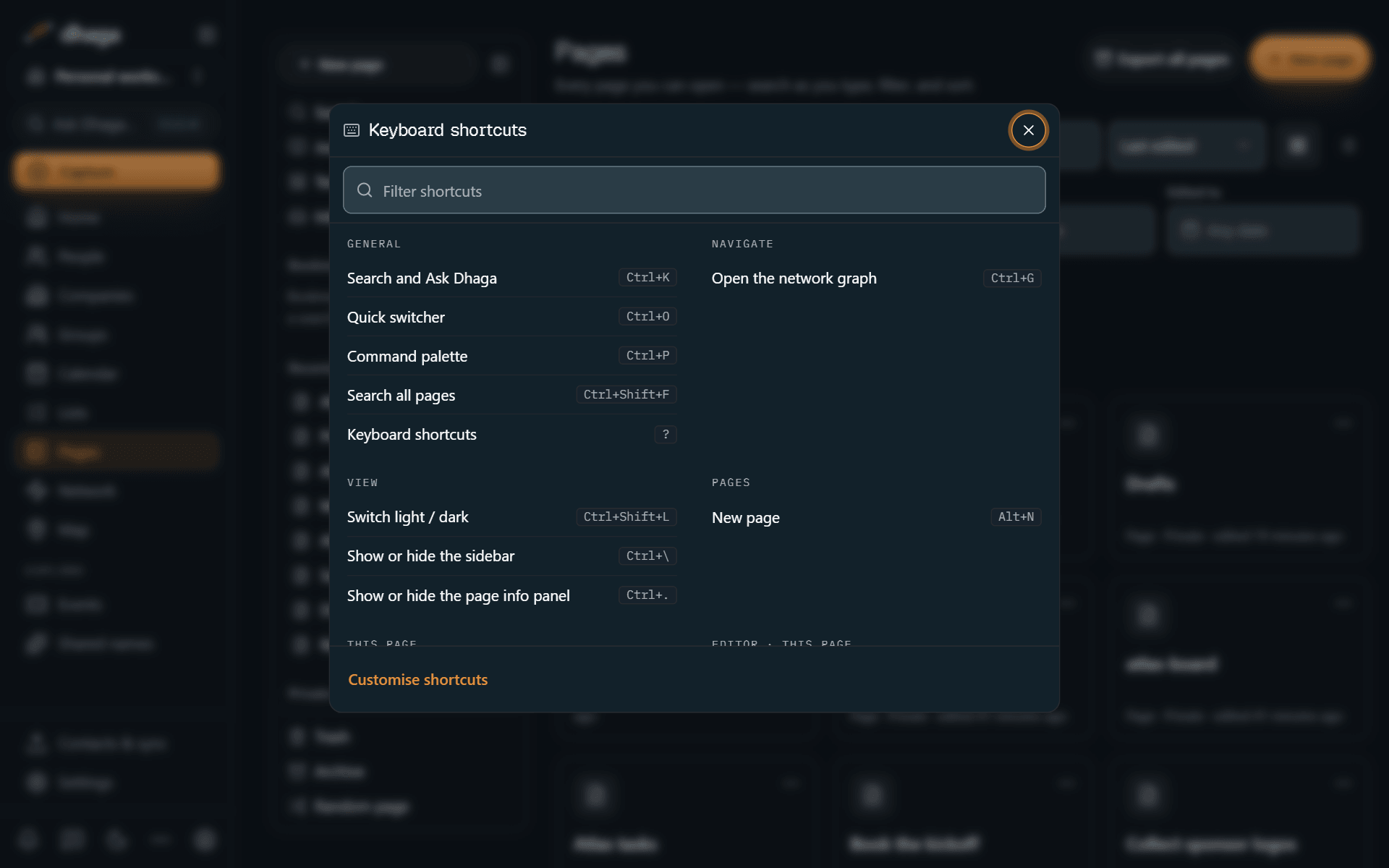
On Windows and Linux, Ctrl stands in for ⌘ unless a table says otherwise.
Anywhere in Pages
| Action | macOS | Windows and Linux |
|---|---|---|
| Search and Ask Dhaga | ⌘K | Ctrl+K |
| Quick switcher | ⌘O | Ctrl+O |
| Command palette | ⌘P | Ctrl+P |
| Search all pages | ⌘⇧F | Ctrl+Shift+F |
| Keyboard shortcuts | ? | ? |
| Switch light / dark | ⌘⇧L | Ctrl+Shift+L |
| Open the network graph | ⌘G | Ctrl+G |
| New page | ⌘⌥N | Alt+N |
| Show or hide the sidebar | ⌘\ | Ctrl+\ |
| Copy link to this page | ⌘L | Ctrl+L |
| Go up a level | ⌘⇧U | Ctrl+Shift+U |
| Show or hide the page info panel | ⌘. | Ctrl+. |
⌘\ (Ctrl+\) hides or shows the left sidebar: the Pages sidebar while you are in Pages, the app's navigation everywhere else. ⌘. (Ctrl+.) hides or shows the page info panel on the right. You can rebind both in Settings, under Shortcuts. Copy link to this page and Go up a level work while a page is open; on other screens ⌘L stays your browser's address bar. Esc closes a peek, a menu or a dialog, and ⌘-click (Ctrl-click) opens any link in a new browser tab.
In the quick switcher, Enter opens a result, ⌘↵ (Ctrl+Enter) opens it in a new tab, and ⇧↵ (Shift+Enter) creates a page with the title you typed.
Every other action, such as opening today's Journal, a random page or Settings, is in the command palette (⌘P), and you can give it a key of its own.
Formatting
| Action | macOS | Windows and Linux |
|---|---|---|
| Bold | ⌘B | Ctrl+B |
| Italic | ⌘I | Ctrl+I |
| Underline | ⌘U | Ctrl+U |
| Strikethrough | ⌘⇧S | Ctrl+Shift+S |
| Inline code | ⌘E | Ctrl+E |
| Link the selection (with text selected) | ⌘K | Ctrl+K |
| Inline equation (with text selected) | ⌘⇧E | Ctrl+Shift+E |
| Highlight with the last colour | ⌘⇧H | Ctrl+Shift+H |
| Comment | ⌘⇧M | Ctrl+Shift+M |
| AI on the selection | ⌘J | Ctrl+J |
| Undo | ⌘Z | Ctrl+Z |
| Redo | ⌘⇧Z | Ctrl+Shift+ZorCtrl+Y |
| Find in page | ⌘F | Ctrl+F |
| Find and replace | ⌘⌥F | Ctrl+H |
| Select the block, then the page | ⌘A | Ctrl+A |
Blocks
| Action | macOS | Windows and Linux |
|---|---|---|
| Select the current block | Esc | Esc |
| Block menu | ⌘/ | Ctrl+/ |
| Move block up | ⌘⇧↑ | Ctrl+Shift+↑ |
| Move block down | ⌘⇧↓ | Ctrl+Shift+↓ |
| Nest | ⇥ | Tab |
| Un-nest | ⇧⇥ | Shift+Tab |
| Duplicate block | ⌘D | Ctrl+D |
| Delete block | ⌘⇧K | Ctrl+Shift+K |
| Expand or collapse all toggles | ⌘⌥T | Ctrl+Alt+T |
| Act on block (tick, open, toggle) | ⌘↵ | Ctrl+Enter |
| Extract to new page | Not bound | Not bound |
| Turn into text | ⌘⌥0 | Ctrl+Shift+0 |
| Turn into heading 1 | ⌘⌥1 | Ctrl+Shift+1 |
| Turn into heading 2 | ⌘⌥2 | Ctrl+Shift+2 |
| Turn into heading 3 | ⌘⌥3 | Ctrl+Shift+3 |
| Turn into to-do | ⌘⌥4 | Ctrl+Shift+4 |
| Turn into bulleted list | ⌘⌥5 | Ctrl+Shift+5 |
| Turn into numbered list | ⌘⌥6 | Ctrl+Shift+6 |
| Turn into toggle list | ⌘⌥7 | Ctrl+Shift+7 |
| Turn into code block | ⌘⌥8 | Ctrl+Shift+8 |
| Turn into page | ⌘⌥9 | Ctrl+Shift+9 |
When blocks are selected (press Esc while typing to select the current one), these keys act on the selection:
| Action | macOS | Windows and Linux |
|---|---|---|
| Delete selected blocks | ⌫or⌦ | BackspaceorDelete |
| Extend the selection up | ⇧↑ | Shift+↑ |
| Extend the selection down | ⇧↓ | Shift+↓ |
| Select the previous block | ↑ | ↑ |
| Select the next block | ↓ | ↓ |
| Edit the block | ↵ | Enter |
| Clear the block selection | Esc | Esc |
| Add a block to the selection | ⌘⇧click | Ctrl+Shift+click |
Tables
With cells selected in a simple table:
| Action | macOS | Windows and Linux |
|---|---|---|
| Fill right | ⌘R | Ctrl+R |
| Fill down | ⌘D | Ctrl+D |
The page, find and presenting
| Action | macOS | Windows and Linux |
|---|---|---|
| Switch live preview ↔ reading (with nothing selected) | ⌘⇧E | Ctrl+Shift+E |
| Present the page | ⌘⌥P | Ctrl+Alt+P |
Inside the find panel:
| Action | macOS | Windows and Linux |
|---|---|---|
| Next match | ↵ | Enter |
| Previous match | ⇧↵ | Shift+Enter |
| Close find | Esc | Esc |
| Browser find (pressed inside the panel) | ⌘F | Ctrl+F |
While presenting:
| Action | macOS | Windows and Linux |
|---|---|---|
| Next slide | →orSpaceorPageDown | →orSpaceorPageDown |
| Previous slide | ←or⇧SpaceorPageUp | ←orShift+SpaceorPageUp |
| First slide | Home | Home |
| Last slide | End | End |
| Exit presentation | Esc | Esc |
Markdown as you type
At the start of an empty line:
| Type | You get |
|---|---|
#thenSpace | Heading 1 |
##thenSpace | Heading 2 |
###thenSpace | Heading 3 |
####thenSpace | Heading 4 |
-thenSpace | Bulleted list |
*thenSpace | Bulleted list |
+thenSpace | Bulleted list |
1.thenSpace | Numbered list (1.) |
3.thenSpace | Numbered list starting at 3 |
a.thenSpace | Numbered list (a.) |
i.thenSpace | Numbered list (i.) |
[]thenSpace | To-do |
[ ]thenSpace | To-do |
[x]thenSpace | Ticked to-do |
- [ ]thenSpace | To-do (Markdown task) |
>thenSpace | Quote (Markdown — never a toggle) |
"thenSpace | Quote |
>>thenSpace | Toggle list |
> [!tip]thenSpace | Callout of that type |
> [!warning]-thenSpace | Folded callout |
[!note]thenSpace | Callout |
```thenSpace | Code block |
```tsthenSpace | Code block in that language |
--- | Divider |
$$thenSpace | Block equation |
%%thenSpace | Hidden comment block |
Inside text:
| Type | You get |
|---|---|
**bold** | Bold |
*italic* | Italic |
_italic_ | Italic |
~~gone~~ | Strikethrough |
`code` | Inline code |
==marked== | Highlight |
$e^{i\pi}$ | Inline equation |
%%private%% | Hidden comment |
[^1] | Footnote reference |
^[aside] | Inline footnote |
Keys the browser keeps
Some Notion and Obsidian shortcuts belong to the browser or the operating system, which never pass them to a web page. Pages uses these instead:
| Key | In Notion or Obsidian | In Pages |
|---|---|---|
| ⌘N | New page (Notion) | ⌘⌥N on a Mac, Alt+N on Windows and Linux |
| ⌘T, ⌘W, ⌘⇧T | Tabs (Obsidian) | Your browser's own tabs |
| ⌘⇧N | New window (Notion) | Open in new window in the page menu |
| ⌘[ and ⌘] | Back and forward (Notion) | Your browser's back and forward |
| ⌘, | Settings (Obsidian) | Open settings in the command palette |
| ⌘H | Find and replace (Obsidian, on Windows and Linux as Ctrl+H) | ⌘⌥F on a Mac, where ⌘H hides the app; Ctrl+H inside a page on Windows and Linux |
Where Notion and Obsidian disagree
A few keys mean different things in the two apps. Pages had to pick one meaning, and kept the other action reachable:
| Key | Notion | Obsidian | Pages |
|---|---|---|---|
> then Space | Toggle | Quote | Quote. Toggles are >>, /toggle or ⌘⌥7 (Ctrl+Shift+7) |
| ⌘P | Search | Command palette | Command palette. Search is ⌘K and ⌘O |
| ⌘K | Link | Insert a Markdown link | Search and Ask, or a link when text is selected |
| ⌘/ | Block menu | Toggle a %%comment%% | Block menu. Type %% for a hidden comment |
| ⌘D | Duplicate block | Delete paragraph | Duplicate (fill down in a table). Delete is ⌘⇧K |
| ⌘E | Inline code | Switch reading and editing | Inline code. Switch views with ⌘⇧E |
| ⌘L | Copy page link | Tick a checkbox | Copy link to this page. ⌘↵ ticks a to-do |
Change a shortcut
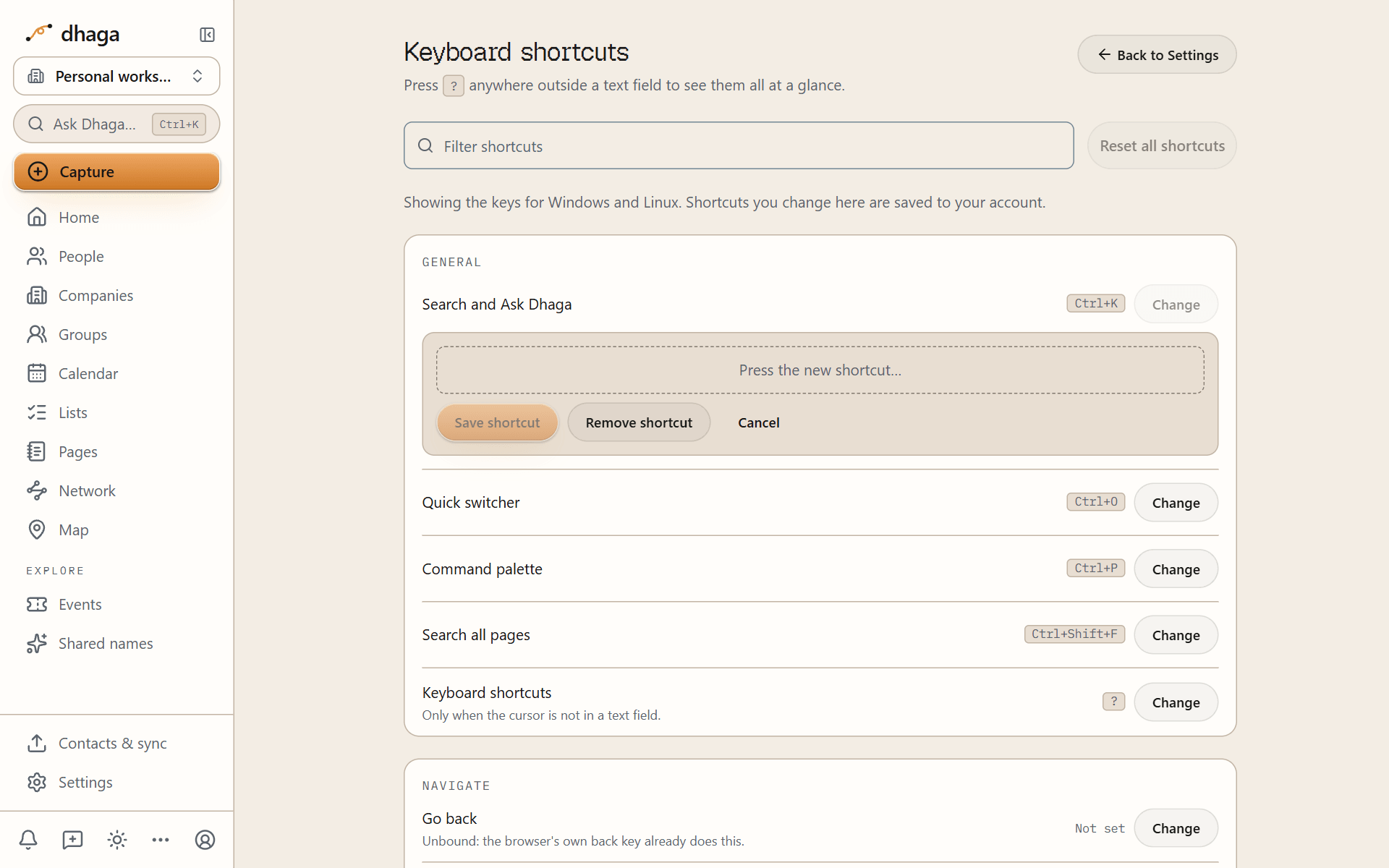
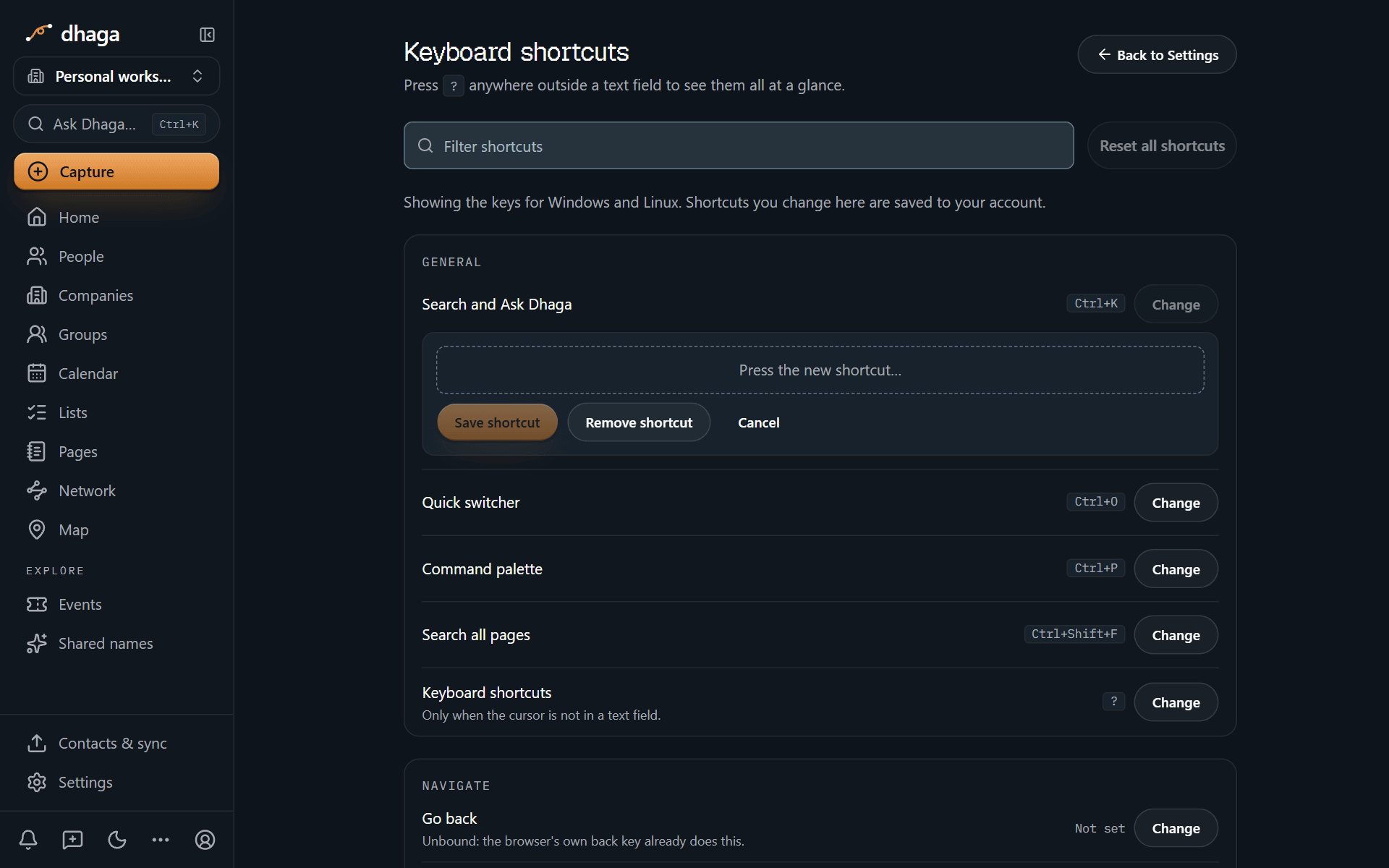
Open Settings → Shortcuts, find the action, and press the keys you want it to use. An action can have up to four keys.
- Keys the browser keeps, such as ⌘N or ⌘W, can't be chosen: the page would never see them.
- Keys the browser normally uses, such as ⌘L for the address bar or ⌘P for printing, can be chosen after Pages asks you to confirm.
- Your shortcuts are saved to your account, so they follow you to every browser you sign in on.
Some actions, such as Extract to new page, have no key until you give them one.
Search
Find pages with the quick switcher, run any action from the command palette, and search every page with Obsidian's operators, live query blocks and bookmarks.
Sharing and publishing
Keep pages private, share them with your organization or a guest with a role, or publish a read-only link with an expiry, a password and people's names kept private.