Pages
Write pages, databases and a daily Journal inside Dhaga, link them to the people and companies in your network, and find everything again.
Pages is a writing workspace inside Dhaga. You get rich pages, databases, canvases and a daily Journal, with wikilinks, backlinks and a graph. The people, companies, events and groups in your network are first-class link targets, so the notes you keep around your relationships live next to the relationships themselves instead of in a second app.
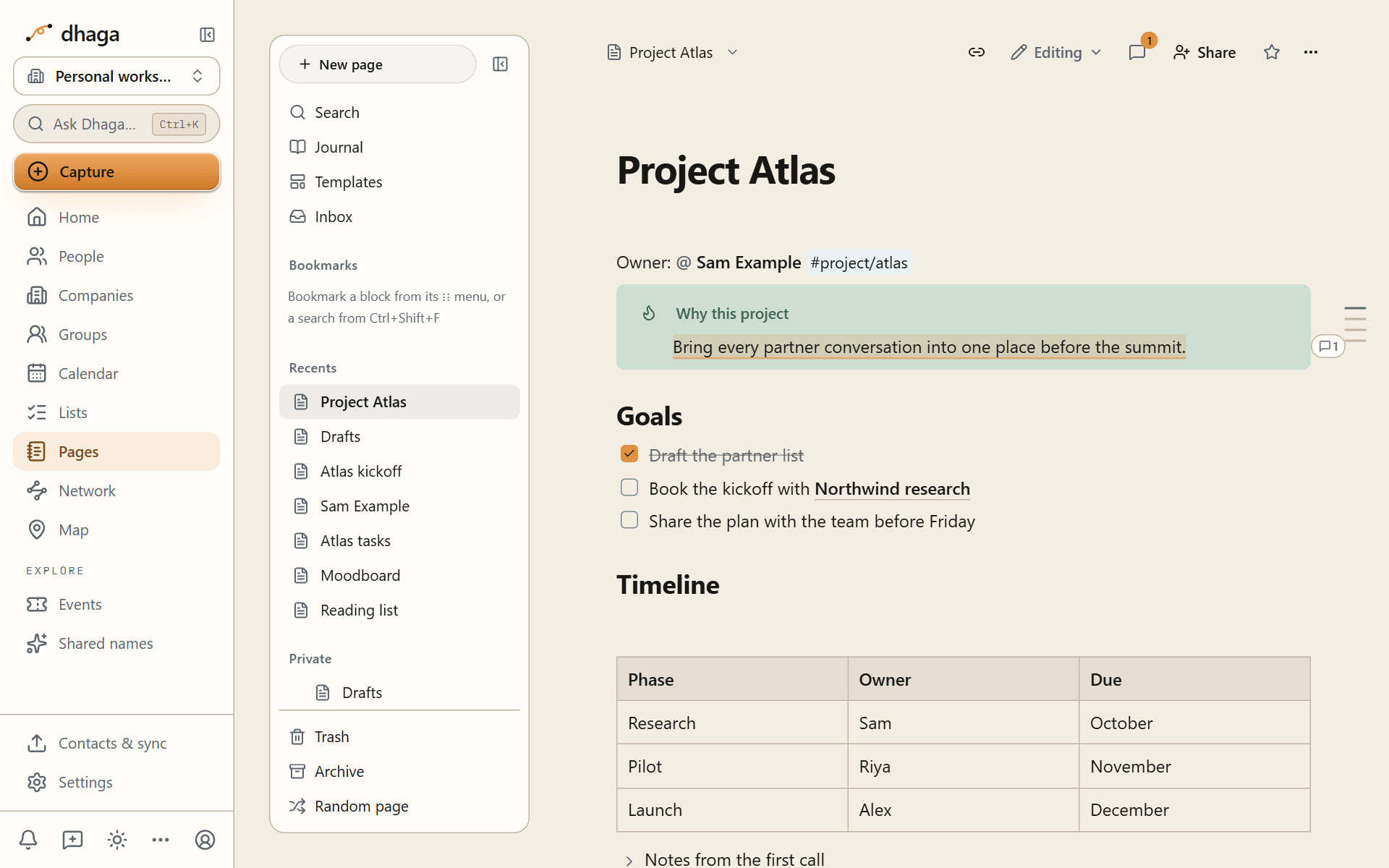
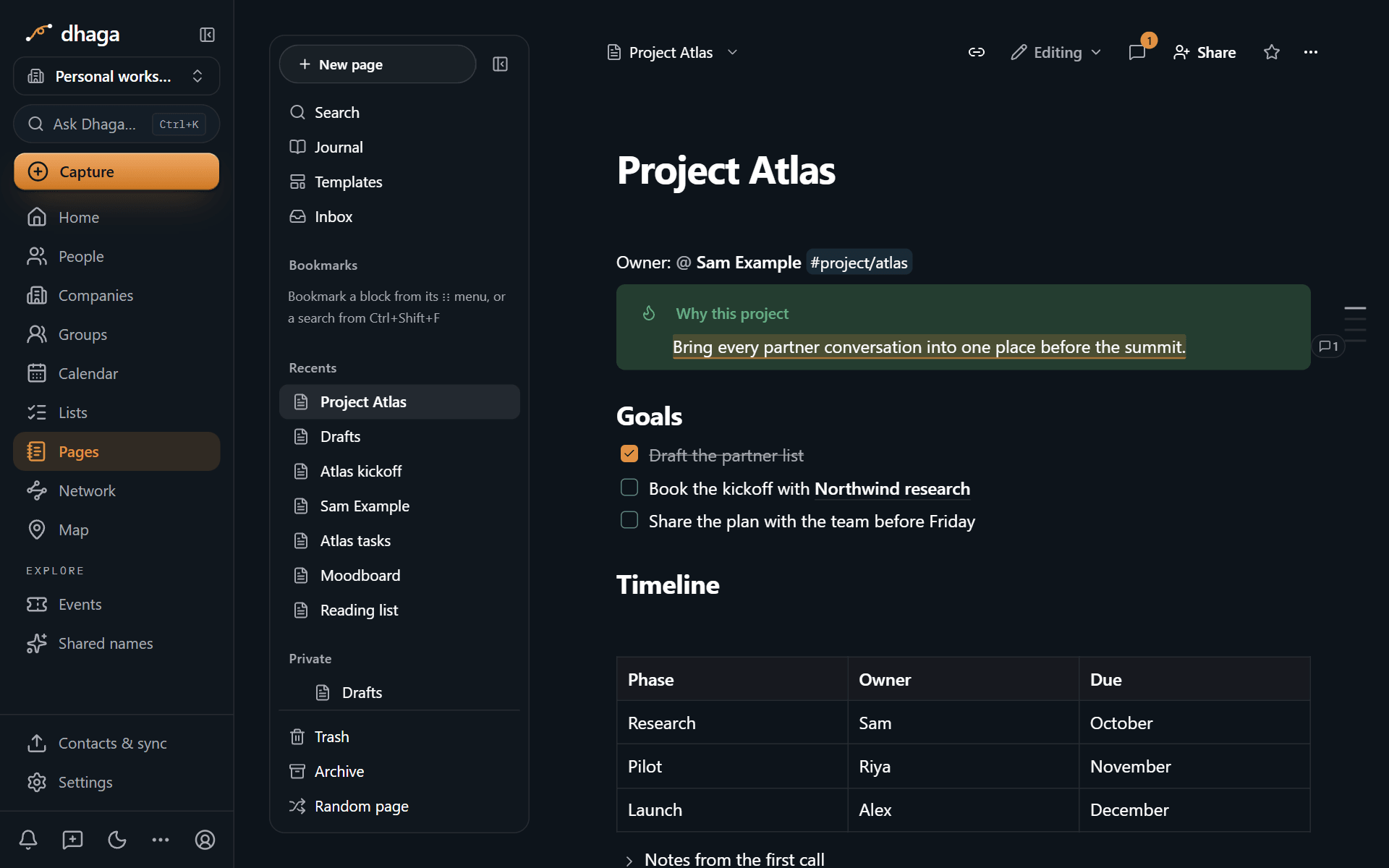
Pages is part of Dhaga's web app. The Dhaga mobile app does not have it yet, though the web app works on a phone.
What you can make
Everything in Pages is a page of one of four kinds:
- Page: a document built from blocks: text, headings, to-dos, tables, callouts, code, media and more.
- Database: a page whose rows are pages, shown as a table, board, calendar, timeline and other views. See Databases and views.
- Canvas: a board of cards and connecting lines. See Drawings and canvas.
- Journal entry: one page per day. See Journal and templates.
Pages and notes are separate. A note still belongs to one contact or company and still feeds fact extraction as it always has. A page is a longer document that can mention any number of people. A person's profile shows both their notes and their own page.
Create your first page
Open Pages from the app's navigation. It sits next to Lists on a desktop; on a phone, open More and choose Pages.
Choose New page at the top of the sidebar, then Blank page. From a template… starts from one of your templates or the gallery, and Unique note creates a page titled with the current date and time, such as 202610121430. The same menu also has New canvas, New database, Draft with AI and Import….
Type a title, press Enter, and start writing. Type / on an empty line to pick a block, or type Markdown such as # for a heading. The editor guide covers every block.
You never press save. Pages saves as you type, and the status next to the title says Saving… and then Saved. If a save fails, Pages retries and keeps your text in the browser until the server has it. If the same page was changed in another tab or by someone else, a banner asks what to do, and your text is never thrown away (see Conflicts).
The keyboard shortcut for a new page is ⌘⌥N on a Mac and Alt+N on Windows and Linux. Browsers keep ⌘N and Ctrl+N for a new window, so Pages uses the next free key.
Find your way around the sidebar
The sidebar holds every page you can open, in five sections (a Bookmarks section sits under Favourites, and a Tags section follows the five):
- Favourites: pages you starred with Add to Favourites.
- Recents: the pages you opened last.
- Private: your own pages. Nobody else sees them unless you share them.
- Organization: pages shared with your whole organization (shown only when you belong to one).
- Shared with me: pages other people invited you to.
Drag a page to reorder it, or drop it onto another page to nest it inside. The keyboard works too: focus a row and use the arrow keys, or choose Move to… from the row's … menu. Pages nest up to 32 levels deep, so a project page can carry its meeting notes, research and tasks underneath it.
On a tablet or computer the sidebar is yours to size. Drag its right edge to make it wider or narrower (double-click the edge to put it back), or focus the edge and use the arrow keys, with Shift for bigger steps. Collapse sidebar hides it completely so the page takes the room; Expand sidebar brings it back. ⌘\ (Ctrl+\) does the same from the keyboard. The app's own navigation on the left, the right-hand panels (page info, links, discussions, side peek) the info column on a person or company page, the meetings column on a group and the Context column on the Plan page resize the same way (on a narrower window they are a single column or a sheet, with no edge to drag), and every one remembers its width in this browser. ⌘. (Ctrl+.) shows or hides the page info panel.
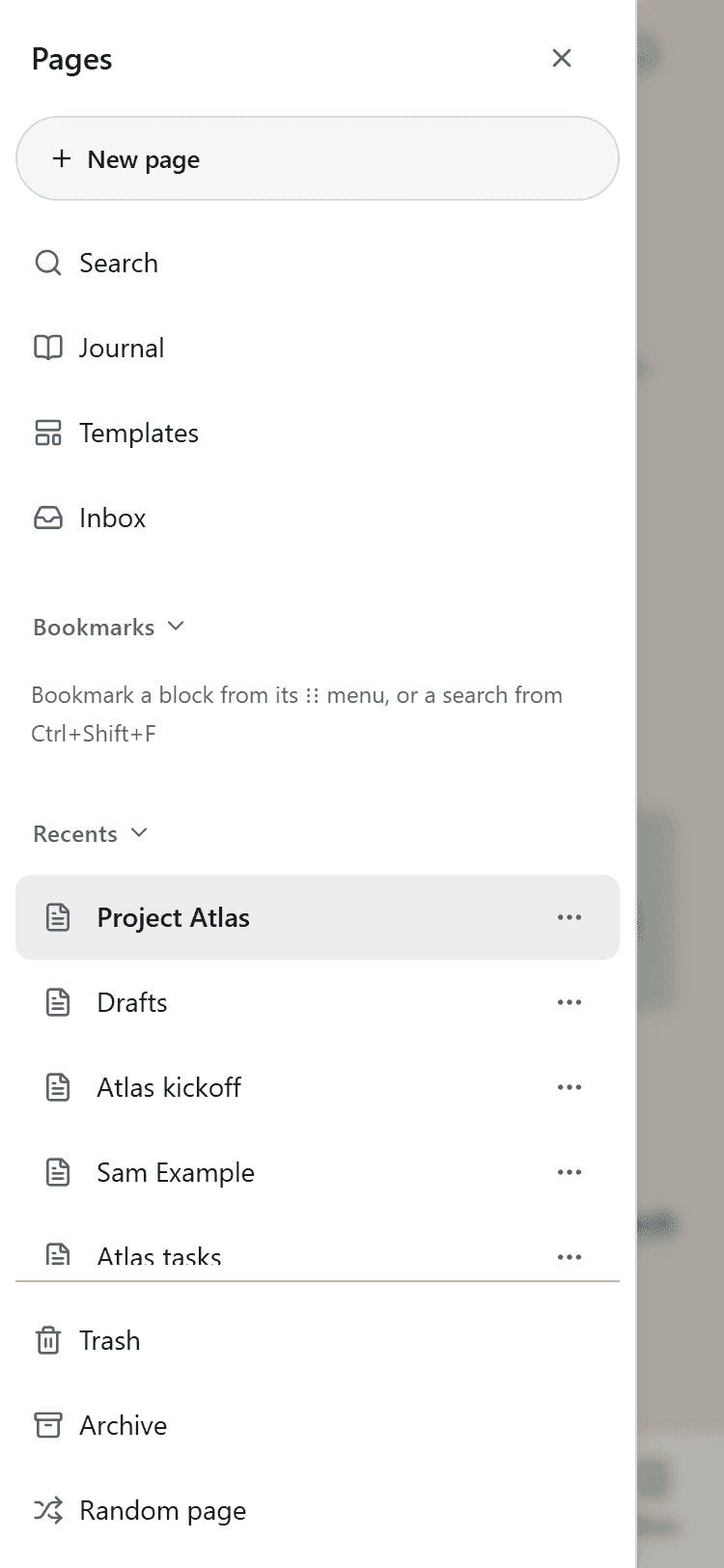
On a phone the sidebar becomes a sheet, with no edge to drag. Open it with the Open pages sidebar button in the page header.
Open pages side by side
A page normally opens full width. Four other ways keep your place:
- Side peek (Open in side peek): opens a page in a panel beside the one you are on. On a phone it fills the screen.
- Centre peek (Open in centre peek): opens a page in an overlay in the middle of the screen.
- Split view (Open in split view): shows two pages next to each other with a divider you can drag. It needs a window at least 1024 px wide; on a narrower screen the second page opens as a side peek.
- A new browser tab or window: ⌘-click or Ctrl-click any page link, or choose Open in new tab or Open in new window from the page menu.
Pages has no tab bar of its own. Your browser's tabs and windows do that job, and every page has its own address you can bookmark.
Hover a crumb in the breadcrumb at the top of a page to see its sibling pages, and press ⌘⇧U (Ctrl+Shift+U) to go up one level. Hover a link to another page to preview it without leaving.
Set up a page
Hover the title to add an icon or a cover. An icon can be an emoji, one of your custom emoji, an icon from the built-in set, or an image you upload. A cover can be a gradient, a colour or your own image, and you can drag it to reposition.
The Page options menu (… at the top right) holds the rest:
- Font: Default, Serif or Mono.
- Small text and Full width.
- Right-to-left for languages written that way.
- Lock page: stops accidental edits until you unlock it.
- View: live preview, reading or source. See Modes.
- Present: turns the page into slides.
- Page info: the page's outline, footnotes and a read-only list of its properties. You edit properties under the title; see Tags and properties.
- Version history, Move to…, Duplicate, Copy link, Merge into…, Archive and Move to Trash.
Browse every page
Pages home lists every page you can open, newest edit first. Search by title as you type, filter by kind (page, database, canvas or Journal), by whose pages they are, and by when they were edited or created, and switch between a grid and a list.
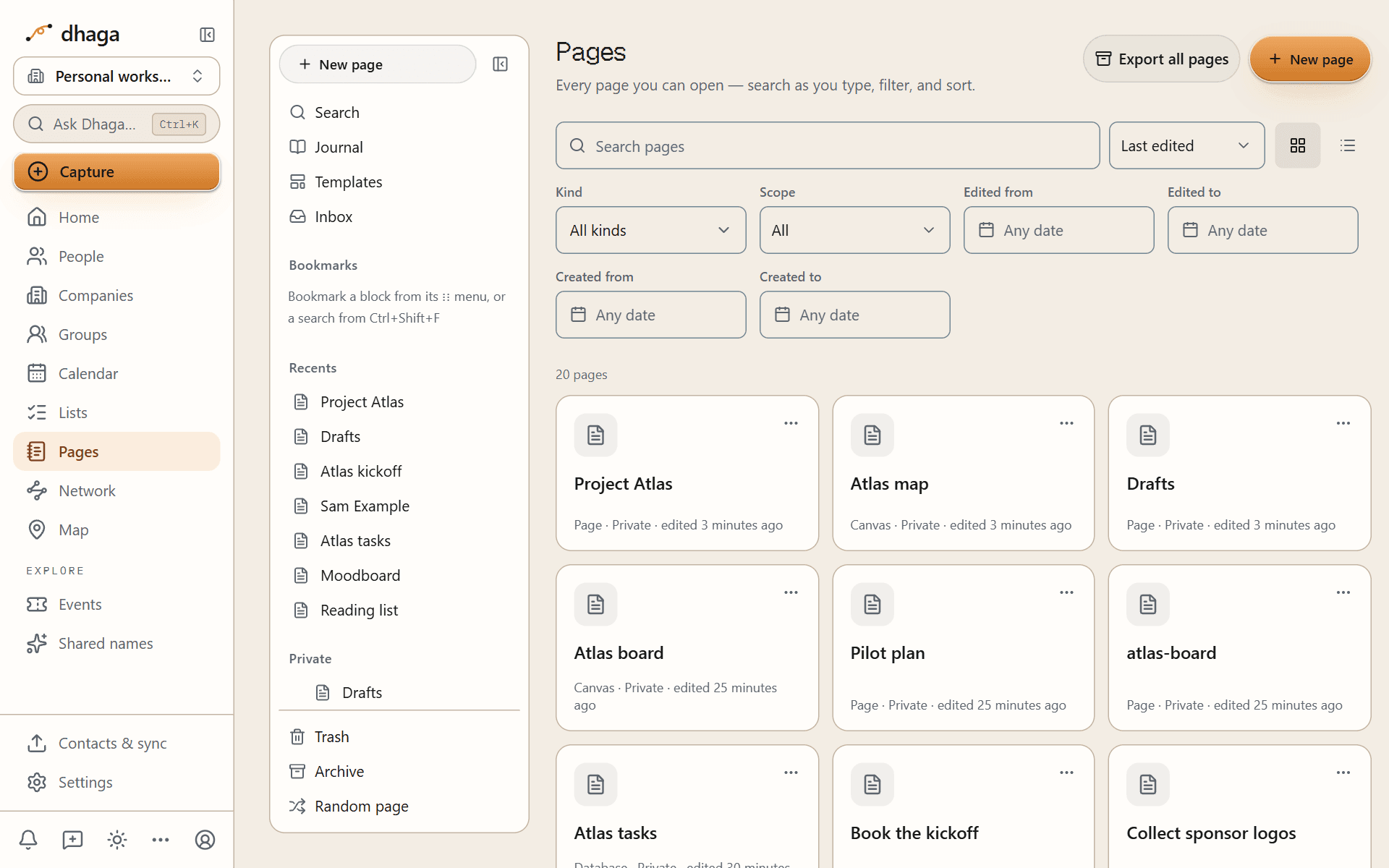
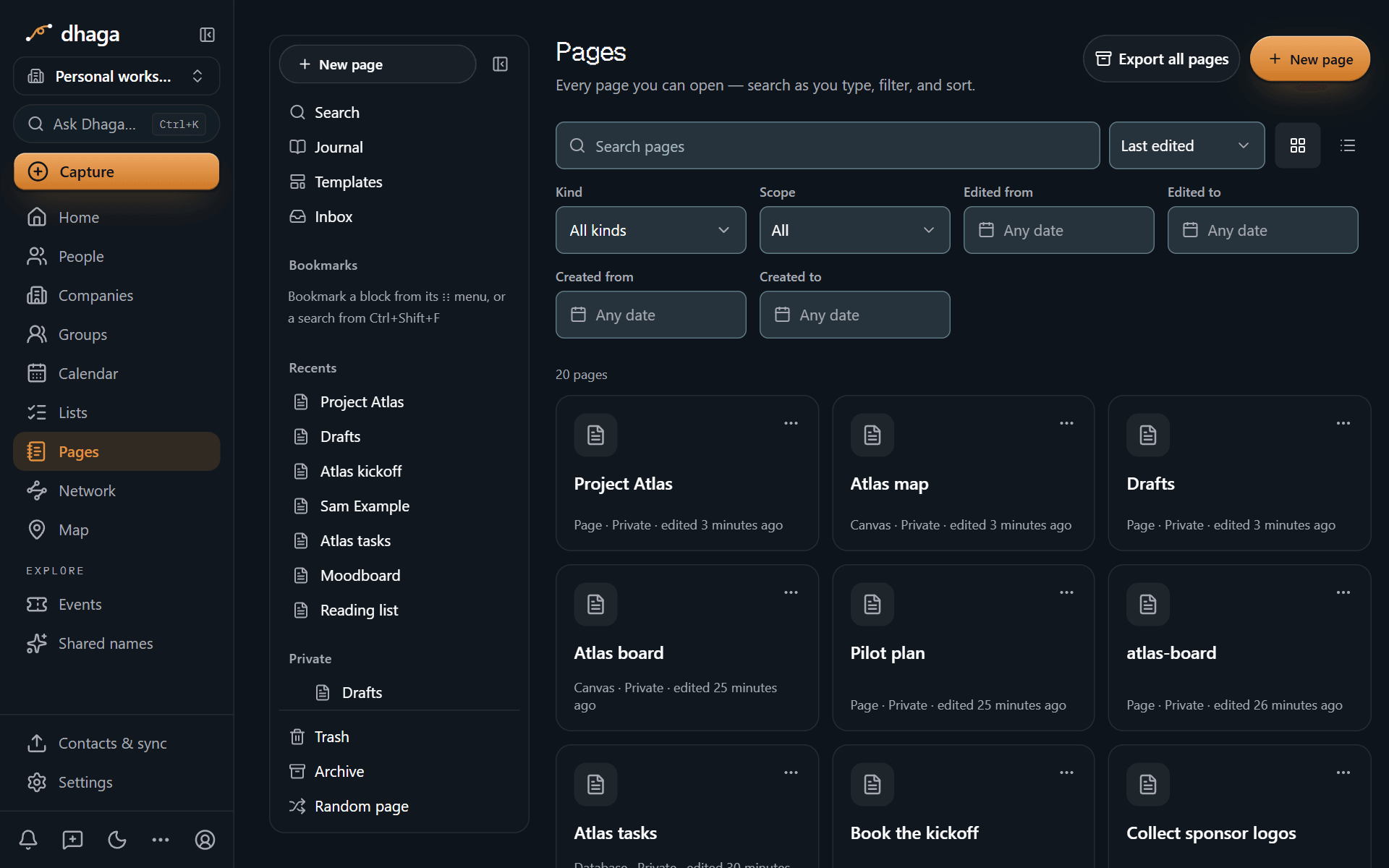
Random page (also in the sidebar) opens a page at random, which is a good way to rediscover something you wrote months ago.
Archive, trash and restore
- Archive hides a page from the sidebar and the Pages home without deleting it. Find it again under Archive, and unarchive it from there.
- Move to Trash removes a page and its sub-pages. Restore it from Trash within 30 days.
- After 30 days in the Trash a page is deleted for good, with its files, history and comments. Delete forever in the Trash does it straight away, after asking you to confirm.
Delete forever tells you how many files, and how much space, go with the page and the pages inside it, and offers Download files first, a zip of them all. Deleting a file block inside a page asks separately whether to delete that one file.
Next steps
The editor
Blocks, the slash menu, Markdown shortcuts, colours, find and replace, and the four ways to view a page.
Links, mentions and backlinks
Link pages with [[ and mention people with @, then see every page that points back.
Databases and views
Tables, boards, calendars and timelines whose rows are pages, with formulas and relations.
Journal and templates
A page for every day that shows your meetings and follow-ups, and templates with variables.
Sharing and publishing
Share with your organization or a guest, or publish a read-only link.
Import and export
Bring in an Obsidian vault or a Notion export, and leave with everything as an Obsidian vault.
Coming from Notion
Where each Notion feature lives in Pages, and what works differently.
Coming from Obsidian
Where each Obsidian feature lives in Pages, and what works differently.
Notes & facts
Add notes by typing, voice or photo; Dhaga extracts facts with a receipt on each — or add facts by hand, no AI needed. Attach files; deletions cascade.
The editor
Write with blocks: the slash menu, Markdown shortcuts, the block menu and drag handle, colours, callouts, tables, find and replace, and the four views.