Organizations
An organization is a shared workspace with its own contacts and notes, apart from your personal one — how to switch in, how contacts arrive, who sees what.
What an organization is
An organization is a second workspace. It sits beside your personal one, it holds its own contacts and its own notes, and you move between the two with the workspace switcher.
The two never blend. Switching to an organization does not add badges to your personal list — it swaps the whole view. Your people become the organization's people, your notes become the organization's notes, search searches the organization, and switching back returns you to exactly what you had.
Joining an organization shares nothing
Being added to an organization does not hand over your contacts. Your own contacts and notes stay yours, in your own workspace, and nobody in the organization can see them. Nothing you already have moves anywhere on its own — a contact reaches the organization only when you deliberately put it there.
How a contact reaches an organization
There are three ways, and it is worth knowing which one you are using, because they differ in what they take and how easily they are undone.
| What it does | Undo | |
|---|---|---|
| Create it while switched in | A person you add while the switcher says Acme is Acme's from the moment you save | Nothing to undo — it was never yours |
| Copy one you already have | Your record stays exactly as it is; the organization gets its own new record of the same human | Your own copy is untouched, always |
| Import a file | You pick the destination on the review screen before anything is written | None — see the warning there |
The rest of this page walks each one. Two things are true of all three:
- Nothing you write is shared until you publish it. Notes created or copied into an organization start marked Not shared with colleagues.
- A record cannot move back. Once a contact is the organization's, it is the organization's — not returnable to your personal workspace, and not movable to a second organization.
Creating a contact in an organization
Switch to the organization, then add a person the way you always do — the add form, Add a person, or a capture (a card scan, a screenshot, a voice or text note). They are the organization's record, and they appear in its list rather than yours.
Check the switcher first. Whatever it says is where the person will land, and the same form in your personal workspace makes a personal contact.
Two capture paths are deliberately different
WhatsApp and Telegram messages always land in your personal workspace unless you start the first message with the organization's slug — see Calendars, address books and phone capture below. And a contact arriving from your synced address book follows the connection it came from, not the switcher.
Importing into an organization
On the review screen of an import — Google, LinkedIn, Outlook or a .vcf — a
Where these contacts go choice appears above the list, with your personal
workspace already selected. It only appears if you belong to an organization.
Choosing the organization asks you to confirm, and the confirmation names the number of contacts and says plainly that it cannot be undone. That is not boilerplate: an address-book export is often thousands of people, and every one of them becomes the organization's record permanently. You can delete a record you imported only until a colleague writes on it — after that it stays, and nobody, not even an owner, can remove another member's records.
Personal stays the default and always will. The choice is never inherited from whichever workspace you happen to be in.
Contacts in an organization are visible to everyone in it, but notes are shared only when their author publishes them. The import's own "Imported from …" receipt is not something to publish, so it carries no Publish prompt. In an organization workspace the People table has an Added by column and each contact page says who added it — by name, never by email address — so you can tell your own imports from a colleague's. Each member also has their own colour, shown as a dot beside the contact's name and on the name tag; your own contacts use a quiet neutral tag. With more than eight members two people can share a colour, which is why the name is always shown. You can also filter the People list by Added by — pick one or more colleagues (yourself is listed first as "You", and "Former member" appears if anyone who has left added contacts); the count and pages follow the filter. A member who has since left shows as "Former member".
Getting one
Organizations are on the Team plan, and they are not self-serve. There is no button that creates one. A Dhaga admin provisions the organization, sets how many seats it has paid for, and makes someone its owner — so getting started is a conversation, not a checkout. The pricing page's Team card is a Contact sales link for that reason.
Every seat carries the same allowance a Power plan does — 1,000 AI credits per person per month, per seat and never pooled. If you also pay for Dhaga personally, your own plan always wins: an organization seat can raise what you get, never lower it.
Two smaller things worth knowing about credits:
- Switching workspaces changes your allowance, not your usage. What you have already spent this month comes with you.
- Your organization cannot see your AI usage.
Switching workspaces
The switcher is pinned in the app shell — in the rail on a wide screen, in the navigation sheet on a narrow one. It is there even when you belong to no organization, so nothing new ever appears on the day you are added to your first one.
Whatever it says is the workspace you are in. Everything else on the screen follows it — your people, companies, groups, search and anything you create. Switching confirms with a message naming the workspace you have moved to, so a list that suddenly looks empty is never a mystery: it is the other workspace's list, and switching back brings yours straight back.
Members, roles and invitations
The Organization screen is the console. Every member can see the roster — being put into a workspace and not being allowed to see who else is in it is not privacy — but the controls are for managers only.
Where to find it. Organization sits at the bottom of the sidebar beside Settings on a wide screen, and in the More sheet on a narrow one. It appears only once you belong to an organization, so nothing new turns up on an account that belongs to none. The console shows the organization you are currently in — if you are in your personal workspace it says so and points you at the switcher.
Owners get two more tabs there, Activity and Single sign-on. Admins and members do not see either, because neither is a control they can use.
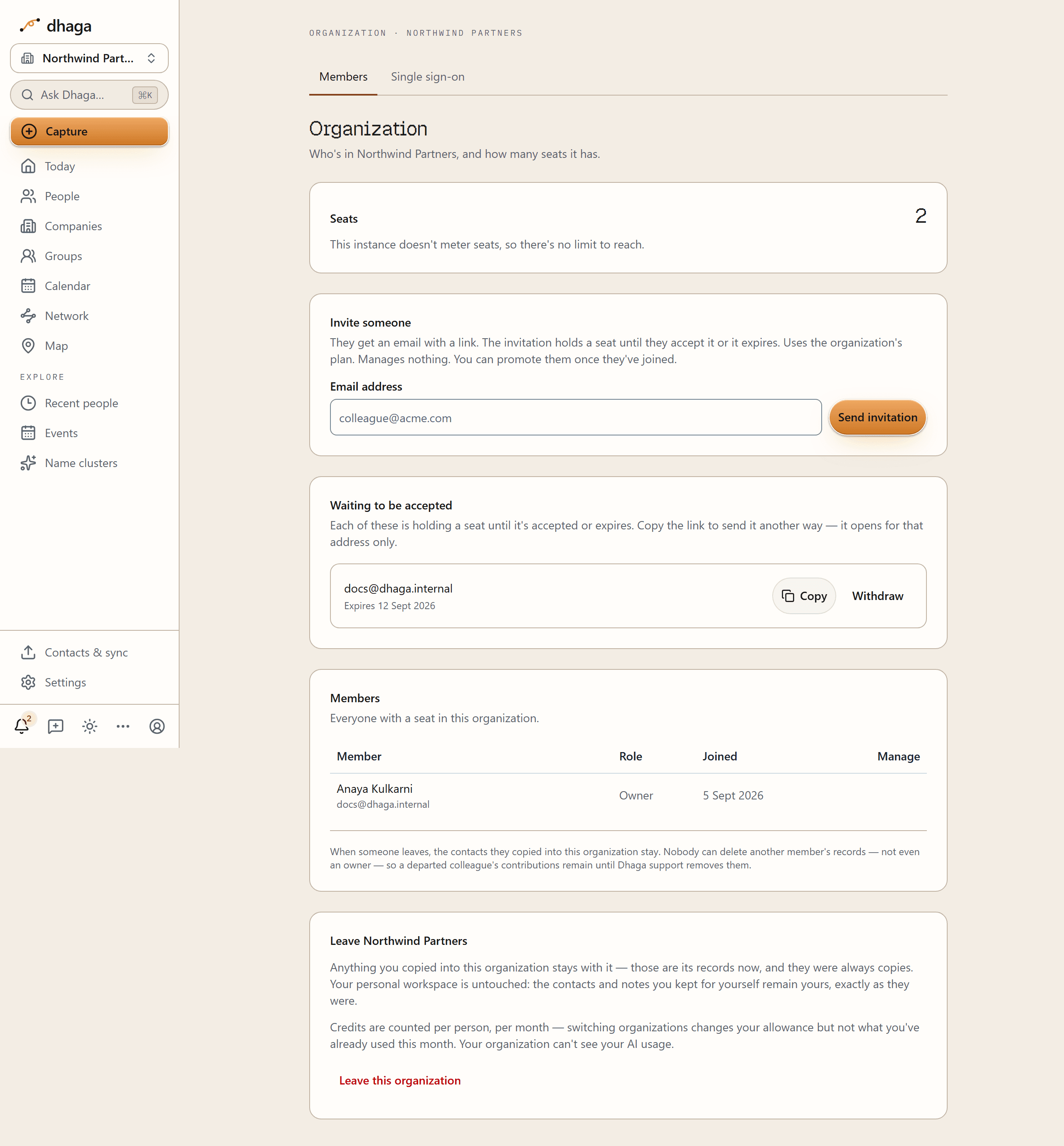
| Role | What it can do |
|---|---|
| Owner | Manages the organization, its members and its single sign-on. Can export the organization's data. Can read every note in the workspace, published or not. |
| Admin | Can invite and remove members. Cannot change an owner. |
| Member | Uses the organization's plan. Manages nothing. |
Inviting. An owner or admin invites by email address. The invitation is sent as mail, and it is also listed in the console with a link the owner can copy and send another way. An invitation consumes a seat while it is pending, so an organization with one free seat cannot have five invitations outstanding.
Accepting. The invite link survives signing in: if you are not logged in when you open it, you land back on the invitation after you sign in rather than on the dashboard. On the hosted service an invitation also approves your account the moment it is created — somebody has already paid for that seat and named that address.
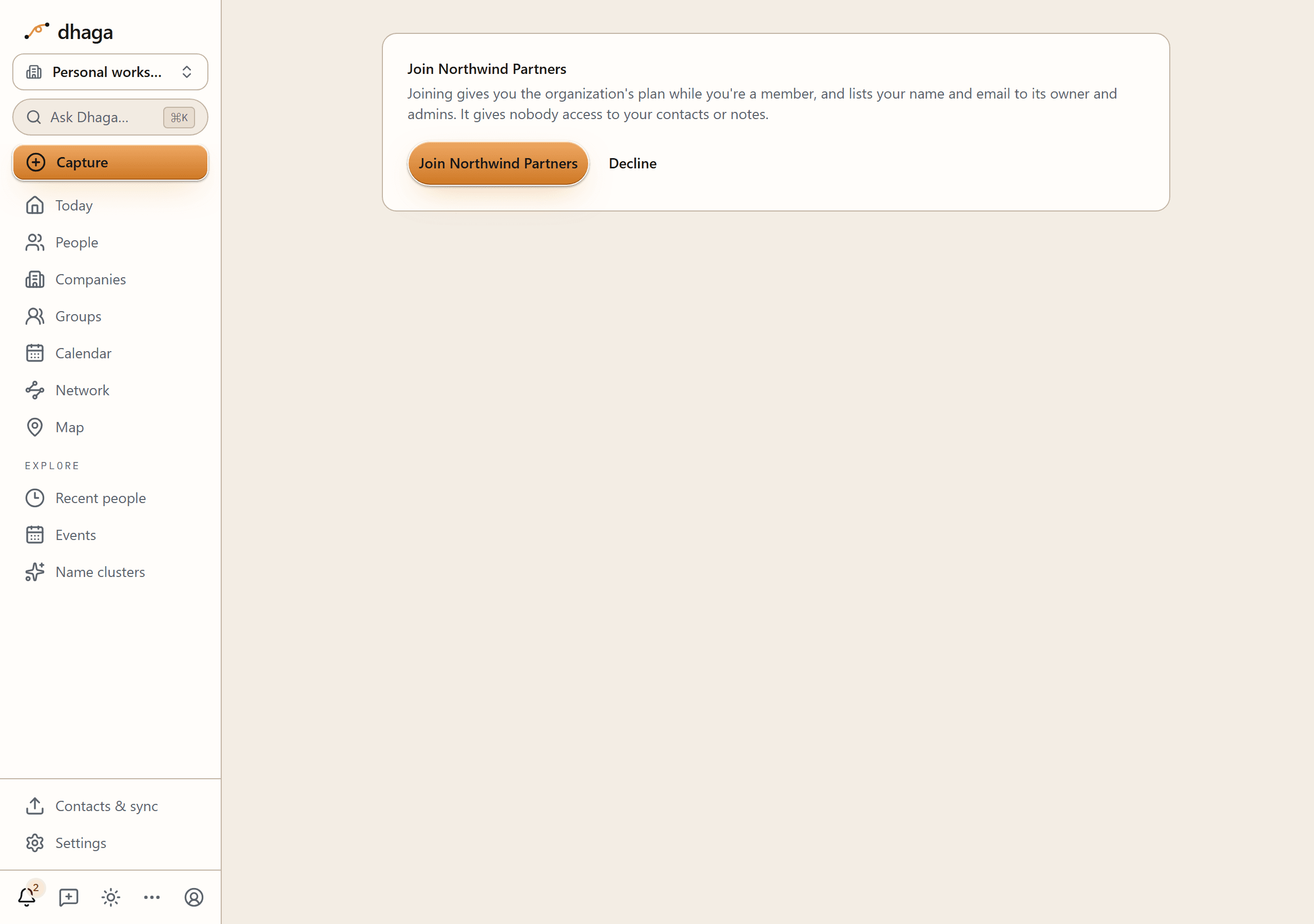
Leaving and being removed. Both are ordinary. You keep your personal workspace and everything in it; you simply stop being able to reach the organization's. Mail goes out when you are added, when single sign-on auto-provisions your account, when you are made an owner, and when you leave or are removed.
Contributing a contact
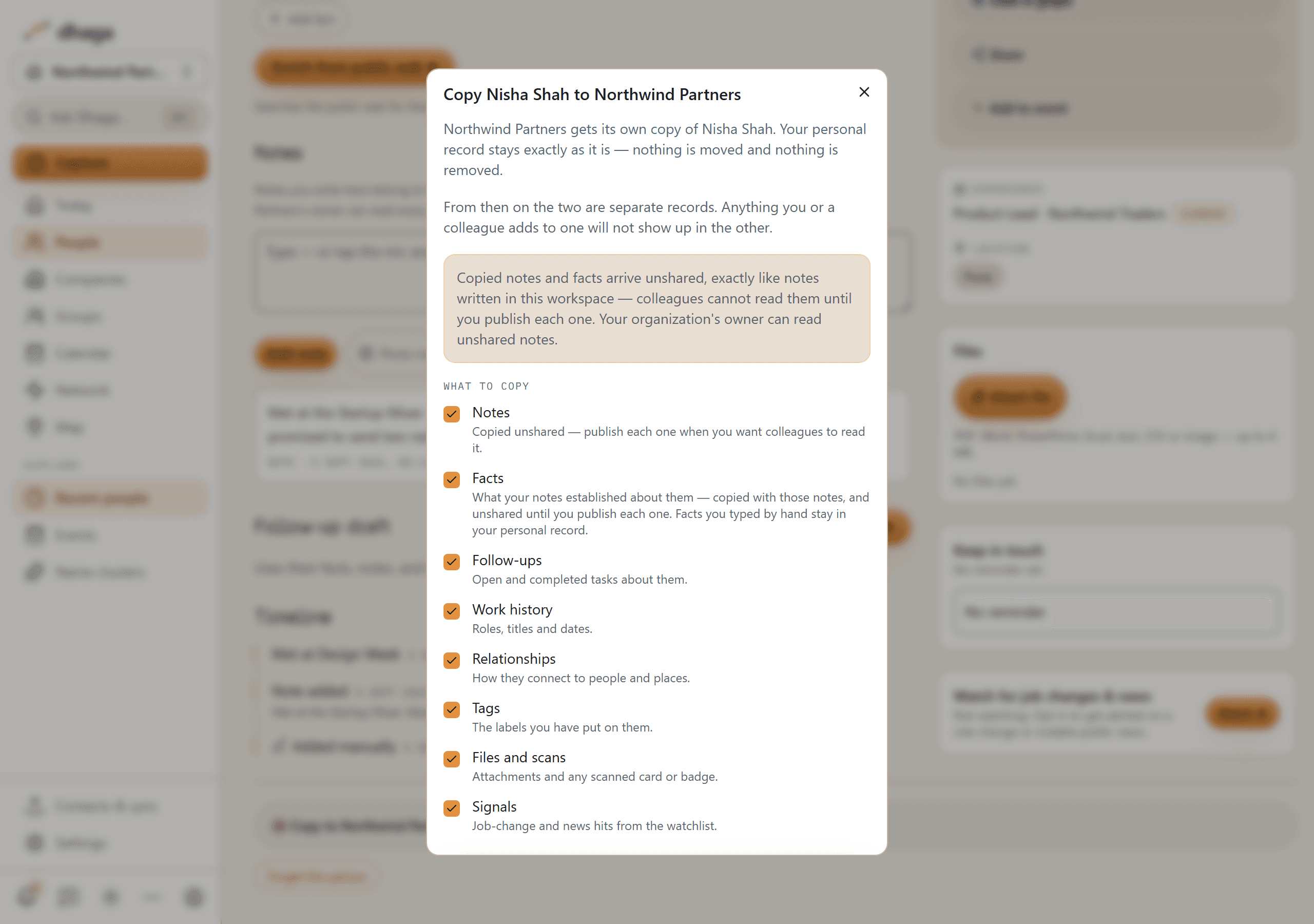
Open one of your own contacts and their page offers Copy to <organization>, beside Edit and Add to group. This is the route for somebody you already have — the other two above are for people arriving now.
You do not switch workspace first. You contribute from your own workspace, where the person already is, and the dialog names where they are going. If you belong to more than one organization the button reads Copy to an organization and the dialog asks which one — one copy goes to one organization, and you can copy again to contribute the same person to another.
It is a copy, and that is the whole design. Your personal record is not touched, not moved and not emptied. The organization gets a new record of the same human, and from that moment the two are independent: different notes, different facts, nothing syncing them, for ever. You keep everything you had. If you leave the organization one day, your own record of that person goes on being yours.
The picker decides what travels. Everything is ticked by default, and you can untick any of it:
| Item | What it is |
|---|---|
| Notes | Everything you have written about them |
| Facts | What Dhaga extracted from those notes |
| Follow-ups | Open and completed tasks about them |
| Work history | Roles, titles and dates — the employer travels too, so a title says where |
| Relationships | How they connect to people and places |
| Tags | The labels you have put on them |
| Files and scans | Attachments and any scanned card or badge |
| Signals | Job-change and news hits from the watchlist |
A few consequences, said plainly rather than discovered:
- Relationships to people who did not travel are dropped. An edge only survives when the organization holds both ends. Cloning the far end would put people into a workspace nobody chose to contribute them to.
- Copying someone you already copied updates that record instead of making a second one: the dialog says Already in <organization> — update it? and the button reads Update. If a colleague has already contributed the same person, the organization ends up with two records. That is deliberate — duplicate detection already runs inside the workspace, it will surface the pair, and merge handles it. "Is this the same person" is a judgement, and the moment of copying is the worst moment to make it.
- Employers are shared. Colleagues at one company land on one company record in the organization, rather than one each.
- It only goes one way. Personal → organization. An organization's contact cannot be copied back to personal, or on to a second organization.
Copy many at once
To bring a whole batch across, work from People in your own workspace. The example below uses made-up people and an organization called Example Org.
1. Select the people. Tick the rows you want. The bulk bar appears above the table and counts them. Copy to organization… is near its right-hand end (the bar scrolls sideways on a narrow screen). It only shows in your personal workspace, and only if you belong to at least one organization.
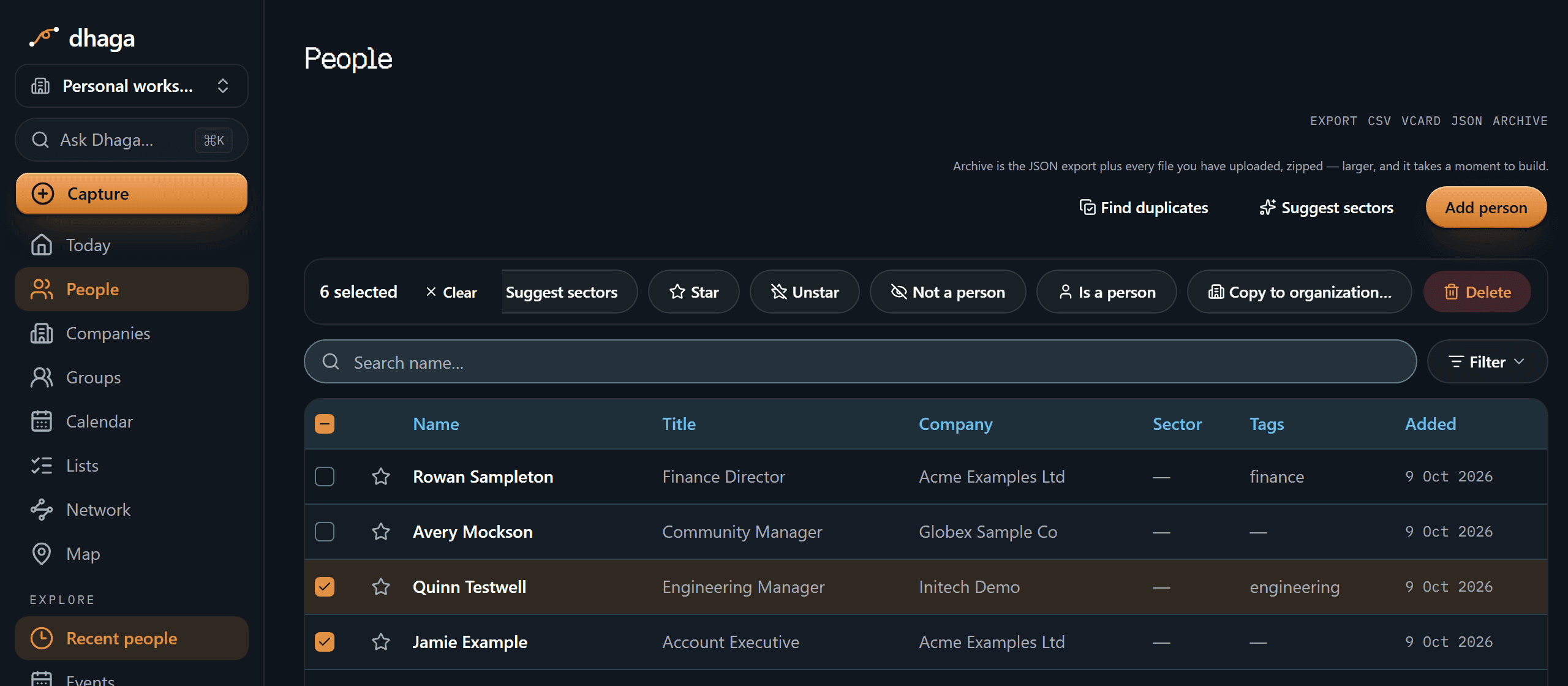
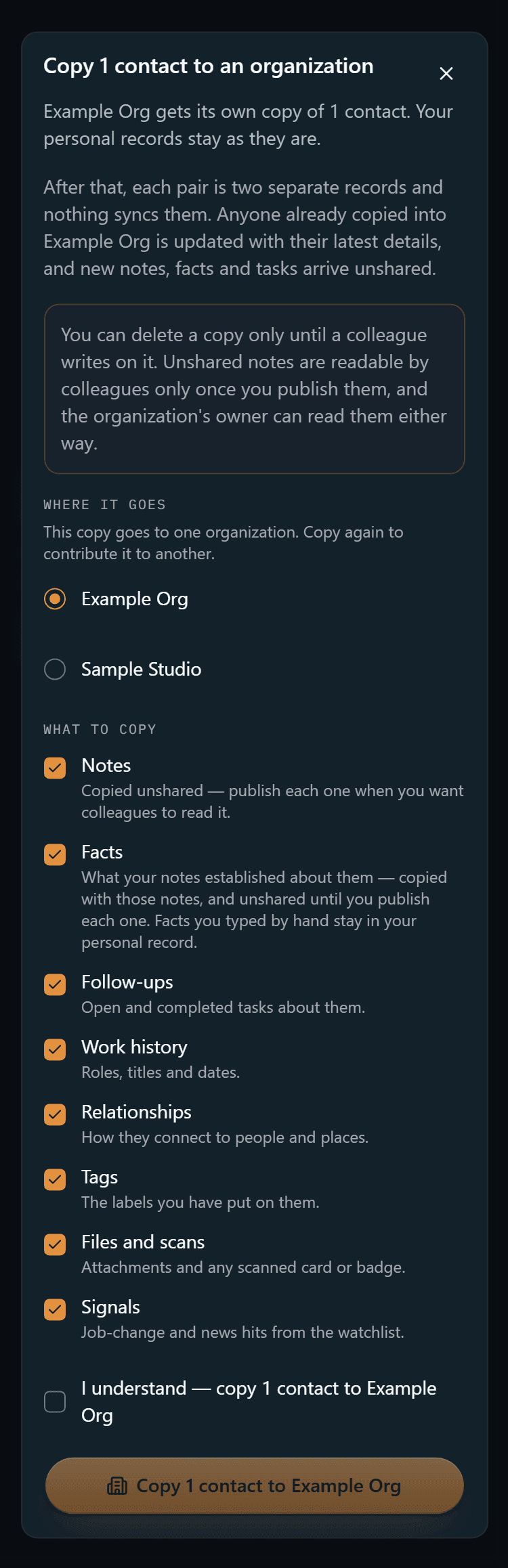
2. Check where it goes and what comes with it. The dialog names the number of people and the organization. If you belong to more than one organization, pick one under Where it goes. Under What to copy, everything is ticked by default and you can untick any of it. The button stays off until you tick the box that names both the count and the organization.
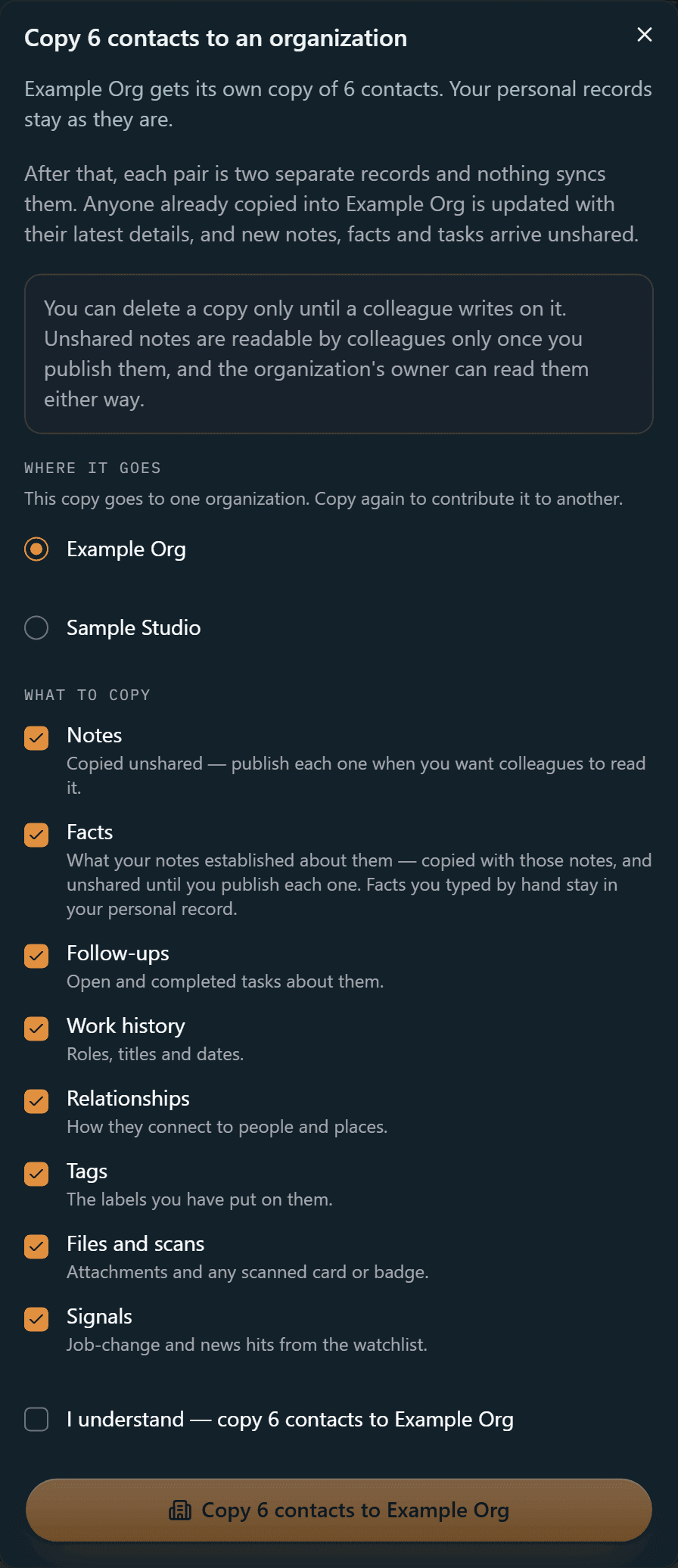
3. Watch it run. Dhaga works through your selection in batches of 25 and shows how far it has got.
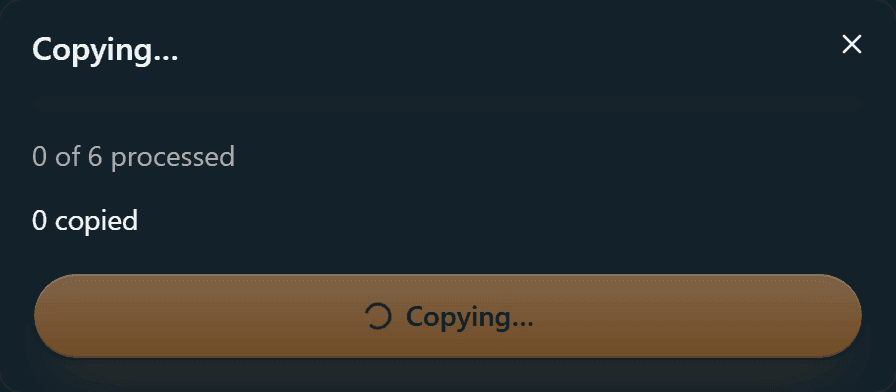
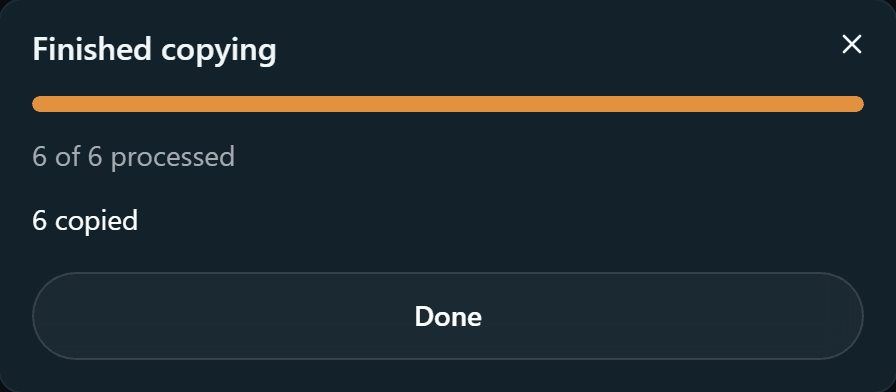
4. Read the result. It tells you how many were copied. If something goes wrong part-way, everything copied so far is complete and Retry the rest carries on from where it stopped.
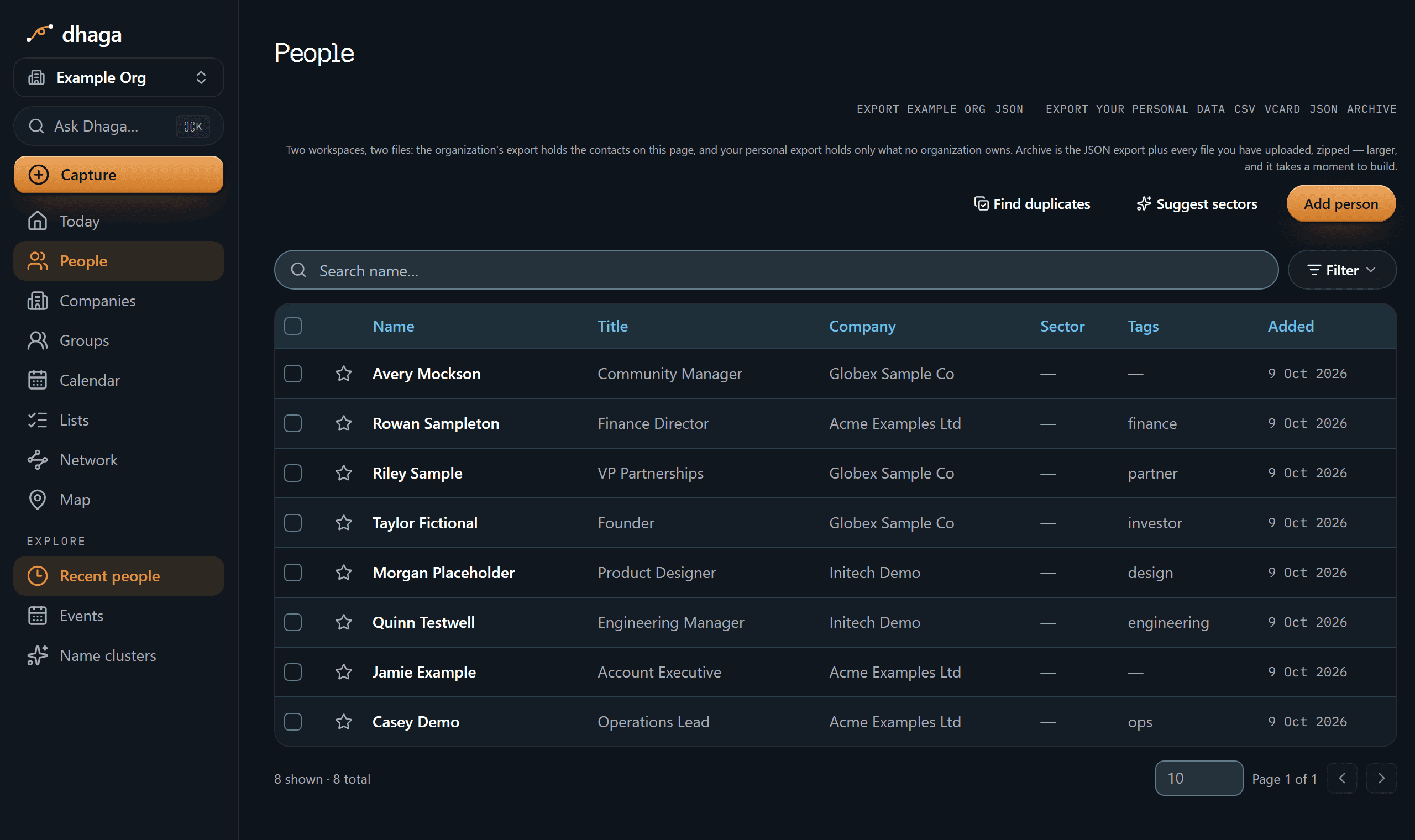
5. Find them in the organization. Switch to the organization from the workspace switcher at the top of the sidebar. The people you copied are on its People list, as separate records from your own.
Copying someone again updates them
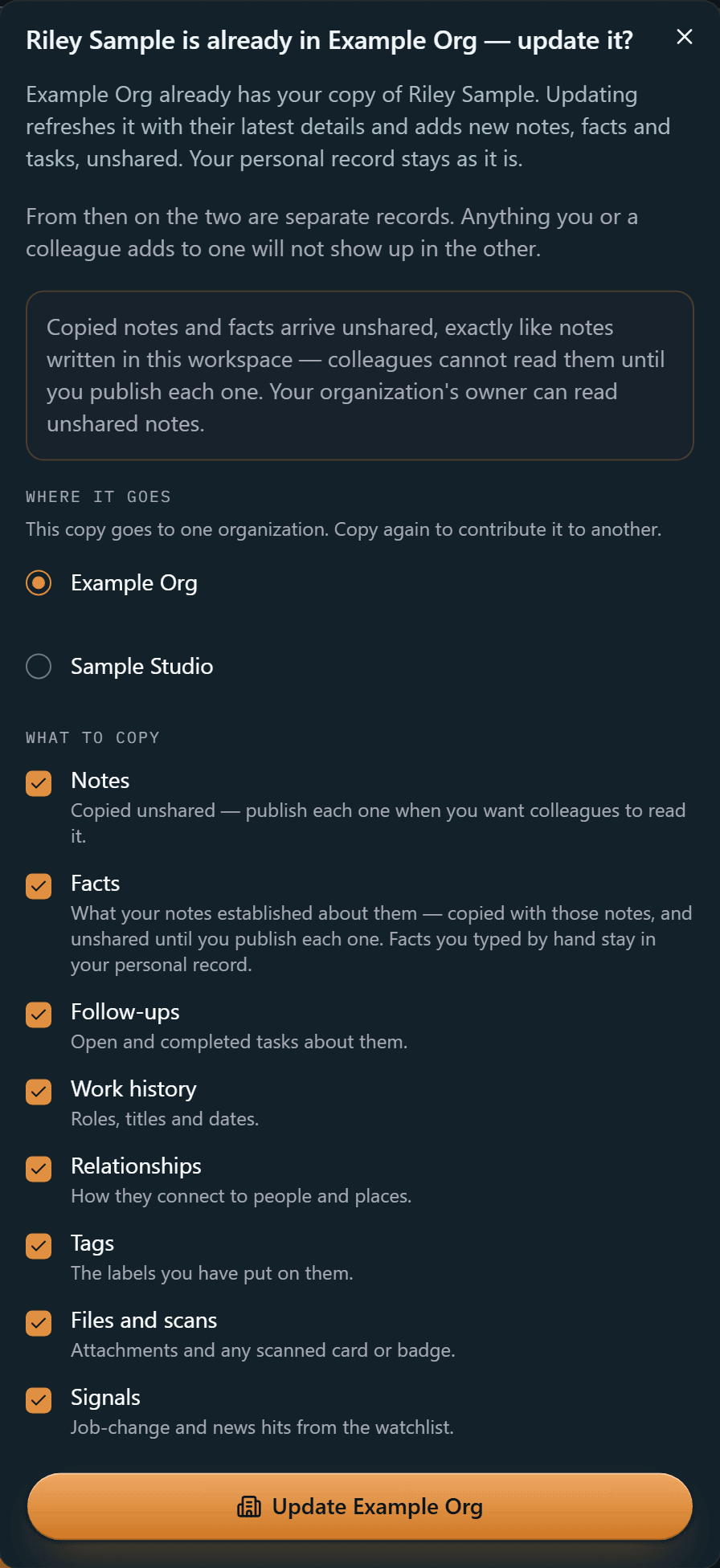
Anyone you already copied into an organization is updated, not copied twice. Dhaga remembers exactly which of your contacts each organization record came from, so copying them again refreshes that one record with their latest details and adds anything new — new notes, facts and tasks arrive unshared. Nothing already in the organization is removed, and a note you edited or shared there is left exactly as you left it. If nothing has changed, nothing is written. It only ever touches your own copies, never a colleague's, and two different people who happen to share a name are never mixed up.
On a person's own page, Copy to an organization tells you when they are already there and offers to update them.
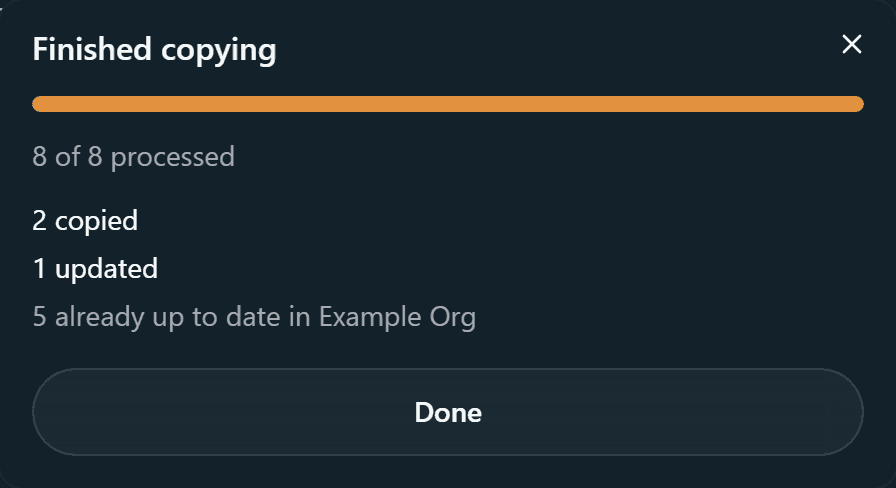
Copying a whole selection again shows what happened to each person: how many were copied for the first time, how many were updated, and how many were already up to date.
Relationships between any two of your people who are both in the organization are kept, whichever batch or day they were copied on, and never doubled. A link to someone you have not copied is left out.
On a phone
The same dialog works at phone width: the explanation, the choices and the confirmation stack in one column and the dialog scrolls.
Good to know
- If you delete a note from the organization's copy of someone and then copy them again, that note comes back.
- If you change someone's contact details inside the organization and then copy them again, the details from your personal record replace the ones in the organization. Notes you edited or shared there are not overwritten, and nothing is removed.
- Copying the same group twice creates two groups in the organization. The people in them are updated, not duplicated.
- People who were copied into the organization before this update are not recognised, so copying them again makes a second copy.
Contributing a group
Copying a contact never drags its groups along, and copying a group takes the members you leave ticked with it. Both halves are deliberate: contributing a person is one decision about that person, and contributing a group is one decision about the group.
The control is at the bottom of the group's own page, under the same rule as a contact: the group has to be yours, you contribute it from your own workspace, and the dialog names the organization it is going to.
A group copy carries the group itself, its current members, the group's shared notes and tasks, and the relationships between the members that travelled. Group tags do not travel.
The Groups screen follows the workspace like every other list: your own groups in your own workspace, the organization's when you are in it, never the two mixed. A personal group is private to you like a tag; a group contributed to an organization is readable by everyone in it, and the page says which of the two you are looking at.
Who can read your notes
This is the part worth reading twice.
Everything written or copied into an organization starts unshared. A note you dictate in an organization workspace, and every note that arrives with a copied contact, is marked "Not shared with colleagues" until you publish it.
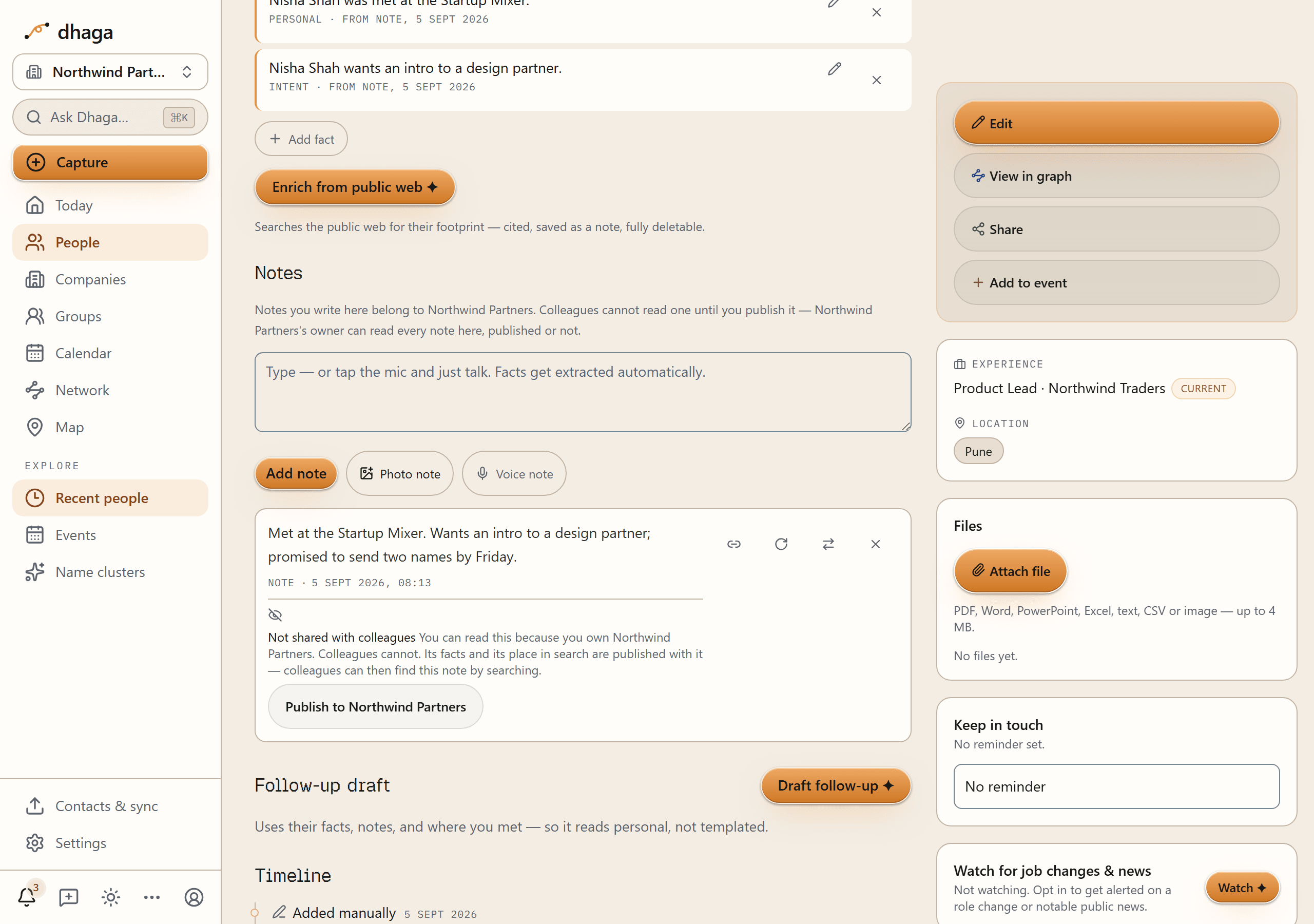
- Colleagues see nothing until you publish. Not the note, not the facts drawn from it, and not through search.
- The organization's owner can read it anyway — published or not. It is not called "Private" anywhere in the product for exactly that reason, and the owner's access is stated beside the label, above the note composer, and on the privacy page.
- Publishing carries more than the note. Its facts and its place in search go with it, so colleagues can then find the note by searching. That is said on the button before you press it.
- You can unshare again. It takes the note back out of colleagues' view from now on. It cannot unsee: anyone who already read it still knows what it said, and the product says so at the moment you click rather than implying a recall.
- Only the author changes a note's sharing. The owner can read an unpublished note but cannot publish it — reading is the oversight the role was given; publishing it to colleagues in your name would be speaking for you. So the Publish and Unshare buttons appear only on notes you wrote.
Inside the organization every member can read everything that has been published, and can edit and delete only what they wrote themselves.
Deleting an organization's contact
You can forget a contact in an organization when you are the one who contributed it, and Dhaga refuses when it cannot prove you authored it — a refusal with a sentence in it, rather than a silent no-op.
If a colleague has since written their own notes on that contact, the delete is blocked and says so. Their notes are theirs; removing the person underneath them is not yours to do.
Calendars, address books and phone capture
Connections belong to a workspace. A calendar or address book you connected personally is not the organization's, and vice versa — even for the same Google account. Being invited into an organization means connecting again inside it, and the screen tells you which workspace you are connecting to.
An organization's own connection syncs two ways; nothing the organization owns is ever written out to a personal connection.
WhatsApp and Telegram capture is the deliberate opposite. One number maps to exactly one account, so capture lands in your personal workspace by default — always, and however the message arrives. To send a capture to an organization, start the first message with the organization's slug:
@acme met <name> at the summit, wants a demo in March@personal forces the other direction and always wins. Anything that fails to
resolve — an unknown slug, an organization you have left — quietly lands in
personal, and the reply tells you where it went. Personal is the only default
that cannot disclose something by accident.
Exports
Your own export is unchanged and always available: your personal workspace, all of it, whenever you want it.
The export buttons beside your people list always hand back your personal data, even while you are looking at the organization's contacts, and they say so. That is deliberate rather than a limitation: making them follow the workspace would let anyone in an organization walk out with its whole contact list as a spreadsheet.
The organization's export is the owner's and nobody else's, including admins. An owner finds it under Organization, above Leave this organization. Every export is recorded in the organization's activity log before a single row is read. The owner reads that log under Organization → Activity: contributions, note publishes and withdrawals, deletions and exports, newest first.
Single sign-on
An organization's owner can connect a SAML or OIDC identity provider from Organization → Single sign-on, and claim an email domain by publishing a DNS TXT record. People signing in through the provider are provisioned as members automatically.
Their side of it is the Dhaga login screen: choose Sign in through your organization, type the work email address, and Dhaga finds the right provider from its domain — nobody has to know a provider id or a domain name. Starting instead from the identity provider's own dashboard is the one flow that does not land you in the app yet.
SSO has not been run against a real identity provider
It is built and it is wired, but it has not yet been validated end to end against a production IdP. Talk to us before you plan a rollout around it.
What is not there yet
Stated rather than left to be discovered:
- A copied contact does not appear in colleagues' semantic search until its notes are published. That is the fail-closed side of the visibility rule working as intended.
- You cannot add a note, task or file to a contact a colleague contributed. You can read theirs; writing onto someone else's org contact is not wired yet.
- Entity note lists are not workspace-scoped. Contacts, companies, groups, search and Wrapped are.
- Calendar reads are not workspace-scoped, only calendar writes. Free/busy and the home tiles still read every calendar you have connected. That is your own data either way.
- Events, tags, goals and your Me profile belong to you, not to a workspace. They carry no workspace of their own by design — an evening's attendee list keeps everyone on it whether or not you later contributed them, and a goal is your objective in your own words. One consequence is visible: the plan board shows the organization's follow-ups alongside your own events.
- Your own unshared notes do not come back from semantic search while you are in an organization. They are still there and still yours; publishing a note restores it. Nothing extra is disclosed — this errs on the side of showing less.
- A colleague's tag names can turn up in your own tag list. A contact copied into an organization brings its labels, and tag names are not per-workspace, so they can join your personal vocabulary. Cosmetic, and being fixed properly rather than quickly.
- Hand-typed facts with no source note do not travel in a copy, because a fact is published through the note that vouches for it.
- Single sign-on started from your identity provider's own dashboard lands on the marketing home page rather than the app. Start from the Dhaga login screen instead.
- There is no self-serve way to buy, resize or cancel a team. Every one of those is an admin action today.