Using Dhaga
A task-oriented tour of the Dhaga app — capture people anywhere, turn notes into a private knowledge graph, and query it in plain language.
Dhaga turns everyone you meet into a private knowledge graph you own. You capture a person once — from a card photo, a pasted email signature, a voice note — and Dhaga keeps the source as a receipt, extracts the facts, and wires them into a graph you can search, ask questions of, and explore visually.
This guide walks through the app the way you actually use it. Each page is a short "how to" for one part of the product.
Home grows with your network
/app opens on Home. It is one responsive briefing rather than a fixed
dashboard: what it leads with changes as Dhaga learns enough to be useful.
- First day — with no people yet, Home leads with three captures — Scan a card, Say it out loud and Paste a note — with Import contacts and Add a person as smaller links. A couple of clearly labelled Example contacts show what a capture becomes; they are not your data and disappear once you add a real person. The setup card shows just two steps on day one. A brand-new account is also taken once to a short guided setup, one screen at a time (chat, calendar, contacts, a first capture, your time zone and reminders), then two preferences (look, and data providers where your plan has them). The header counts every step that applies to you, so a late screen reads "Step 8 of 9", never "Step 1". Every screen can be skipped, Skip all setup ends it, and Resume setup on Home or in Settings brings it back.
- Taking shape — after the first person, Home brings in your network globe, today's moments, and a five-step setup card.
- Integrated — after all five setup steps are complete, today's moments and the live network view become the focus while the completed setup stays available as a compact reference.
The five setup steps are factual: add a person, connect a calendar, choose preferred calling hours, review reminders, and explore the map. Adding a person and connecting a calendar are derived from the underlying data; Home does not pretend they are done because a button was clicked. Calling hours and the two review acknowledgements are saved with your other preferences and are included in a data export.
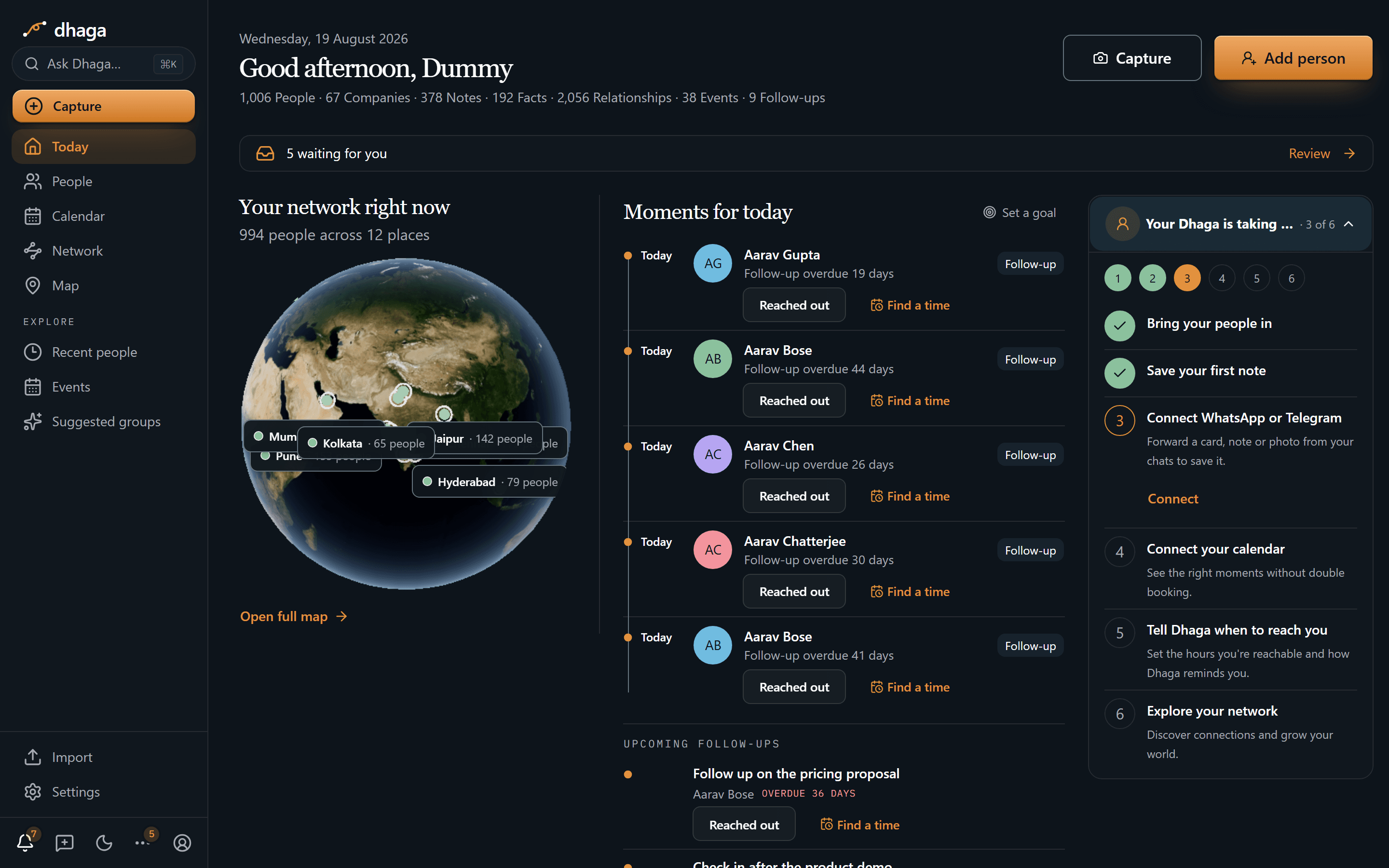
Moments for today
Moments for today is the short list of threads most worth pulling now. Dhaga weighs everyone in your graph against what is actually happening — a keep-in-touch rhythm that has come due, a dated follow-up, an important date, a job-change or news signal you chose to watch, how long the silence has run, and how connected someone is. Every row says why it is there:
- Check-in — someone you keep in touch with daily.
- Due — your keep-in-touch rhythm for this person has run out.
- Follow-up — something you promised to do is due today, or is late.
- Occasion — a birthday or anniversary, today or just ahead.
- Signal — a job change or news story from your watchlist.
- Quiet — no reason beyond the silence; you simply haven't spoken in a long while.
- Network — nothing is due at all; they're well connected in your graph and worth a thread anyway.
Being starred nudges someone up the list, and the list rotates gently day to day so the same well-connected face is not there every morning — but neither ever becomes the stated reason. Writing a note about someone or scanning them at an event resets their rhythm exactly as Reached out does. Open a row for the person's details, use Reached out to keep the list honest, or choose Find a time when a connected calendar has an available slot.
When more people are due than the day's list shows, the section ends on View N more. That opens Plan, where the remaining due work stays available beyond Home's deliberately short list.
Your relationship goal
Your Relationship goal has a tile of its own on Home and a page of its own at Goal, in the app's More menu. Use Set a goal to write one objective, or its menu later to edit, finish, or archive it. The tile previews today's people, each with a one-line reason it matched them, and its counter reads "3 of 14 today · 3 already shown" rather than a bare ratio.
The Goal page holds four lists: Today — people you haven't been offered before — Already shown, which are still open and never buried, All matches, the whole cohort in one list, and Skipped. Every person on every list carries the reason they matched. Not relevant removes someone and asks why, with four one-tap answers or your own words, and the next matching pass learns from what you said; you can also add a person to the goal by hand.
Matching runs in the nightly pass, and it takes two nights for the first people to land: one night sends your goal off to be matched, the next brings the people back. Waiting is free — Request now runs the match while you watch and costs credits.
Your network globe
The globe is a real, movable view of the cities already represented in your graph. Drag it to rotate, scroll or pinch to zoom, or use the arrow keys when it has keyboard focus. A click or Enter opens the full map; dragging does not accidentally navigate. If WebGL is unavailable, the same control becomes a clear route to the map instead of leaving a broken canvas.
Places colours the saved city clusters. After you set preferred calling hours, Calling windows adds a DST-aware view: each city's cached coordinates are resolved to an IANA time zone on the server, and the globe rotates beneath a live day/night shadow while the city list distinguishes a good window from an outside hour. Home never geocodes while it renders and never sends contact data to a globe provider; it reads the map cache already owned by your account.
The full map is city-grain, or postal-code-grain for contacts whose first
address has a postal code and a city (shown as 400069 · Mumbai, merged into a
single cluster when zoomed out); it never places anyone at a street. Select a
place to frame it at city zoom, then pan or zoom around the real MapLibre canvas
and open the people grouped there.
Opening the map from Home, navigation, or a direct URL completes the setup step.
Dhaga does not claim a street address and does not track anyone live. See
Exploring the graph and map.
Move around on any screen size
- On a phone, the bottom bar keeps Home, People, Capture, Map, and More within thumb reach. Capture asks which method you want — manual, paste, card scan, upload, or voice — before it opens. More opens the full route directory, with your account and preferences in their own section at the bottom. It includes your goal, companies, tags, saved items, events, places and topics, import, sync conflicts, Wrapped, invites, docs, the tour, and settings.
- On a tablet, the top bar keeps search and utilities visible while Menu opens the same complete directory.
- On a desktop, the canonical Dhaga mark and wordmark sit above a permanent left rail with workspace and Explore destinations.
Capture opens the same quick-add dialog at every breakpoint. Phone safe areas are respected, and the content keeps enough bottom space that the tab bar does not cover the last action.
People Dhaga doesn't suggest
An imported address book is never only people: it arrives carrying "Ola Support", "Vegetable Vendor", "AC Repair". Dhaga reads over the contacts you've never done anything with and marks the ones that look like a business, a shop or a support line rather than someone you could message, and stops offering them on the surfaces where it volunteers a name — the daily briefing, the going-quiet list, recommendations, the graph filler.
Nothing is hidden or deleted. A contact marked that way is still in People, still in search, still in duplicate detection and merging, still in your Wrapped card, and still in every export. The only thing that changes is that Dhaga stops putting it in front of you unasked. A row you went looking for is always there.
You can see the whole list, and overrule it. The People page carries an "N hidden from suggestions" link that opens exactly those rows; each contact's own page shows whether the call was Dhaga's guess or you marked this, and one tap flips it. The People table's bulk bar can mark many at once. Your ruling is a lock — once you've said a row is a person, the nightly pass never judges it again.
Anyone you've already acted on is never judged in the first place. If you've starred them, put them on your watchlist, set a keep-in-touch rhythm, recorded reaching out to them, or written a single note about them, Dhaga treats that as settled and leaves the contact out of the sweep entirely. The only rows it looks at are the ones nobody has ever touched.
When Dhaga can't tell from the record — a bare first name and nothing else — it says so and leaves the contact alone rather than guessing. Only a confident "not a person" ever suppresses anything.
The sections
Capturing people
Quick-add by paste, card scan, voice, camera, or file — plus the review step and manual add.
Messaging capture (WhatsApp & Telegram)
Forward a contact card, note, or photo to the Dhaga bot on WhatsApp or Telegram and it saves into your graph.
Importing contacts
Bring in an existing address book — a .vcf or CSV file, a connected Google or Outlook account that stays in step, or your phone's contacts.
Syncing with your phone
Keep your phone's address book and Dhaga in step both ways — a three-way merge that never silently overwrites, with your notes and facts kept out of it.
Bulk actions & merging
Select many people at once to merge, tag, star, add to a company, or forget — and let Dhaga surface likely duplicates to clean up.
Notes & facts
Add notes by typing, by voice, or by photo; facts get extracted automatically, each with a source receipt — plus the file shelf on a person's or company's page.
Pages
Write pages, databases and a daily Journal, link them to the people in your network with [[ and @, and import from Notion or Obsidian.
Plan — calendar & reminders
Day, Week, Month and List over your follow-ups, your own Dhaga events and any calendar you connect — plus the nav bell and one daily brief email.
Confirmations
The inbox where ambiguous AI extractions wait for your call — confirm or dismiss, and nothing changes your graph until you do.
Enrich from the web
One button to search the public web for a person's or a company's footprint — cited, saved as a deletable note.
Groups & events
Group the people you met somewhere into an event, add them in a row, and email a digest.
Exploring the graph and map
Warm paths and relationship edges on the graph, plus the real city map you can pan, zoom, and open from Home's globe.
Search & Ask Dhaga
The ⌘K palette: filter by name, fact, or note, or ask a natural-language question with receipts.
Connect an AI assistant (MCP)
Point Claude, ChatGPT, or Cursor at your graph over MCP — eight read tools with receipts, write tools for notes, follow-ups, lists and contact clean-up, and no credits for the reading.
Custom entities
Non-person nodes — gyms, schools, projects — that connect the people in your graph.
Companies
View, create, rename, delete, and merge the companies in your graph — with duplicate detection — from their own page.
Me & share links
Your own profile and company details, reusable document and email templates with fill-in variables, and expiring links that show one contact or company to someone with no account.
Share & invite
Post a contact-free Wrapped card of your networking, and invite friends for a free month of Pro on both sides.
Settings & import
Profile, appearance (theme + font), billing, 2FA, calendar, suggestions, voice, API keys, and bringing in your existing contacts.
AI credits
What's left this month, what each AI action costs, and exactly where the credits you spent went.
Running a self-hosted enterprise deployment, or wiring up providers instead? Start at the documentation home.
Documentation
Dhaga is an AI-native, privacy-first personal CRM. Use it, deploy it on your own infrastructure, extend its providers, or read the product thinking behind it.
Capturing people
Add a person from pasted text, a card photo, voice, an upload or typing — pick a method, review the fields, and write your first note on the same form.