Import and export
Bring in an Obsidian vault, a Notion export, Markdown, HTML, spreadsheets, Word files or canvases, match people notes to your contacts, and export everything as an Obsidian vault.
You can move into Pages from Obsidian, Notion or plain files, and you can always move out again. Importing turns folders into parent pages, keeps your links, and offers to match notes about people to the contacts already in Dhaga. Exporting gives you Markdown that Obsidian opens as a vault, with every link still working. Export is never limited by plan.
Import
Open Import… from the New page menu in the Pages sidebar, then choose your files or drop them in.
Pages reads the files and shows what it found. Nothing is saved until you press Import.
Review the result. For notes about people or companies, choose how each one maps to your records (see Match people to your contacts). For a spreadsheet, choose each column's type.
Press Import. When it finishes, the report lists what came in and everything that was skipped. You can stop part-way; what was already imported stays.
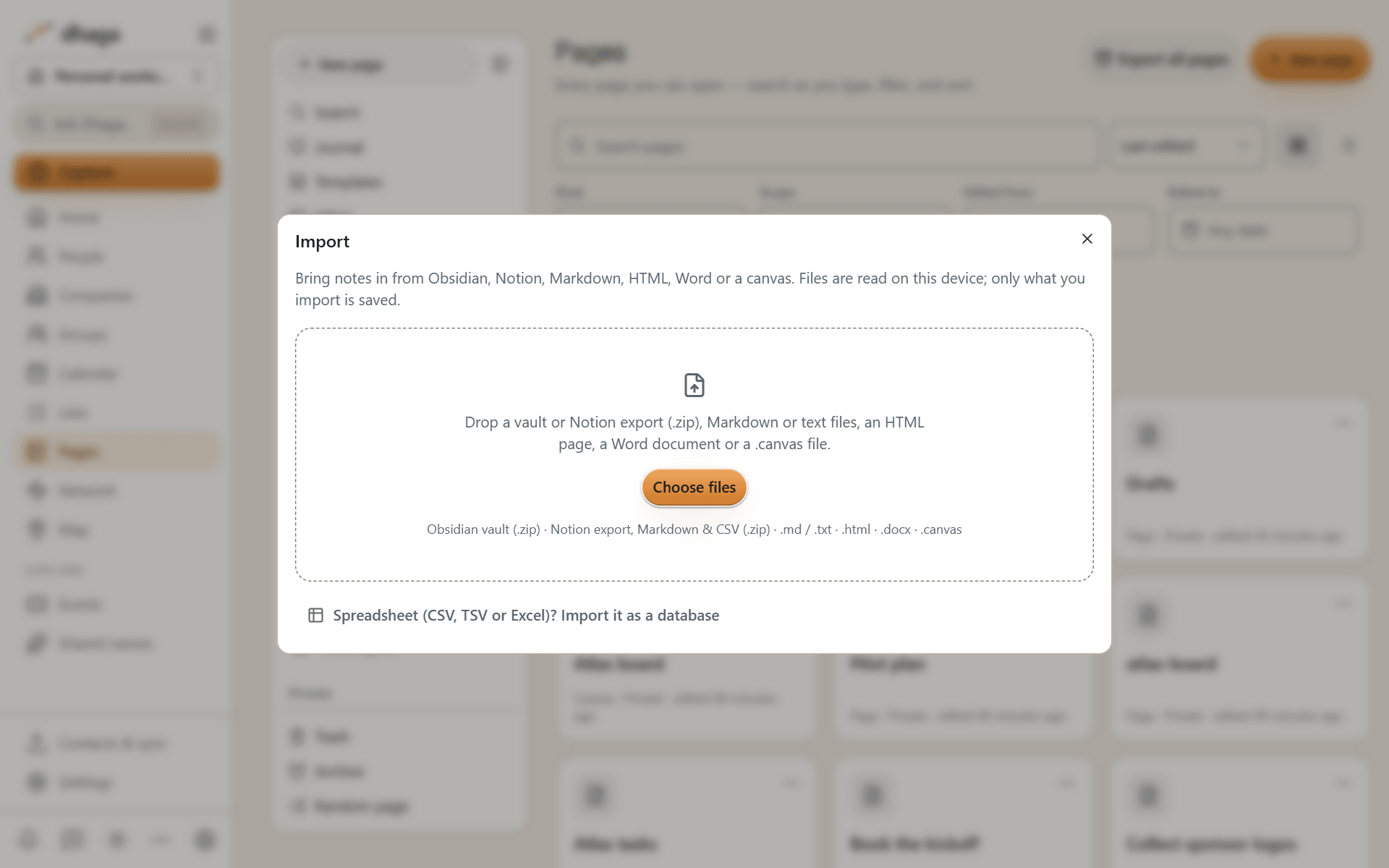
What you can import
| Source | File | What you get |
|---|---|---|
| Obsidian vault | .zip of the vault folder | Folders become parent pages, frontmatter becomes properties, wikilinks and embeds are reconnected, attachments up to 4 MB come along, .canvas files become canvases and .base files become database views |
| Notion | The .zip from Notion's Export → Markdown & CSV | Pages with their sub-pages, and databases from the CSV files |
| Markdown or text | .md, .txt | One page per file |
| Web page | .html | A page, cleaned of scripts and anything unsafe |
| Spreadsheet | .csv, .tsv, .xlsx | A database, with a type you choose for each column |
| Word or Google Docs | .docx (download a Google Doc as Microsoft Word) | A page with headings, lists, tables and images |
| Canvas | .canvas (JSON Canvas) | A canvas |
A .zip arrives under one new page named after the vault or the export, with everything else inside it. A file you pick on its own, such as a .md or .canvas file, arrives as it is, with no extra page around it.
Links are reconnected after every page has been read, so a link to a page that comes later in the zip still works. A Word file can be up to 50 MB and a text or Markdown file up to 8 MB. A spreadsheet is imported through its own Import it as a database link in the same dialog.
Export from Notion and Obsidian first
- From Notion: open Settings → Export all workspace content (or Export on one page), choose Markdown & CSV, include sub-pages, and download the
.zip. Upload it as it is; don't unzip it. - From Obsidian: zip your vault folder. On a Mac, right-click it in Finder and choose Compress; on Windows, right-click it and choose Send to → Compressed (zipped) folder.
Match people to your contacts
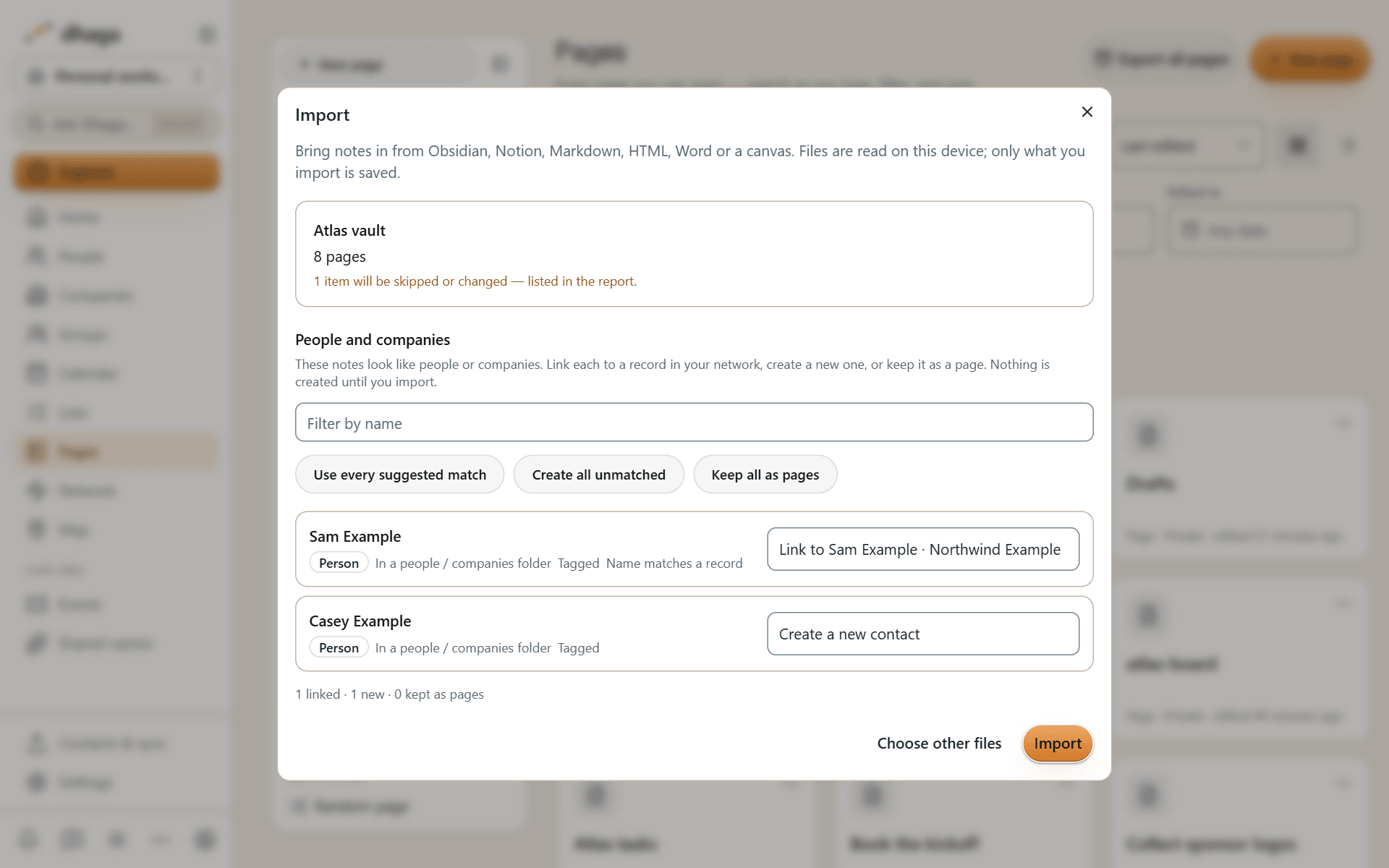
If you kept a CRM in Notion or Obsidian, your import probably has a note or a row for each person. Pages spots them and asks what to do with each one:
- Link to an existing contact: Pages suggests a match by name, email or phone, and by where the note sits (a people folder, a tag or a type property). The note becomes that contact's Page tab.
- Create a new contact: the person is added to your contacts, and the note becomes their page. Notes about companies work the same way, with Create a new company.
- Keep as a page: the note comes in as an ordinary page. Nothing is created until you press Import.
Links to a person's note become mentions of the contact, so they show up in the contact's Mentioned in list.
The import report
The report lists every page, database and file that came in, and every item that was skipped, with the reason: a file over 4 MB, an embed Pages can't show, or a file type it doesn't read. Nothing is dropped without being listed.
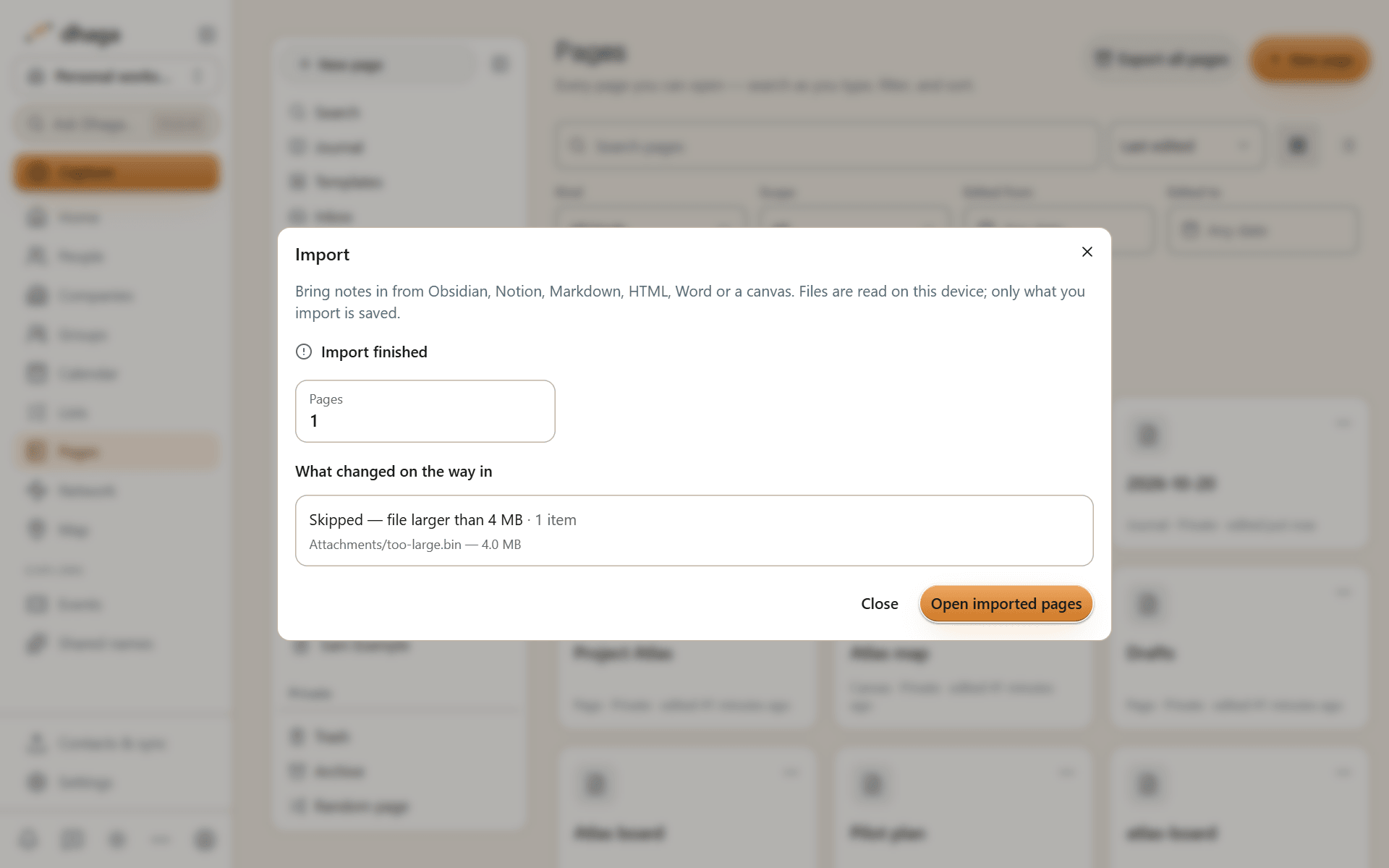
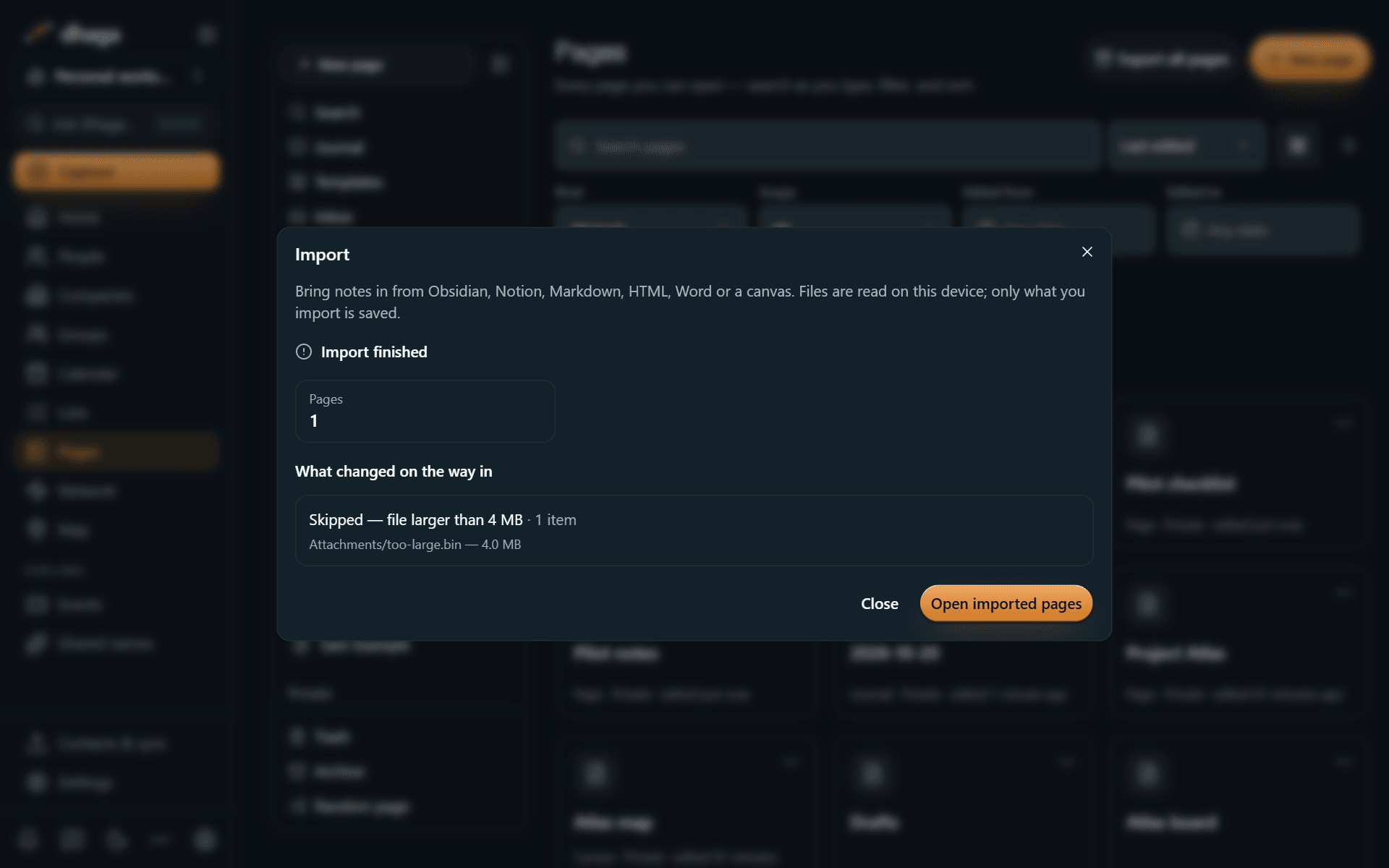
Pages doesn't import Evernote (.enex), OPML, PDF, EPUB or ODS files, and doesn't connect to other apps such as Trello, Asana or Confluence to pull content. Export from those apps to Markdown, HTML, CSV or Word first.
Export
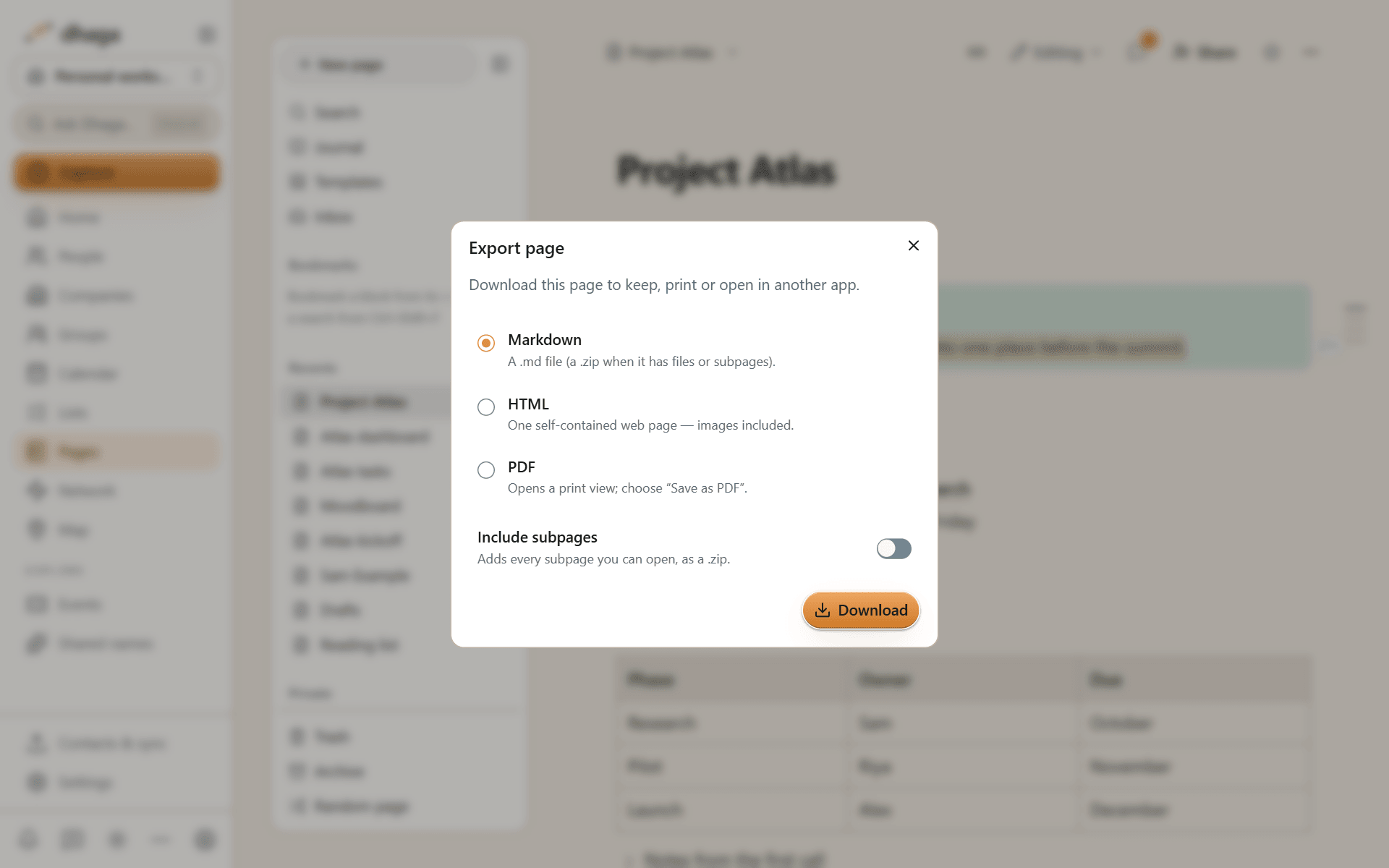
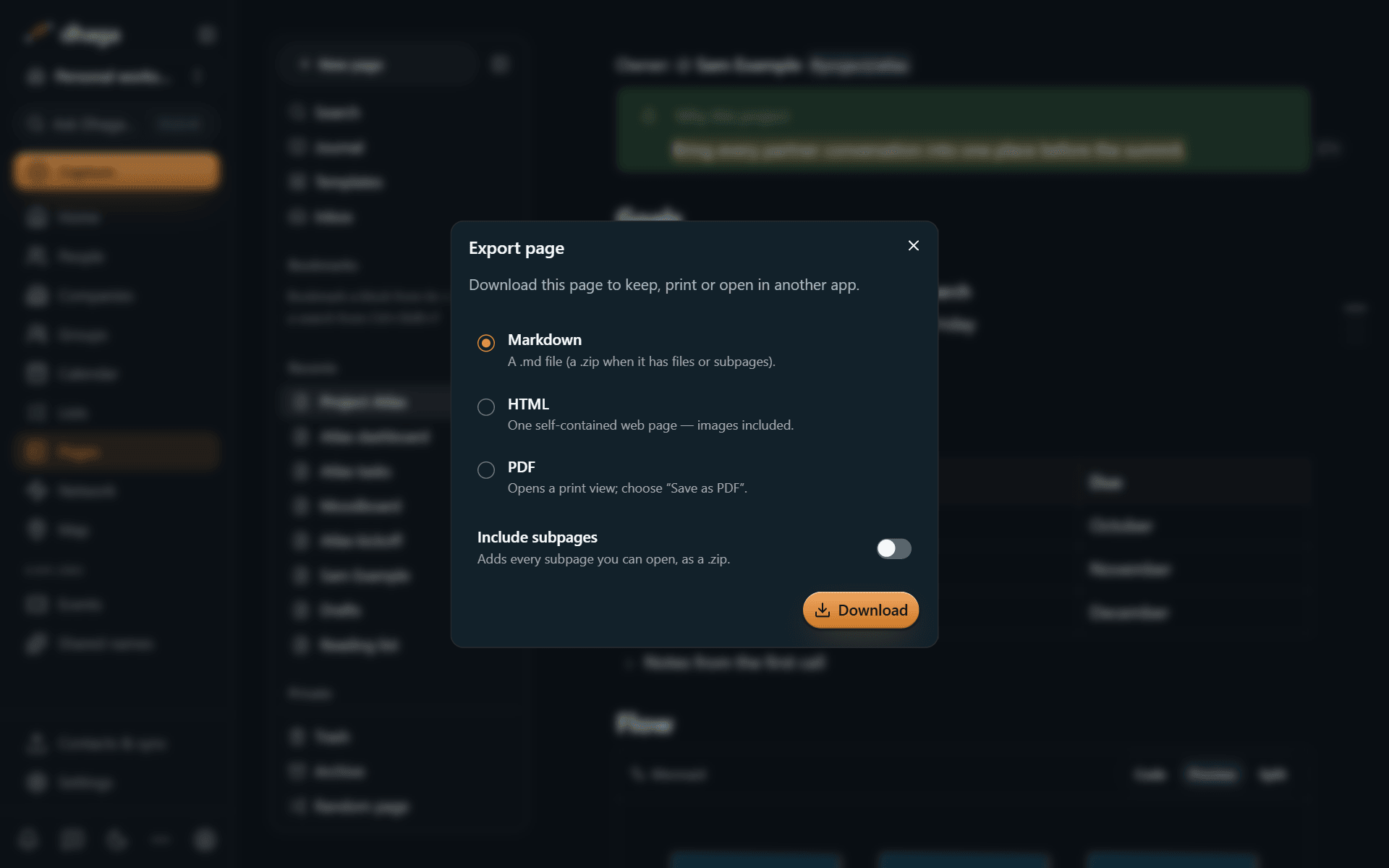
- One page, or a page with its sub-pages: choose Export… from the page menu, pick Markdown, HTML or PDF, and turn on Include subpages if you want them. PDF opens a print view where you choose "Save as PDF".
- Everything, as an Obsidian vault: choose Export all pages on the Pages library screen to download every page you can open as one
.zipthat Obsidian opens as a vault. If it comes to more than 4 GB, export part of your pages from their page menu instead. A single page with its sub-pages can include up to 2,000 pages.
The vault export contains:
- Every page as a Markdown file, with its properties as frontmatter, in folders that follow your page tree.
- An
attachmentsfolder with your images and files. - A short note for each person, company, event and group your pages mention, so every link in the vault leads somewhere.
- Each database as an Obsidian
.basefile plus a.csvof its rows. - Each canvas as a
.canvasfile. - Journal pages in a
Journalfolder and page templates in aTemplatesfolder.
Your pages are also part of the full account export in Settings, alongside your contacts and notes.
The Markdown Pages writes
Pages writes Dhaga-flavoured Markdown: standard Markdown, plus Obsidian's syntax for wikilinks, embeds, callouts, highlights, comments, footnotes and tags. Blocks that Markdown has no syntax for, such as columns and tabs, are written as fenced blocks, which Obsidian shows as code blocks and Pages reads back as the original block. Exporting a page and importing it again gives you the same page. In rare cases (an empty line inside a paragraph, a lone inline embed, or ambiguous emphasis) the vault export keeps a small []{} marker so a re-import is exact; Obsidian shows it as plain text.
You can always leave
Export works on every plan, and nothing is held back: your pages, files, databases and canvases come with you, in formats other apps read. Deleting your account deletes all of it from Dhaga. See Privacy in Pages.
Comments, suggestions and history
Discuss a page with comments, propose edits in suggestion mode, follow activity in your inbox, restore an earlier version, and handle a page that changed elsewhere.
AI in Pages
Rewrite a selection, ask questions across your pages, fill in database properties, take meeting notes without storing audio, and learn facts from a page, only when you ask.