Graph
Add your pages to Dhaga's graph as their own layer, filter and colour it like Obsidian's graph view, and open a local graph beside any page.
Your pages appear on the same graph as your people, companies, events and groups. Turn on the Pages layer and every page becomes a node, linked to the pages it links to and the records it mentions. A local graph beside each page shows just its neighbourhood. There is one graph in Dhaga, not a second one for notes, so a page about a project sits next to the people it involves.
Turn on the Pages layer
Open Network from the app's navigation (it is Dhaga's graph) and switch on the Pages layer in the layers panel. The layer is off until you turn it on. Page nodes join the network you already see:
- Links between pages (
[[ ]],![[ ]]and page mentions) connect page nodes. - Mentions of a person, company, event or group connect the page to that record's node.
- Page tags show as nodes that the tagged pages connect to.
- Unresolved links, to pages you have not created yet, show as nodes of their own, which you can hide.
The layer draws your 5,000 most recently edited pages. If you have more, the graph says it left some out.
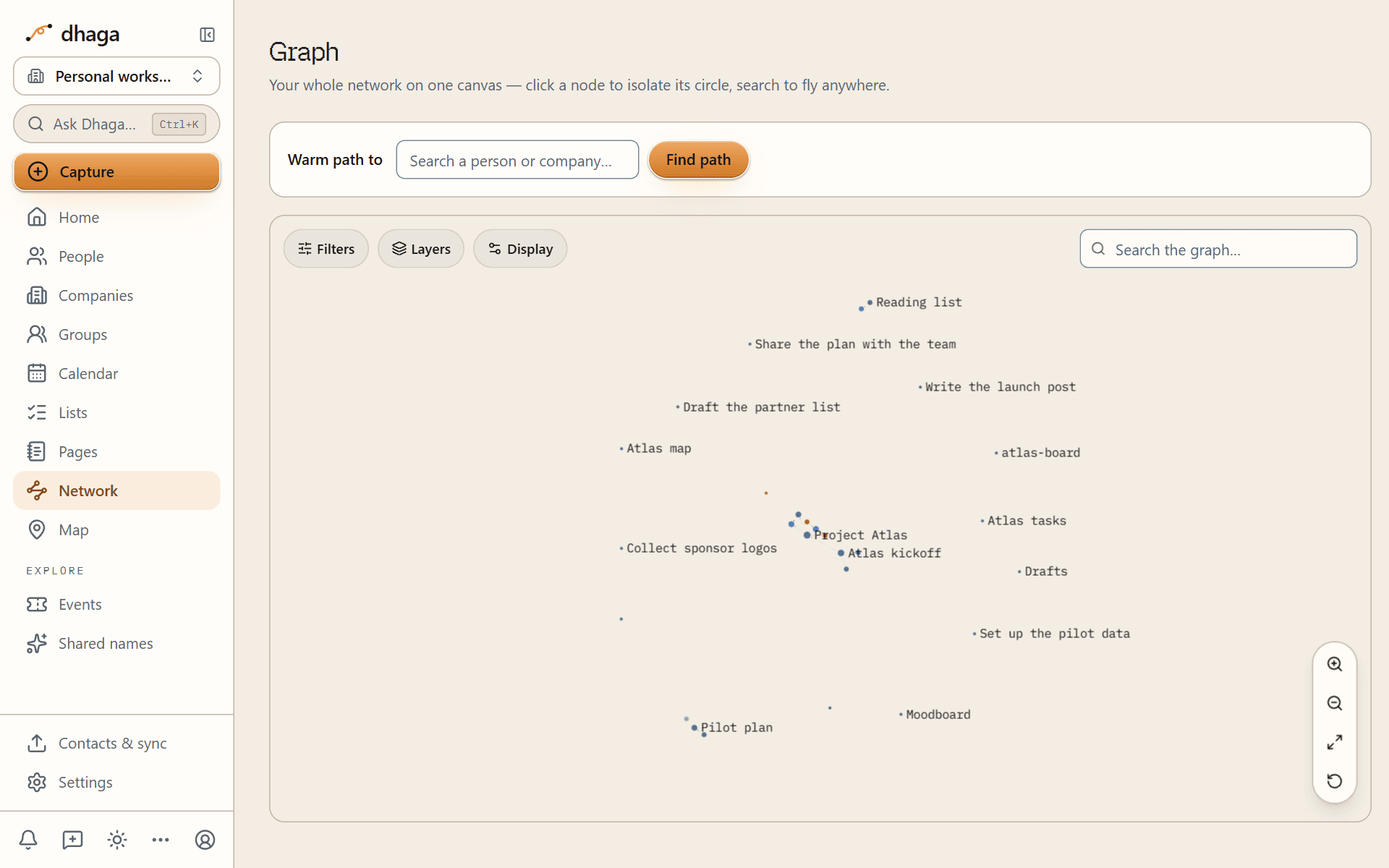
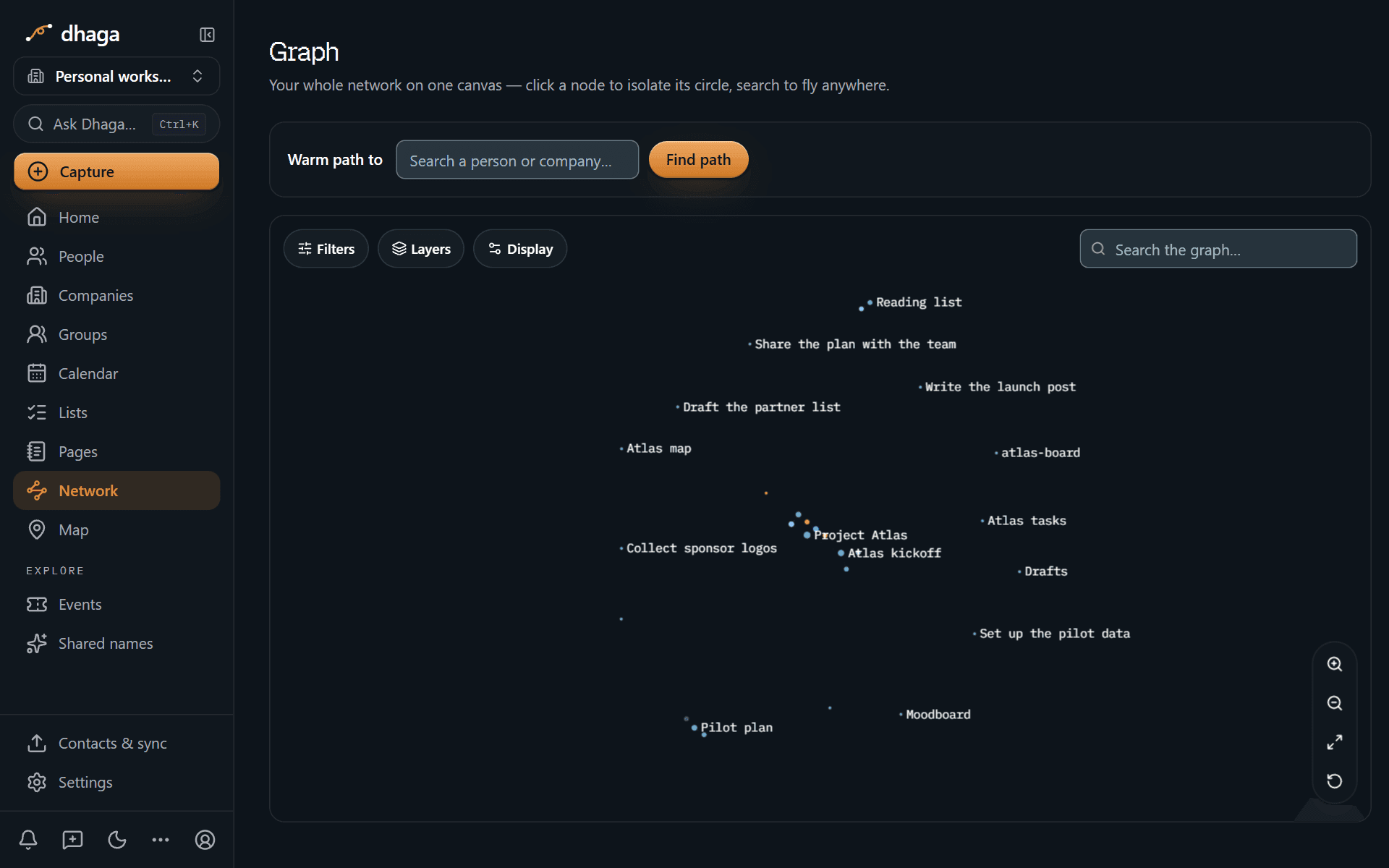
Click a page node to open the page. Everything you already know from Exploring the graph, such as panning, zooming and warm paths between people, works with pages on.
Filter the graph
The filter panel narrows what you see:
- Search: keep only nodes whose title matches.
- Tags: keep pages with a tag, such as
#project/atlas. - With attachments only: keep only pages that hold at least one file.
- Existing pages only: hide links to pages that do not exist yet.
- Show orphans: show or hide pages with no links at all. Orphans are worth a look: they are pages nothing points to.
Colour and tune it
Groups colour nodes by a search. Add a group (up to 12), write a query, and pick a colour. A query can use tag: (such as tag:#meeting) and kind: (such as kind:person), and any other word is matched against the node's title. Graph groups do not accept the other search operators, such as path:.
The display settings change how the graph looks:
- Arrows: show which way each link points.
- Text fade: how far you zoom in before labels appear.
- Node size and link thickness.
- Forces: sliders for centre force, repel force, link force and link distance.
Time-lapse replays your graph growing, adding nodes in the order the pages were created.
Open the local graph for one page
Choose Links and backlinks (the link icon in the page header) to open the Links panel. Its Local graph section shows only that page and what it connects to, up to 150 nodes:
- Depth: how many steps out from the page to show, from 1 to 5 (the default is 1).
- Incoming links, Outgoing links and Neighbour links: choose which connections count. Incoming and outgoing are on by default; neighbour links, the links between the other pages, are off.
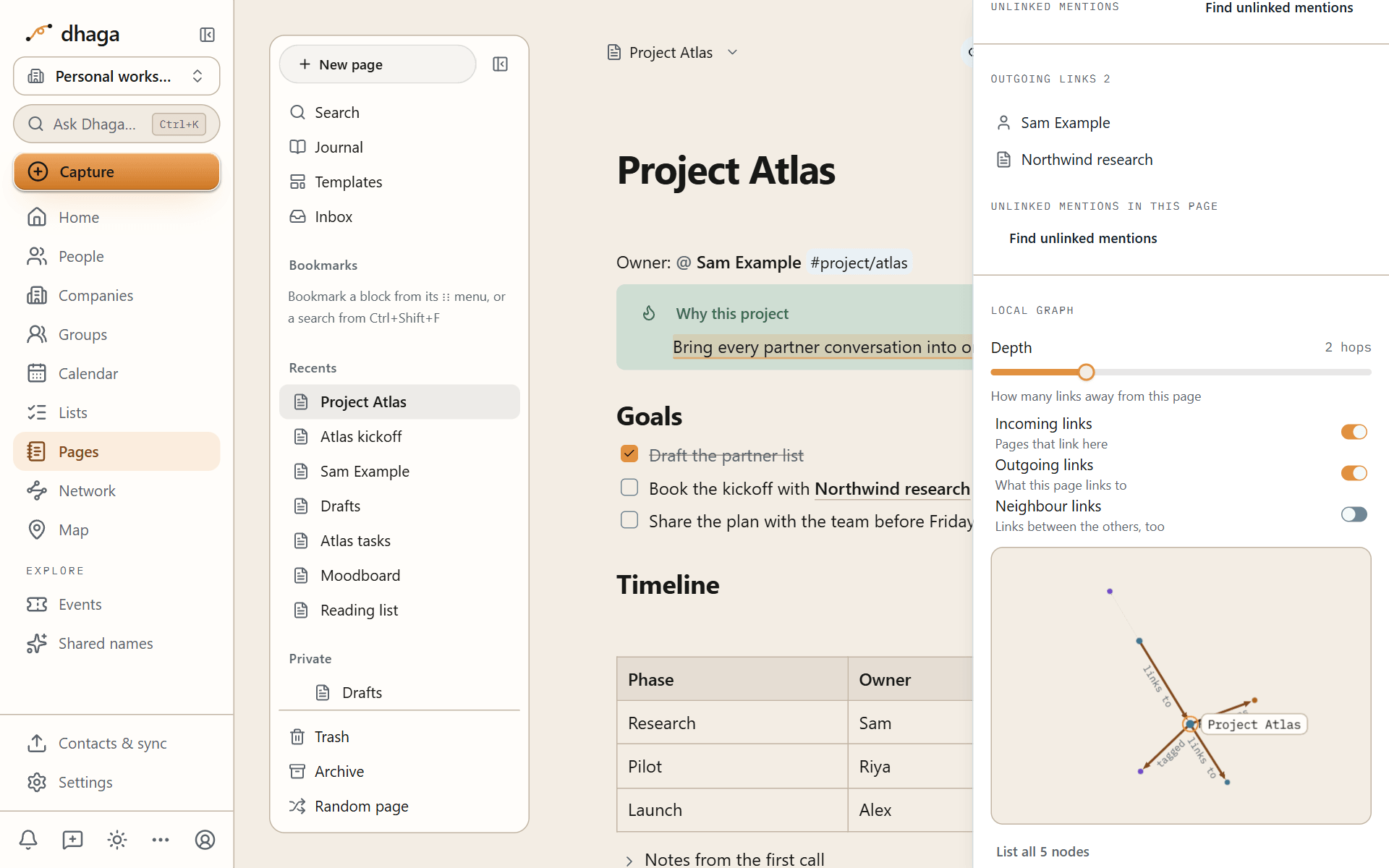
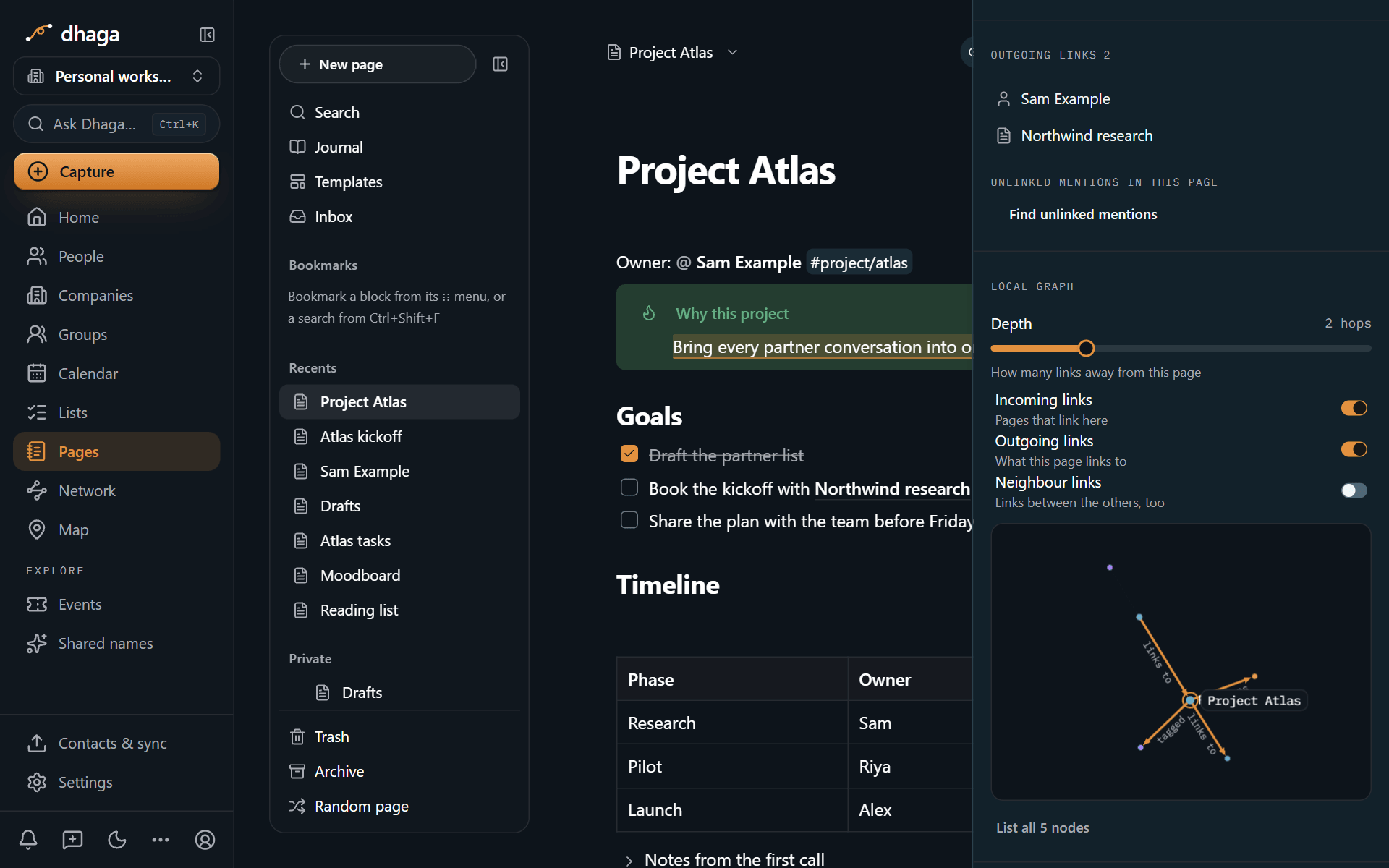
The graph is for you and the people you share pages with. A published page never shows a graph or backlinks to visitors.
Links, mentions and backlinks
Link pages with [[, mention people and companies with @, show one page inside another, and see every page that points back, including a person's own Page tab.
Tags and properties
Group pages with nested #tags, give any page typed properties like Obsidian's frontmatter, and rename a property across every page at once.