Databases and views
Build databases whose rows are pages: typed properties, relations to your contacts, ten kinds of view, filters, templates, buttons and automations.
A database is a page whose rows are pages. Each row has properties, such as a status, a due date or the contact it is about, and the database shows its rows through views: a table, a board, a calendar, a timeline and more. Because every row is a page, a row can hold as much writing as you like, and links, mentions and backlinks work inside it.
Create a database
- Inline: type
/databaseon any page. The database sits inside the page, between other blocks. - Full page: choose New page → Database. The database is the whole page.
- Linked view: type
/linkedto show a database that lives elsewhere, with its own filters and sorts. Changes to rows show up in both places. - A view across all your pages: a view can draw its rows from a search instead of one database, the way Obsidian's Bases does. For example, every page tagged
#meetingfrom the last month, as a table. You can also write one as abasecode block, which is how Bases files arrive from an Obsidian vault.
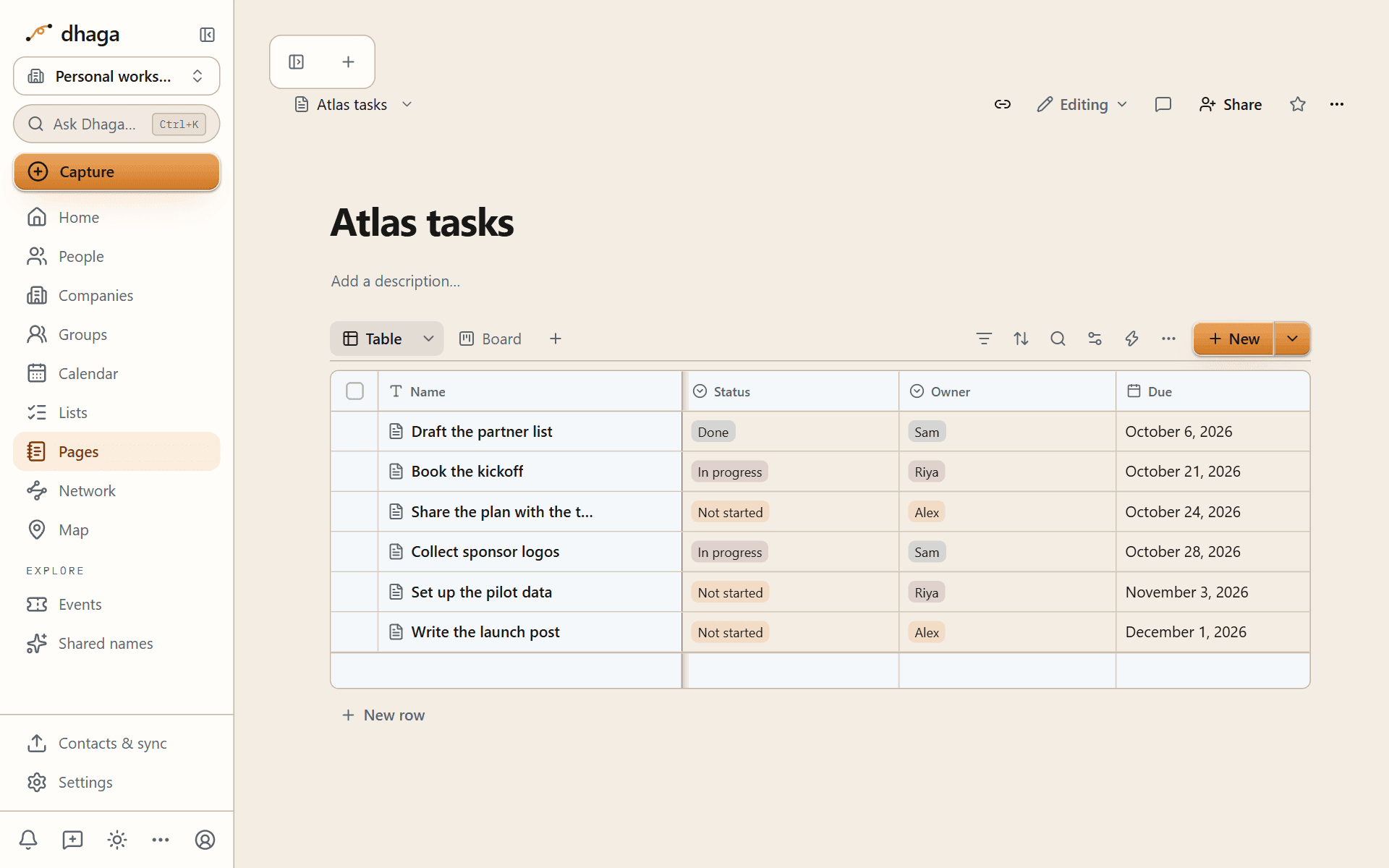
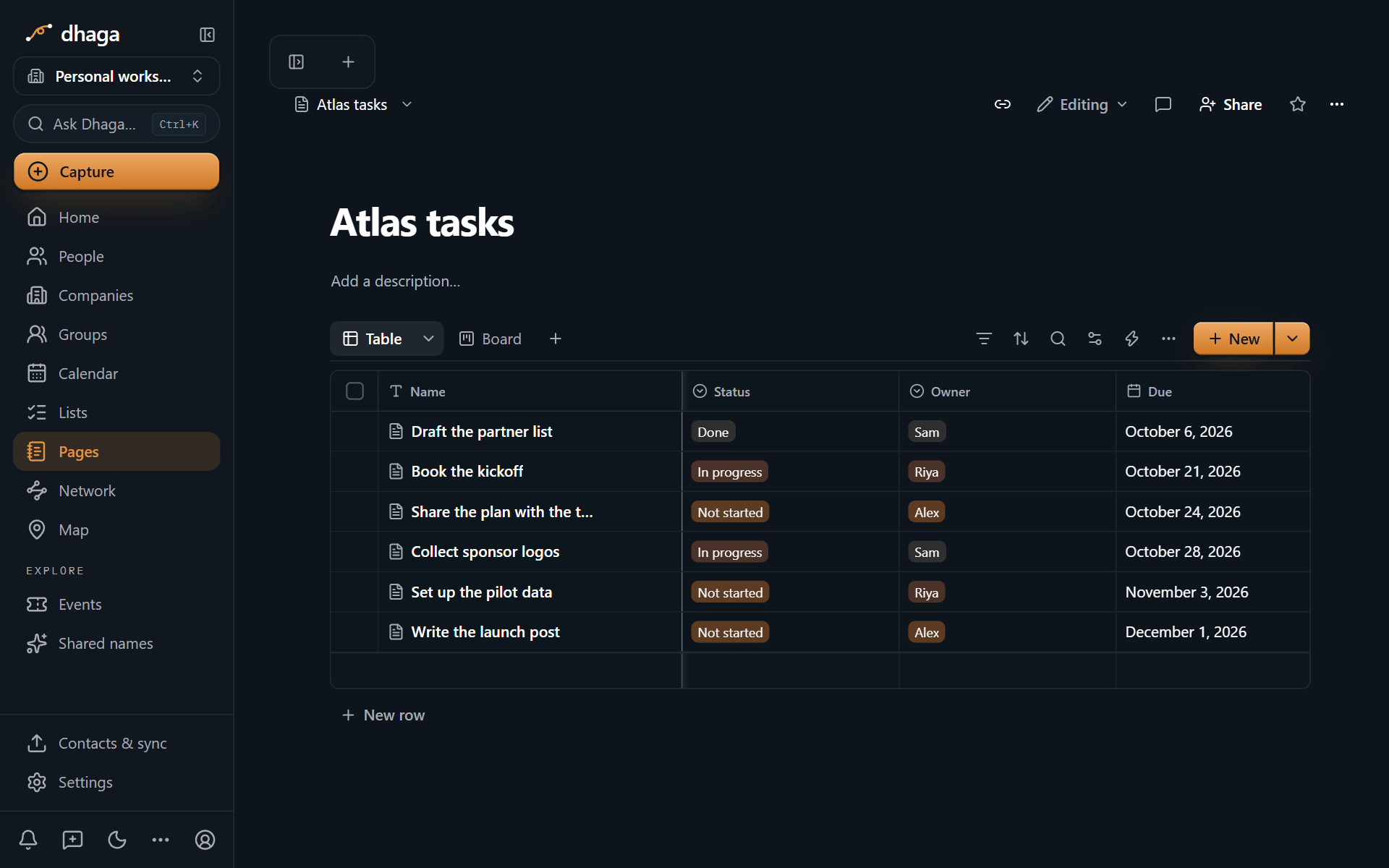
Open a row to read or write its page. Choose whether rows open in a side peek, a centre peek or as a full page in the view's settings. A row's page can have its own layout, so the properties you care about sit at the top.
Property types
| Type | What it holds |
|---|---|
| Text | Any text |
| Number | A number, shown plain, as currency, as a percentage, or as a progress bar or ring |
| Select | One value from a list |
| Multi-select | Several values from a list |
| Status | A value from three groups: To do, In progress and Done |
| Date | A date or a date range, with an optional time and reminder |
| Checkbox | Yes or no |
| URL, Email, Phone | A link, an address or a number you can click |
| Person | A member of your organization or a guest on the page |
| Files and media | Files you upload, up to 4 MB each |
| Relation | Links to rows in another database, or the same one. Two-way relations show on both sides |
| Rollup | A value computed from related rows, such as a count, a sum or the latest date |
| Formula | A value computed from the row's other properties. See Formulas |
| Created time, Created by | When and by whom the row was created |
| Last edited time, Last edited by | When and by whom it last changed |
| Button | A button in each row that runs actions. See Buttons |
| Unique ID | A number that counts up, with an optional prefix such as TASK- |
| Place | A place, found by name and shown on the map view |
| Verification | Shows whether a row is verified, by whom and until when. The page's owner verifies it from the page menu |
| Contact | Links a row to people in your Dhaga network |
| Company | Links a row to companies in your Dhaga network |
| List, Date and time, Tags, Aliases | The same free-form types every page can use (see Tags and properties) |
Contacts are linked, never copied. A Contact property points at the person in your network; their details stay on their record and are shown as they are now. Your contacts are not database rows, and a database can't change them.
Give any property a description to explain what it is for, and leave comments on a property to discuss it.
Views
Add views as tabs above the database, shown as icons or as text. Every view has its own filters, sorts and grouping.
| View | Shows rows as | Extras |
|---|---|---|
| Table | Rows and columns | Freeze the first column (on a phone every column scrolls), wrap text, calculations in the footer (count, sum, average and more), colour rows by a rule, search inside the view |
| Board | Cards in columns by a select, status or person | Drag cards between columns |
| List | A plain list of titles | |
| Gallery | Cards with a cover image | A slider for card size |
| Calendar | Rows on the day of a date property | |
| Timeline | Bars between a start and an end date | Arrows between rows that depend on each other. On a narrow screen it shows the bars without the name column |
| Chart | Bar, line or donut charts, or a single number | Click part of a chart to see its rows |
| Feed | Each row's page, one under another | |
| Map | Pins for a place property | |
| Dashboard | A grid of charts and other views |
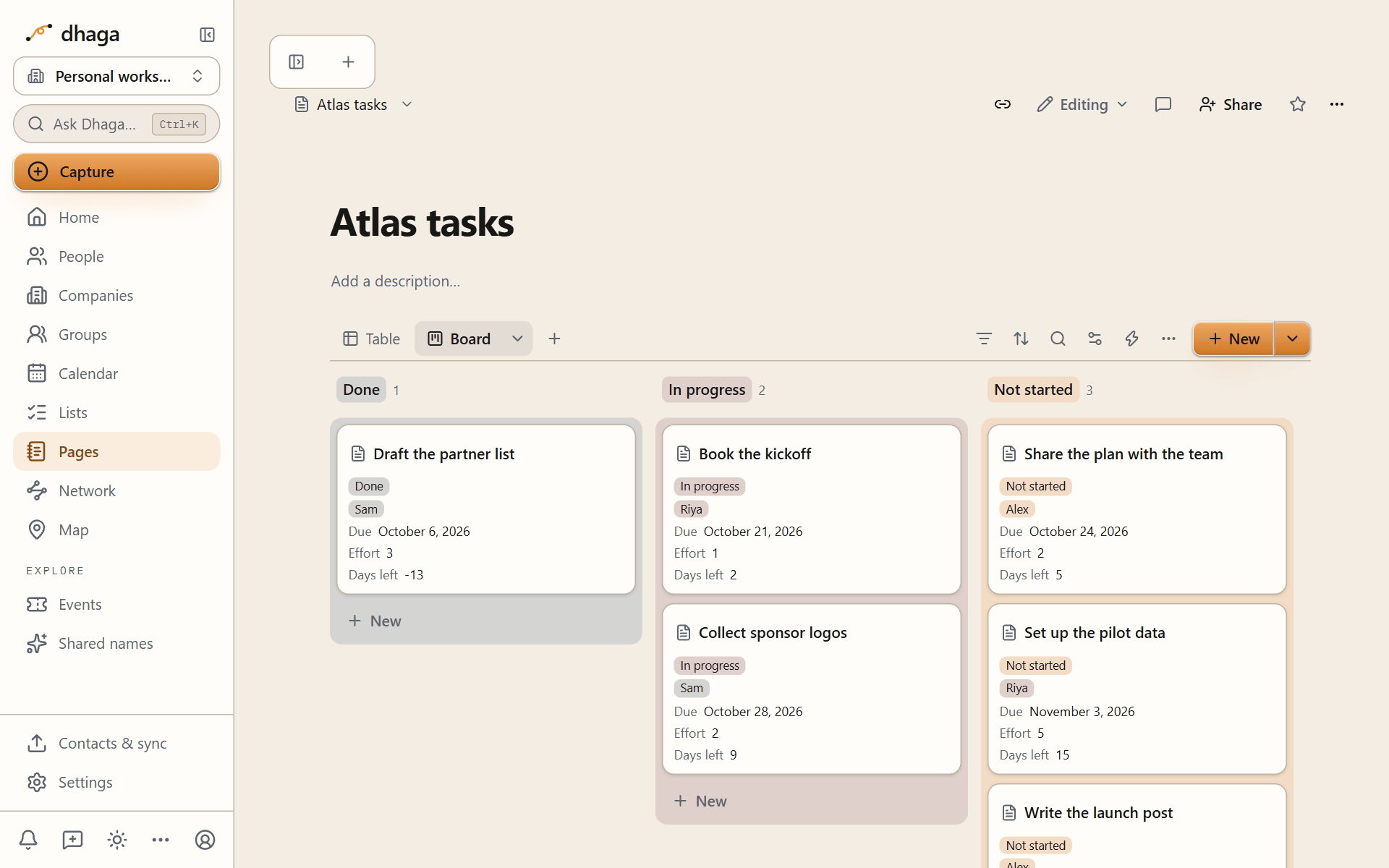
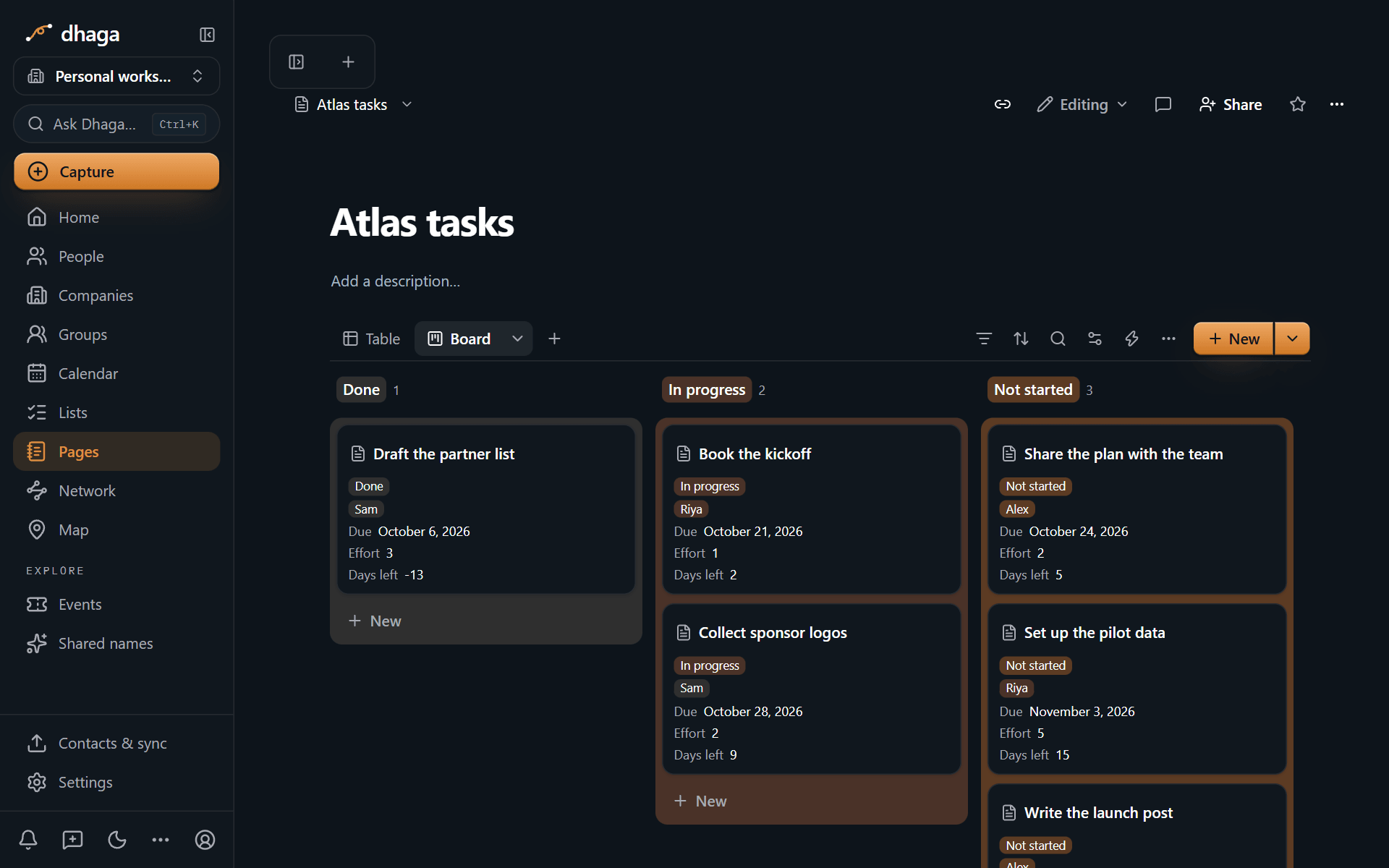
A chart can also live outside a database: type /chart on any page.
There is no form view. Pages databases are for you and the people you share them with, not for collecting answers from the public. There are no synced databases either: a database can't stay in sync with an outside source such as another app's table. Import a CSV or Excel file instead.
Filter, sort and group
- Filter: add simple filters, or switch to advanced filters to combine conditions with And and Or, nested up to three levels.
- Sort: by one property or several, in order.
- Group: by a property, and group again inside each group. Hide empty groups if you don't need them.
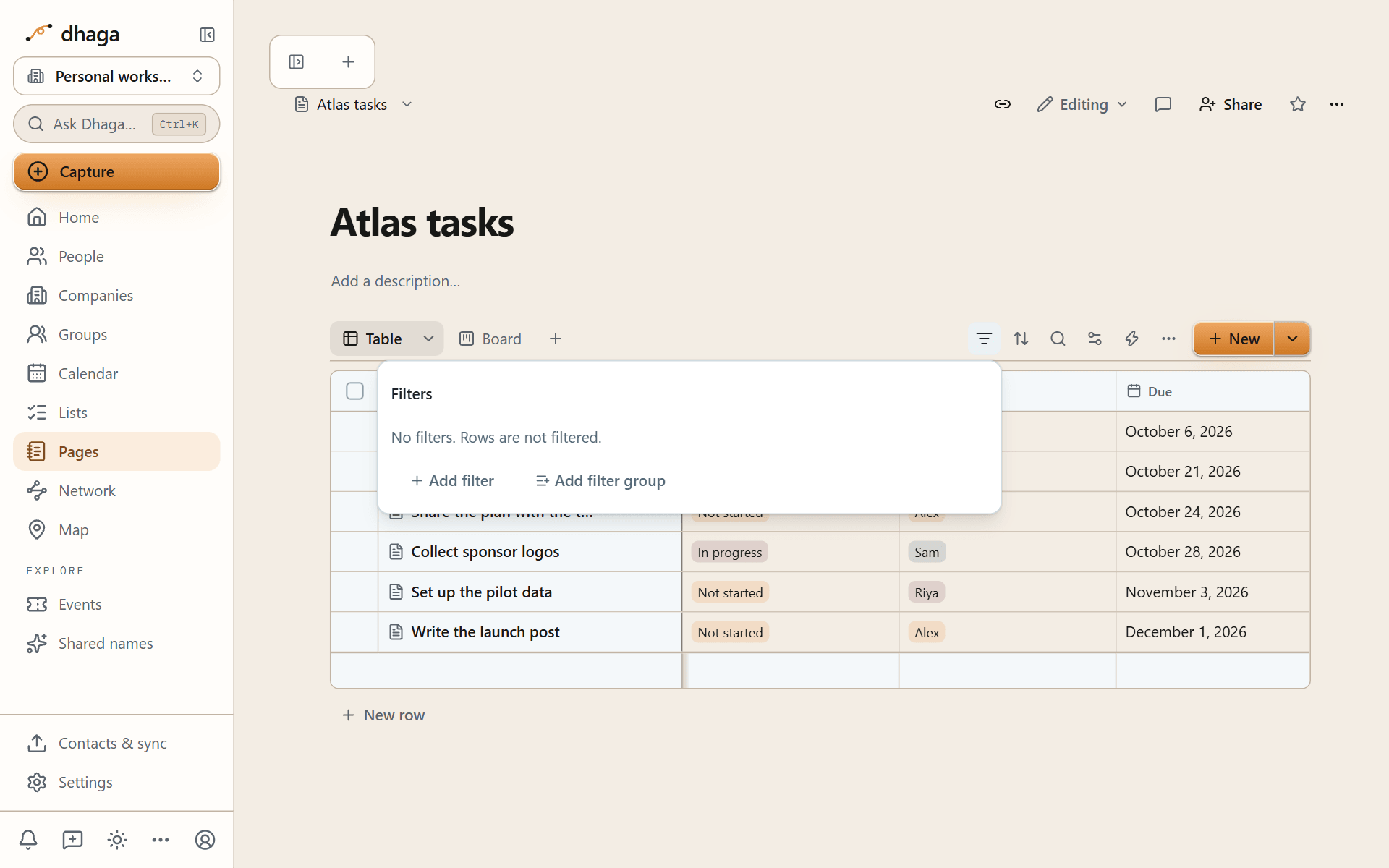
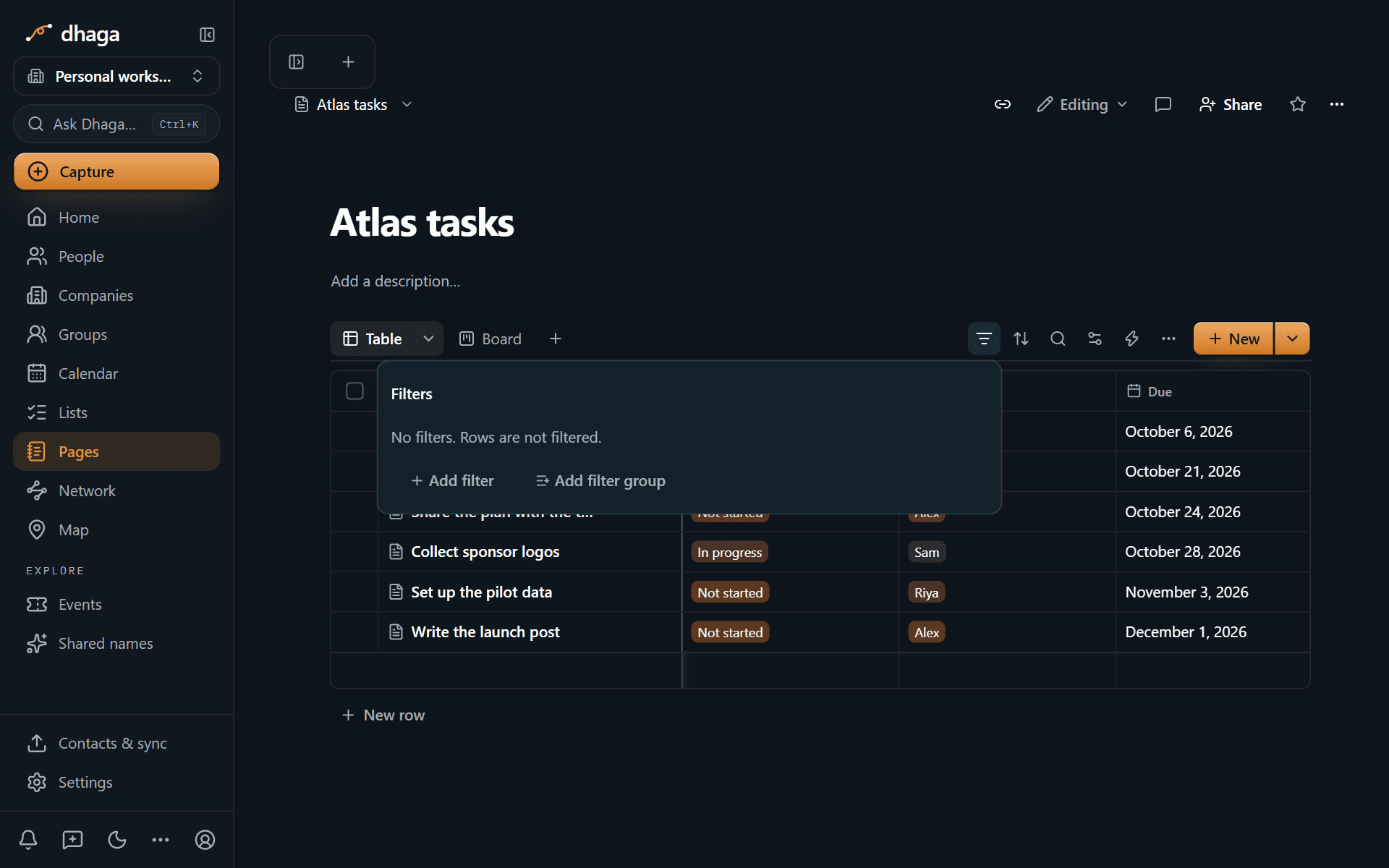
Save a filter for everyone who can see the database, or keep it personal so only you see it. A view's shared filters, sorts and search are part of its web address, so a link opens the view exactly as you see it; personal filters stay out of the address.
Rows can have sub-items, rows nested under a row, and filters include them. Rows can also depend on each other ("blocked by" and "blocking"), which the timeline draws as arrows.
Templates
A database can have row templates. Choose one when you add a row, or make one the default so every new row starts from it. A template can repeat: Dhaga creates a new row from it on the schedule you set, which suits a weekly review or a recurring check-in. Templates understand @me (you) and @today (the day the row is created), plus the template variables.
Buttons
A button runs a set of actions with one click. Add one as a block with /button or as a Button property, so every row gets its own. A button can:
- Insert blocks below itself, such as a dated heading and a to-do list.
- Add a row to a database, or edit rows' properties.
- Open a page.
- Notify someone.
- Send a webhook (needs the Power plan, see below). A button can send at most five.
Buttons are on every plan, but Send webhook is part of the Power plan. The plan that counts is the owner's, never that of the person who clicks. For a button in a database, as a Button property or a button block on a row, it is the plan of the person who owns the database. For a button block on a page that isn't in a database, it is the plan of the page's owner. So a Free or Pro member can click a webhook button in a Power owner's database and it runs, and nobody gets webhooks from a database whose owner is below Power. When the plan doesn't allow it, the webhook action is greyed with the Power label in the button's settings, and if it is run anyway it is skipped with a note while the button's other actions still run.
Automations
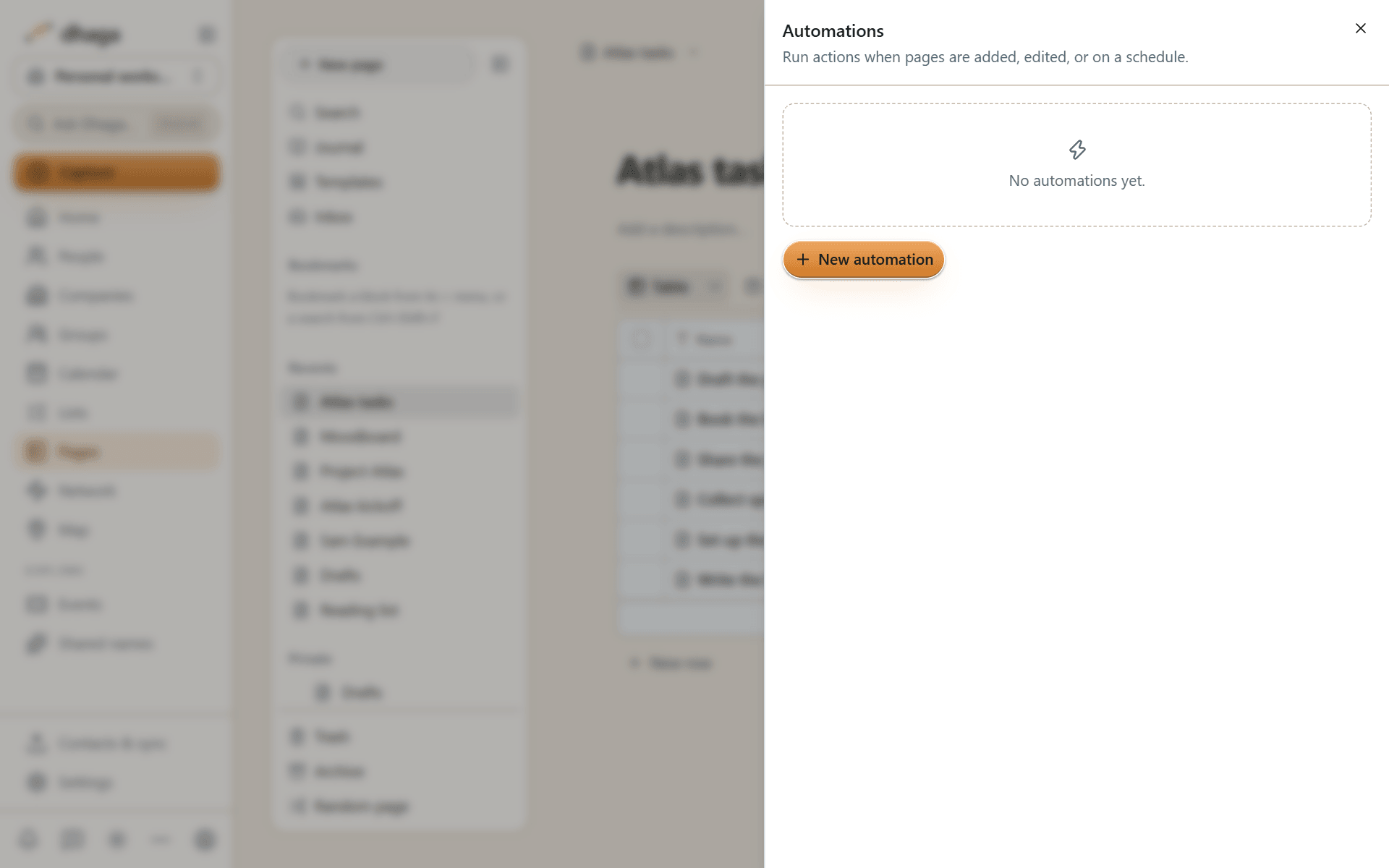
A database can run automations when its owner is on the Power or Team plan. The owner's plan decides, so everyone who edits rows in that database triggers the automations whatever their own plan; if the owner moves below Power, the automations stop running. An automation has a trigger and one or more actions:
- Triggers: a row is added, a property changes, or a schedule comes round (hourly, daily, weekly or monthly).
- Actions: set a property, add a row, send a notification (to the person's Pages inbox, and by push or Telegram if they turned those on for Pages — a Telegram message names the page and links to it, never the notification's text; automation notices are not sent to WhatsApp), create a Dhaga follow-up, or call a webhook. An automation can call up to five webhooks. A webhook call gives up after 5 seconds, and one run changes at most 500 rows.
Actions can use formula variables, such as the row's title or the person who triggered it. Every run is recorded in the automation's run log, with what it did or why it failed.
Row page layout
Each row is a page, and you can choose how its properties are laid out. Open the … menu on the database and pick Row page layout… (you need permission to change the database's properties, and the database must not be locked).
The editor has four tabs: Properties, Sections, Tabs and Options.
- Pin up to six properties to show them right under the row's title.
- Reorder properties by dragging the handle, or with the keyboard (Space to pick one up, arrow keys to move it, Space to drop).
- Sections group properties under a title you choose. Add one on the Sections tab. Then, on the Properties tab, drag a property by its handle into a section, between sections or back out. You can also use the keyboard: press Space on the handle, then the arrow keys. Or pick the section in Where … goes next to each property. On the row page each section collapses on its own, and you can have one start collapsed. Deleting a section puts its properties back in the Properties group.
- Modules show one property as its own block. Choose Own block (module) for a relation, rollup, files, text or formula property.
- Relation modules show the linked pages as a view of the related database, like a linked view. It shows only the pages this row links to. It has the view's own toolbar, so you can switch the layout (table, board, list, gallery and the others) and set its filters, sorts and visible properties right there. People who can change that database save those settings for everyone; anyone else's changes apply only for them. Add a row in the module creates a page in the related database and links it to this row. As in Notion, the module's view belongs to the module: it doesn't appear in the related database's own tabs, and it's deleted when you remove the module. A linked database block works the same way: its view lives in the block and stays out of the source database's tabs. Removing the block keeps its view, so undo and page history bring the block back as it was. Duplicating the page gives the copy its own view. The view is deleted only when the page itself is deleted for good.
- Tabs split each row's page. Turn on Use tabs to start with Overview and Details, then rename, reorder, add or delete tabs. The first tab holds the page's content. On the Sections tab, choose which tab each section or module appears in. The open tab is part of the page's link, so sharing the link opens the same tab. Use the arrow keys to move between tabs. On a phone the tab row scrolls sideways.
- Hide empty properties (Options) folds unpinned properties that have no value behind "N hidden properties". Pinned properties and modules always show.
- Show properties in a side panel (Options) moves the properties, with the sections and modules that go with them, into a panel to the right of the page's content, so you can read both side by side. It applies on a wide screen, on the full page and in the centre peek. Pinned properties stay under the title. You can hide the panel and show it again; this browser remembers your choice for each database. On a phone, and in the side peek (which is too narrow), the properties are a section under the title instead.
- The unpinned properties not in a section sit in a Properties group you can collapse, and you can have it start collapsed.
The layout is shared by everyone who opens the database and applies to every row, in the side and centre peek and on the full page. A property's own Hide when empty or Always hide setting still wins over the layout. A database you never customised looks the same as before.
As in Notion, a layout belongs to the whole database, not to one row or one view.
Lock, share and size
- Lock database stops changes to its properties and views until you unlock it.
- Can edit content and Can create are roles for databases. Can create lets someone add rows while seeing only the rows they created plus any row shared with them, in the database and when they link rows in a Relation. See Sharing.
- Row access (the "..." menu, full access only) decides who can open each row. Add a rule such as "People in Owner can edit their rows" for a Person property, or "The row's creator can edit their rows", and Dhaga gives those people access to just those rows. Rules never take away access someone already has, up to ten rules per database. See Sharing.
- A view computes up to 5,000 rows at a time. Past that, it says so instead of showing incomplete totals; filter the view to bring it under the limit. Calendar, timeline, map and chart views place every row, so they load up to 2,000 at a time and tell you when a database has more.
Import and export rows
- Import: bring in a CSV, TSV or Excel (XLSX) file as a new database, and choose the type of each column before anything is saved.
- Export: download any view as CSV, or copy it to the clipboard to paste into a spreadsheet.
See Import and export for whole workspaces.
Drawings and canvas
Sketch inside a page with a drawing block, lay out ideas on an infinite canvas of cards and lines, and move canvases to and from Obsidian as JSON Canvas files.
Formulas
Compute a property from other properties with Notion-style formulas: variables, lists, dates, text, regular expressions, styled output, and a function reference.