The editor
Write with blocks: the slash menu, Markdown shortcuts, the block menu and drag handle, colours, callouts, tables, find and replace, and the four views.
A page is a stack of blocks: paragraphs, headings, lists, tables, callouts and more. You add a block with the slash menu or by typing Markdown, rearrange blocks by dragging or with the keyboard, and switch between live preview, reading, source and presentation views. This page covers each of those in turn.
Add a block with the slash menu
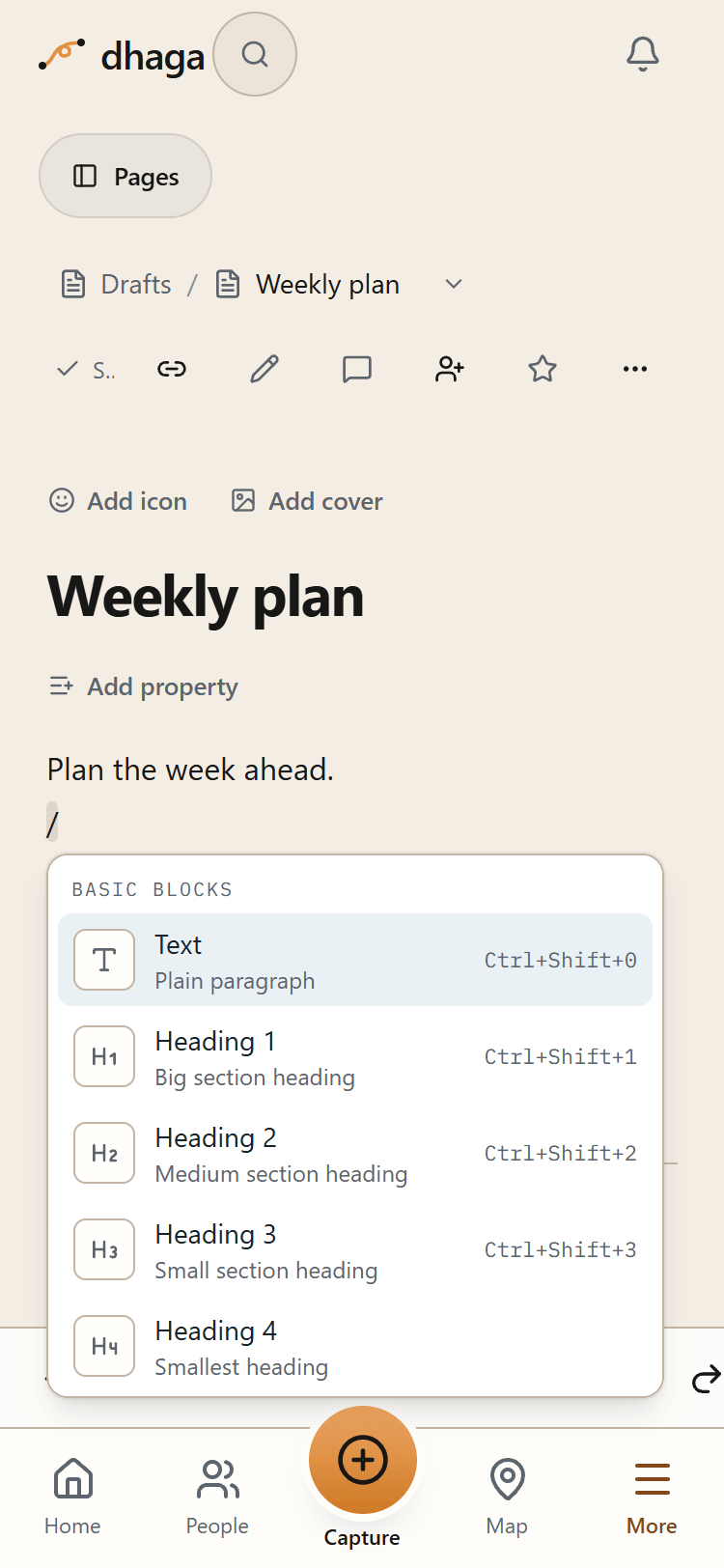
Type / at the start of a line, or anywhere after a space. The menu lists every block, grouped by kind; keep typing to filter it (/tab finds Table, Tabs and Table of contents), then press Enter or click.
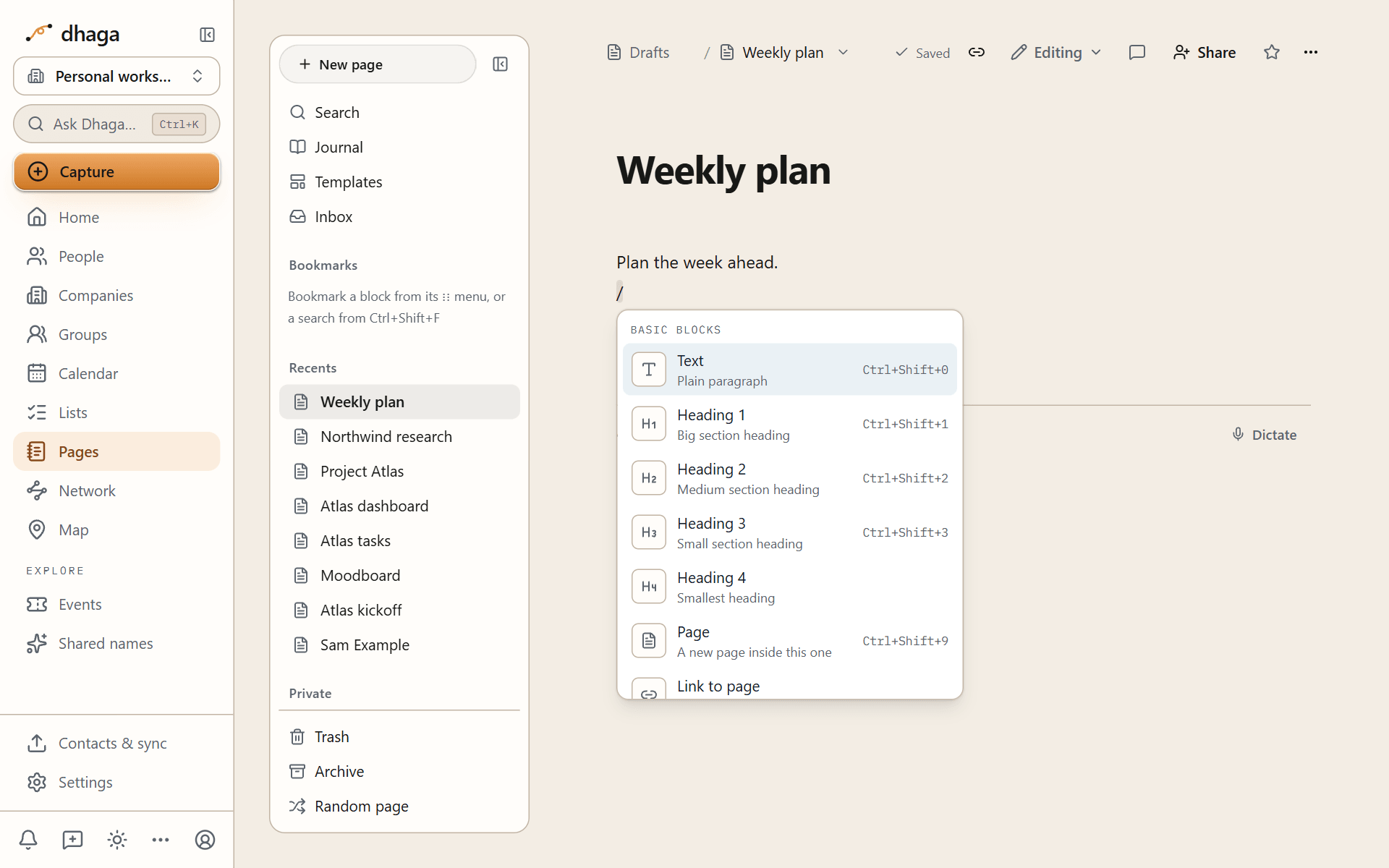
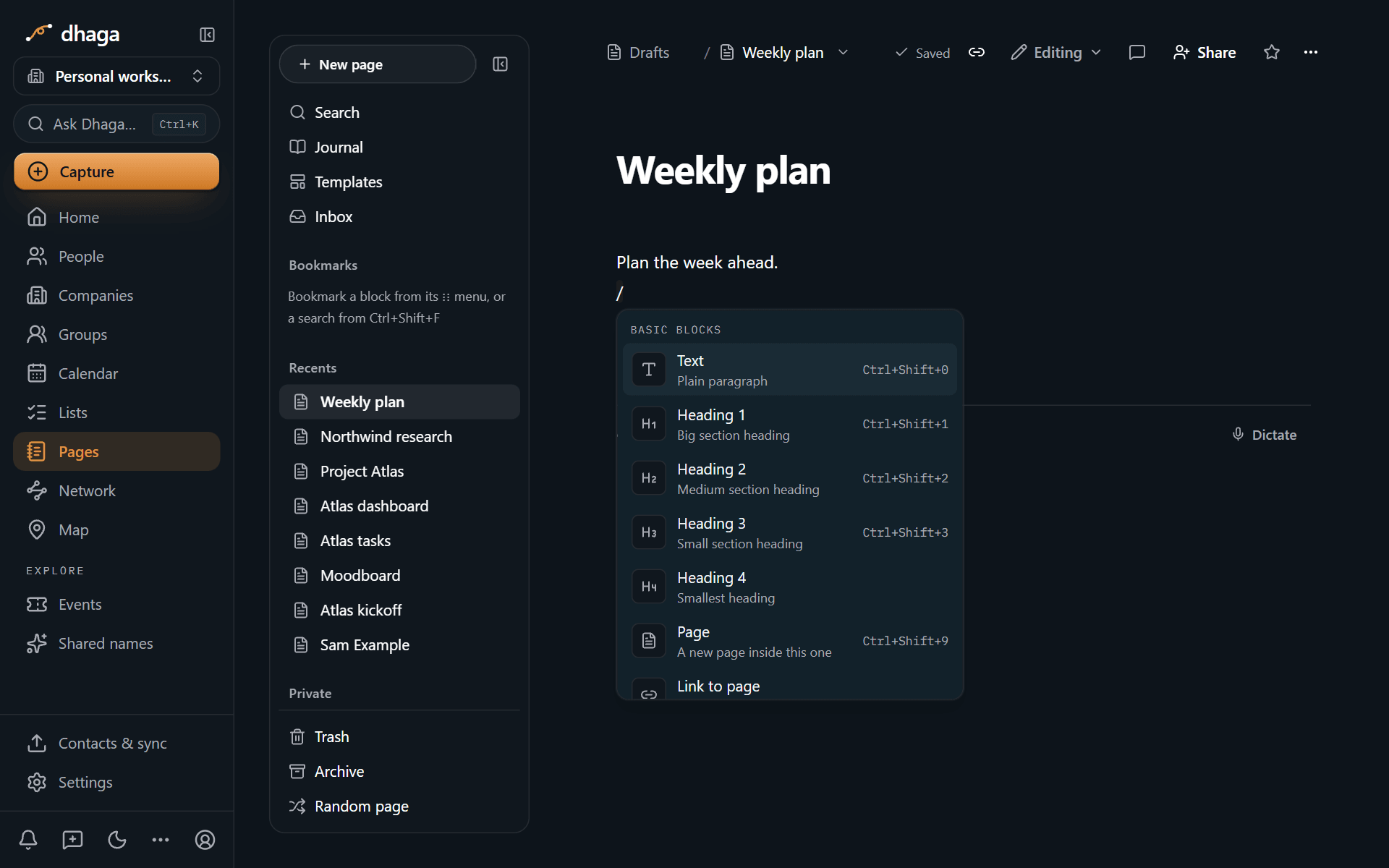
The menu also runs actions on the block you are in:
/turn: change the block's type and keep its content./duplicate: copy the block below itself./moveto: move the block to another page./delete: remove the block.- Colours: type a colour name such as
/blueor/red backgroundto colour the whole block.
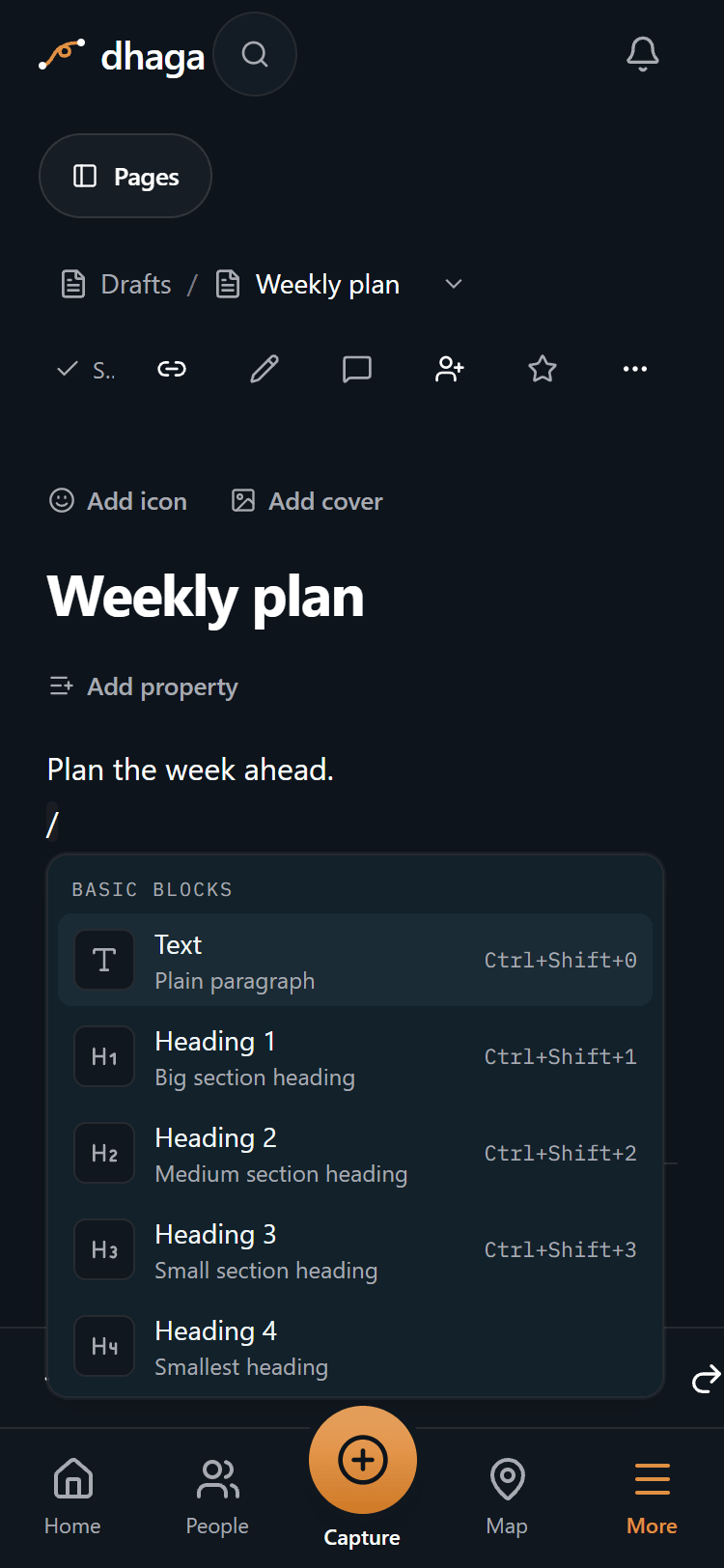
The slash menu works the same way on a phone.
Every block
| Group | Blocks |
|---|---|
| Basic | Text, Heading 1 to 4, Page (a sub-page), Link to page, Quote, Callout, Divider |
| Lists | Bulleted list, Numbered list (1., a. or i.), To-do list, Toggle list, Toggle heading 1 to 4 |
| Layout | 2 to 5 columns, Tabs, Table, Table of contents, Breadcrumb |
| Advanced | Code, Mermaid diagram, Block equation, Footnote, Hidden comment |
| Inline | Inline equation, Emoji, Date, Inline footnote |
| Media | Image, GIF, Video, File, PDF, Embed, Web bookmark, Drawing (media, drawings) |
| Databases | Database, Linked view of database, Chart, Button (databases) |
| Queries | Search query, Task query, Bases view (search) |
| Linking | Mention, Wikilink, Synced block, Tag (links) |
| AI | Ask AI, AI meeting notes, Reminder (AI) |
| Journal | Your day (Journal) |
Type Markdown instead
If you already write Markdown, keep doing it. Type these at the start of an empty line and the line turns into the block as you type:
| Type | You get |
|---|---|
#thenSpace | Heading 1 |
##thenSpace | Heading 2 |
###thenSpace | Heading 3 |
####thenSpace | Heading 4 |
-thenSpace | Bulleted list |
*thenSpace | Bulleted list |
+thenSpace | Bulleted list |
1.thenSpace | Numbered list (1.) |
3.thenSpace | Numbered list starting at 3 |
a.thenSpace | Numbered list (a.) |
i.thenSpace | Numbered list (i.) |
[]thenSpace | To-do |
[ ]thenSpace | To-do |
[x]thenSpace | Ticked to-do |
- [ ]thenSpace | To-do (Markdown task) |
>thenSpace | Quote (Markdown — never a toggle) |
"thenSpace | Quote |
>>thenSpace | Toggle list |
> [!tip]thenSpace | Callout of that type |
> [!warning]-thenSpace | Folded callout |
[!note]thenSpace | Callout |
```thenSpace | Code block |
```tsthenSpace | Code block in that language |
--- | Divider |
$$thenSpace | Block equation |
%%thenSpace | Hidden comment block |
These work inside a line of text:
| Type | You get |
|---|---|
**bold** | Bold |
*italic* | Italic |
_italic_ | Italic |
~~gone~~ | Strikethrough |
`code` | Inline code |
==marked== | Highlight |
$e^{i\pi}$ | Inline equation |
%%private%% | Hidden comment |
[^1] | Footnote reference |
^[aside] | Inline footnote |
A > makes a quote, not a toggle
In Notion, typing > and a space makes a toggle. In Pages it makes a quote, the way Markdown and Obsidian read it, so what you type, what you paste and what you export all agree. For a toggle, type >> and a space, use /toggle, or press ⌘⌥7 (Ctrl+Shift+7).
A few characters open a menu as you type:
/: the slash menu.[[: link to a page, person, company, event or group. See Links.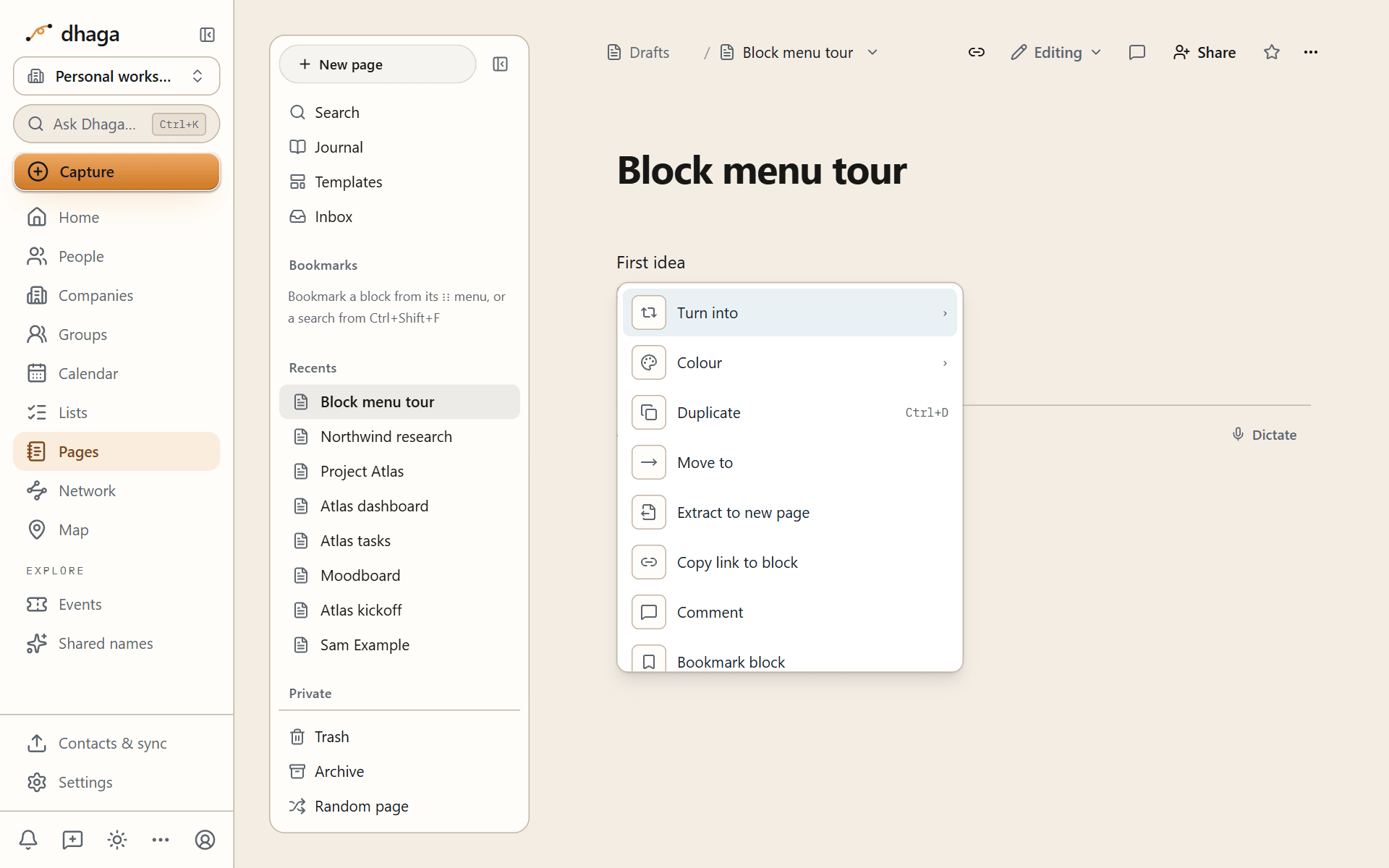
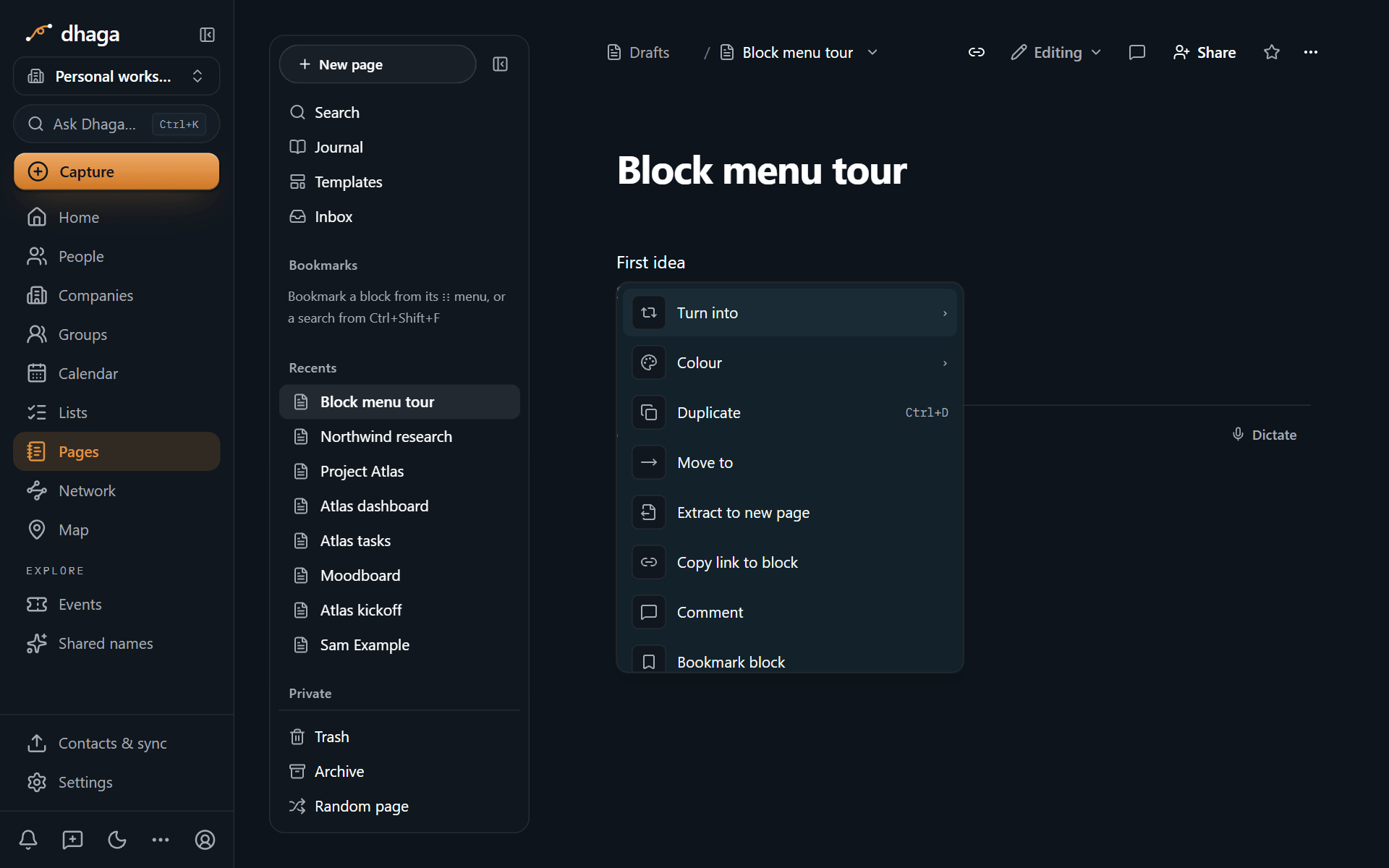
The block menu turns the block into another type, colours it, duplicates it, moves it to another page, copies a link to it, extracts it to a new page, or deletes it.
From the keyboard:
- Press Esc to select the block you are typing in.
- Press Shift+↑ or Shift+↓ to add the blocks above or below. ⌘⇧-click (Ctrl+Shift-click) adds any block.
- Act on the selection: Backspace deletes it, ⌘D (Ctrl+D) duplicates it, ⌘⇧↑ and ⌘⇧↓ move it, and Tab or Shift+Tab nests or un-nests it.
⌘⌥0 to ⌘⌥9 turn the current block into text, a heading, a list, a toggle, code or a page. On Windows and Linux the same keys are Ctrl+Shift+0 to Ctrl+Shift+9, because Ctrl+Alt types characters on many European keyboards. The full list is in Keyboard shortcuts.
Copy link to block copies an address that opens the page, scrolls to that block and flashes it. Extract to new page moves the selected blocks into a new sub-page and leaves a link where they were; Turn into page (⌘⌥9) does the same for one block.
Colour text and blocks
Pages has ten text colours and ten background colours: default, gray, brown, orange, yellow, green, blue, purple, pink and red. Each one is tuned for both light and dark themes, so a page you colour in one theme reads well in the other.
- Colour some text: select it and pick a colour from the toolbar that appears.
- Colour a whole block: use the block menu, or a colour row in the slash menu.
- Highlight: type
==text==for the default highlight, or pick a background colour. ⌘⇧H (Ctrl+Shift+H) applies the colour you used last.
Callouts
A callout sets text apart with an icon and a colour. Type > [!tip] and a space, use /callout, or paste Obsidian's callout syntax. Pages knows Obsidian's 13 callout types and their aliases:
| Type | Also written as |
|---|---|
note | |
abstract | summary, tldr |
info | |
todo | |
tip | hint, important |
success | check, done |
question | help, faq |
warning | caution, attention |
failure | fail, missing |
danger | error |
bug | |
example | |
quote | cite |
Add + after the type (> [!tip]+) for a callout that can fold and starts open, or - for one that starts folded. Callouts can sit inside other callouts. Any other type name becomes a note callout, the same way Obsidian shows it. Pages has no custom callout styles. You can also give a callout your own icon and colour from its menu.
Toggles
A toggle list hides its content until you open it. A toggle heading (heading 1 to 4) folds everything under it. Click the arrow to open or close one, press ⌘↵ (Ctrl+Enter) on it, or press ⌘⌥T (Ctrl+Alt+T) to open or close every toggle on the page. Opening a toggle is not an edit, so it never creates a new version.
Tables, columns and tabs
Tables: click in a table and a toolbar appears above it. Add or delete rows and columns, merge or split cells, and turn the header row and header column on or off. Select cells and press ⌘R (Ctrl+R) to fill right or ⌘D (Ctrl+D) to fill down. Those two keys only act on a cell selection; anywhere else they keep their usual meaning. Drag a column edge to resize it. A pasted Markdown pipe table becomes a table too.
Columns: choose 2 to 5 columns from the slash menu, or drag a block beside another one. Drag the gap between columns to resize them; with the gap focused, the arrow keys resize too. On a screen narrower than 640 px, columns stack.
Tabs: a tabs block splits content across named tabs. Rename, add, reorder and delete tabs from the block.
Code, diagrams and maths
- Code: pick a language for highlighting, turn on wrapping, add a caption, and copy the code with one click.
- Mermaid diagram: write Mermaid text and switch between Code, Preview and Split.
- Equations: write LaTeX between
$signs for an inline equation or$$for a block. ⌘⇧E (Ctrl+Shift+E) over selected text turns it into an inline equation. A typo shows the error under the equation instead of breaking the page.
Footnotes and hidden comments
Type [^1] to add a footnote reference; Pages creates the matching footnote at the end of the page. Type ^[your note] to write a footnote in place. Page info lists every footnote on the page.
Text between %% signs, such as %%check this figure%%, is a hidden comment. You see it while editing; it does not appear in reading view, on a published page, or when you present. Hidden comments are for you, not for collaborators; use comments to talk to someone.
Links, paste and drop
- Link text: select it and press ⌘K (Ctrl+K), or paste a web address over it. With nothing selected, ⌘K opens Dhaga's search as usual.
- Paste a web address on its own and Pages asks whether you want a mention, a bookmark card, an embed or a plain link.
- Paste Markdown and it becomes blocks.
- Paste from a web page or a document and the formatting comes across, cleaned up: scripts, event handlers, embedded frames and unsafe links are dropped.
- Paste or drop an image or file and it uploads into the page. Each file can be up to 4 MB; see Media.
Find and replace
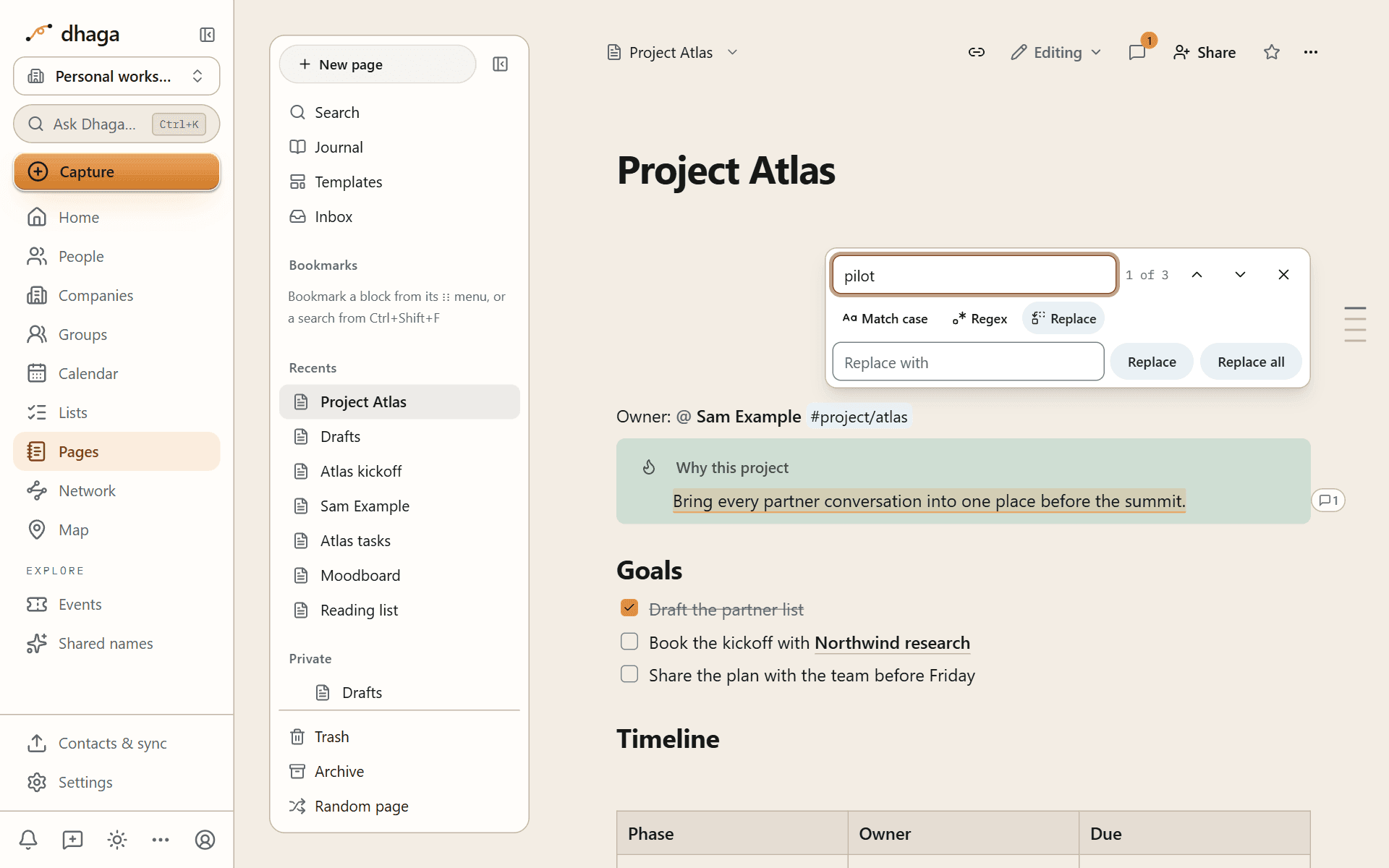
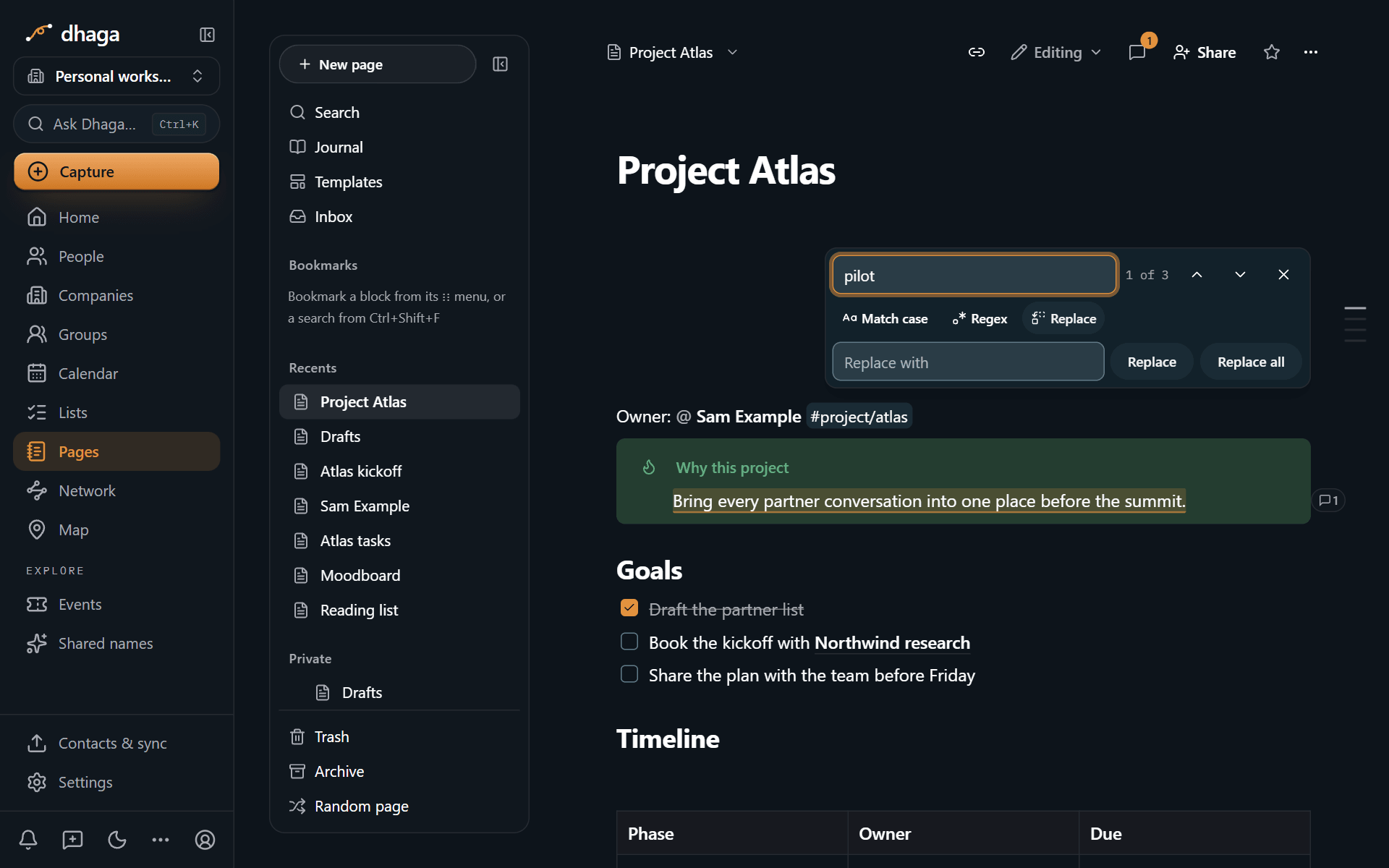
Press ⌘F (Ctrl+F) inside a page to find text. Matches inside folded toggles, folded callouts and other tabs count too, and the block opens when you reach the match. Press the same keys again inside the find panel to get your browser's own find.
⌘⌥F on a Mac, or Ctrl+H on Windows and Linux, opens find and replace. Turn on Match case or Regex as needed, then replace one match or all of them. Replace all is a single step, so one undo puts everything back.
Four ways to view a page
Choose a view from Page options → View:
- Live preview (the default): Markdown renders as you type.
- Reading: the finished page, not editable. Hidden comments disappear.
- Source: the page as plain Markdown, the same text you get when you export. Edit it and switch back; nothing is lost on the way.
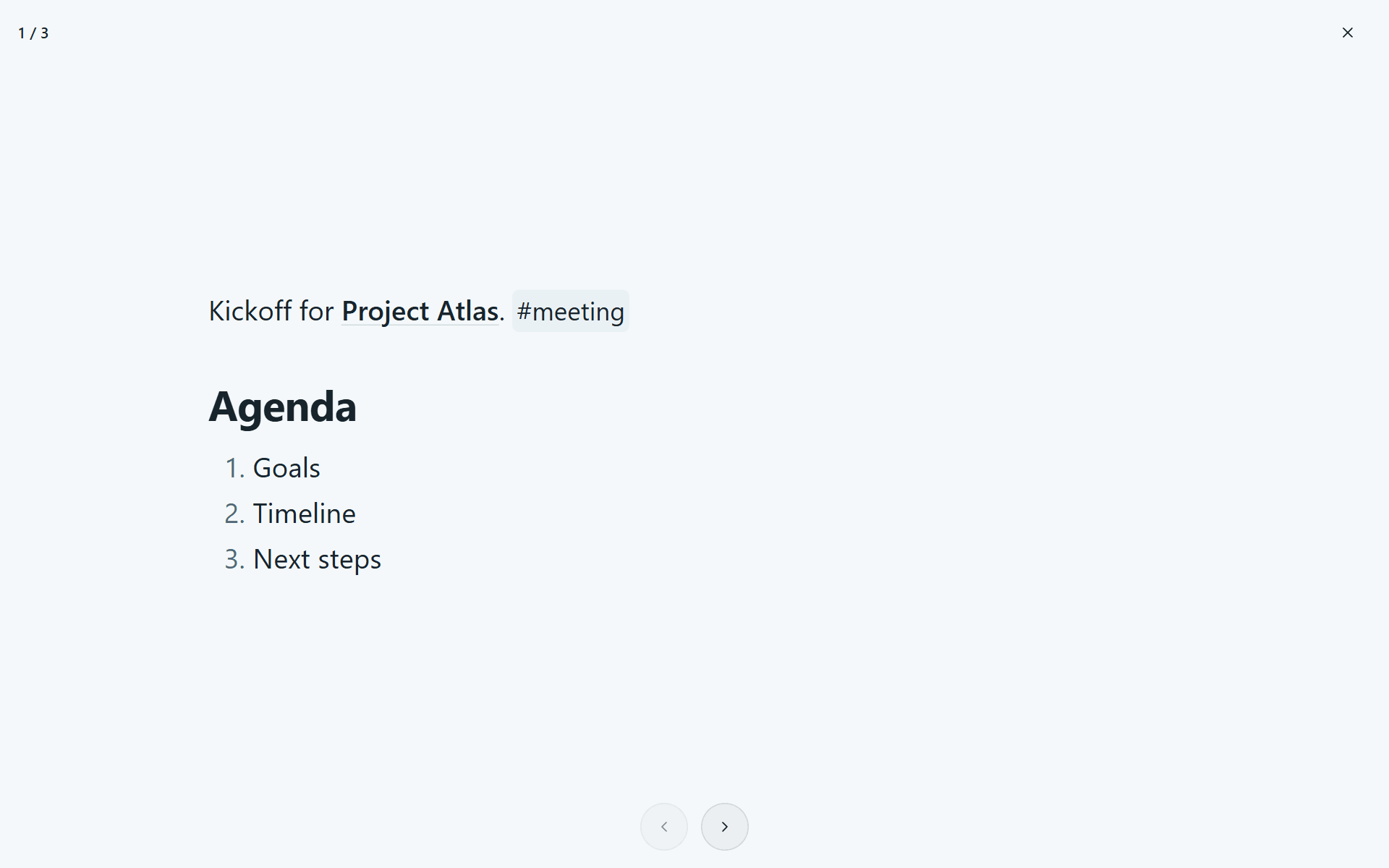
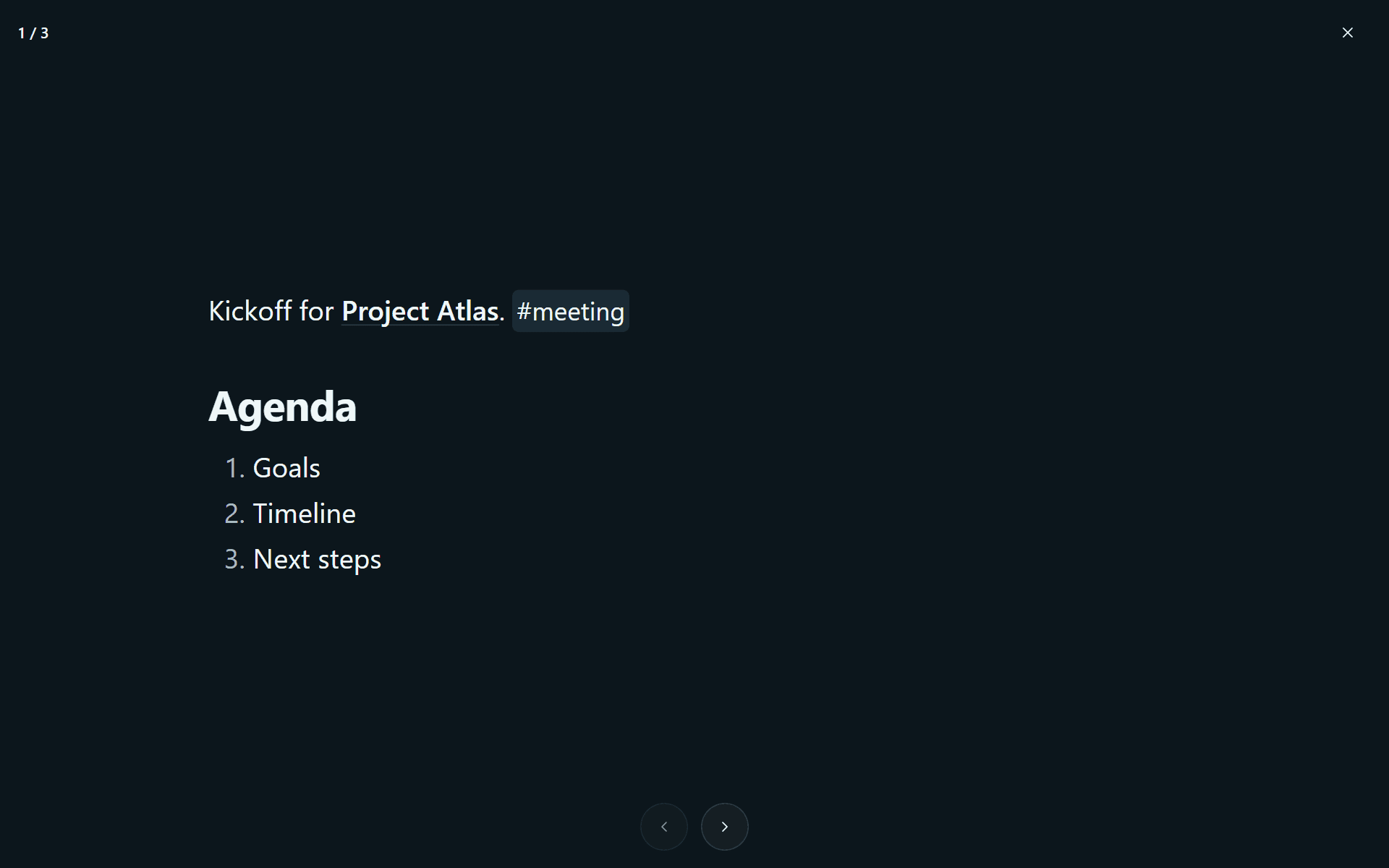
- Present: the page as slides.
⌘⇧E (Ctrl+Shift+E) with nothing selected switches between live preview and reading.
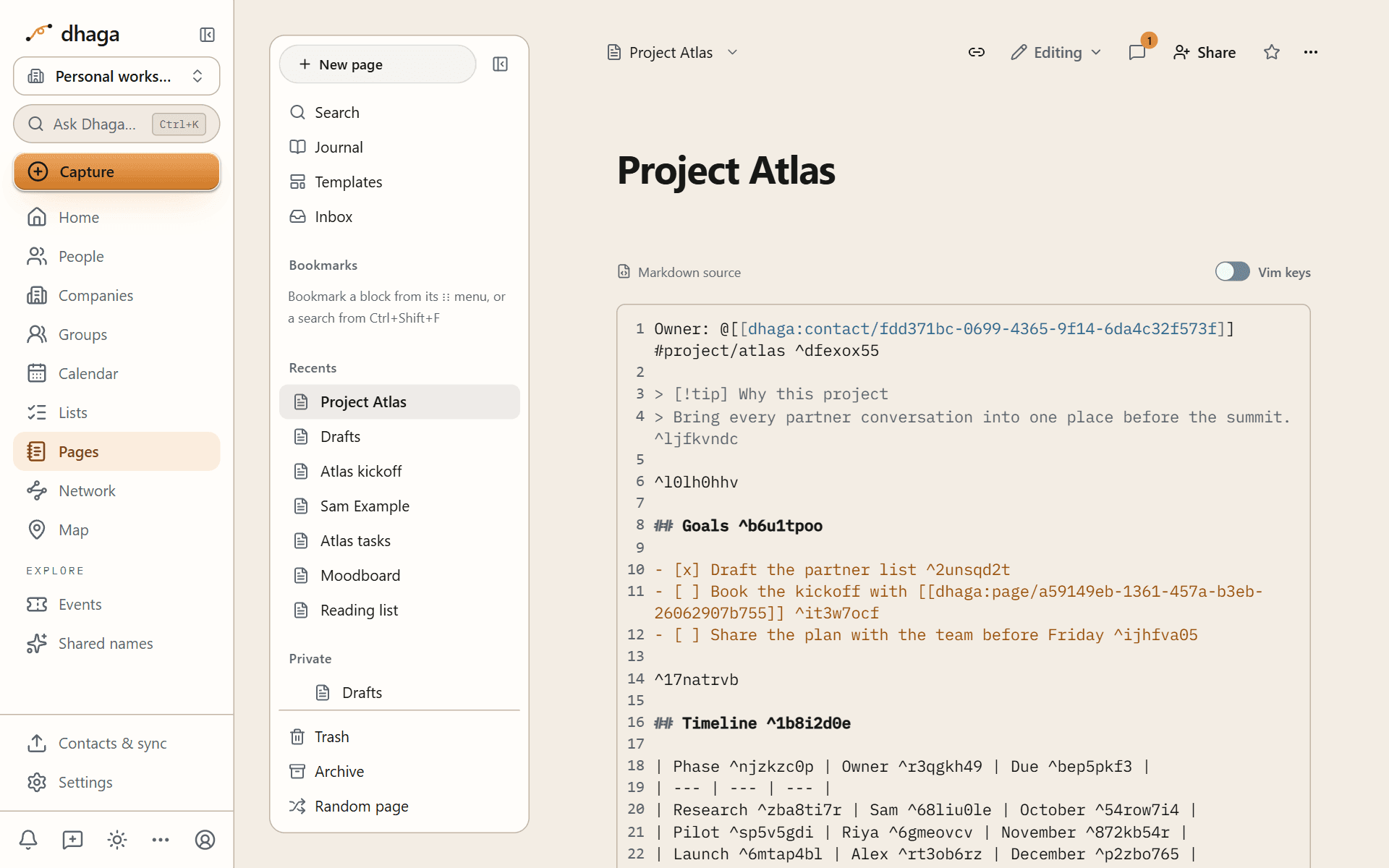
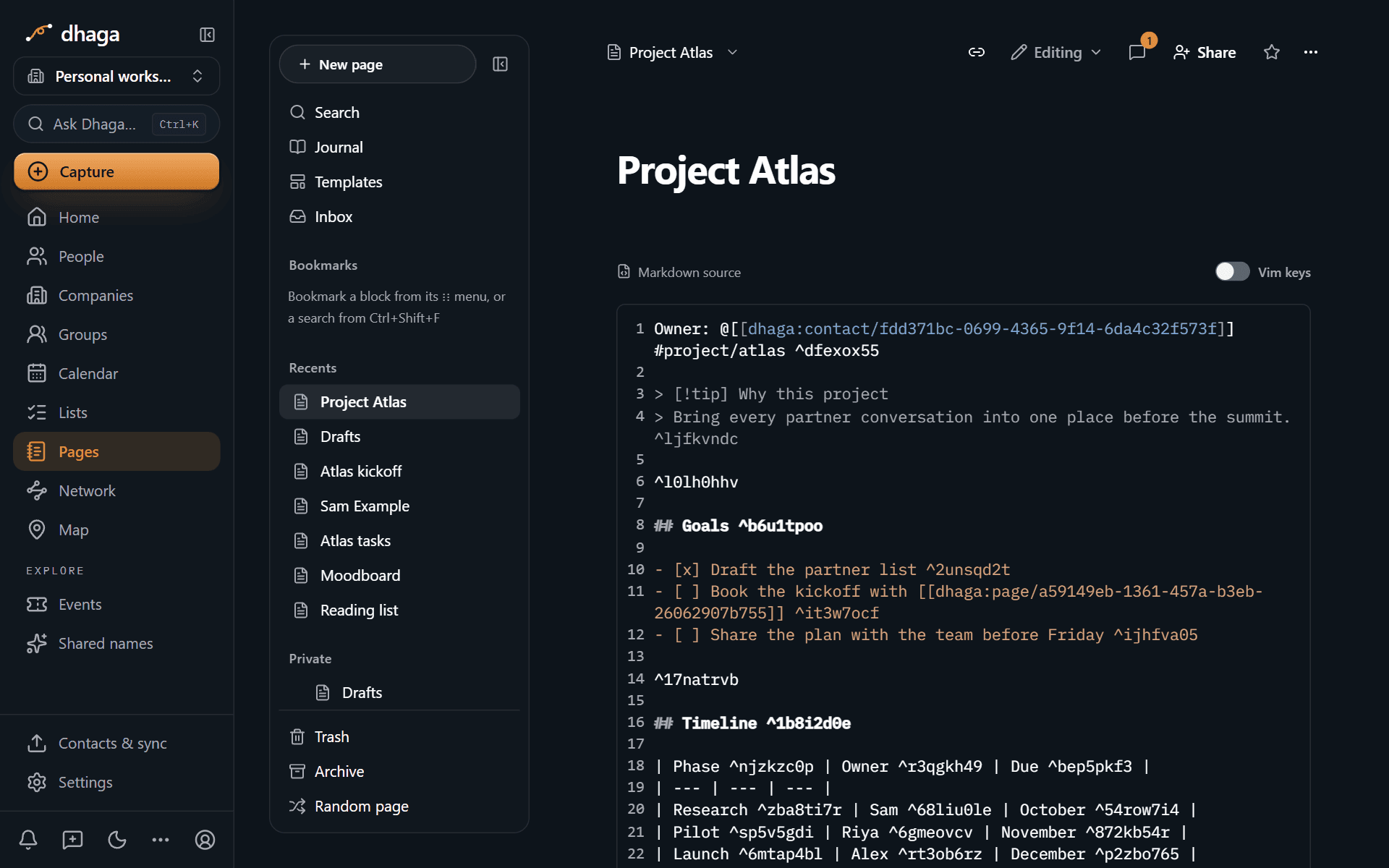
Vim keys are available in source view. Turn on the Vim keys switch in source view; Pages remembers your choice on this browser.
Presenting: press ⌘⌥P (Ctrl+Alt+P) or choose Present from the page menu. Every divider (---) starts a new slide. Use the arrow keys, Space, Page Up and Page Down to move, Home and End to jump to the first or last slide, swipe on a touch screen, and press Esc to stop.
Counts, dictation and undo
- Word and character count: shown at the foot of the page, and for the selection in the formatting toolbar.
- Dictation: press Dictate at the foot of the page and speak. Only the finished text is typed into the page at the cursor; Dhaga does not keep the audio. Depending on your browser, the speech is transcribed on your device or sent to Dhaga's transcription service. A browser that can do neither shows the button greyed out, marked as coming soon.
- Undo and redo: ⌘Z and ⌘⇧Z (Ctrl+Z and Ctrl+Shift+Z or Ctrl+Y). For anything older than this session, use version history.
Pages
Write pages, databases and a daily Journal inside Dhaga, link them to the people and companies in your network, and find everything again.
Links, mentions and backlinks
Link pages with [[, mention people and companies with @, show one page inside another, and see every page that points back, including a person's own Page tab.