AI in Pages
Rewrite a selection, ask questions across your pages, fill in database properties, take meeting notes without storing audio, and learn facts from a page, only when you ask.
AI in Pages runs only when you ask for it. You select text and ask for a rewrite, ask Dhaga a question, press a button to fill in a property, or start meeting notes. Two features can run without a click each time, and both are off until you turn them on for a specific page or property. Every AI action uses AI credits; writing, searching, linking and everything else in Pages do not.
Rewrite a selection
Select some text and press ⌘J (Ctrl+J), choose Ask AI in the formatting toolbar, or type /ai on an empty line. Pick what you want:
- Improve writing
- Fix spelling & grammar
- Make shorter or Make longer
- Simplify language
- Change tone: professional, casual, friendly or confident
- Translate, into the language you choose
- Summarise and Explain this, which write below the selection
- Continue writing, which carries on from the cursor
- Your own instruction, typed in your words
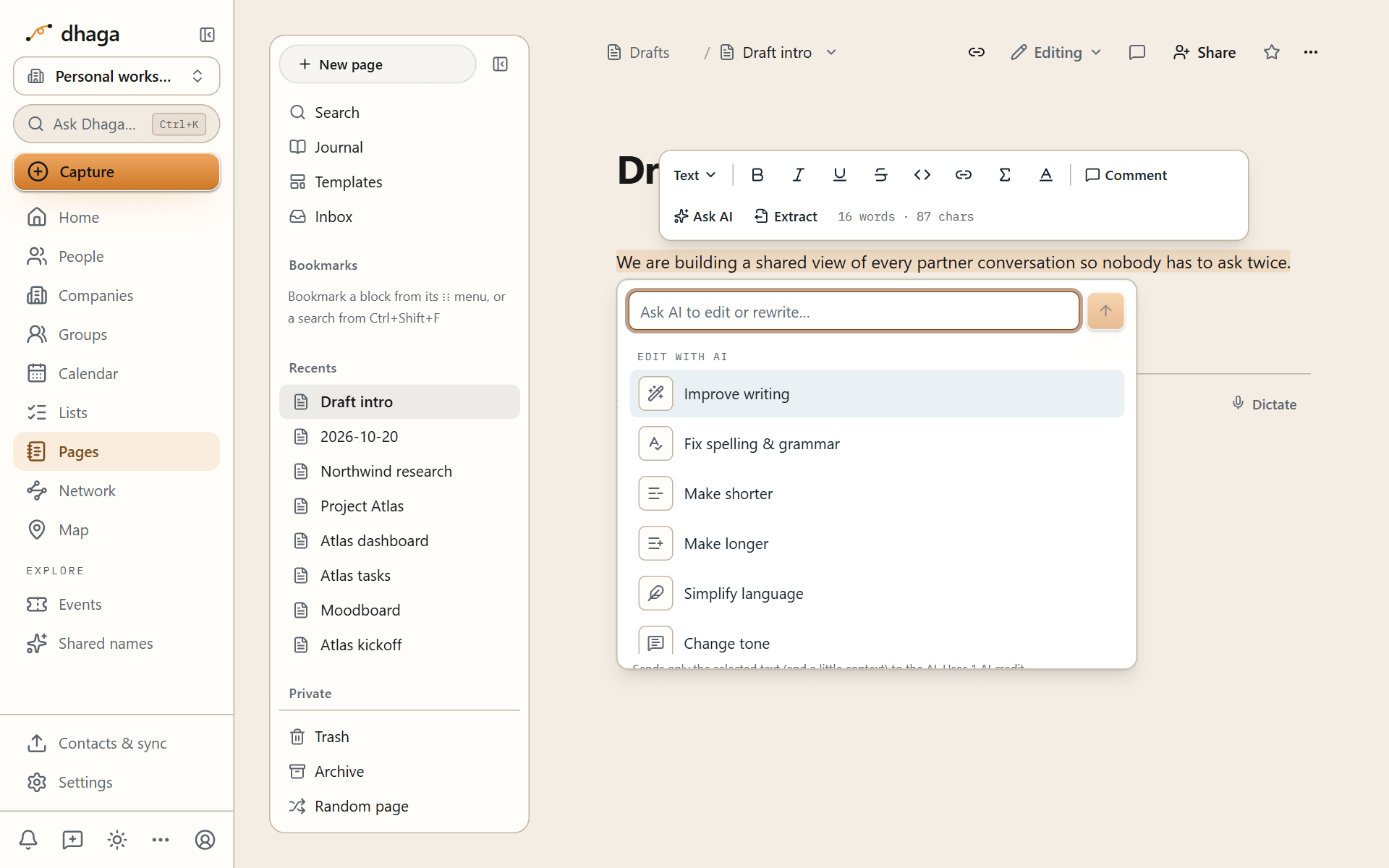
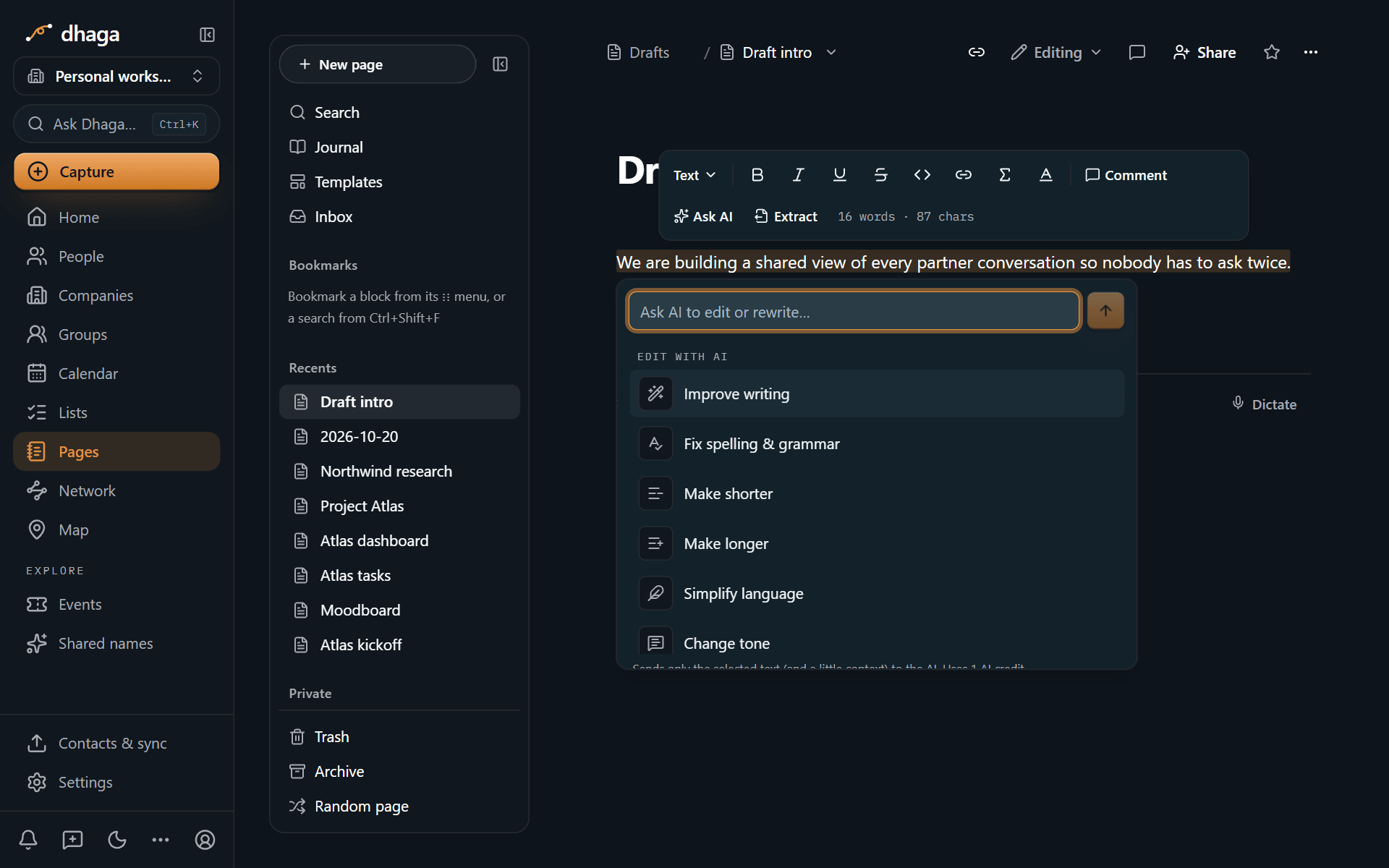
You see the result before anything changes, and choose whether to replace the selection, insert the result below it, or discard it. Opening the menu costs nothing; credits are used when you pick an action. A page edited by AI gets a new version in its history, so you can always go back.
Ask Dhaga about your pages
Ask Dhaga (⌘K, then the Ask Dhaga tab, which opens first when AI is available to you) answers from your pages as well as your contacts and notes, and cites the pages it used so you can check the answer. Pages are indexed for search by a model that runs on Dhaga's own servers; when you ask a question, the passages that answer it are sent to the AI model that writes the reply. See Search and Ask Dhaga.
Fill in properties and write formulas
- Autofill: a database property can be filled in by AI from the row's page and its other properties, for example a one-line summary or a category. Turn on Fill with AI in the property's settings and say what it should fill in, then use Fill empty rows with AI, Refill all rows with AI or Fill this row with AI from the property's menu. Each row costs 1 credit, and the dialog shows the cost before anything runs.
- Keep updated: turn on Keep updated after my edits for a property and it is filled in again whenever a row's page changes. It is off until you turn it on, and each update uses credits.
- Formula writer: choose Write with AI in the formula editor and describe a formula in plain English, such as "days until the due date, or Overdue", and Pages writes it. It sends property names and types only, never row data, and costs 1 credit. See Formulas.
Take meeting notes
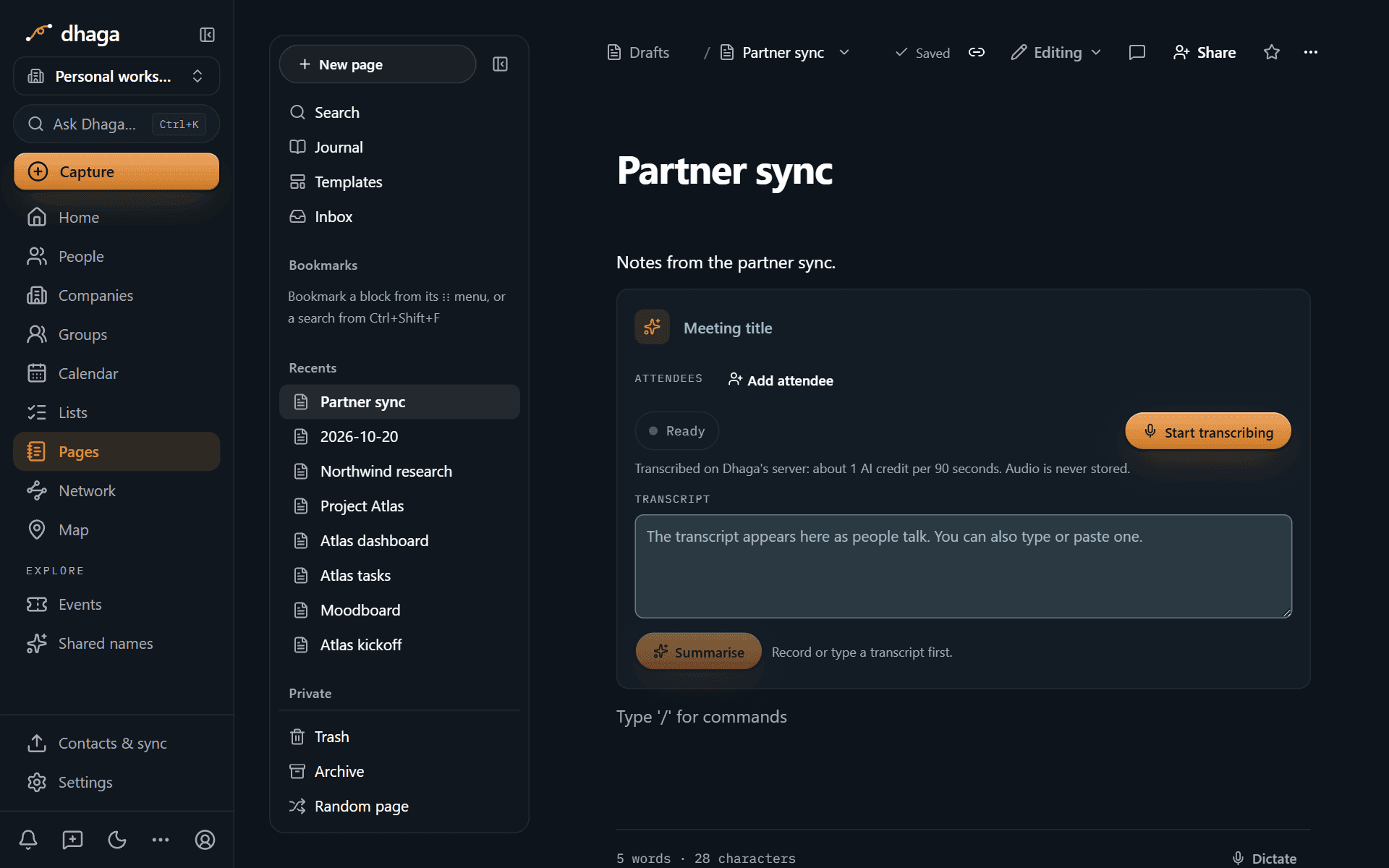
Type /meeting to add an AI meeting notes block, then press Start transcribing. Pages transcribes what it hears as the meeting goes on, and you can pause and resume. The audio is never stored: it is turned into text and discarded straight away. When you press Stop, Pages writes a summary and a list of action items from the transcript; Regenerate summary runs it again. The summary and action items use 2 credits. Transcription happens on Dhaga's server (about 1 credit per 90 seconds) or, in a browser that supports it, on your device in English at no cost. If your browser can't record, you can type or paste a transcript instead. A transcript holds about 75 minutes, after which transcription pauses.
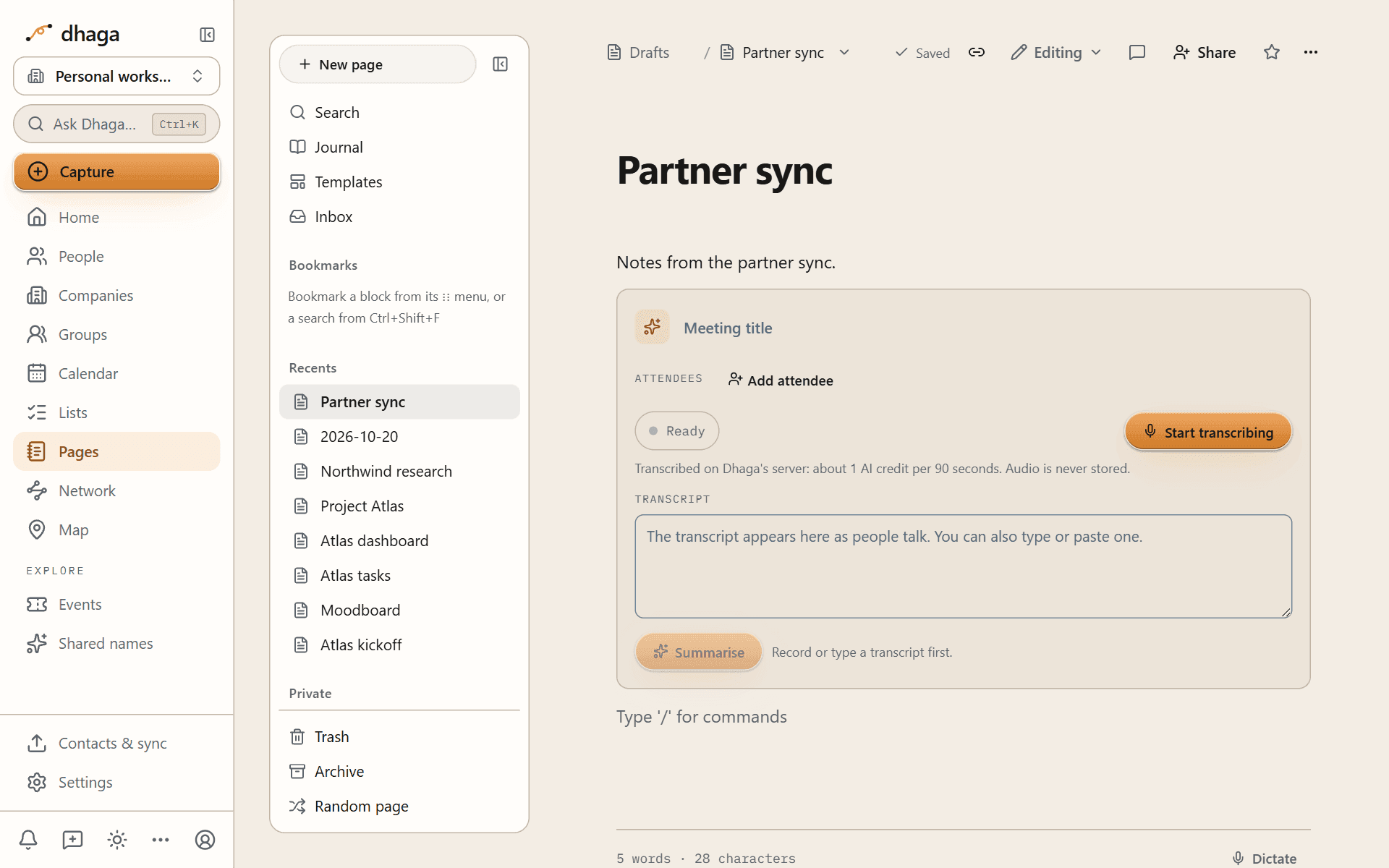
Turn any action item into a Dhaga follow-up with Make follow-up, so it shows up in your Plan and your daily brief. Your browser asks for microphone access the first time. Tell the people in the meeting that you are taking notes this way.
Draft a page with AI
Choose Draft with AI from the New page menu, or type /draft, and pick the kind of page: Meeting prep, Company research or From a prompt. For the first two, choose the person or company and Pages drafts the page from what Dhaga knows about them (facts, notes, events and open follow-ups), the same context the pre-meeting brief uses. That grounded draft needs a plan with pre-meeting briefs (Pro and Power). From a prompt reads nothing from your contacts. You review the draft before it is saved, and each draft uses 3 credits.
Generate a page from a template
Each kind in Draft with AI is a template with a ready-made prompt. Pick Meeting prep or Company research and the prompt is filled in for you, and you can edit it before you generate. Pick From a prompt to write your own from scratch. Pages shows what will be read before you press the button, and nothing is saved until you accept the draft.
Learn from this page
Writing a note about someone in Dhaga extracts facts and relationships from it automatically. Pages don't, unless you ask. Choose Learn from this page from the page menu, and Dhaga reads the page for facts about the people you @-mention in it, such as a new job or who introduced whom. Dhaga only learns about people the page points at, so mention someone with @ first. Each fact links back to the page as its source.
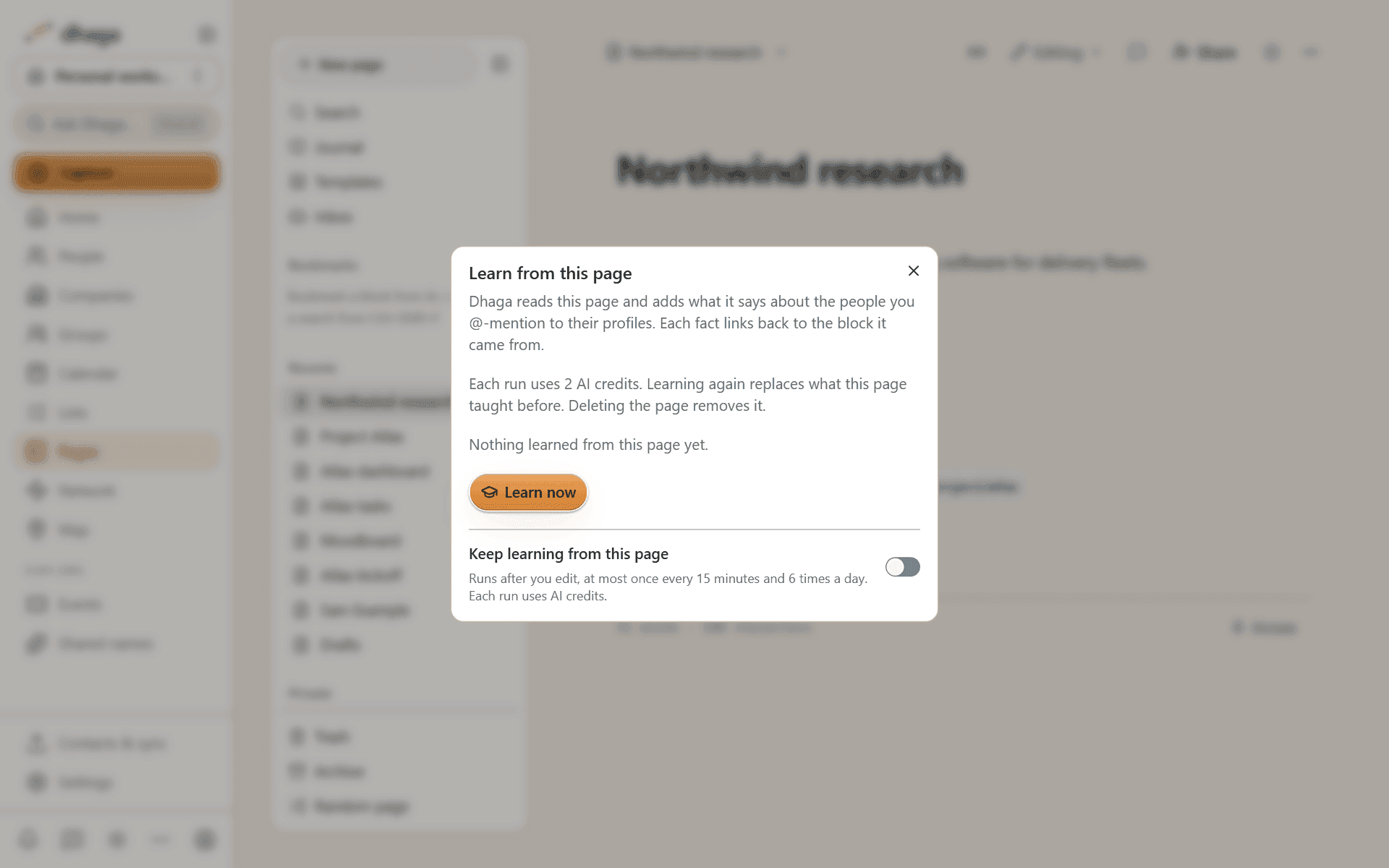
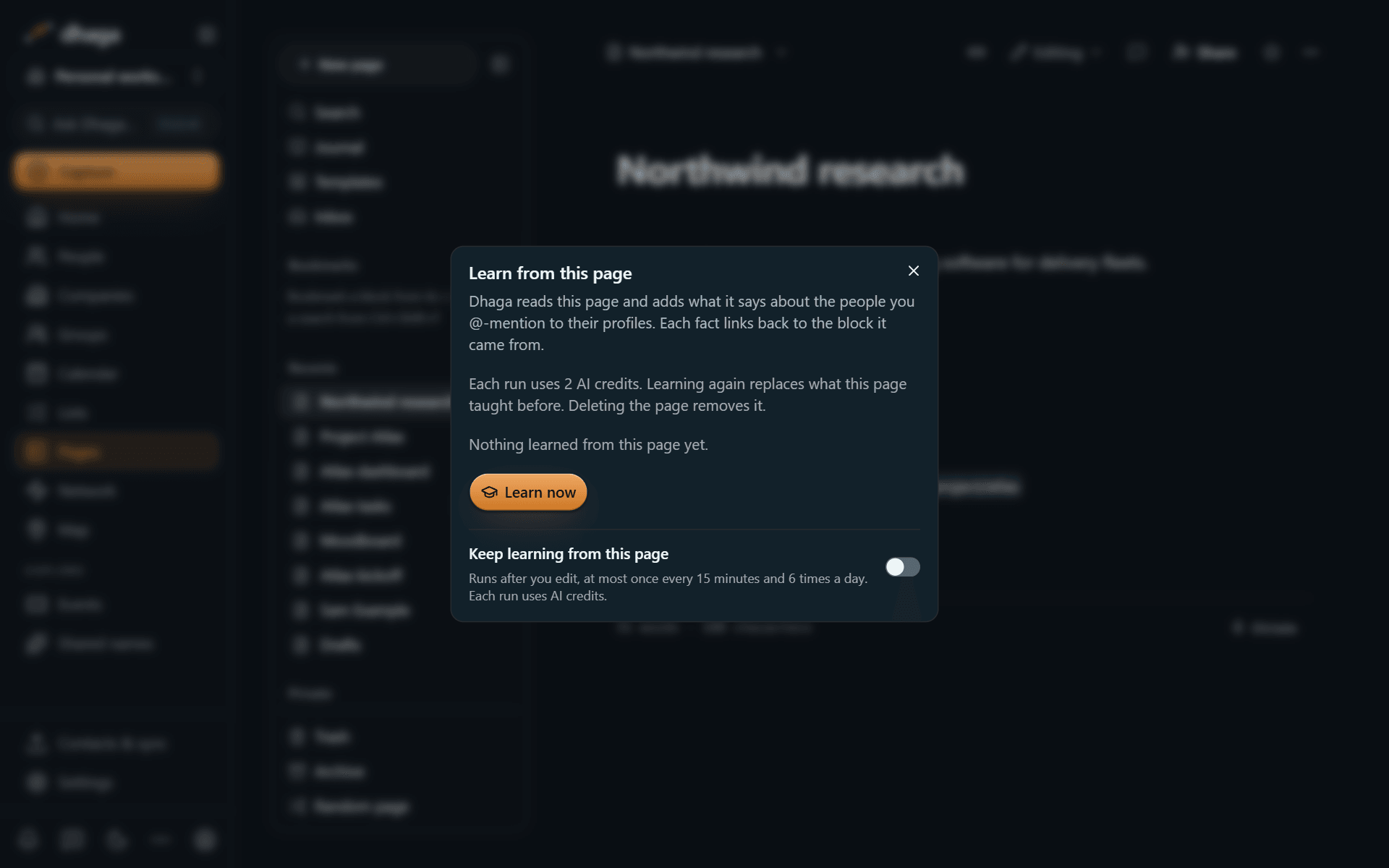
- Keep learning from this page: a switch in the same dialog (only the page's owner can turn it on) makes Dhaga learn after you edit the page, at most once every 15 minutes and 6 times a day. It is off for every page until you turn it on, and each run uses credits.
- Run it again after editing the page, and the earlier facts from this page are replaced, not duplicated.
- Delete the page and every fact it produced is deleted with it.
Reminders and follow-ups from a page
Type @remind and a time, such as @remind friday 9am, to create a follow-up in your Plan from the page. Change the reminder in the page and the follow-up changes too; delete it and the follow-up is dismissed. Dates are read by Dhaga's own date parser, not by AI, so reminders use no credits.
A to-do that mentions a person offers Make follow-up, which turns it into a follow-up for that person.
Two limits to know about. A reminder from a page appears in your Plan, but it is not written to a connected Google or Outlook calendar. And if you share a page with a guest who types @remind, their reminder is created the next time the page's owner saves the page, not the moment the guest types it.
Pages in chat and in your AI assistant
- WhatsApp and Telegram: ask the Dhaga bot to save something to a page, to search your pages, or to read one back. Anything you forward to the bot is treated as content to save, never as instructions to follow. See Messaging capture.
- MCP: connected AI assistants such as Claude can search, read, create and append to your pages, and query your databases. See Connect an AI assistant.
What AI never does in Pages
- It never runs on a page without a click from you, or a switch you turned on for that page or property.
- It never generates images.
- It doesn't run on a schedule or act as an agent on its own.
Page text, transcripts and AI results are not written to Dhaga's server logs. Credits for every action are listed under Settings → Credits; see AI credits.
Import and export
Bring in an Obsidian vault, a Notion export, Markdown, HTML, spreadsheets, Word files or canvases, match people notes to your contacts, and export everything as an Obsidian vault.
Clip to page
Save a selection or a whole article from any website into a page or today's Journal with the Dhaga browser extension, as clean Markdown with its source.