Comments, suggestions and history
Discuss a page with comments, propose edits in suggestion mode, follow activity in your inbox, restore an earlier version, and handle a page that changed elsewhere.
Collaboration in Pages is asynchronous. People comment on a page and suggest edits, and the inbox tells you when something needs you. Every page keeps a history of earlier versions you can compare and restore. When two people edit the same page, Pages makes sure neither loses their work.
Comment on a page
- On some text: select it and press ⌘⇧M (Ctrl+Shift+M), or choose Comment in the toolbar. The text is highlighted and the comment sits beside it.
- On a block: choose Comment from the block menu.
- On the whole page: add a page comment from the Comments panel.
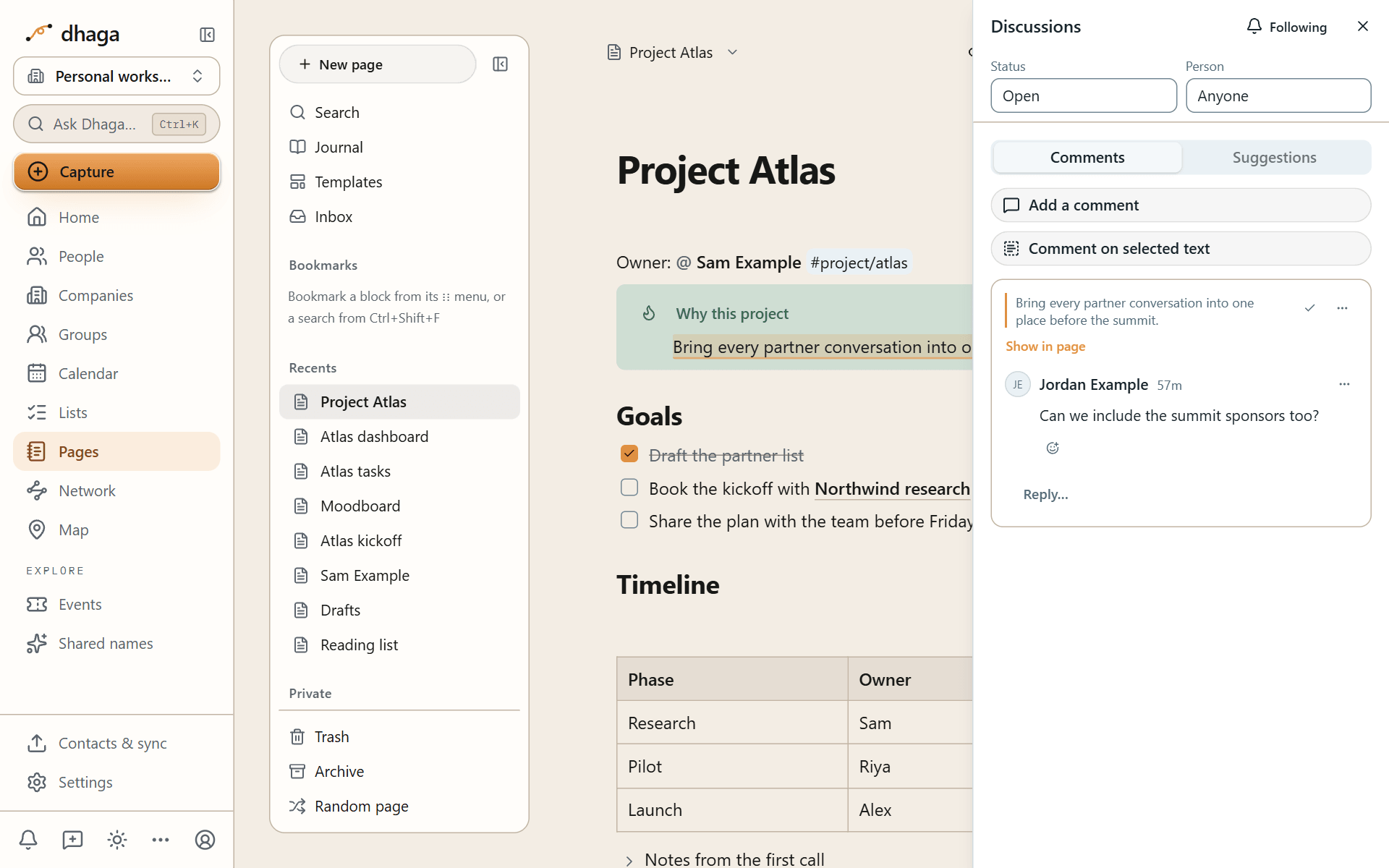
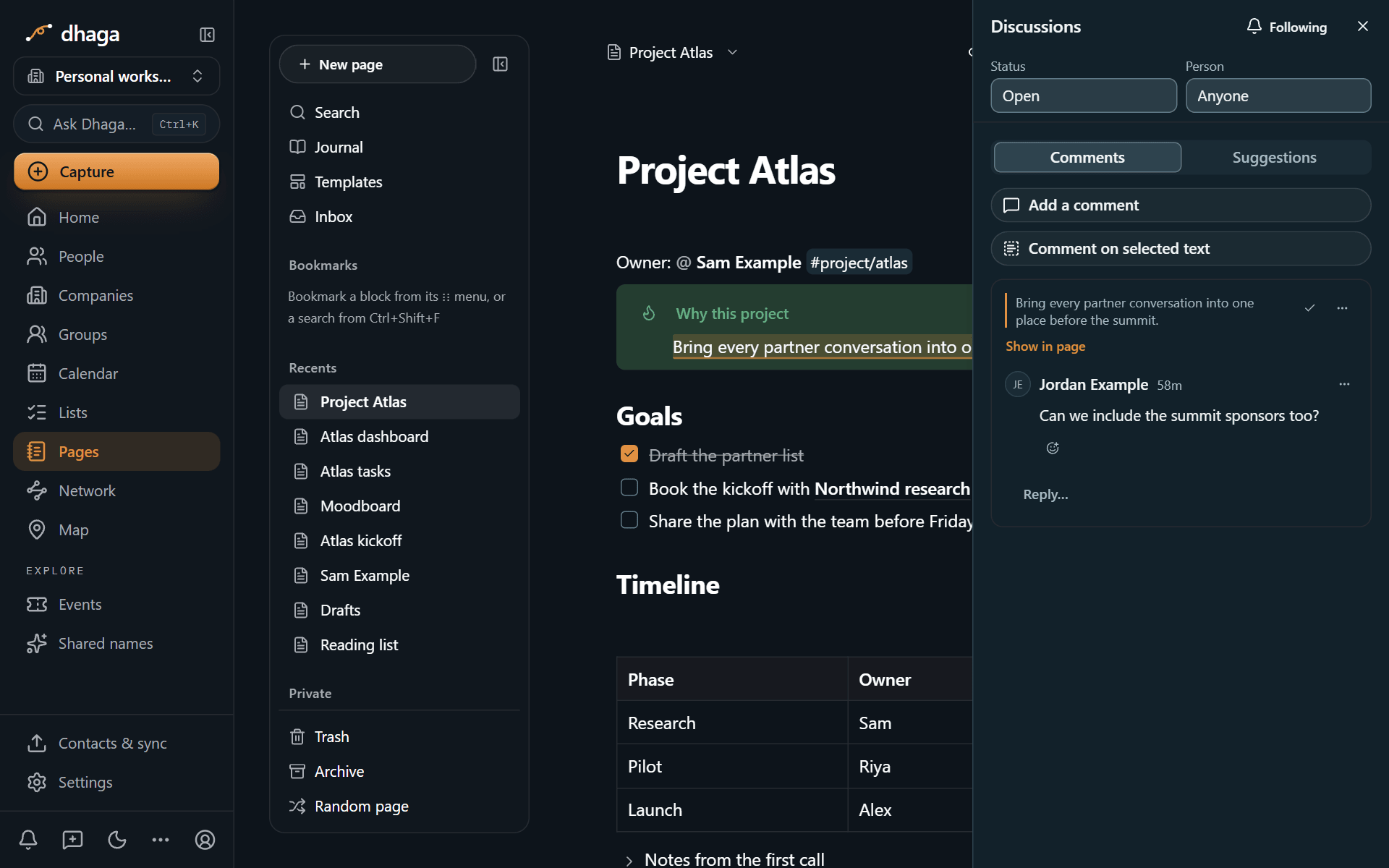
Reply to build a thread, react with an emoji, mention someone with @ to notify them, and Resolve the thread when it is settled. Mute replies stops notifications for a thread you no longer need to follow. The Discussions view lists every thread on the page; filter it by person or by open and resolved.
If the text a comment points at is edited or moved, the comment finds the same words again where they now are.
Commenting needs only Can comment access, and comments are stored apart from the page itself, so commenting never changes the page or conflicts with someone editing it.
Suggest changes instead of making them
Switch the Mode at the top of the page from Editing to Suggesting. While it is on, what you type and delete is shown as a suggestion instead of being applied: insertions are marked, deletions are struck through, and each suggestion carries your name.
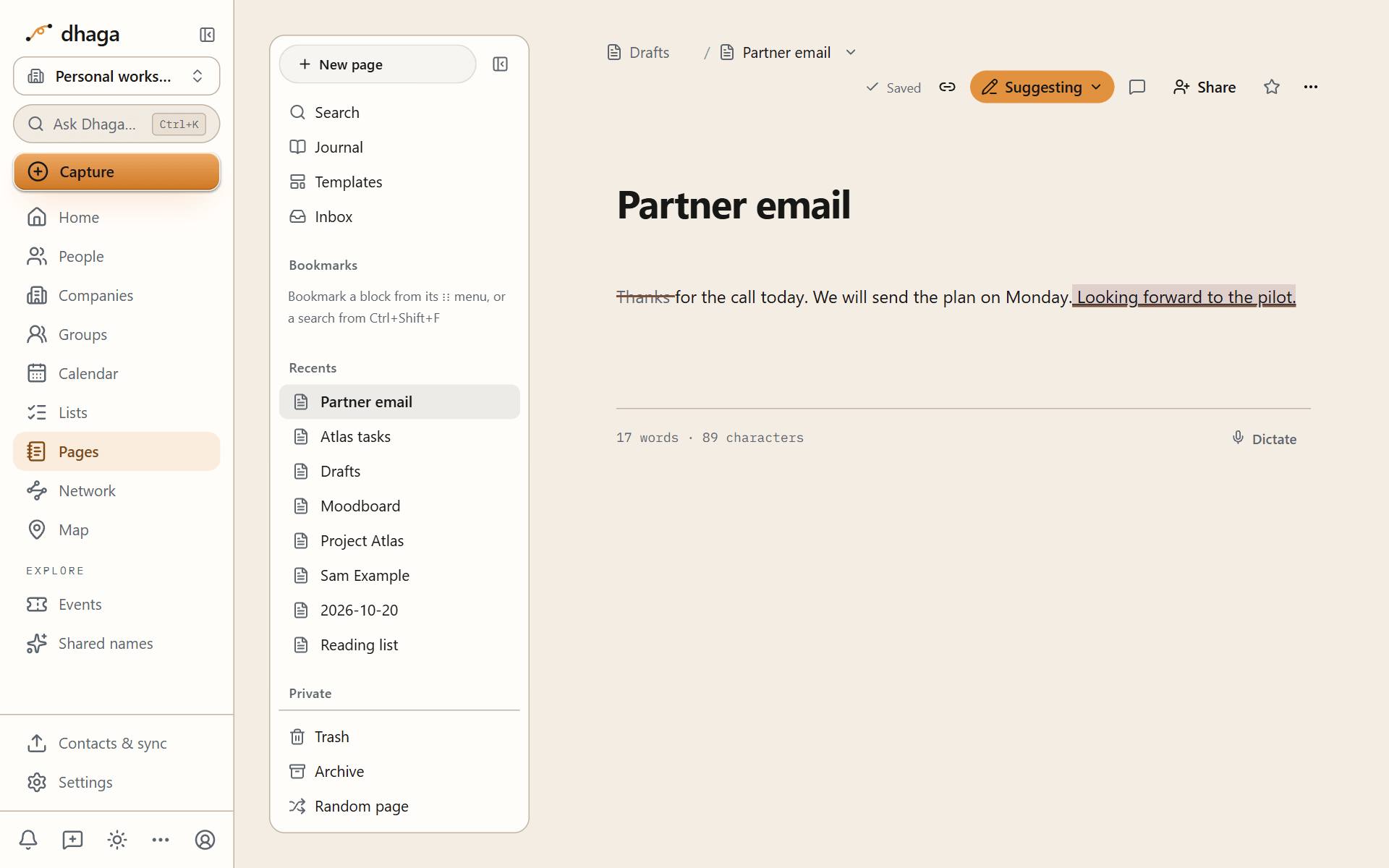
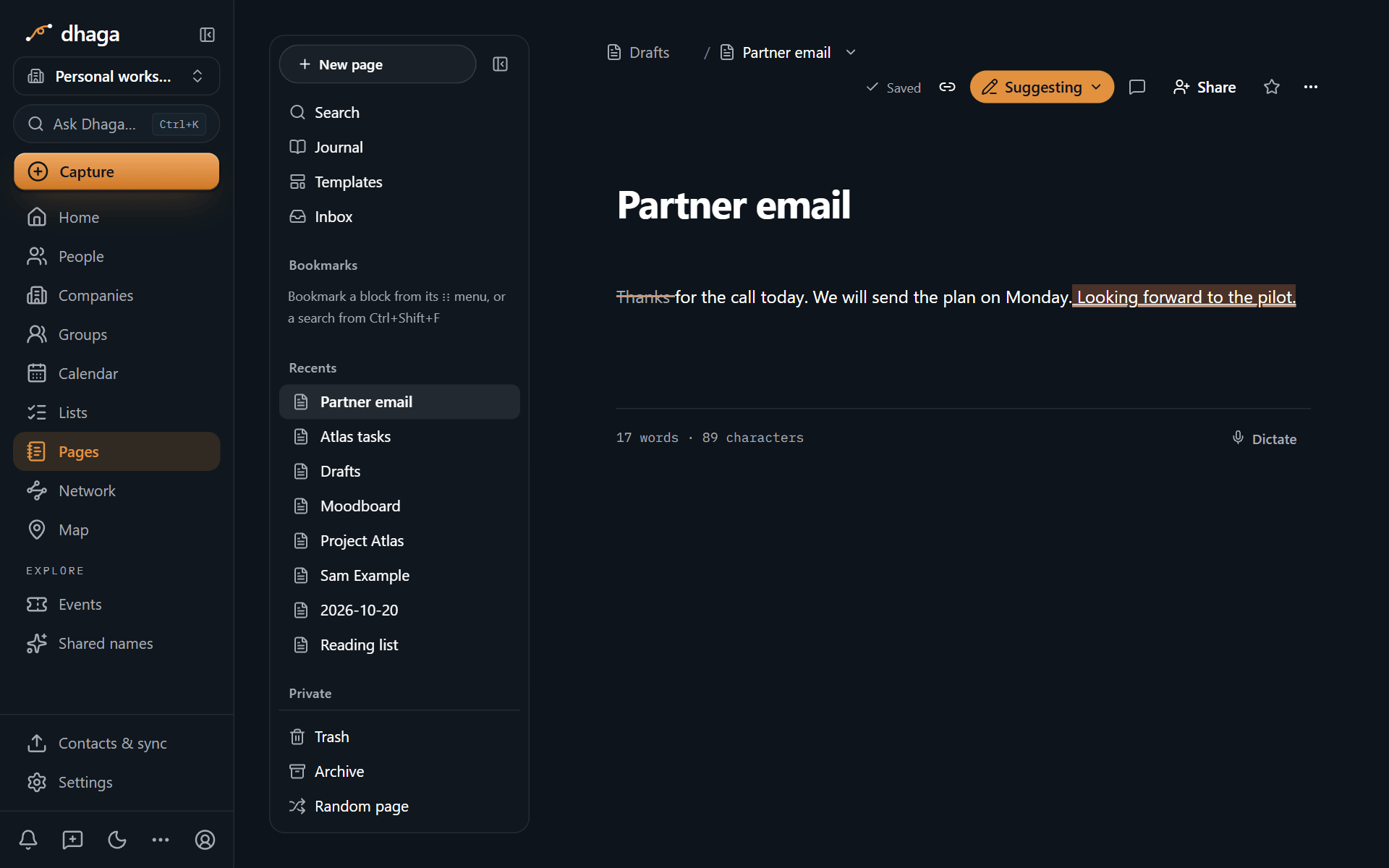
Anyone with edit access can Accept or Reject each suggestion, or Accept all and Reject all at once. Accepting or rejecting everything saves a version first, so it can be undone from the page history.
People with Can comment access are always in suggestion mode. Turning a block into another type can't be suggested yet, and suggestions are off while a page is locked or in the trash. Dhaga checks every save they make: a save that would change the page itself, rather than add suggestions, is refused.
Your inbox
The Inbox collects what needs you across Pages:
- Mentions of you in pages and comments.
- Comments on pages you follow, and replies to your comments.
- Reactions to your comments.
- Suggestions on pages you can edit.
- Access requests for pages you manage, and invitations to pages. Invitations you haven't answered are listed under Pending invites at the top, with Accept and Decline; until you accept, they don't show the page or who shared it. See Accepting an invitation.
- Verification reminders when an organization page you verified is about to expire.
- Automation notices from a database automation or button that sends a notification.
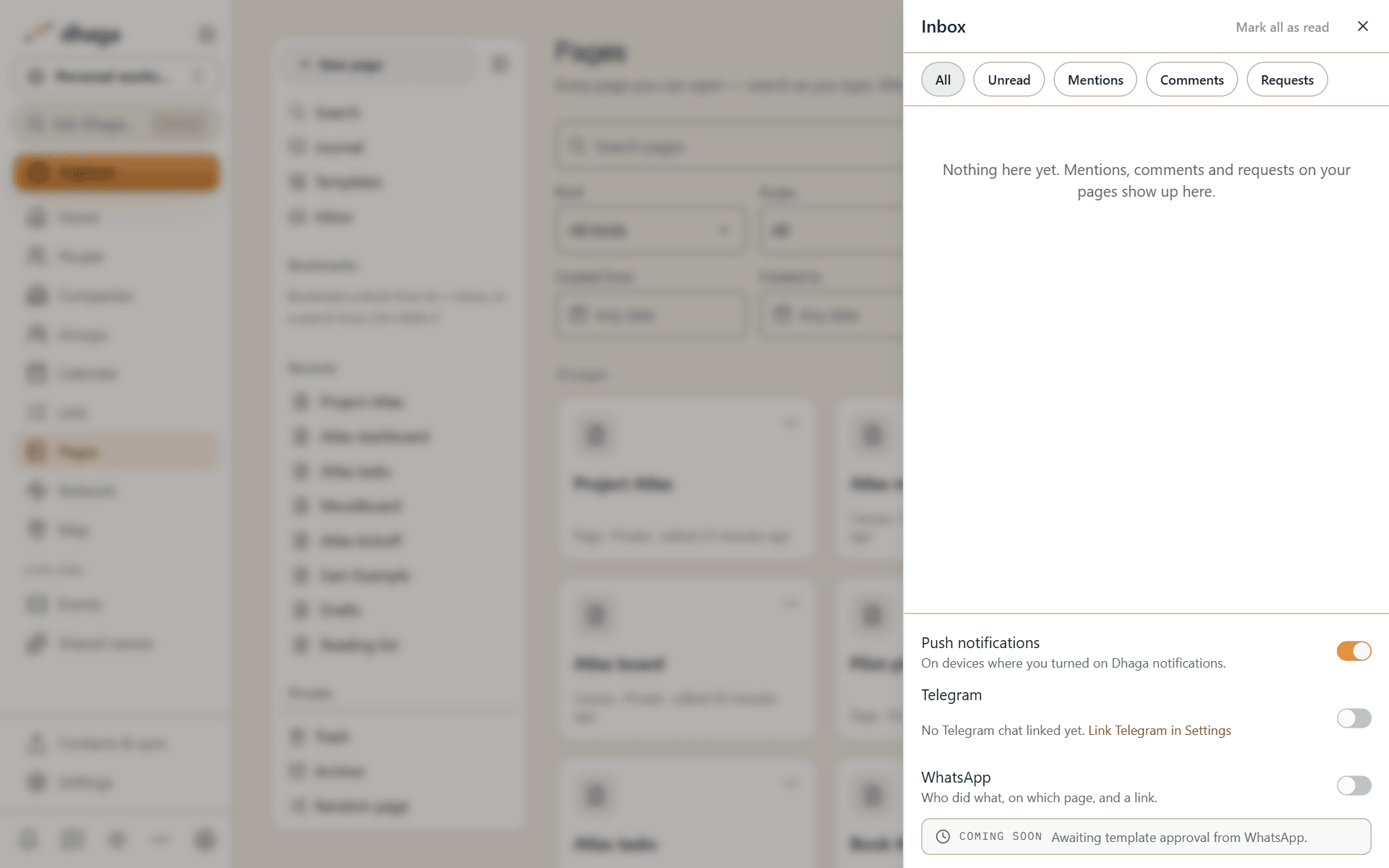
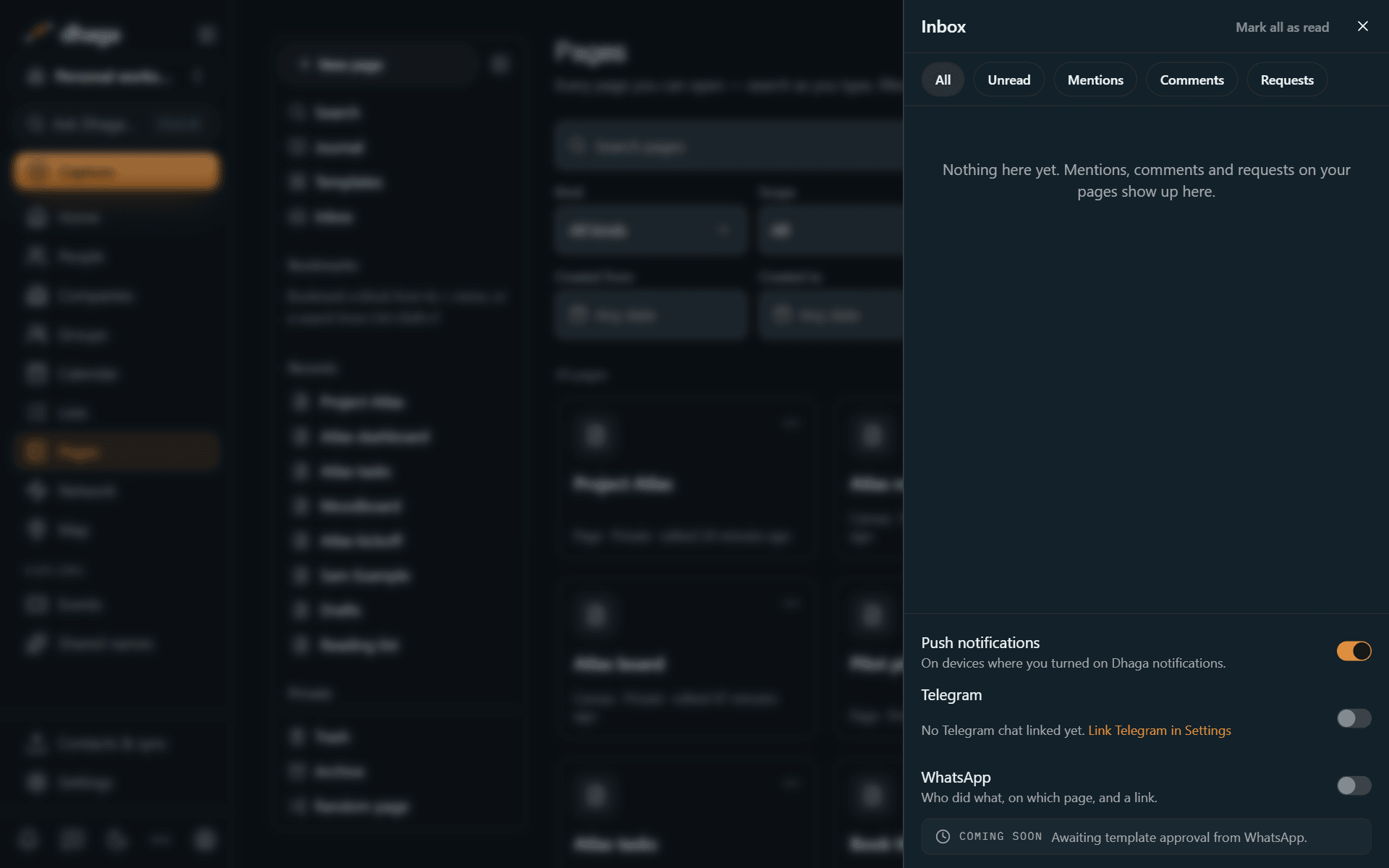
Choose Follow page to hear about a page's comments; the button then reads Following, and choosing it again stops them. Notifications also arrive as push notifications (with no page title or name, since they show on a lock screen), and in Telegram if you connected it to Dhaga and are on Power or Team. A Telegram message names the page and who acted and links to it, never the comment or text itself. An invitation you haven't accepted is never sent to Telegram. WhatsApp delivery is not available yet, and database automation notices never go to WhatsApp.
Page history
Pages saves a version of each page as you work: at most one every 10 minutes while you edit, and always when you restore a version, import a page, accept or reject every suggestion, let AI edit the page, or merge another page into it.
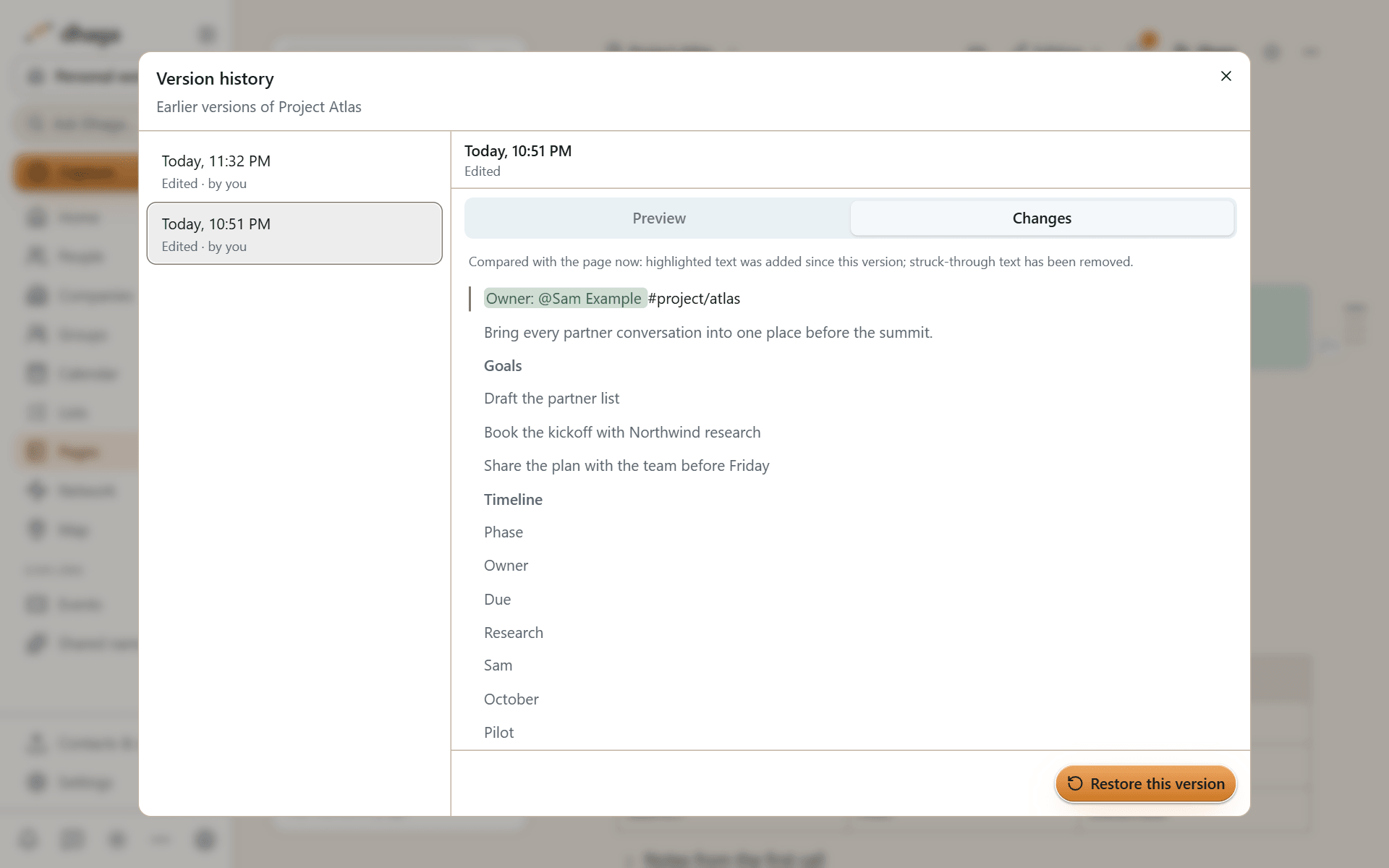
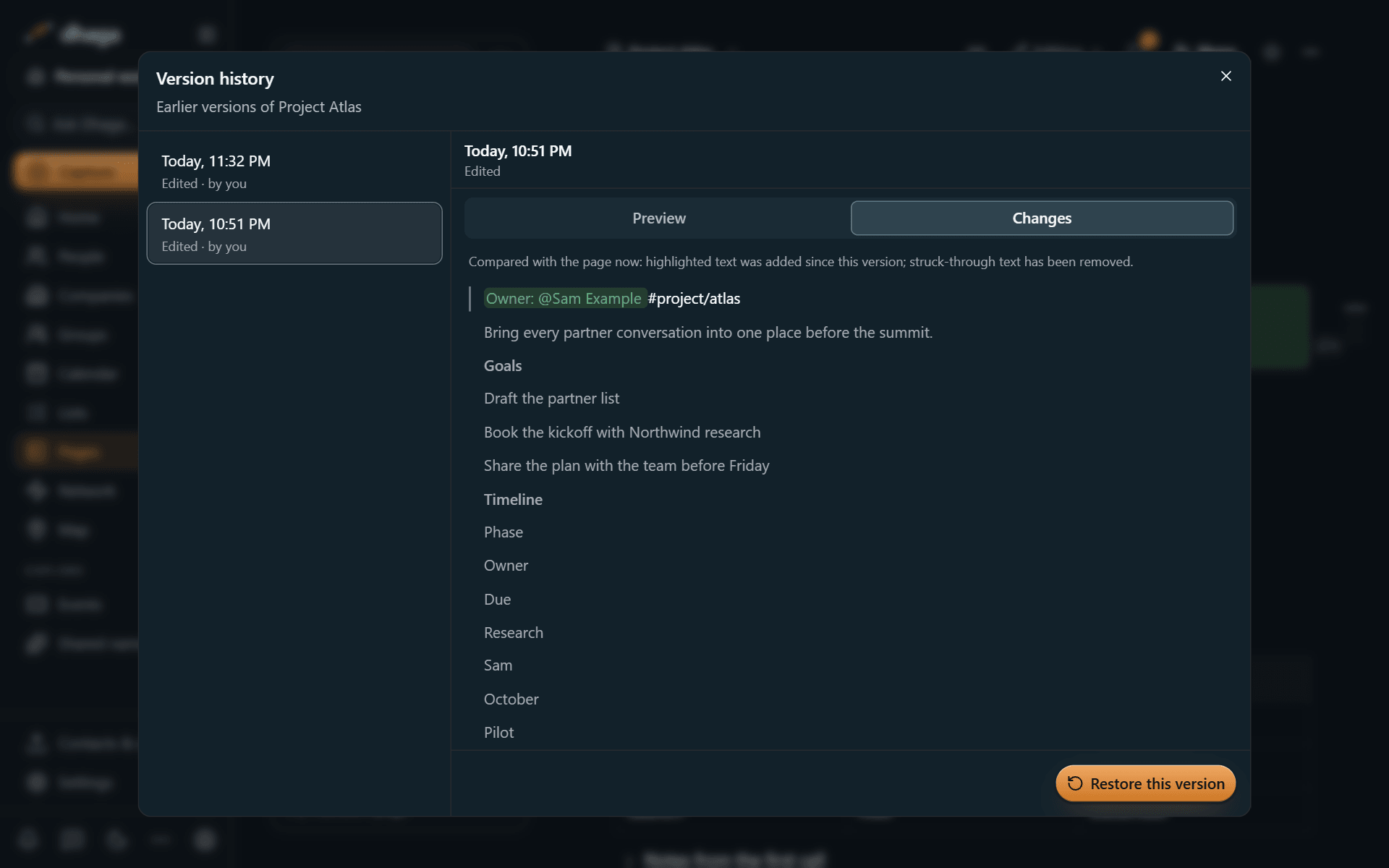
Open Page options → Version history to see the versions:
- Preview shows the page as it was.
- Changes compares a version with the page now: highlighted text was added since, struck-through text has been removed.
- Restore this version brings it back. The page as it is now is saved as a version first, so a restore can be undone.
How far back history goes depends on your plan:
| Plan | Versions kept for |
|---|---|
| Free | 7 days |
| Pro | 90 days |
| Power and Team | As long as the page exists |
When a page changed somewhere else
Pages doesn't do live co-editing: saves land one at a time. If the page was saved somewhere else after you opened it, in another tab, on another device, or by someone you share it with, your next save is stopped and a banner appears: This page changed somewhere else. Editing pauses until you choose:
- Reload loads the newer page. Your unsaved text is kept aside, and a second banner offers Save them as a copy or Discard them.
- Keep mine as a copy saves your version as a new page next to the original, and loads the newer one.
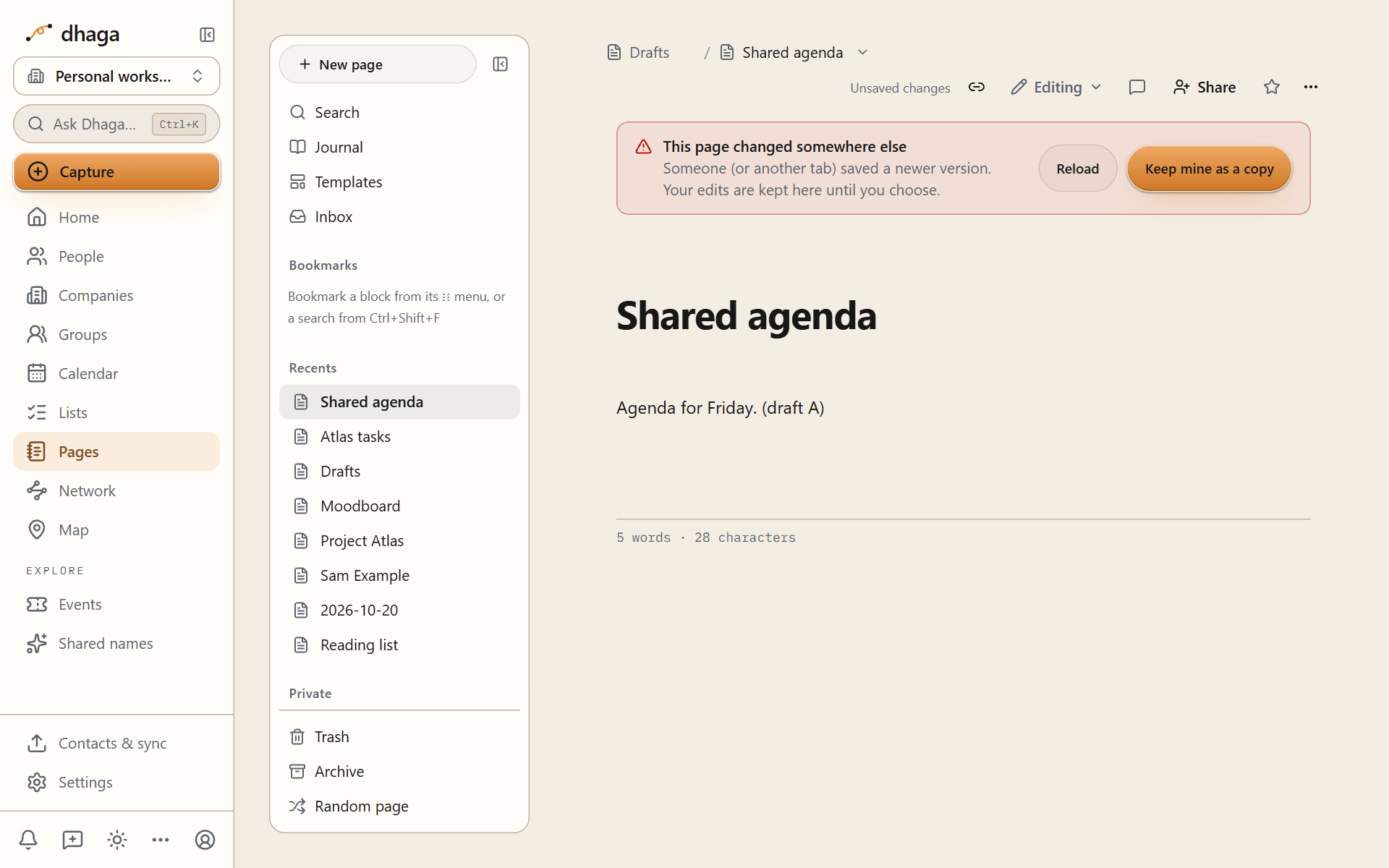
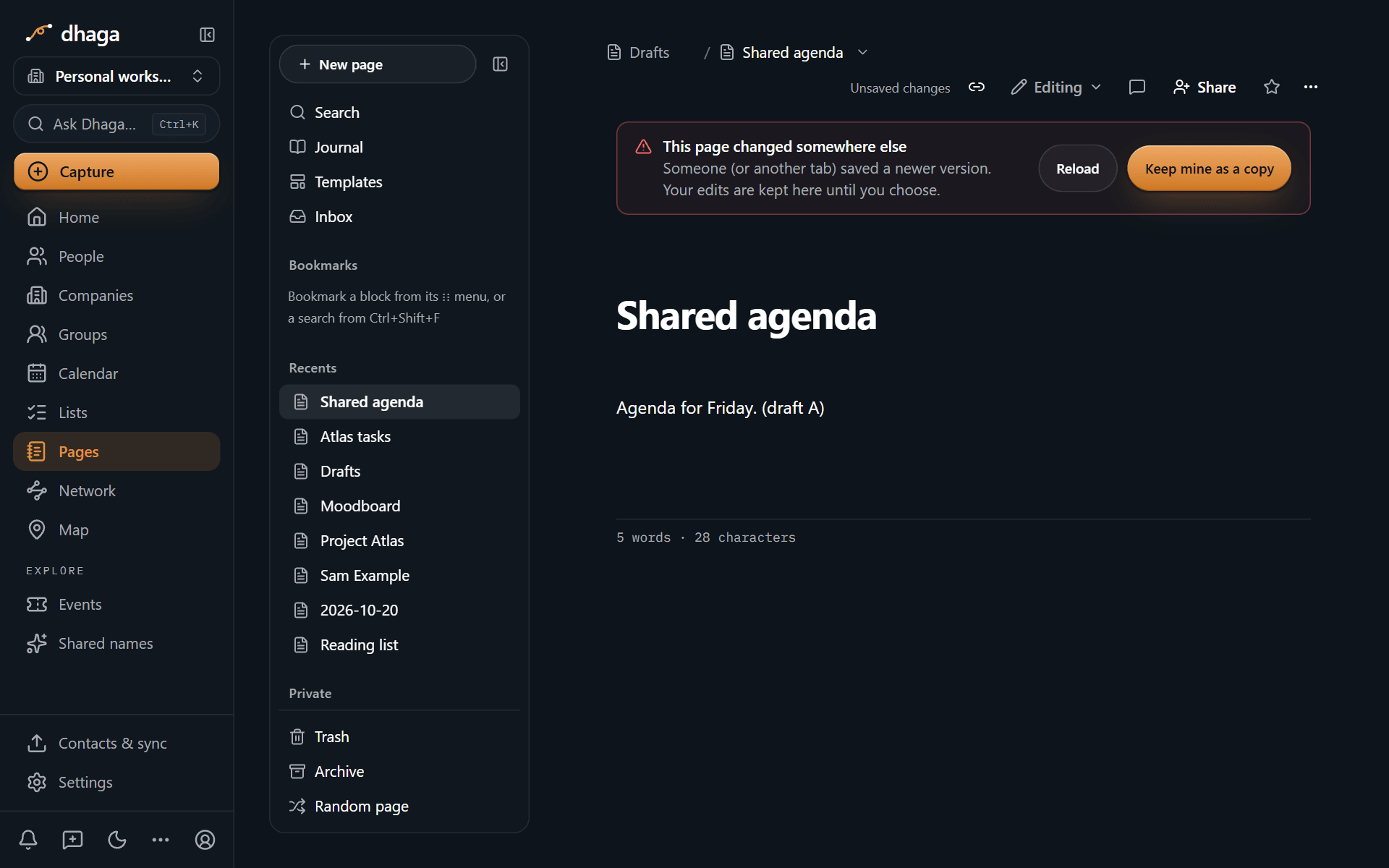
Either way, nothing you typed is thrown away without you choosing to. Your unsaved text also survives a reload of the browser tab.
Sharing and publishing
Keep pages private, share them with your organization or a guest with a role, or publish a read-only link with an expiry, a password and people's names kept private.
Import and export
Bring in an Obsidian vault, a Notion export, Markdown, HTML, spreadsheets, Word files or canvases, match people notes to your contacts, and export everything as an Obsidian vault.