Clip to page
Save a selection or a whole article from any website into a page or today's Journal with the Dhaga browser extension, as clean Markdown with its source.
The Dhaga browser extension can clip what you are reading into Pages. Select a passage, or take the whole article, and save it into a page or into today's Journal entry with a link to where it came from. The clip arrives as ordinary page content you can edit, link and search.
Clip something
On the website, select the text you want. You can also right-click and choose Clip selection to Dhaga or Clip page to Dhaga.
Open the Dhaga extension and choose the Clip tab. Pick Selection or Article; with nothing selected, Pages clips the whole article instead. The clip appears as Markdown you can edit before saving.
Under Clip to, choose where it goes: Today's Journal, A page you already have (search for it), or New page (give it a title).
Check the text, then press Clip to Dhaga.
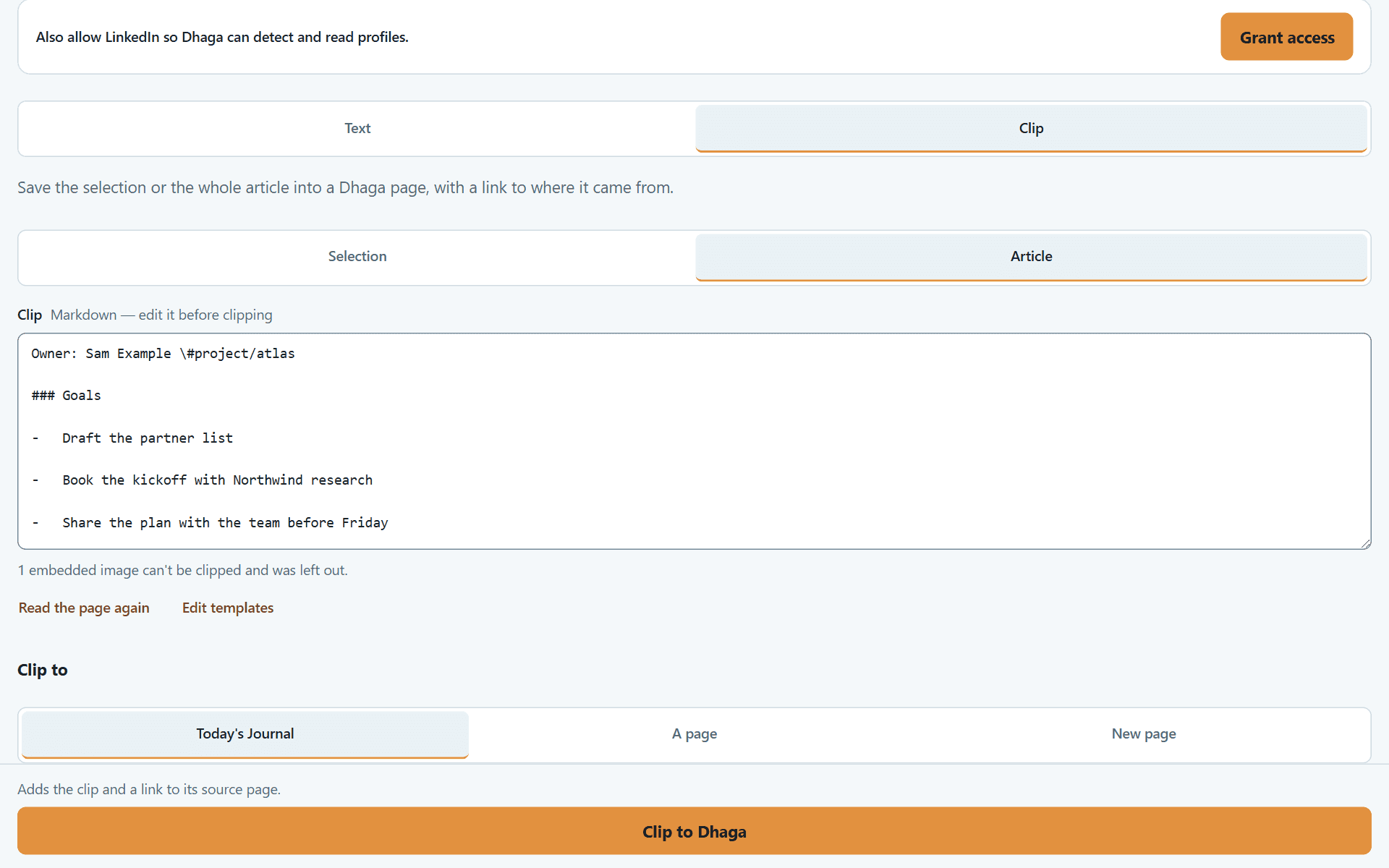
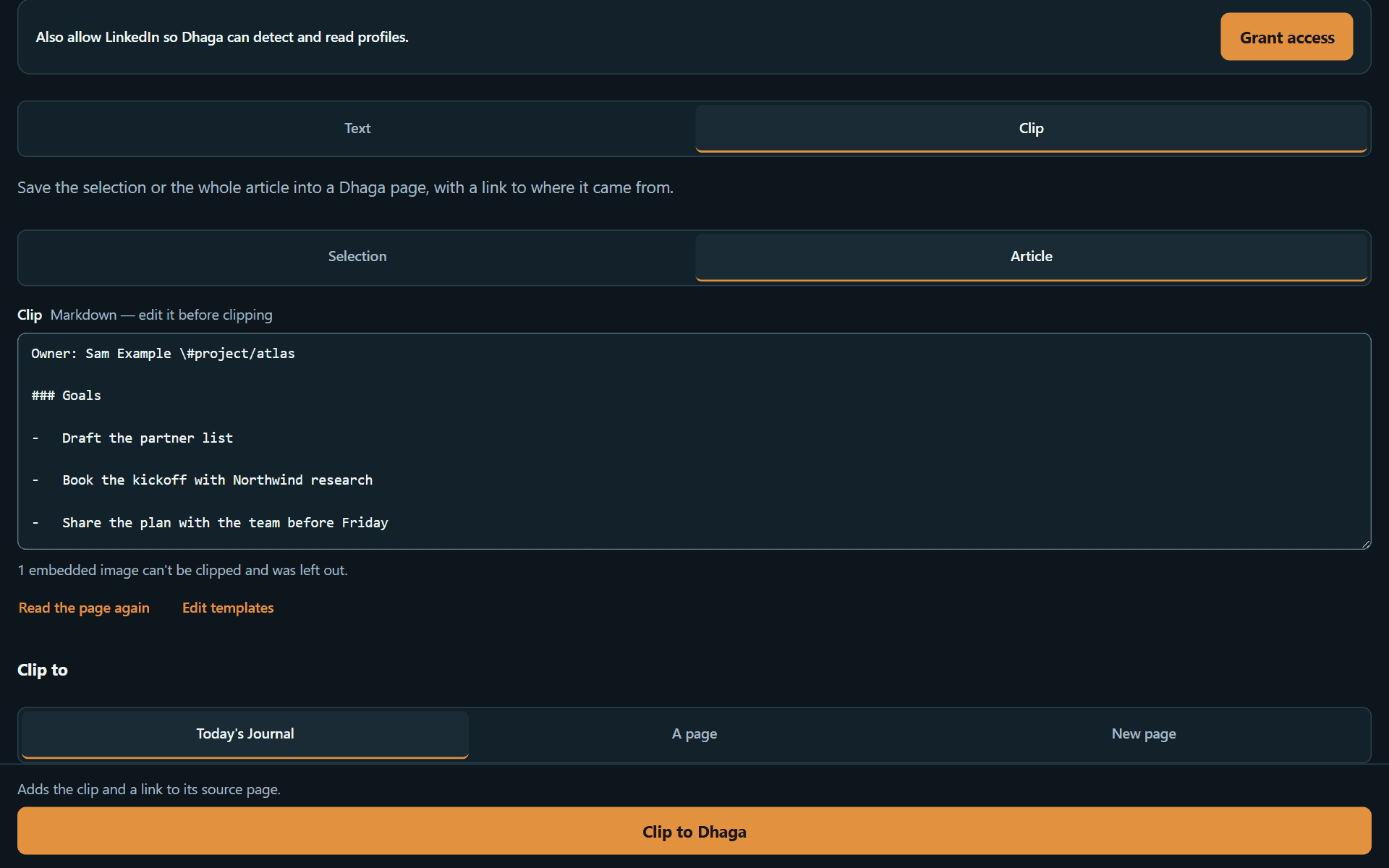
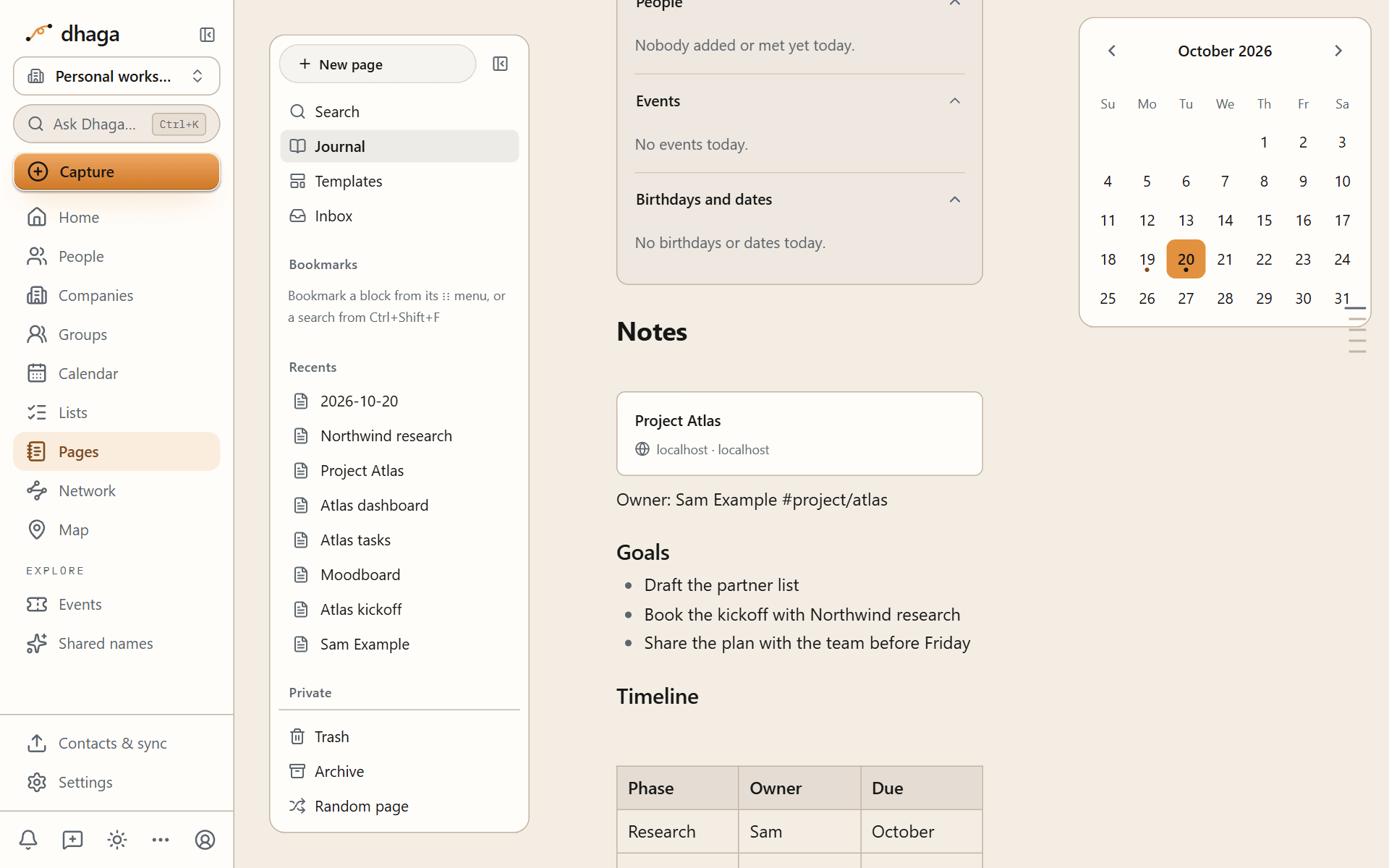
When you clip a whole article, the extension keeps the article itself and leaves out menus, adverts and comments, then converts it to Markdown. Headings, lists, links, quotes and code come across as blocks. Images are copied into your page; one that can't be copied in time is left as a link to the original, so viewing the clip later never loads anything from the site.
A clip is someone else's text, so it never acts inside Dhaga. A [[link]], @mention, #tag or @remind in the clipped text arrives as plain text, and an embedded video or bookmark arrives as a plain link. In the Markdown you can edit before saving, those characters carry a backslash, such as \#project; the backslash is not saved. To tag a clip, add the tag in the page after saving. You can't clip into a locked page, or one you can't edit; unlock it or pick another.
Clip templates
A clip template decides what is saved around the clipped text. There are two, one for a selection and one for a whole article. Choose Edit templates in the Clip tab, or open the extension's settings, to change them. A template is Markdown that can use these variables: {{title}}, {{url}}, {{date}}, {{time}}, {{author}}, {{site}}, {{published}}, {{content}} and {{selection}}. Add |blockquote to quote a value, as in {{selection|blockquote}}.
By default a selection is saved as a quote and an article as it is. A link to the source page is always added above the clip, whatever the template says, and you can reset the templates to the defaults.
Signing in
The extension saves clips as you, using your Dhaga session or an API key you create in Settings. Clips go straight to your own account and nowhere else.
The extension clips what you choose and nothing more. It has no highlighter that saves as you read, and no AI step: clipping uses no credits. A clip has a size limit; if yours is too long, the extension asks you to select part of the page.
AI in Pages
Rewrite a selection, ask questions across your pages, fill in database properties, take meeting notes without storing audio, and learn facts from a page, only when you ask.
Privacy in Pages
How Pages protects the people you write about: mentions that store no personal details, forgetting a contact, click-to-load embeds, AI only on request, and full deletion and export.