Search
Find pages with the quick switcher, run any action from the command palette, and search every page with Obsidian's operators, live query blocks and bookmarks.
Pages gives you four ways to find things, each with its own key. The quick switcher jumps to a page by name. The command palette runs any action. Full search looks inside every page, with Obsidian's search operators. And Dhaga's search and Ask Dhaga include your pages alongside your people.
| Key (Mac) | Key (Windows and Linux) | Opens | Use it to |
|---|---|---|---|
| ⌘O | Ctrl+O | Quick switcher | Jump to a page or a person by name |
| ⌘P | Ctrl+P | Command palette | Run any action without the mouse |
| ⌘⇧F | Ctrl+Shift+F | Full search | Search inside every page, with operators |
| ⌘K | Ctrl+K | Search and Ask Dhaga | Search everything in Dhaga, or ask a question |
Jump to a page with the quick switcher
Press ⌘O (Ctrl+O) and type part of a name. The quick switcher matches page titles, page aliases, your contacts and your companies, and lists the pages you opened recently first. Letters don't have to be next to each other: prjatl finds "Project Atlas".
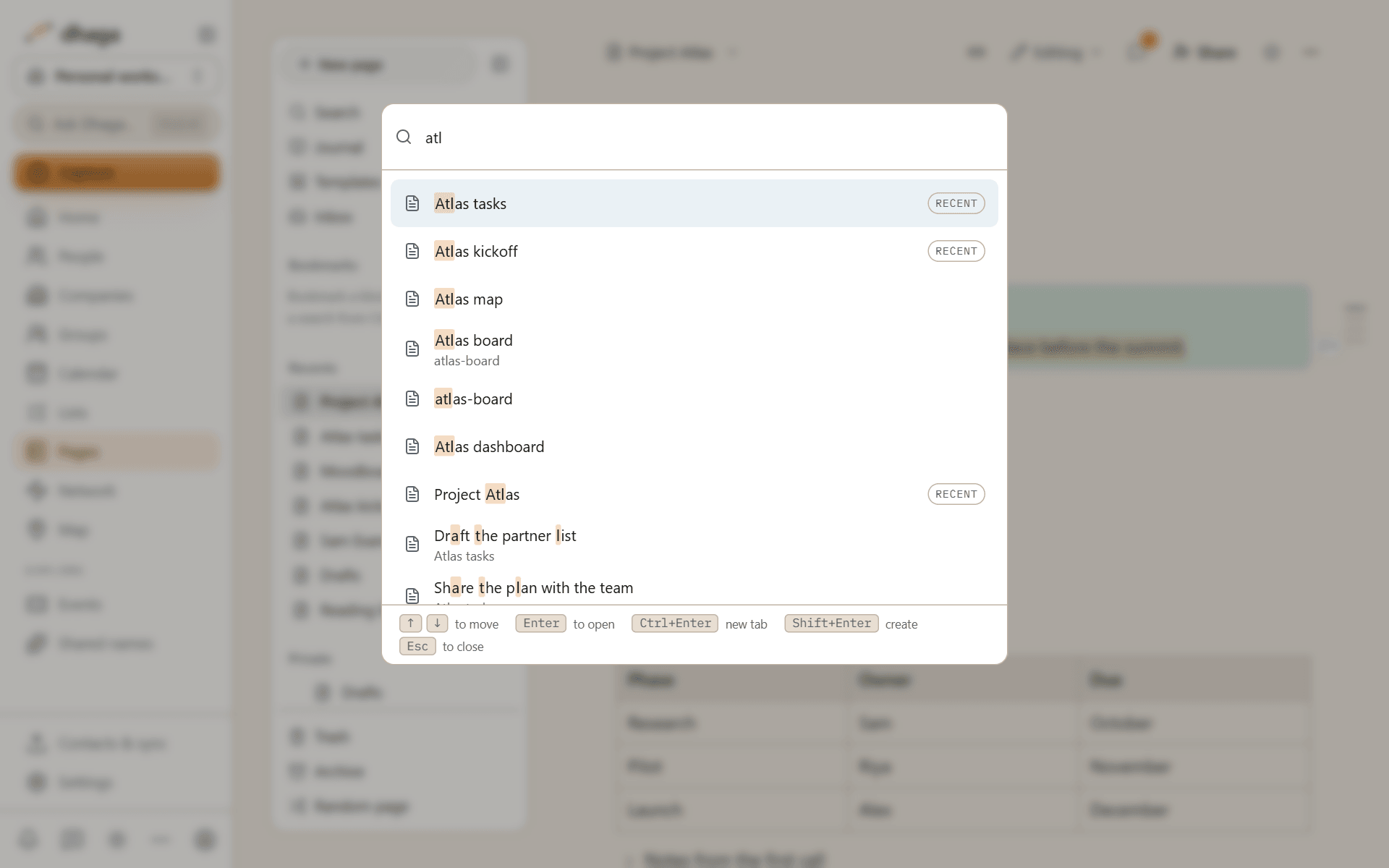
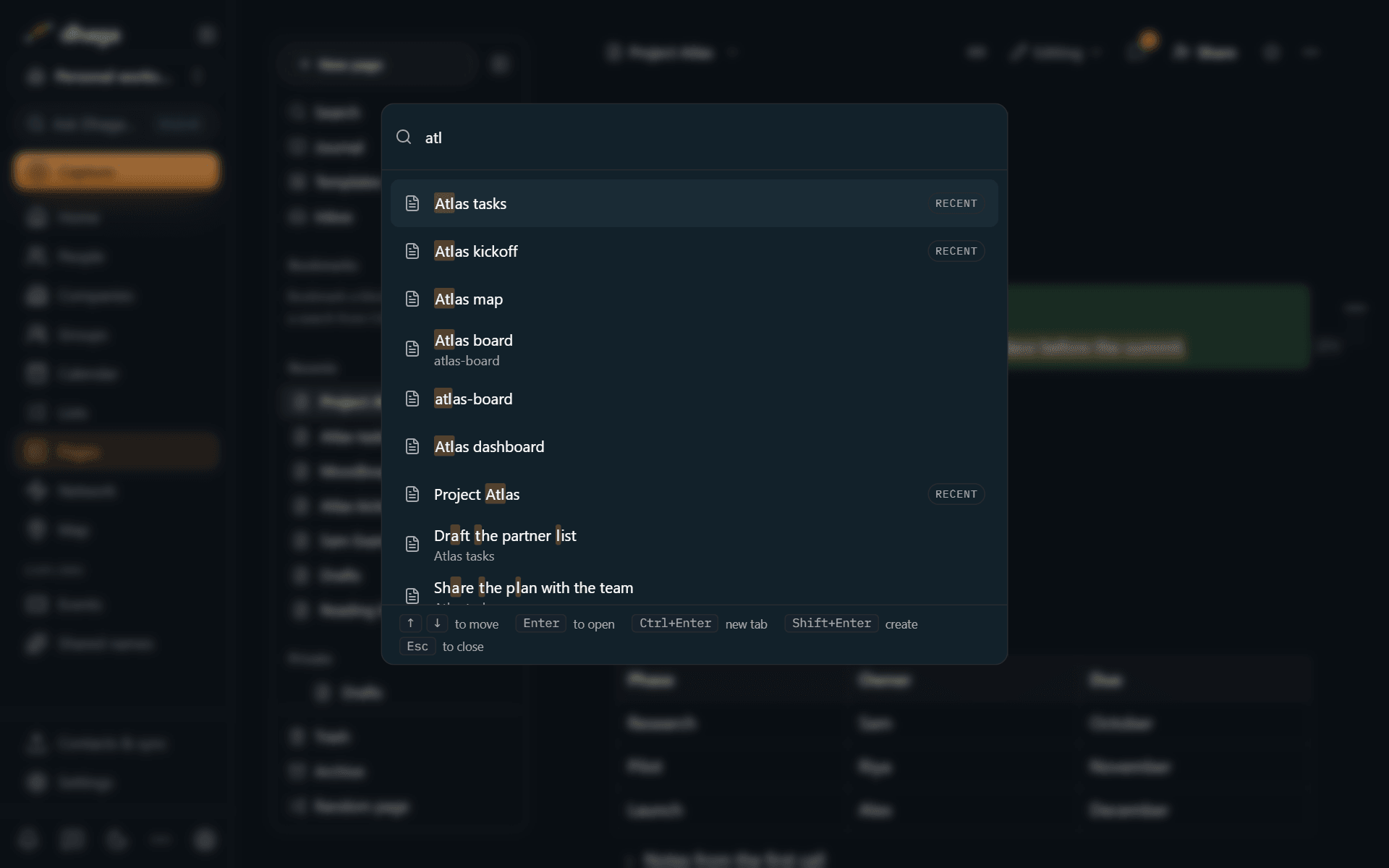
- Enter opens the result.
- ⌘↵ (Ctrl+Enter) opens it in a new browser tab.
- ⇧↵ (Shift+Enter) creates a page with exactly what you typed. When nothing matches, creating it is the only choice offered.
Run any action from the command palette
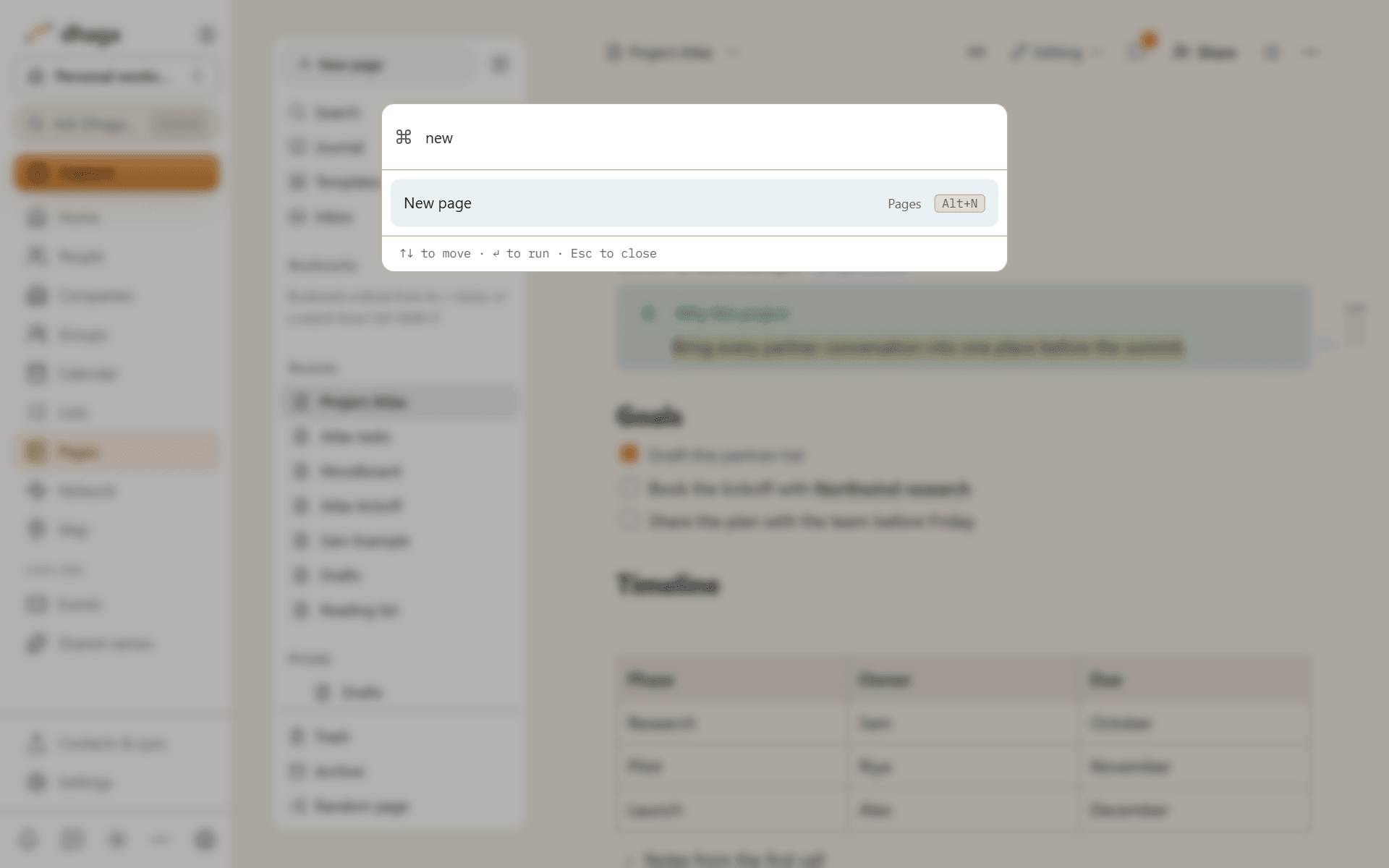
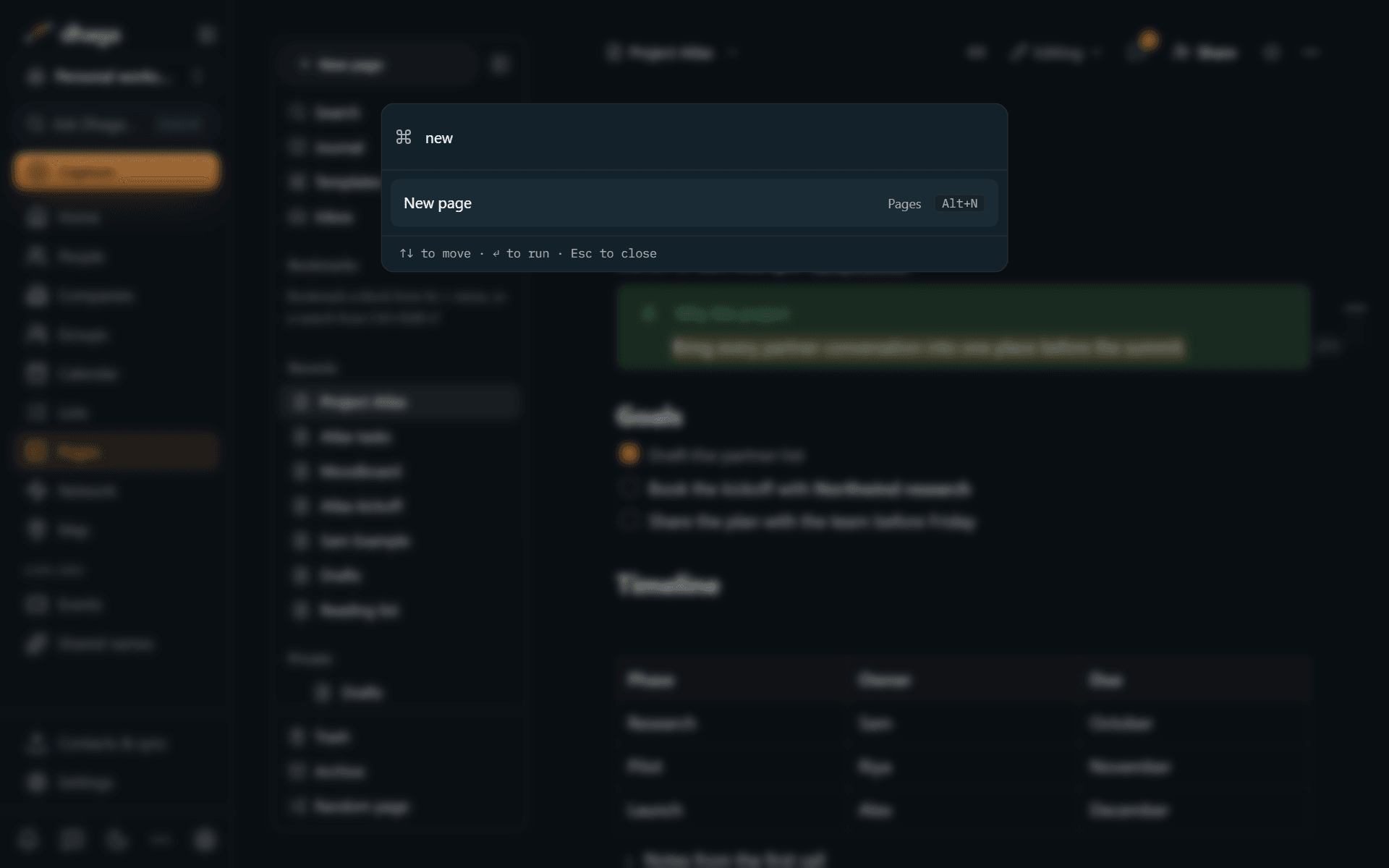
Press ⌘P (Ctrl+P) and type what you want to do: "new page", "present", "export", "show backlinks". Every action in Pages is in the list, with its shortcut if it has one, and the commands you used most recently come first. Type a place, such as "trash", "templates" or "settings", to jump there.
Search inside every page
Press ⌘⇧F (Ctrl+Shift+F) for full search. Type words to find pages containing all of them, or use the operators below to be precise. Each result shows the text around the match.
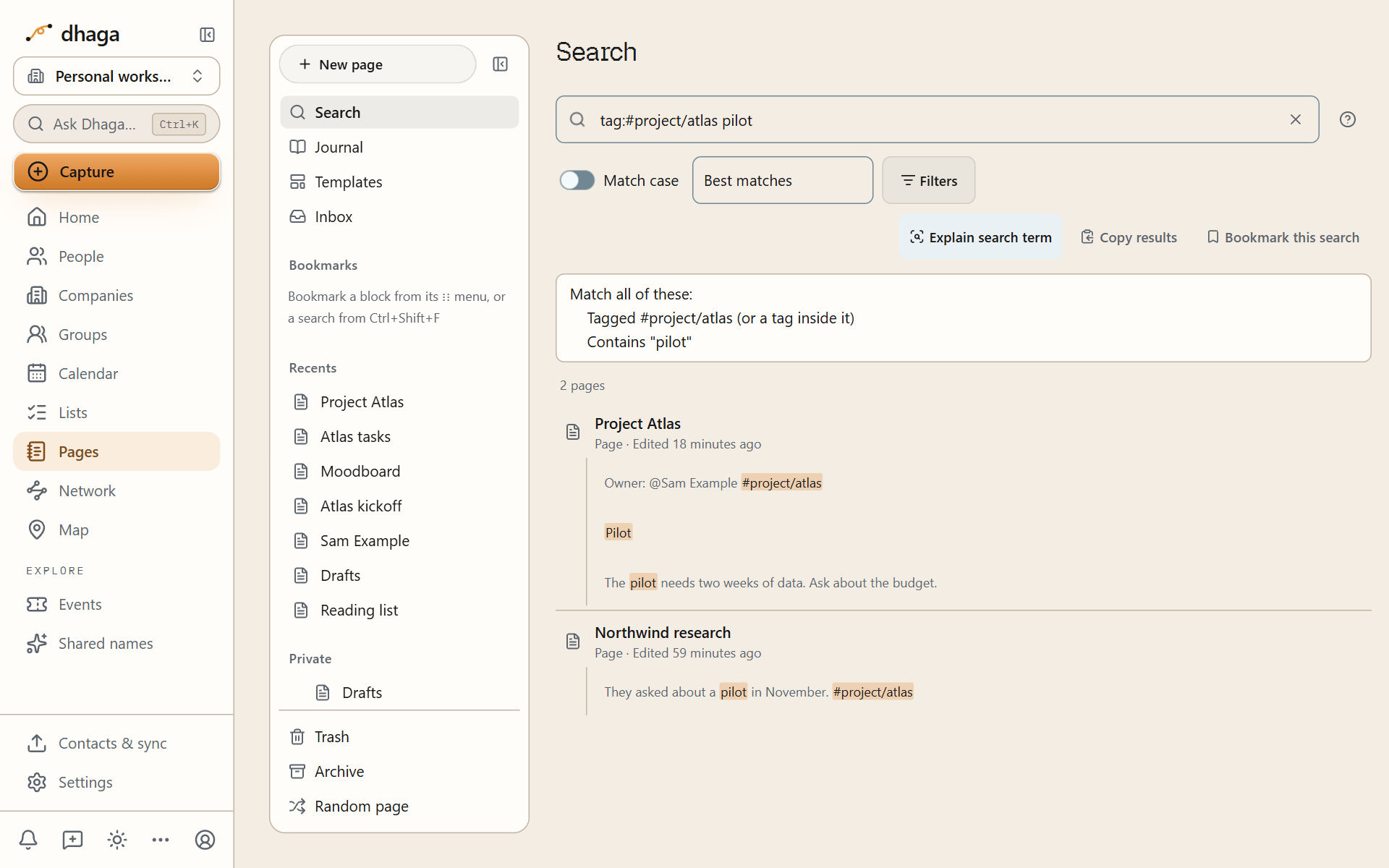
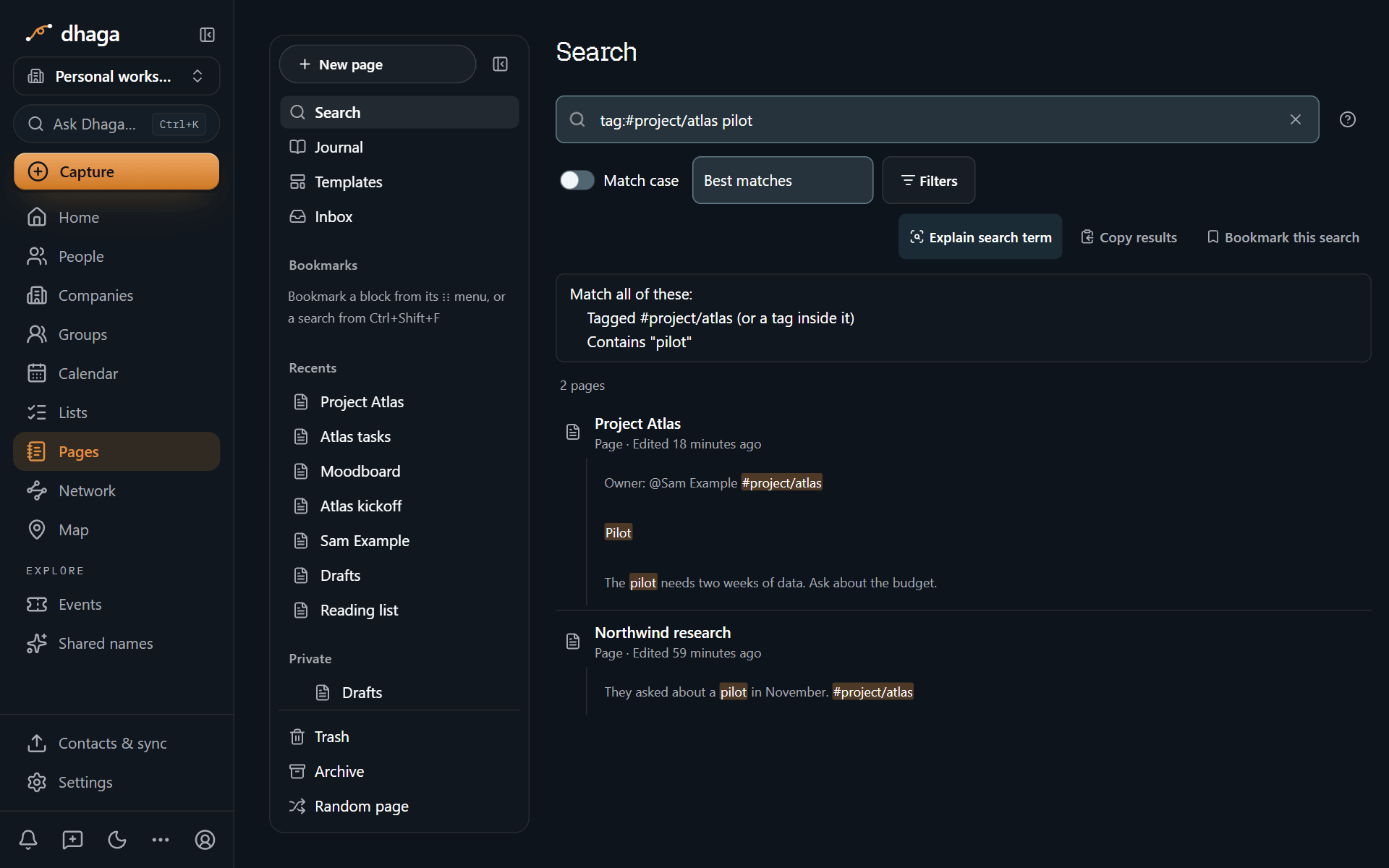
- Explain search term shows how Pages read your query, which helps when a search finds less than you expected.
- Sort results by best match, last edited, created or title (each in both directions).
- Copy results copies the list of matching pages.
- Filters narrow the results the way Notion's search does: title only, created by a person, created or edited within a date range, or inside one page. Match case and Include archived are there too.
Search operators
These are Obsidian's search operators, and the same list appears in the help panel inside full search. Terms next to each other must all match, and OR is written in capitals, as in Obsidian.
| Write | Finds | Example |
|---|---|---|
word word | Pages containing every word, in the title or the text | meeting notes |
"exact phrase" | The words together, in this order | "quarterly review" |
a OR b | Either term | draft OR final |
-term | Leave out pages with the term | notes -archive |
( ) | Group terms | (draft OR final) budget |
/regex/ | A regular expression (checked by the database, with a time limit) | /\d{4}-\d{2}/ |
file: | Match the page title | file:roadmap |
path: | Match the page's location (its parent pages) | path:projects |
content: | Match the page text only, not the title | content:invoice |
match-case: | Match upper and lower case exactly | match-case:API |
ignore-case: | Ignore case (the default) | ignore-case:api |
tag: | Pages with a tag, nested tags included | tag:#work |
line:( ) | Terms on the same line | line:(mix flour) |
block:( ) | Terms in the same block | block:(budget approved) |
section:( ) | Terms under the same heading | section:(dog cat) |
task: | To-dos containing the term | task:call |
task-todo: | Unticked to-dos | task-todo:invoice |
task-done: | Ticked to-dos | task-done:invoice |
[property] | Pages with the property | [status] |
[property:value] | A property containing the value | [status:draft] |
[property:null] | The property is empty or missing | [status:null] |
[property:>n] | Compare numbers or dates (<, <=, >, >=, =) | [rating:>=4] |
Combine them freely: (pilot OR trial) tag:#project/atlas -draft finds pages tagged #project/atlas that mention a pilot or a trial and don't contain "draft".
Regular expressions are checked against every page on Dhaga's server, so a very broad one can take a while; Pages stops a search that runs too long and tells you, rather than freezing.
Live search and task blocks
Put a search on a page and keep its results up to date:
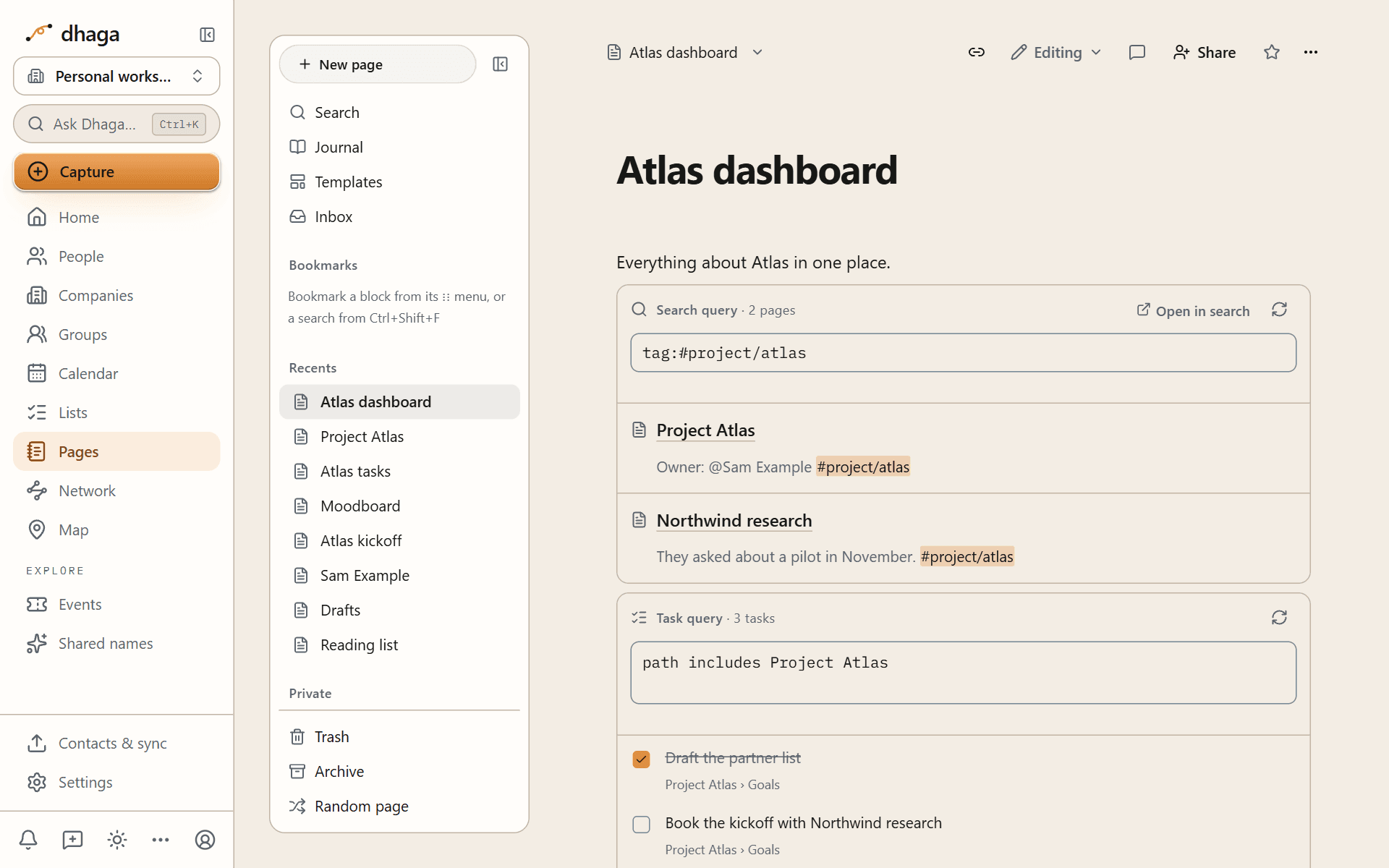
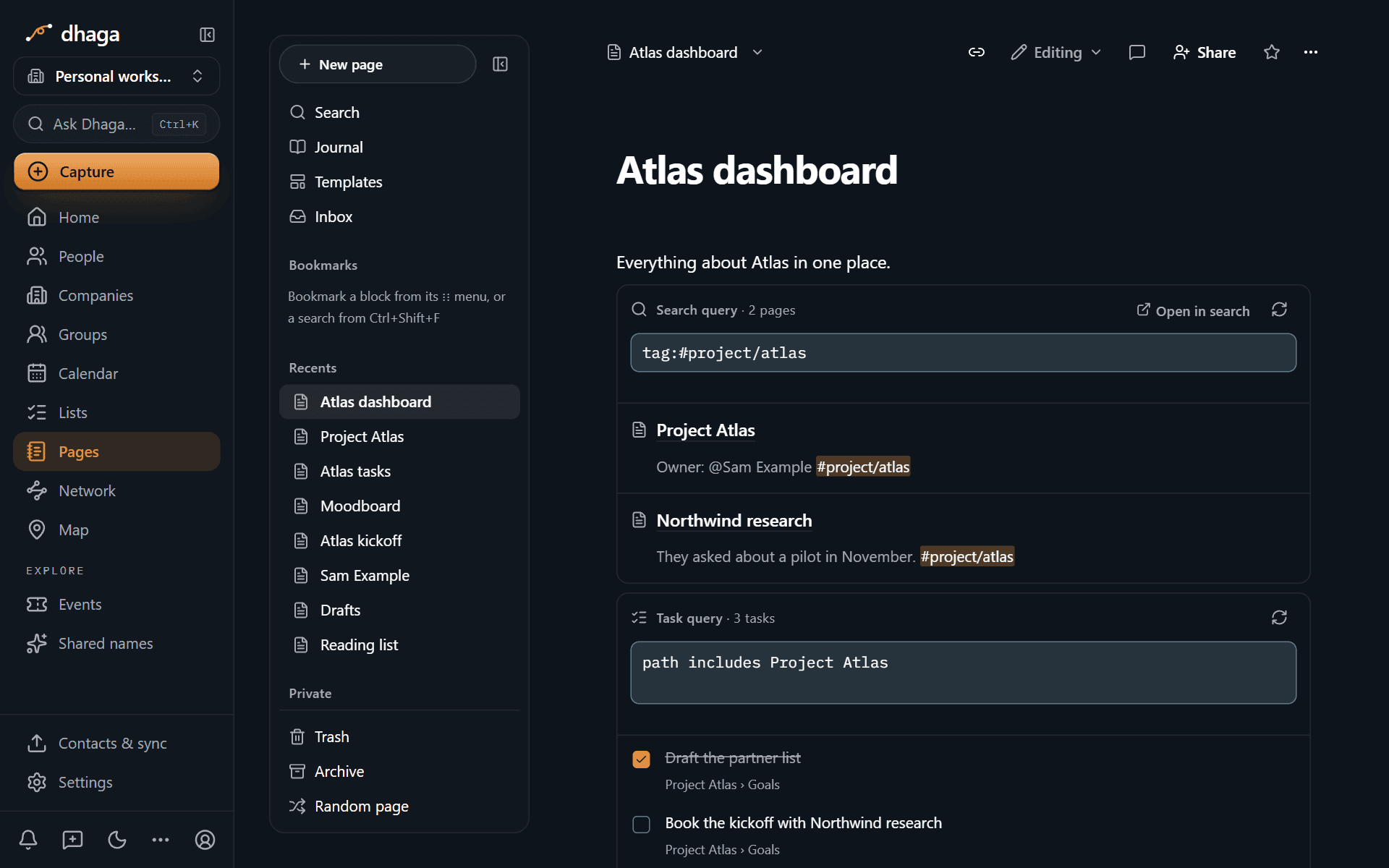
- Search query block: type
/query, or write aquerycode block, and add a search using the operators above. The block lists matching pages and updates when they change, like Obsidian's embedded queries. - Task query block: type
/tasksto list to-dos from across your pages, such as every open to-do in your project pages.
```query
tag:#meeting path:Projects
```
Search and Ask Dhaga with ⌘K
⌘K (Ctrl+K) works as it always has across Dhaga, and now lists pages among its results. Ask Dhaga can answer from your pages too, and cites the pages it used. See Search and Ask Dhaga and AI in Pages.
Inside a page, ⌘K with text selected makes a link instead.
Bookmarks and favourites
- Favourites pin pages to the top of the sidebar. Use Add to Favourites from a page's menu.
- Bookmarks save more than pages: a heading, a single block, a search with its operators, or a graph view with its filters. Open them from the Bookmarks section of the Pages sidebar, which sits under Favourites.
Open pages with a link
These addresses act as soon as you open them, which makes them useful in bookmarks, launchers and phone shortcuts:
| Address | Does |
|---|---|
/app/pages/new?title=Trip%20ideas&content=Lisbon | Creates a page with that title and Markdown content. Add &parent= and a page id to create it inside another page |
/app/pages/journal/today?append=Call%20Sam | Adds text to the end of today's Journal entry |
/app/pages/search?q=tag%3A%23meeting | Opens full search with that query |
When another website sends you to one of these addresses, Pages asks before creating or adding anything. Titles are cut at 200 characters, page content at 20,000 and appended text at 5,000, and Pages tells you when it cut something.
Add to a page from elsewhere in Dhaga
- From a contact or company:
/attachopens an Add to page picker, so you can add to a page without leaving the record. - From a note: select text in a note and choose Page in the menu that appears (it sits beside Fact, Follow-up and Relationship).
Journal and templates
Keep one Journal page a day with a live view of your meetings and follow-ups, and reuse page structures with templates and date, title and prompt variables.
Keyboard shortcuts
Every Pages keyboard shortcut for macOS, Windows and Linux: app-wide keys, formatting, blocks, tables, find, presenting, Markdown, and how to change them.