Journal and templates
Keep one Journal page a day with a live view of your meetings and follow-ups, and reuse page structures with templates and date, title and prompt variables.
The Journal gives you one page per day, titled the way you like and started from the template you choose. Each entry can show Your day: the meetings, follow-ups and people that belong to that date, read live from the rest of Dhaga. Templates let you reuse the structure of any page, with variables for dates, titles and questions you answer when you use them.
Open today's entry
Open Journal in the Pages sidebar. Today's entry opens, and is created the first time you open it. "Today" follows the time zone in your Dhaga settings, not the server's, so an entry written late in the evening lands on the right day.
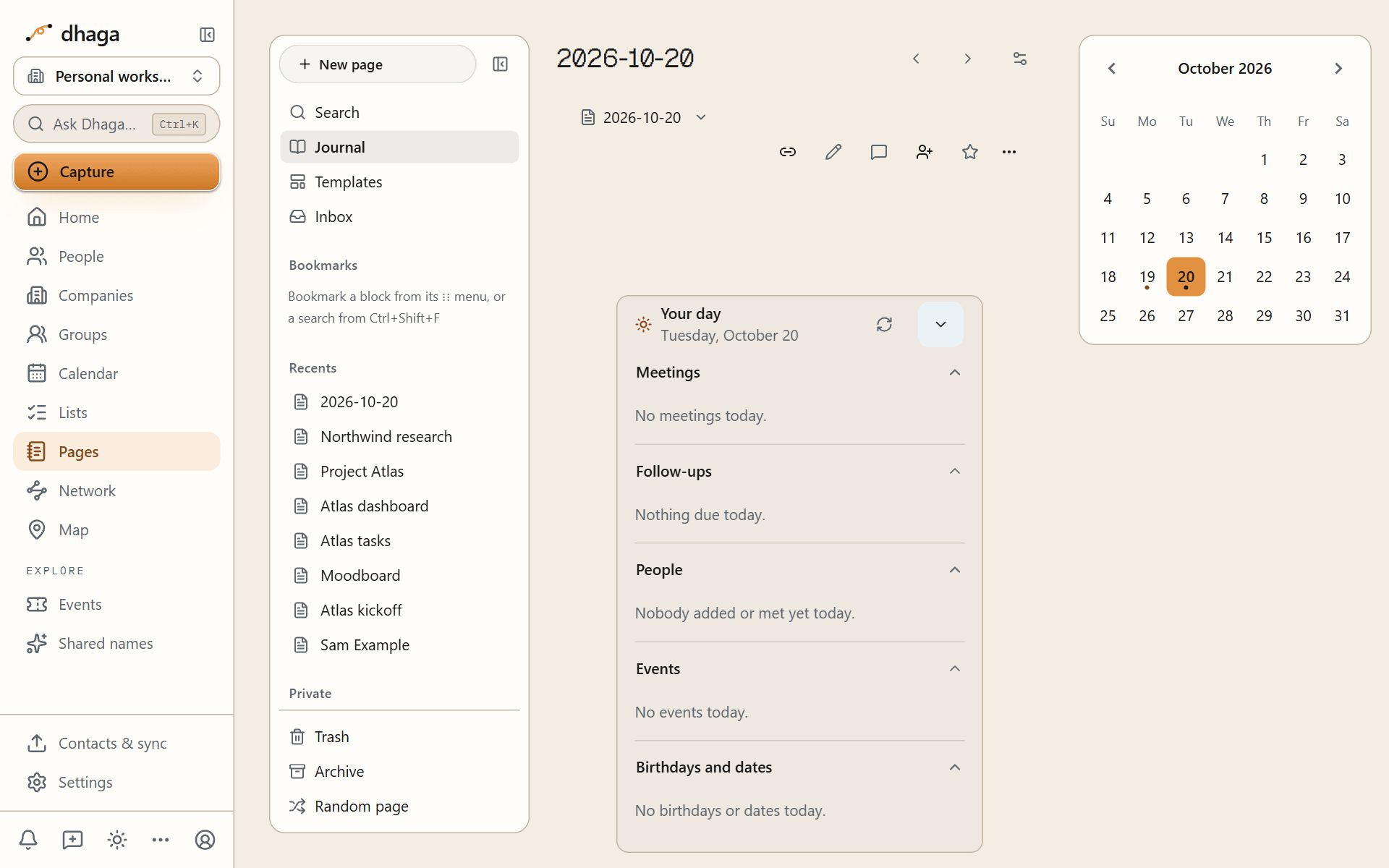
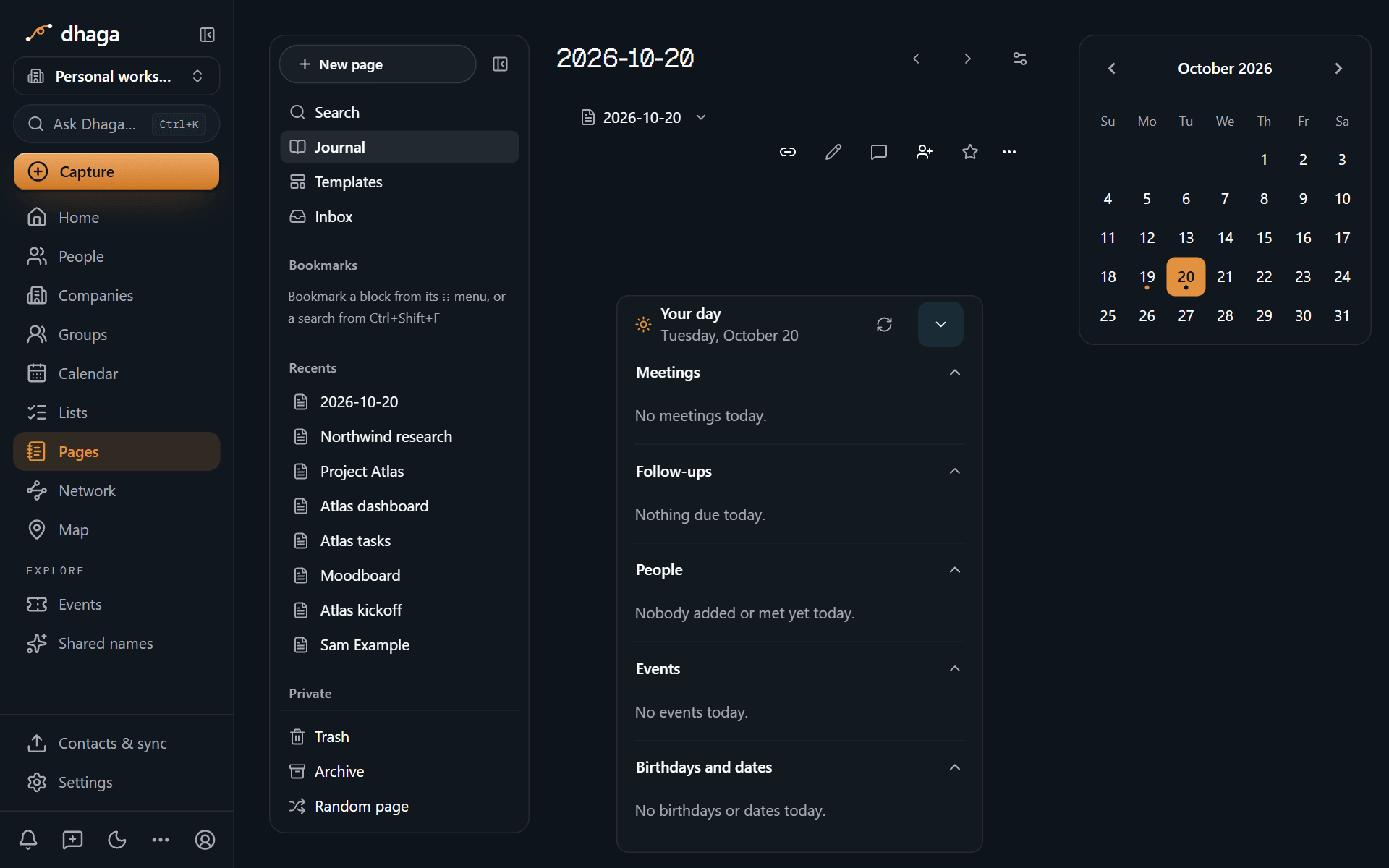
Move between days with Previous day, Next day and Today. The month calendar beside the entry marks every day that has an entry; click a day to open it. Every entry has its own address, /app/pages/journal/2026-10-12, so you can link to a day or bookmark it.
Your day
The Your day block shows, for the entry's date:
- Meetings: your Dhaga calendar and the calendars you connected.
- Follow-ups due that day.
- People you added, met (at an event or in a meeting) or logged a note about that day.
- Events on that day.
- Birthdays and dates that fall on it.
It reads all of this live each time you open the entry, and never copies it into the page. Reschedule a meeting or tick off a follow-up and the block changes with it. The built-in Journal template includes it; add it to any page with /day (or /today, or /journal). Each section shows up to 8 rows with an "and N more" link. The block shows only on your own Journal, and if a connected calendar can't be read, it says so and shows Dhaga's own calendar.
Choose a title format and template
Open Journal settings to choose:
- Title format: pick a preset or write your own. The presets are
YYYY-MM-DD(the default, as in Obsidian),dddd, MMMM D, YYYY,ddd D MMM YYYY,D MMMM YYYY,MMMM Do, YYYY,DD/MM/YYYYandMM/DD/YYYY. A custom format uses the format tokens below. - Template for new entries: the built-in template (with Your day) or any of your templates.
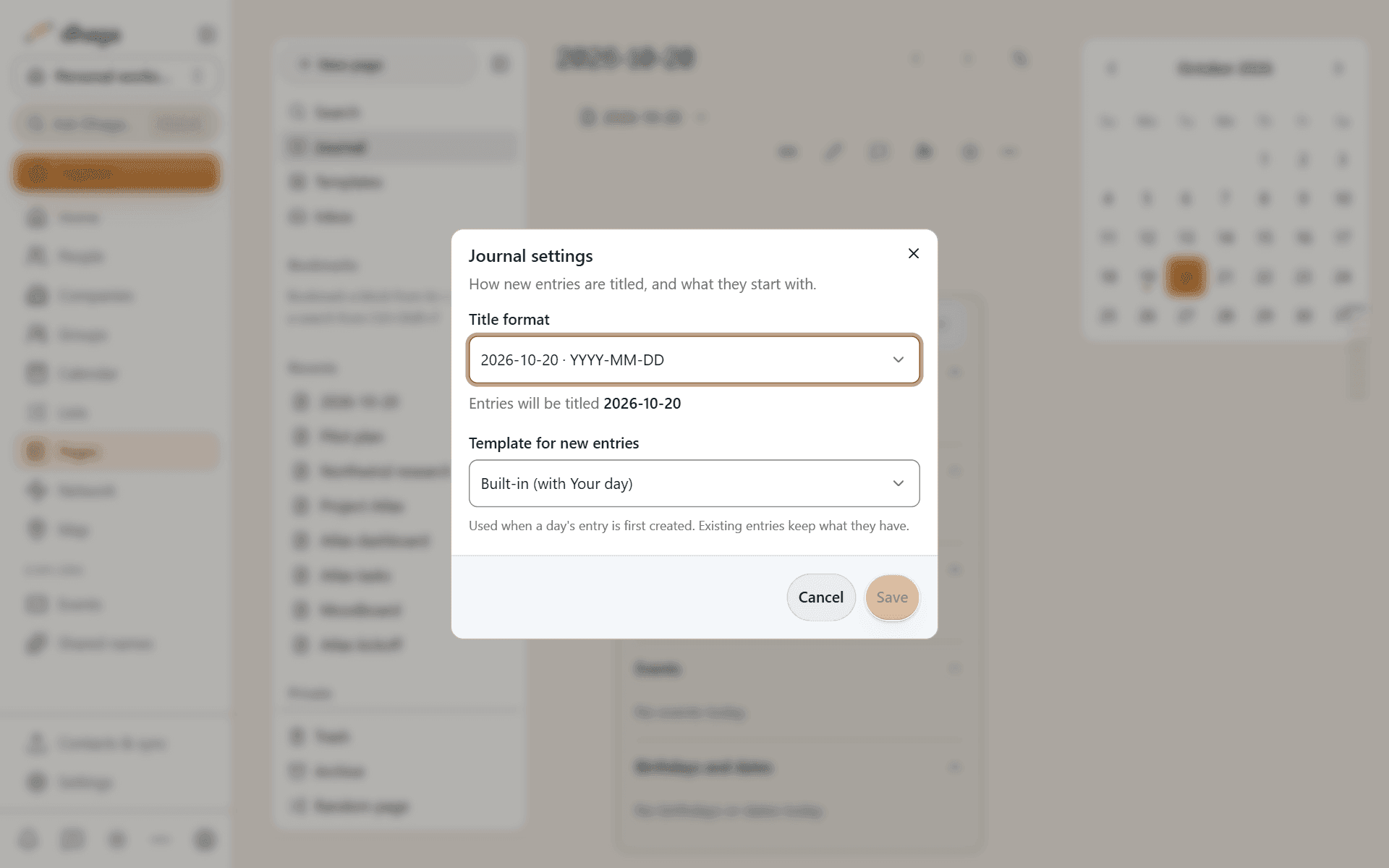
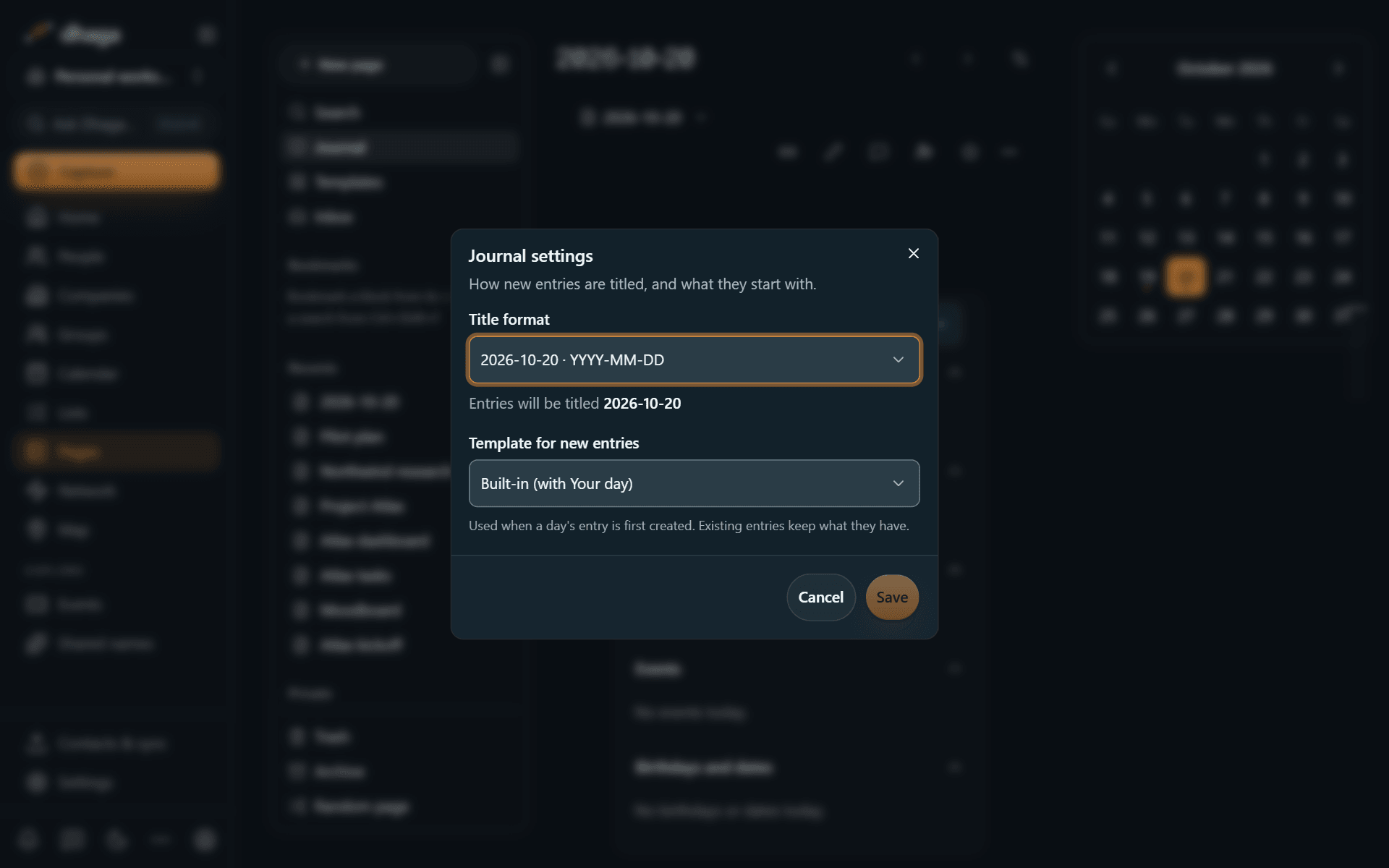
Settings apply to entries created from then on. Existing entries keep their title and content.
Add to today's entry from anywhere
This address adds text to the end of today's entry:
https://www.dhaga.app/app/pages/journal/today?append=Called%20Sam%20about%20the%20pilotUse it from a bookmark, a launcher or a shortcut on your phone. When you open it yourself, the text is added straight away. When another website sends you to it, Pages shows the text and asks before adding anything, so a link elsewhere can't write into your Journal. Up to 5,000 characters are added; anything longer is cut, and Pages tells you.
To create a page the same way, use /app/pages/new?title=Trip%20ideas&content=Lisbon. See URL actions.
Use a template
Any page can be a template. Choose Mark as template from its menu, or manage them all on the Templates screen. To use one, choose New page → From a template… and pick it. The new page is a copy; editing it never changes the template.
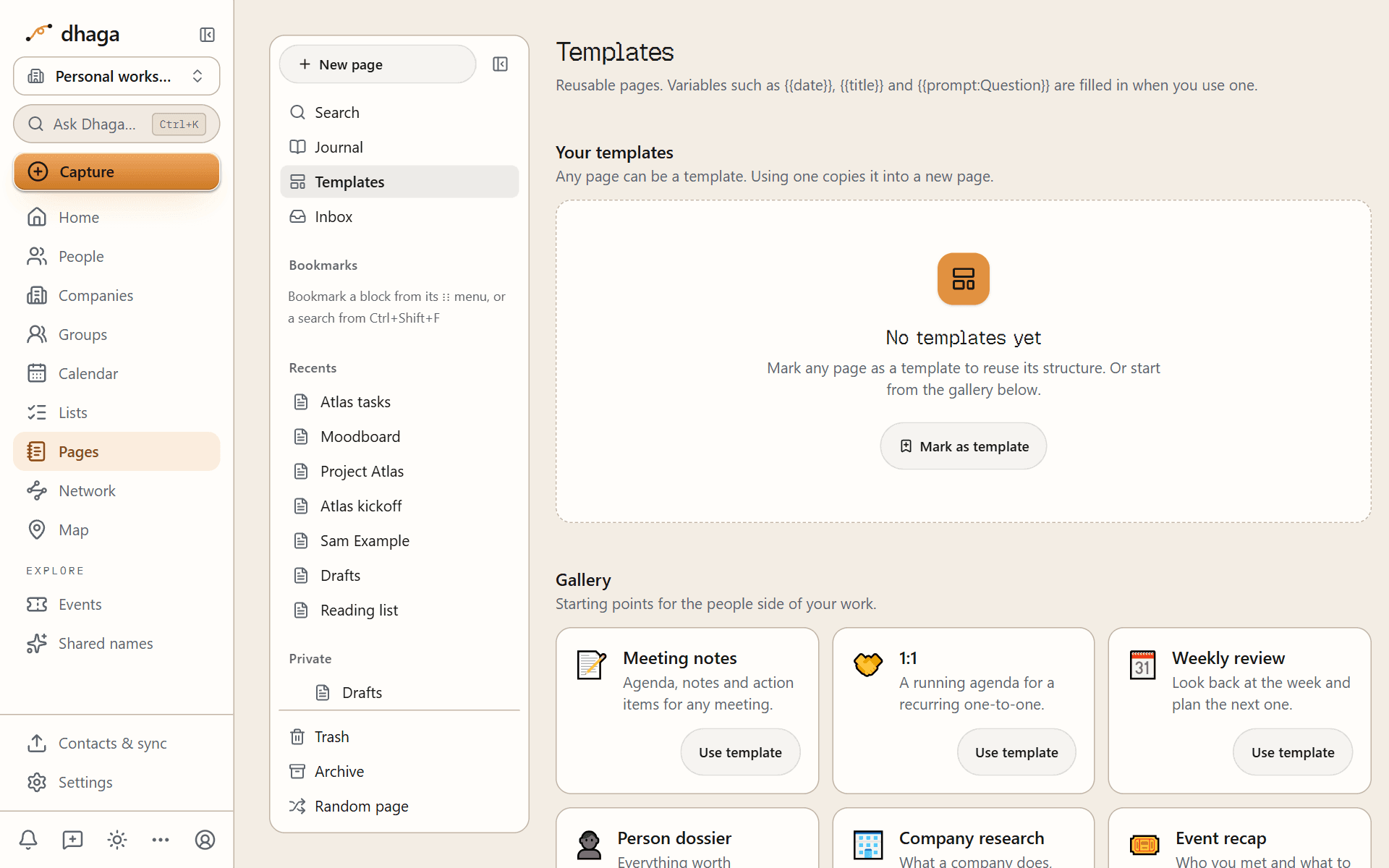
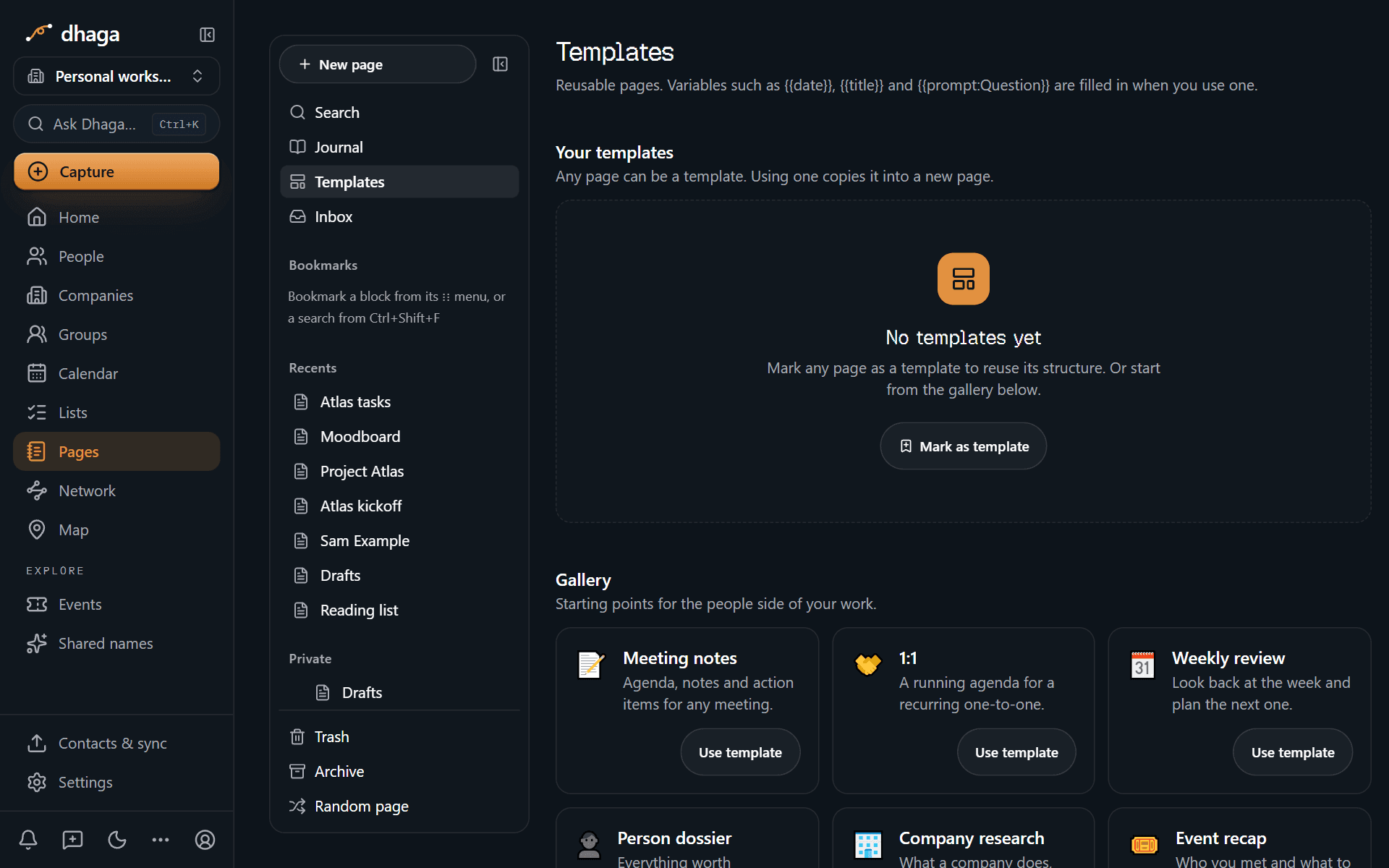
The Gallery has starting points for the people side of your work: Person dossier, Company research, Event recap, Reading list, Meeting notes, 1:1, Weekly review and Project plan.
Template variables
Write these in a template's title or body. They are filled in when you use the template, never when you write it.
| Variable | Becomes |
|---|---|
{{date}} | Today's date as YYYY-MM-DD |
{{date:FORMAT}} | Today's date in your format, such as {{date:dddd, D MMMM}} |
{{time}} | The time now as HH:mm |
{{time:FORMAT}} | The time in your format, such as {{time:h:mm A}} |
{{title}} | The new page's title |
{{prompt:Question}} | Your answer to the question, asked when you use the template |
{{cursor}} | Where the cursor is placed in the new page |
@today | A mention of today's date |
@now | A mention of the date and time now |
@me | A mention of you |
Questions: a template with {{prompt:Who is this about?}} asks the question in a dialog before creating the page. Answers go into the page as plain text, up to 500 characters each.
Templates never run code. They cover what Obsidian's Templates and the common parts of Templater do, without scripts.
Date and time formats
Formats use the same tokens as Obsidian and Moment.js. Put words you want kept as they are in [square brackets].
| Token | Gives | Example |
|---|---|---|
YYYY / YY | Year | 2026 / 26 |
Q | Quarter | 4 |
MMMM / MMM | Month name | October / Oct |
MM / M | Month number | 10 / 10 |
DD / D | Day of the month | 06 / 6 |
Do | Day with ending | 6th |
DDDD / DDD | Day of the year | 279 |
dddd / ddd / dd | Weekday name | Tuesday / Tue / Tu |
d / E | Weekday number | 2 |
WW / W, ww / w | Week of the year (ISO, local) | 41 |
GGGG, gggg | Week-numbering year (ISO, local) | 2026 |
HH / H | Hour, 24-hour clock | 09 / 9 |
hh / h | Hour, 12-hour clock | 09 / 9 |
mm / m | Minute | 05 / 5 |
ss / s | Second | 07 / 7 |
A / a | AM or PM | PM / pm |
For example, [Week] W, YYYY gives "Week 41, 2026".
Related
- Database templates, including ones that repeat.
- Generate a page from a template with AI.
Formulas
Compute a property from other properties with Notion-style formulas: variables, lists, dates, text, regular expressions, styled output, and a function reference.
Search
Find pages with the quick switcher, run any action from the command palette, and search every page with Obsidian's operators, live query blocks and bookmarks.