Importing contacts
Bring an existing address book into Dhaga — from a .vcf or CSV file, a one-click Google or Outlook connection, or the contacts already on your phone.
Already have an address book somewhere? Import it instead of re-typing. Dhaga takes it three ways: a file you export (works everywhere, no setup), a one-click connect to Google or Outlook, and on-device import in the mobile app. Existing people are matched and skipped, and every imported field keeps a receipt so you can trace where it came from.
Open /app/import (it lands you on Settings → Import), or scroll to the
Import contacts section on /app/settings.
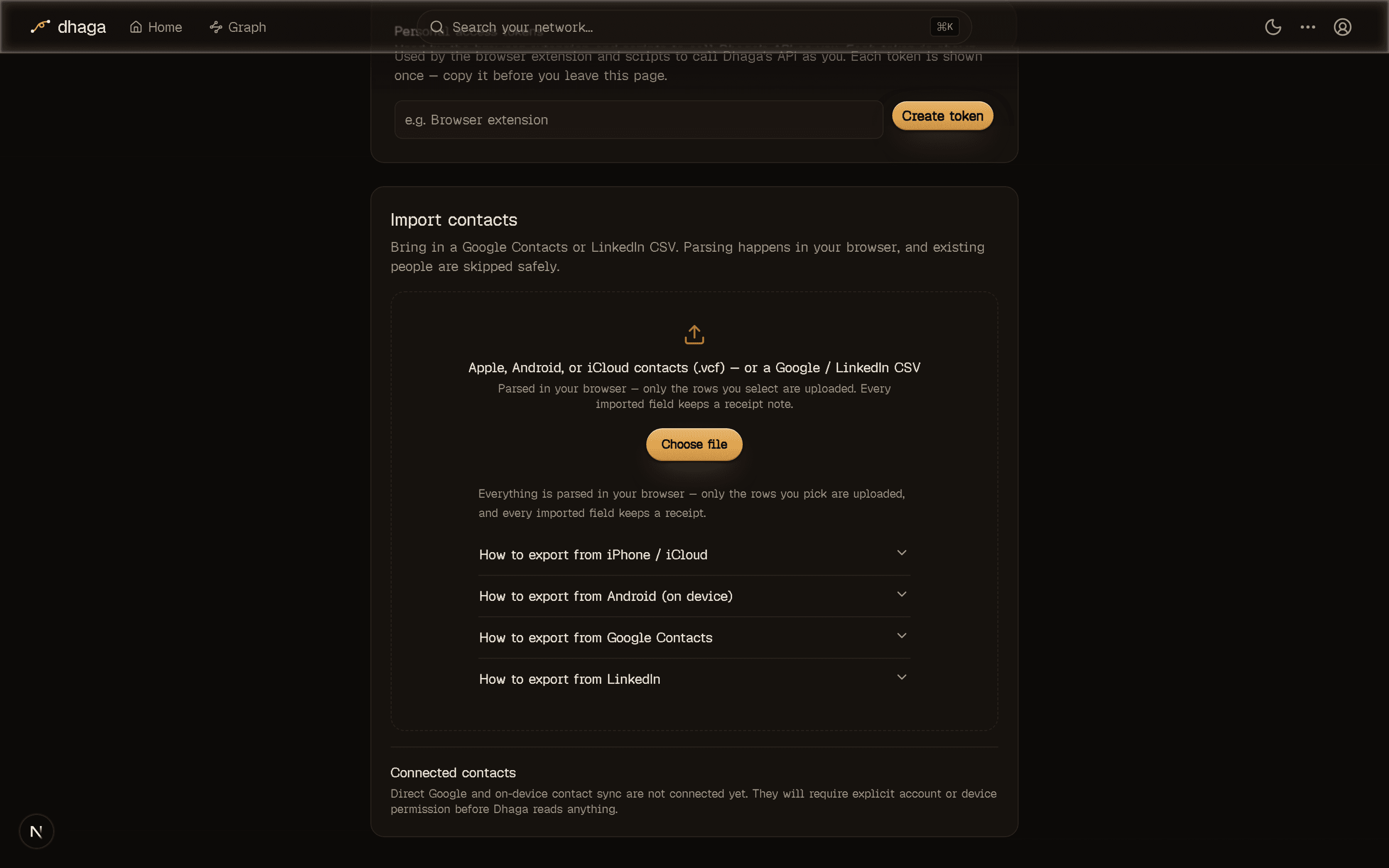
From a file (.vcf or CSV)
Drop a .vcf (vCard) or .csv onto the import area, or click Choose file.
The file is parsed entirely in your browser — nothing is uploaded until you
pick who to keep. You then get a review list to select rows, and only the
selected contacts are saved.
The screen has collapsible "How to export from…" steps for each source. In short:
- iPhone / iCloud — on a computer, sign in to iCloud.com → Contacts,
press ⌘A / Ctrl+A to select everyone, then the gear (bottom-left) →
Export vCard. (On the phone you can share a single contact as
.vcf, but iCloud.com exports everyone at once.) - Android — Contacts app → Settings → Export → Export to .vcf file, then move it to your computer.
- Google — contacts.google.com → Export and choose vCard or Google CSV (both work here).
- LinkedIn — My Network → Connections → Manage synced contacts (or
Data privacy → Get a copy of your data → Connections) and upload the
Connections.csv. - Outlook — export contacts as CSV from Outlook and drop the file in.
Big address books
Very large files (100k+ contacts, tens of MB) will warn you and can be slow —
split the .vcf into a few smaller files if it drags.
One-click: Connect Google or Outlook
When the instance is configured for it, a Connect an account row appears above the file drop with Connect Google Contacts and/or Connect Outlook / Hotmail buttons. Clicking one sends you to that provider's own consent screen — you're granting your own account, read-only, and you can disconnect any time. On return, your contacts come straight into the same review-and-select list as a file import.
- Google covers Google Contacts.
- Outlook covers Outlook.com, Hotmail, Live, and Microsoft 365.
These buttons only show when configured
The connectors need a one-time operator setup (OAuth credentials). If you don't
see them, the instance hasn't wired them up — the file import above covers every
source in the meantime. Operators: see Self-hosting and the
repo's docs/CONTACT_IMPORT_SETUP.md for the Google Cloud / Azure steps.
No Apple / iCloud connector
There's no "Connect iCloud" button — Apple provides no contacts API. For
Apple/iCloud contacts, use the .vcf export from iCloud.com described above;
it brings in everyone at once.
On your phone (mobile app)
The mobile app can import the contacts already on the device. Open the Import contacts screen, grant the Contacts permission when asked (iOS and Android each show a native prompt; if you decline, the screen offers an Open Settings shortcut), then pick who to bring in. It uses the same API key you set up on the mobile Setup screen — no extra configuration.
Needs a native build
On-device import ships as code but needs a native app build to appear (it can't arrive via an over-the-air JS update or plain Expo Go), and is pending on-device testing.
Once people are in, add notes and facts, enrich them from the web, or group them into events.
Capturing people
Add a person to your graph from pasted text, a card photo, voice, your webcam, or a file — with a review step that confirms the fields before saving.
Notes & facts
Add notes to a person by typing or voice; Dhaga extracts structured facts automatically (or add facts and follow-ups by hand — no AI needed), keeps a receipt on each, and cascades deletions.